Flint Engine
A CLI-first, AI-agent-optimized 3D game engine written in Rust.
Flint is a general-purpose 3D game engine designed from the ground up to provide an excellent interface for AI coding agents, while maintaining effective workflows for human developers. Unlike existing engines that optimize for GUI-driven workflows, Flint prioritizes programmatic interaction, introspection, and validation.
The Core Idea
Current game engines are built around visual editors, drag-and-drop workflows, and GUI-heavy tooling. These become friction points when AI agents attempt to make changes programmatically — the agent ends up fighting against abstractions designed for human spatial reasoning and visual feedback loops.
Flint inverts this: the primary interface is CLI and code, with visual tools focused on validating results rather than creating them.
Every scene is a TOML file you can read, diff, and version. Every operation is a composable CLI command. Every piece of engine state is queryable as structured data. The viewer exists to answer one question: “Did the agent do what I asked?”
Built with Flint
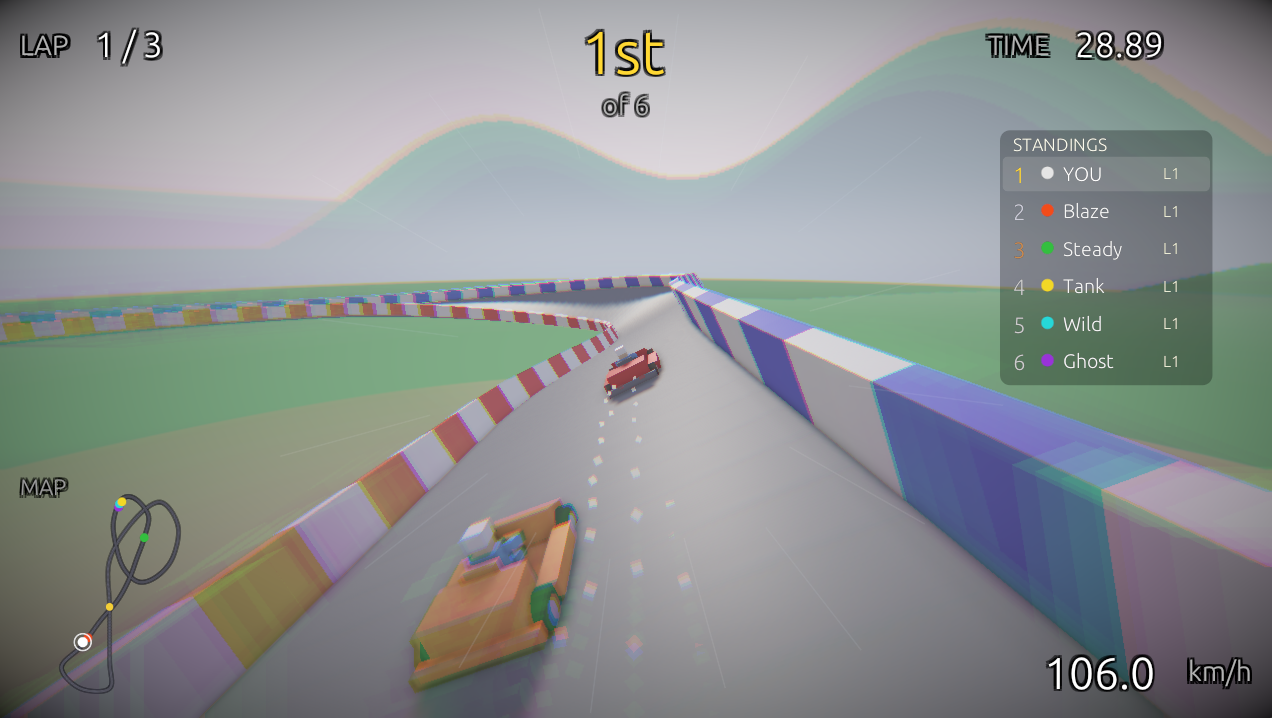
FlintKart: a kart racing game built as a standalone project using Flint’s game project architecture — custom schemas, scripts, and assets layered on top of the engine via git subtree.
Visual Showcase
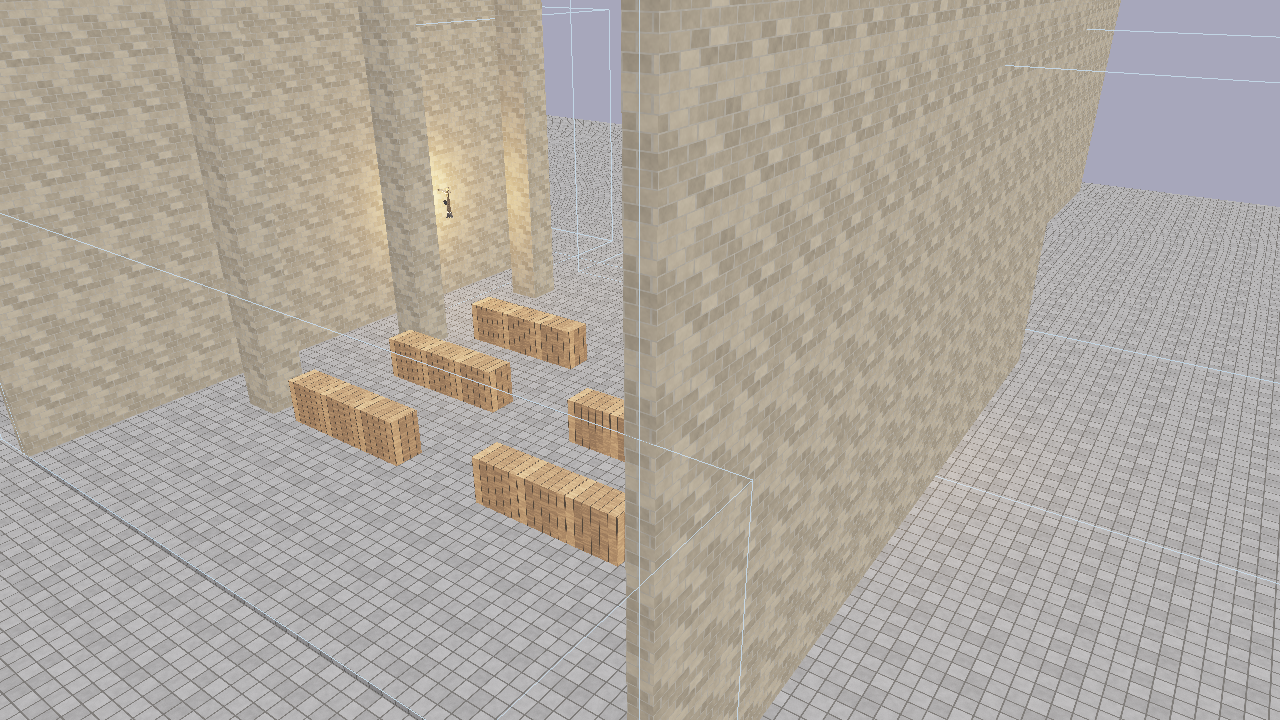
The Luminarium showcase scene: Cook-Torrance PBR shading with cascaded shadows, textured walls and floors, glTF models, and emissive materials.
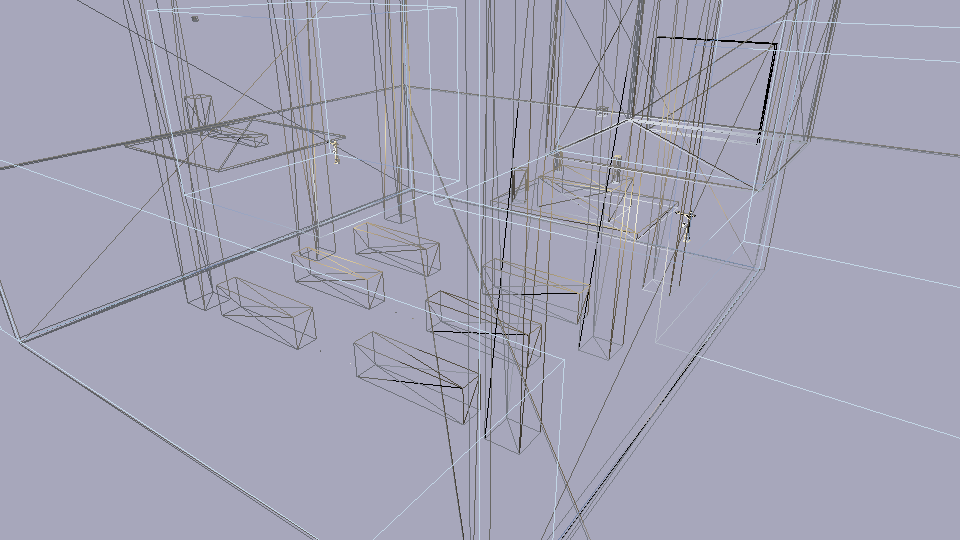
Wireframe debug mode reveals mesh topology — one of eight built-in shading modes (chosen from the F4 Rendering & Effects menu, or --debug-mode headlessly) for inspecting geometry, normals, depth, UVs, and material properties.
What It Looks Like
Create a scene, add entities, query them, and view the result — all from the command line:
# Initialize a project
flint init my-game

# Create a scene and populate it
flint scene create levels/tavern.scene.toml --name "The Tavern"
flint entity create --archetype room --name "main_hall" --scene levels/tavern.scene.toml
flint entity create --archetype door --name "front_door" --parent "main_hall" --scene levels/tavern.scene.toml

# Query what you've built
flint query "entities where archetype == 'door'" --scene levels/tavern.scene.toml

# Validate against constraints
flint validate levels/tavern.scene.toml --fix --dry-run

# See it in 3D with PBR rendering
flint edit levels/tavern.scene.toml --watch

# Walk around in first person
flint play levels/tavern.scene.toml
Current Status
The engine supports:
- Entity CRUD via CLI with archetype-based creation
- Scene serialization in human-readable TOML
- Query language for filtering and inspecting entities
- Schema system for component and archetype definitions
- Constraint validation with auto-fix capabilities
- Asset management with content-addressed storage and glTF import
- PBR renderer with Cook-Torrance shading, cascaded shadow mapping, and glTF mesh rendering
- GPU skeletal animation with glTF skin/joint import, vertex skinning, and crossfade blending
- egui inspector with entity tree, component editing, and constraint overlay
- Hot-reload viewer that watches for file changes
- Headless rendering for CI and automated screenshots
- Physics simulation via Rapier 3D with kinematic character controller
- First-person gameplay with WASD movement, mouse look, jumping, and sprinting
- Game loop with fixed-timestep accumulator for deterministic physics
- Spatial audio via Kira with 3D positioned sounds, ambient loops, and event-driven triggers
- Property animation with TOML-defined keyframe clips (Step, Linear, CubicSpline interpolation)
- Skeletal animation with glTF skin import, GPU bone matrix skinning, and crossfade blending
- Rhai scripting with entity/input/audio/animation APIs, event callbacks, and hot-reload
- Interactable entities with HUD prompts, proximity detection, and scripted behaviors
- AI asset generation with pluggable providers (Flux textures, Meshy 3D models, ElevenLabs audio), style guides, batch scene resolution, model validation, and build manifests
- Billboard sprites with camera-facing quads and sprite sheet animation
- GPU particle system with instanced rendering, per-emitter pooling, alpha/additive blending, and configurable emission shapes
- Extensible input system with config-driven bindings for keyboard, mouse, and gamepad with runtime rebinding
- Data-driven UI system with TOML-defined layouts, style classes, anchor-based positioning, flow layouts, and runtime scripting API
- Game project architecture for standalone games that include the engine as a git subtree
See the Roadmap for the full development history.
Who Is This For?
- AI agent developers building game content programmatically
- Technical game developers who prefer code over visual editors
- Tooling enthusiasts who want to compose game development operations
- Rust game developers looking for a deterministic, introspectable engine
Reading This Guide
- Start with Why Flint? to understand the motivation
- Follow the Getting Started guide to build from source and create your first project
- Explore Core Concepts to learn about the engine’s systems
- Check the Architecture section if you want to understand the codebase
- Browse the API Reference for per-crate Rust documentation
Quick Reference
A scannable cheat sheet for daily Flint development.
CLI Commands
| Command | Description |
|---|---|
flint init <name> | Initialize a new project |
flint scene create <path> | Create a new scene file |
flint scene list | List scene files |
flint scene info | Show scene metadata |
flint entity create | Create an entity in a scene |
flint entity delete | Delete an entity from a scene |
flint query "<expr>" | Query entities (e.g., "entities where archetype == 'door'") |
flint schema <name> | Inspect a component or archetype schema |
flint validate <scene> | Validate scene against constraints (--fix to auto-fix) |
flint edit <file> | Unified interactive editor (auto-detects file type) |
flint play <scene> | First-person gameplay with physics + scripting |
flint render <scene> -o out.png | Headless render to PNG |
flint gen <spec> -o out.glb | Run procgen spec to produce mesh/texture |
flint asset generate <type> | AI asset generation (texture, model, audio) |
flint asset import <file> | Import file into asset catalog |
flint prefab view <template> | Preview a prefab template in the viewer |
flint validate-suite <manifest> | Validate a music suite manifest (--chart to cross-check) |
flint play-suite <manifest> | Play a suite’s stems, no judgment |
flint calibrate <manifest> | Tap-to-beat latency calibration |
flint play-chart <manifest> --chart <chart> | Play a chart with live gamepad capture (--record, --window) |
flint replay-chart <manifest> --chart <chart> | Replay a recorded or synthetic session headless |
flint render-suite <manifest> -o out.wav | Render a scripted suite session to WAV |
flint spike-rumble | Time the gamepad rumble paths |
Music commands are detailed in Music Commands.
Keyboard Shortcuts
Player (flint play)
| Key | Action |
|---|---|
| WASD | Move |
| Mouse | Look around |
| Space | Jump |
| Shift | Sprint |
| E | Interact |
| Left Click | Fire |
| R | Reload |
| 1 / 2 | Weapon slots |
| F2 | Toggle render stats overlay |
| F3 | Toggle scene debug panels (ocean, day/time, camera, grass, weather… — only those the scene uses; never the F4 menu) |
| F4 | Toggle the Rendering & Effects menu (all render/post toggles and parameters, debug shading mode, shadows, lighting levers) |
| F9 | Force a music-session full-fail (debug builds, session running) |
` / \ | Music Guide overlay / Manifest Map strip (debug builds, session running) |
| F11 | Toggle fullscreen |
The old per-effect keys (F1 debug mode, F4 shadows, F5 bloom, F6 post) are gone; everything is in the F4 menu. | Escape | Release cursor / Exit |
Scene Viewer (flint edit <scene.toml>)
| Key | Action |
|---|---|
| Left-click | Select entity / pick gizmo axis |
| Left-drag | Orbit camera (or drag gizmo) |
| Right-drag | Pan camera |
| Scroll | Zoom |
| W/A/S/D, Q/E | Orbit, zoom out/in (no entity selected) |
| W / E / R | Gizmo mode: translate / rotate / scale (entity selected) |
| Space | Return to the scene’s authored [camera] framing |
O, [ / ] | Toggle auto-orbit, slower / faster |
| Ctrl+S | Save scene |
| Ctrl+Z | Undo position change |
| Ctrl+Shift+Z | Redo position change |
| F2 | Toggle render stats |
| F3 | Toggle normal arrows |
| F4 | Toggle the Rendering & Effects menu |
Spline Editor (flint edit <scene.toml> --spline)
| Key | Action |
|---|---|
| Left-click | Select control point |
| Left-drag | Move control point |
| Alt+drag | Move vertically (Y) |
| Middle-drag | Orbit |
| Right-drag | Pan |
| Tab / Shift+Tab | Cycle control points |
| I | Insert point |
| Delete | Remove point |
| Ctrl+S | Save spline |
| Ctrl+Z | Undo |
Rendering & Effects Menu (F4, player and viewer)
One panel for everything the old F-keys flipped. Sections: Post chain (enable, exposure, vignette, chromatic aberration, radial blur, desaturate; player-only “freeze script post overrides”), SSAO (radius, intensity, bias, samples), Depth of field (strength, focus distance, range; viewer adds DoF-follow-selection), Fog and height fog, Bloom with film grain and FXAA, Kuwahara, Render mode (none / Matrix / blood / drunk / Tron / underwater, mix, params), Dither / Volumetric, Shadows (enable, resolution — rebuilds the shadow pass), Lighting (ambient sky/ground, diffuse wrap, Oren-Nayar, sheen, reset), Camera (vertical FOV), Shading (debug mode combo). The viewer also has an authored-vs-viewer-default post switch.
File Type Auto-Detection (flint edit)
| Extension | Opens |
|---|---|
.scene.toml, .chunk.toml | Scene viewer |
.procgen.toml | Procgen previewer (or texture pipeline editor) |
.terrain.toml | Terrain editor |
.glb, .gltf | Model previewer (orbit camera) |
Common TOML Snippets
Minimal Entity
[entities.my_thing]
archetype = "furniture"

[entities.my_thing.transform]
position = [0, 1, 0]
rotation = [0, 45, 0]
scale = [1, 1, 1]
PBR Material
[entities.my_thing.material]
base_color = [0.8, 0.2, 0.1]
roughness = 0.6
metallic = 0.0
emissive = [1.0, 0.4, 0.1]
emissive_strength = 2.0
Physics Body
[entities.wall.collider]
shape = "box"
size = [10.0, 4.0, 0.5]

[entities.wall.rigidbody]
body_type = "static"
Particle Emitter (Fire)
[entities.fire.particle_emitter]
emission_rate = 40.0
max_particles = 200
lifetime_min = 0.3
lifetime_max = 0.8
speed_min = 1.5
speed_max = 3.0
direction = [0, 1, 0]
gravity = [0, 2.0, 0]
size_start = 0.15
size_end = 0.02
color_start = [1.0, 0.7, 0.1, 0.9]
color_end = [1.0, 0.1, 0.0, 0.0]
blend_mode = "additive"
shape = "sphere"
shape_radius = 0.15
autoplay = true
Post-Processing
[post_process]
bloom_enabled = true
bloom_intensity = 0.04
bloom_threshold = 1.0
vignette_enabled = true
vignette_intensity = 0.3
exposure = 1.0
ssao_samples = 16               # 1-64; 16 is ~4x cheaper than the default 64
desaturate = 0.0                # 0 = full colour, 1 = ash-grey
dof_strength = 0.0              # 0 = sharp
dof_focus_distance = 10.0       # view metres
dof_focus_range = 5.0
kuwahara_enabled = false        # painterly pre-pass
film_grain = 0.0                # 0.02-0.05 is subtle
grade_lift = [0.0, 0.0, 0.0]    # after ACES; neutral 0,0,0
grade_gamma = [1.0, 1.0, 1.0]
grade_gain = [1.0, 1.0, 1.0]
fxaa = false                    # off by default so pixel gates stay single-path
Lighting Levers
[environment]
ambient_sky = [0.35, 0.40, 0.50]
ambient_ground = [0.18, 0.14, 0.10]
diffuse_wrap = 0.3      # 0 = legacy sharp terminator
oren_nayar = 0.7        # 0 = Lambert
sheen_color = [1.0, 0.9, 0.8]
sheen_strength = 0.15   # keep <= ~0.3
Authored Camera
[camera]
position = [0, 4, 12]
target = [0, 1, 0]
fov = 60.0
UI Layout
# ui/hud.ui.toml
[ui]
name = "HUD"
style = "ui/hud.style.toml"

[elements.score_panel]
type = "panel"
anchor = "top-right"
class = "hud-panel"

[elements.score_text]
type = "text"
parent = "score_panel"
class = "score-value"
text = "0"
UI Style
# ui/hud.style.toml
[styles.hud-panel]
width = 160
height = 50
bg_color = [0.0, 0.0, 0.0, 0.6]
rounding = 6
padding = [10, 8, 10, 8]
x = -10
y = 10

[styles.score-value]
font_size = 28
color = [1.0, 1.0, 1.0, 1.0]
text_align = "center"
width_pct = 100
Script Attachment
[entities.npc.script]
source = "npc_behavior.rhai"
enabled = true

[entities.npc.interactable]
prompt_text = "Talk"
range = 3.0
interaction_type = "talk"
Audio Source
[entities.campfire.audio_source]
file = "audio/fire_crackle.ogg"
volume = 0.8
loop = true
spatial = true
min_distance = 1.0
max_distance = 15.0
Prefab Instance
[prefabs.player]
template = "kart"
prefix = "player"

[prefabs.player.overrides.kart.transform]
position = [0, 0, 0]
Top Scripting Functions
| Function | Returns | Description |
|---|---|---|
self_entity() | i64 | ID of the entity this script is attached to |
get_entity(name) | i64 | Look up entity by name (-1 if not found) |
get_field(id, comp, field) | Dynamic | Read a component field |
set_field(id, comp, field, val) | — | Write a component field |
get_position(id) | #{x,y,z} | Entity position |
set_position(id, x, y, z) | — | Set entity position |
distance(a, b) | f64 | Distance between two entities |
is_action_pressed(action) | bool | Check if action is held |
is_action_just_pressed(action) | bool | Check if action pressed this frame |
delta_time() | f64 | Seconds since last frame |
play_sound(name) | — | Play a sound effect |
set_dof(strength) / set_dof_focus(dist, range) | — | Drive depth of field from a script |
set_desaturation(amount) | — | Drain colour toward ash-grey (0–1) |
set_camera_roll(radians) | — | Roll the camera about its view axis |
conducted_lean() / conducted_coherence() | #{x,y} / f64 | Read the running music session (neutral values when none) |
play_clip(id, clip) | — | Play an animation clip |
set_anim_layer(id, idx, clip, w) | — | Play a clip on an animation layer |
set_anim_layer_weight(id, idx, w) | — | Set a layer’s weight instantly |
fade_anim_layer(id, idx, w, secs) | — | Ramp a layer’s weight over secs |
play_sequence(id, name) / stop_sequence(id) | — | Drive the animator from animations/*.sequence.toml (cues → on_sequence_cue) |
raycast(ox,oy,oz, dx,dy,dz, dist) | Map/() | Cast a ray, get hit info |
move_character(id, dx, dy, dz) | #{x,y,z,grounded} | Collision-corrected movement |
spawn_entity(name) | i64 | Create a new entity |
load_scene(path) | — | Transition to a new scene |
push_state("paused") | — | Push a game state (e.g., pause) |
pop_state() | — | Pop to previous game state |
persist_set(key, val) | — | Store data across scene transitions |
load_ui(path) | i64 | Load a .ui.toml document (returns handle) |
ui_set_text(id, text) | — | Set element text content |
ui_show(id) / ui_hide(id) | — | Toggle element visibility |
ui_set_style(id, prop, val) | — | Override a style property at runtime |
Render Command Quick Examples
# Basic screenshot
flint render scene.toml -o shot.png --schemas schemas

# Framed hero shot
flint render scene.toml -o hero.png --distance 20 --pitch 30 --yaw 45 --target 0,1,0 --no-grid

# Debug views
flint render scene.toml -o wireframe.png --debug-mode wireframe
flint render scene.toml -o normals.png --debug-mode normals
flint render scene.toml -o depth.png --debug-mode depth

# Post-processing control
flint render scene.toml -o bloom.png --bloom-intensity 0.08
flint render scene.toml -o raw.png --no-postprocess
flint render scene.toml -o dof.png --dof 0.6 --dof-focus 8 --dof-range 3
flint render scene.toml -o graded.png --grade-lift 0.03,0.02,0.015 --grade-gain 1.04,1,0.94 --film-grain 0.03
flint render scene.toml -o drained.png --desaturate 0.85

# Anti-aliasing and lighting levers (both default off; ADR 0058 / 0048)
flint render scene.toml -o smooth.png --msaa 4 --fxaa
flint render scene.toml -o clay.png --oren-nayar 0.7 --sheen-strength 0.15 --sheen-color 1,0.9,0.8

# Cheaper SSAO for quick iteration
flint render scene.toml -o fast.png --ssao-samples 16
Why Flint?
The Problem
Game engines today — Unity, Unreal, Godot — are designed around visual editors. You drag objects into scenes, connect nodes in graphs, click through property inspectors. These workflows are excellent for humans using a mouse, but they create friction in two growing scenarios:
-
AI agents building game content. When an AI coding agent needs to place a door in a scene, it shouldn’t need to simulate mouse clicks on a GUI. It should issue a command and get structured feedback.
-
Automation and CI pipelines. Validating a scene, running regression tests on visual output, or batch-processing hundreds of entities — these tasks fight against editor-centric architectures.
The core tension: existing engines treat programmatic access as a secondary concern. The API exists, but it’s bolted onto a system designed for spatial interaction. Scene formats are binary or semi-readable. Introspection is limited. Determinism is not guaranteed.
The Thesis
Flint starts from the opposite assumption: the primary interface is CLI and code. Visual tools are for validation, not creation.
This doesn’t mean Flint is hostile to humans. It means every operation flows through a composable, scriptable interface first. If you can do it in the CLI, you can automate it. If you can automate it, an AI agent can do it. The viewer is the place where a human confirms: “Yes, that’s what I wanted.”
What This Enables
For AI agents
An agent working with Flint has a clean contract:
- Issue CLI commands, get structured JSON/TOML responses
- Query any aspect of engine state with a SQL-inspired language
- Validate work against declarative constraint rules
- Produce visual artifacts (headless renders) for verification
No simulated GUI interaction. No screen scraping. No ambiguous visual state.
For humans
A developer working with Flint gets:
- Scene files that are human-readable TOML, easily diffable in git
- A query language for exploring what’s in a scene without opening an editor
- Constraint rules that serve as living documentation of what a “correct” scene looks like
- A hot-reload viewer that updates in real-time as files change
For teams
A team using Flint gets:
- Deterministic builds — same inputs always produce identical outputs
- Text-based formats that merge cleanly in version control
- Structured output for CI pipelines and automated testing
- A shared vocabulary between human developers and AI tools
Comparison
| Aspect | Traditional Engines | Flint |
|---|---|---|
| Primary interface | GUI editor | CLI |
| Scene format | Binary or semi-text | TOML (fully text) |
| Programmatic API | Secondary | Primary |
| Introspection | Limited | Full (query language) |
| Deterministic builds | Generally no | Yes |
| AI-agent optimized | No | Yes |
| Validation | Runtime errors | Declarative constraints |
The Name
Flint is a tool for starting fires. Simple, reliable, fundamental. Strike it and something sparks into existence. That’s the idea: minimal friction between intent and result.
Design Principles
Flint’s architecture follows six principles that guide every design decision. They are listed in priority order — when principles conflict, higher-ranked ones win.
1. CLI-First
Every operation is expressible as a composable command. There is no operation that requires a GUI. The CLI is the source of truth for what the engine can do.
This means:
- All commands accept flags for output format (
--format json,--format toml) - Commands compose via pipes and standard shell tooling
- Batch operations are first-class, not afterthoughts
- The viewer is a consumer of state, not a producer of it
2. Introspectable
You can query any aspect of engine state as structured data. Nothing is hidden behind opaque handles or binary blobs.
# What entities exist?
flint query "entities where archetype == 'door'"

# What does a door look like?
flint schema door

# What would this change break?
flint validate levels/tavern.scene.toml --fix --dry-run
The query language is the same whether you’re exploring interactively or writing constraint rules. Learn it once, use it everywhere.
3. Deterministic
Same inputs always produce identical outputs. No hidden state, no ambient randomness, no order-dependent behavior.
- Entity IDs are stable across save/load cycles
- Procedural generation uses explicit seeds
- Build manifests record exact asset hashes
- Headless renders are reproducible for regression testing
4. Text-Based
Scene and asset formats are human-readable, machine-parseable, and diffable. TOML is the primary format throughout.
[entities.front_door]
archetype = "door"
parent = "main_hall"

[entities.front_door.transform]
position = [5, 0, 0]

[entities.front_door.door]
style = "hinged"
locked = false
This isn’t just about readability — it’s about collaboration. Text files merge cleanly in version control. Diffs are meaningful. AI agents can read and write them directly.
5. Constraint-Driven
Declarative rules define what a valid scene looks like. The engine validates against these rules and can optionally auto-fix violations.
Constraints serve multiple roles:
- Validation — catch errors before they become runtime bugs
- Documentation — constraints describe what “correct” means
- Automation — auto-fix rules handle routine corrections
- Communication — constraints are a shared contract between human and AI
6. Hybrid Workflows
Humans and AI agents collaborate effectively on the same project. Neither workflow is an afterthought.
The typical loop:
- An AI agent creates or modifies scene content via CLI
- Constraints validate the changes automatically
- A human reviews the result in the viewer
- Feedback flows back to the agent as structured data
This principle ensures Flint doesn’t optimize so hard for agents that humans can’t use it, or so hard for humans that agents can’t automate it.
CLI-First Workflow
Flint’s primary interface is the command line. Every engine operation — creating entities, querying scenes, validating constraints, importing assets, generating content — is a composable CLI command. Visual tools exist to validate results, not to create them.
Why CLI-First?
Traditional game engines center on visual editors: drag a mesh into a viewport, tweak a slider, click Save. This works well for a single human at a desk, but it creates friction for:
- Automation — you can’t script a drag-and-drop operation
- Reproducibility — a sequence of mouse clicks isn’t version-controllable
- AI agents — they see text, not pixels
- CI/CD — headless servers have no windows to click in
- Collaboration — binary project files don’t merge cleanly in git
Flint inverts the priority: text-first, visual-second. The CLI is the engine’s native language.
Composable Commands
Every command reads structured input and produces structured output. This means standard shell patterns work naturally:
# Create a scene with several entities
flint scene create levels/dungeon.scene.toml --name "Dungeon Level 1"
flint entity create --archetype room --name "entrance" --scene levels/dungeon.scene.toml
flint entity create --archetype door --name "iron_gate" --parent "entrance" --scene levels/dungeon.scene.toml

# Query and filter with standard tools
flint query "entities where archetype == 'door'" --scene levels/dungeon.scene.toml --format json

# Validate and capture results
flint validate levels/dungeon.scene.toml --format json

# Render a preview image for review
flint render levels/dungeon.scene.toml --output preview.png --width 1920 --height 1080
Structured Output
Commands support --format json and --format toml output modes, making their results machine-readable. This enables pipelines like:
# Count entities of each archetype
flint query "entities" --scene levels/tavern.scene.toml --format json | jq 'group_by(.archetype) | map({archetype: .[0].archetype, count: length})'

# Check if validation passes (exit code 0 = clean, 1 = violations)
flint validate levels/tavern.scene.toml --format json && echo "Scene is valid"
JSON output follows consistent schemas, so tools can parse results reliably across engine versions.
Batch Operations
Because every operation is a command, building complex scenes is just a script:
#!/bin/bash
SCENE="levels/tavern.scene.toml"

flint scene create "$SCENE" --name "The Rusty Flagon"

# Build the structure
for room in main_hall kitchen storage; do
    flint entity create --archetype room --name "$room" --scene "$SCENE"
done

# Add doors between rooms
flint entity create --archetype door --name "kitchen_door" --parent "main_hall" --scene "$SCENE"
flint entity create --archetype door --name "storage_door" --parent "kitchen" --scene "$SCENE"

# Validate the whole thing
flint validate "$SCENE" --fix
This script is version-controllable, reproducible, and can run in CI.
The Viewer as Validator
The flint edit --watch viewer and flint play command are verification tools, not authoring tools. They answer the question: “Does the scene I built look correct?”
# Edit the TOML in your text editor, viewer updates automatically
flint edit levels/tavern.scene.toml --watch

# Walk through the scene to verify physics, audio, and interactions
flint play levels/tavern.scene.toml
The viewer hot-reloads when the scene file changes. Edit TOML, save, see the result — no GUI interaction required.
Headless Rendering for CI
Scenes can be rendered to PNG without a window, enabling automated visual validation:
flint render levels/tavern.scene.toml --output screenshots/tavern.png --width 1920 --height 1080
This is the foundation for visual regression testing in CI pipelines — render a baseline, then compare future renders against it.
Contrast with GUI Engines
| Aspect | GUI Engine | Flint |
|---|---|---|
| Primary input | Mouse clicks, drag-and-drop | CLI commands, TOML files |
| Automation | Limited (editor scripting plugins) | Native (every operation is a command) |
| Version control | Binary project files | Text TOML files, clean git diffs |
| AI agent support | Screenshot parsing, GUI automation | Structured text I/O, query introspection |
| Headless operation | Usually not supported | First-class (render, validate, query) |
| Reproducibility | Manual steps, screenshots | Scripts, exit codes, structured output |
This doesn’t mean Flint is text-only. It means the text interface is complete — anything you can do in the viewer, you can do (and automate) from the command line.
Further Reading
- AI Agent Interface — how this philosophy benefits AI coding agents
- Design Principles — the broader design philosophy
- CLI Reference — full command documentation
AI Agent Interface
Flint is designed from the ground up to be an excellent interface for AI coding agents. Where traditional engines optimize for human spatial reasoning and visual feedback, Flint optimizes for text-based reasoning, structured data, and automated validation.
The Problem with GUI Engines
AI agents working with traditional game engines face fundamental friction:
- Screenshot parsing — agents must interpret rendered pixels to understand scene state, an unreliable and lossy process
- GUI automation — clicking buttons and dragging sliders through accessibility APIs or screenshot analysis is brittle
- Binary formats — proprietary project files can’t be read, diffed, or generated as text
- Implicit state — engine state lives in inspector panels, viewport selections, and undo histories that agents can’t access
Flint eliminates all of these friction points.
Structured Input and Output
Every Flint command accepts text input and produces structured text output:
# JSON output for machine parsing
flint query "entities where archetype == 'door'" --scene levels/tavern.scene.toml --format json

# Exit codes signal success (0) or failure (1)
flint validate levels/tavern.scene.toml --format json
echo $?  # 0 = valid, 1 = violations found
An agent can create entities, modify scenes, and inspect state entirely through text — no screenshots, no pixel coordinates, no GUI automation.
Query-Based Introspection
The query language gives agents programmatic access to scene state. Instead of reading a screenshot to count doors, an agent can:
# How many doors are in this scene?
flint query "entities where archetype == 'door'" --scene levels/tavern.scene.toml --format json | jq length

# Is this door locked?
flint query "entities where door.locked == true" --scene levels/tavern.scene.toml --format json

# What components does the player entity have?
flint query "entities where archetype == 'player'" --scene levels/tavern.scene.toml --format json
Queries return structured data that agents can parse, reason about, and use to plan their next action.
Constraint Validation as Feedback
Constraints provide an automated feedback loop. An agent doesn’t need a human to check its work — it can validate programmatically:
# Agent creates some entities...
flint entity create --archetype door --name "secret_door" --scene levels/tavern.scene.toml

# Then checks if the scene is still valid
flint validate levels/tavern.scene.toml --format json
If validation fails, the JSON output tells the agent exactly what’s wrong and how to fix it. The --fix --dry-run mode even previews what auto-fixes would apply. This creates a tight create-validate-fix loop that agents can execute without human intervention.
Schema Introspection
Agents can discover what components and archetypes are available without reading documentation:
# What fields does the 'door' component have?
flint schema door

# What components does the 'player' archetype include?
flint schema player
This means an agent can learn the engine’s data model at runtime, then use that knowledge to create valid entities.
Headless Rendering
Visual verification without a window:
# Render the scene to an image file
flint render levels/tavern.scene.toml --output preview.png --width 1920 --height 1080
An agent (or its supervisor) can render a preview image to check that the scene looks correct, without opening a GUI. This enables visual regression testing in CI and supports workflows where an agent builds a scene, renders a preview, and a human reviews the image.
TOML as Scene Format
Scenes are plain TOML text files. An agent can:
- Read a scene file directly as text
- Write entity data by editing TOML
- Diff changes with standard tools (
git diff) - Generate entire scenes programmatically
- Merge changes from multiple agents without conflicts (each entity is a distinct TOML section)
No proprietary binary formats, no deserialization libraries, no SDK required.
AI Asset Generation
Phase 5 extends the agent interface to asset creation. Agents can generate textures, 3D models, and audio through CLI commands:
# Generate a texture using AI
flint asset generate texture -d "rough stone wall with mortar lines" --style medieval_tavern

# Batch-generate all missing assets for a scene
flint asset resolve my_scene.scene.toml --strategy ai_generate --style medieval_tavern
Style guides ensure generated assets maintain visual consistency, and model validation checks results against constraints — the same automated feedback loop that works for scene structure now works for asset quality.
Further Reading
- CLI-First Workflow — the composable command interface
- AI Agent Workflow — step-by-step guide for agent developers
- AI Asset Generation — the AI asset generation pipeline
Installation
Flint is built from source using the Rust toolchain. There are no pre-built binaries yet.
Prerequisites
- Rust (stable, 1.75+) — install from rustup.rs
- Git — for cloning the repository
- A GPU with Vulkan, Metal, or DX12 support (for the renderer and viewer)
Build from Source
Clone the repository and build in release mode:
git clone https://github.com/chrischaps/flint.git
cd flint
cargo build --release
The binary is at target/release/flint (or target/release/flint.exe on Windows).
Verify Installation
cargo run --bin flint -- --version
You should see the Flint version string.
Running Without Installing
You can run Flint directly through Cargo without installing it system-wide:
cargo run --bin flint -- <command>
For example:
cargo run --bin flint -- init my-game
cargo run --bin flint -- serve demo/showcase.scene.toml --watch
Running Tests
To verify everything is working:
cargo test
This runs the full test suite across all crates.
Optional: Add to PATH
To use flint directly without cargo run:
cargo install --path crates/flint-cli
Or copy the release binary to a directory on your PATH.
What’s Next
With Flint built, follow Your First Project to create a scene from scratch.
Your First Project
This guide walks through creating a Flint project and building a simple scene using only CLI commands.
Initialize a Project
flint init my-tavern
This creates a project directory with the standard structure:
my-tavern/
├── schemas/
│   ├── components/
│   │   ├── transform.toml
│   │   ├── bounds.toml
│   │   └── door.toml
│   ├── archetypes/
│   │   ├── room.toml
│   │   ├── door.toml
│   │   ├── furniture.toml
│   │   └── character.toml
│   └── constraints/
│       └── basics.toml
├── levels/
└── assets/
The schemas/ directory contains default component definitions, archetype bundles, and constraint rules. You’ll modify and extend these as your project grows.
Create a Scene
flint scene create my-tavern/levels/tavern.scene.toml --name "The Rusty Flint Tavern"
This creates an empty scene file:
[scene]
name = "The Rusty Flint Tavern"
version = "1.0"
Add Rooms
Build out the space with room entities:
flint entity create --archetype room --name "main_hall" \
    --scene my-tavern/levels/tavern.scene.toml \
    --schemas my-tavern/schemas \
    --props '{"transform":{"position":[0,0,0]},"bounds":{"min":[-7,0,-5],"max":[7,4,5]}}'
The --archetype room flag tells Flint to create an entity with the components defined in schemas/archetypes/room.toml (transform + bounds). The --props flag provides the specific values.
Add a kitchen connected to the main hall:
flint entity create --archetype room --name "kitchen" \
    --parent "main_hall" \
    --scene my-tavern/levels/tavern.scene.toml \
    --schemas my-tavern/schemas \
    --props '{"transform":{"position":[0,0,-9]},"bounds":{"min":[-4,0,-3],"max":[4,3.5,3]}}'
The --parent flag establishes a hierarchy — the kitchen is a child of the main hall.
Add a Door
flint entity create --archetype door --name "front_entrance" \
    --parent "main_hall" \
    --scene my-tavern/levels/tavern.scene.toml \
    --schemas my-tavern/schemas \
    --props '{"transform":{"position":[0,0,5]},"door":{"style":"hinged","locked":false}}'
Query Your Scene
See what you’ve built:
flint query "entities" --scene my-tavern/levels/tavern.scene.toml
Filter for specific archetypes:
flint query "entities where archetype == 'door'" --scene my-tavern/levels/tavern.scene.toml
Inspect the Scene File
The scene is plain TOML. Open my-tavern/levels/tavern.scene.toml and you’ll see:
[scene]
name = "The Rusty Flint Tavern"
version = "1.0"

[entities.main_hall]
archetype = "room"

[entities.main_hall.transform]
position = [0, 0, 0]

[entities.main_hall.bounds]
min = [-7, 0, -5]
max = [7, 4, 5]

[entities.kitchen]
archetype = "room"
parent = "main_hall"

[entities.kitchen.transform]
position = [0, 0, -9]

[entities.kitchen.bounds]
min = [-4, 0, -3]
max = [4, 3.5, 3]

[entities.front_entrance]
archetype = "door"
parent = "main_hall"

[entities.front_entrance.transform]
position = [0, 0, 5]

[entities.front_entrance.door]
style = "hinged"
locked = false
Everything is readable, editable, and diffable. You can modify this file directly — the CLI isn’t the only way to edit scenes.
View It
Launch the hot-reload viewer:
flint edit my-tavern/levels/tavern.scene.toml --watch --schemas my-tavern/schemas
A window opens showing your scene as colored boxes:
- Blue wireframes for rooms
- Orange boxes for doors
- Green boxes for furniture
- Yellow boxes for characters
The viewer hot-reloads — any change to the scene file (from the CLI, a text editor, or an AI agent) updates the view instantly.
Camera controls:
| Input | Action |
|---|---|
| Left-drag | Orbit |
| Right-drag | Pan |
| Scroll | Zoom |
| Space | Reset camera |
| R | Force reload |
| Escape | Quit |
What’s Next
- Your First Scene dives deeper into scene file structure
- Querying Entities covers the query language
- Building a Tavern walks through a complete scene build
Your First Scene
A Flint scene is a TOML file describing entities, their components, and their relationships. This page explains the scene format by building one from scratch.
Scene Structure
Every scene file has two sections: metadata and entities.
# Metadata
[scene]
name = "My Scene"
version = "1.0"
description = "An optional description"

# Entities
[entities.my_entity]
archetype = "room"

[entities.my_entity.transform]
position = [0, 0, 0]
The [scene] table holds metadata. Everything under [entities.*] defines the objects in your world.
Entities
An entity is a named thing in the scene. Its name is the key under [entities]:
[entities.main_hall]
archetype = "room"
Entities can optionally have:
- An archetype — a schema-defined bundle of components
- A parent — another entity this one is attached to
- Components — data tables nested under the entity
Components
Components are data attached to entities. They’re defined as nested TOML tables:
[entities.main_hall]
archetype = "room"

[entities.main_hall.transform]
position = [0, 0, 0]

[entities.main_hall.bounds]
min = [-7, 0, -5]
max = [7, 4, 5]
The transform and bounds components are defined by schema files in schemas/components/. The schema tells Flint what fields are valid and what types they are.
Parent-Child Relationships
Entities form hierarchies through the parent field:
[entities.main_hall]
archetype = "room"

[entities.main_hall.transform]
position = [0, 0, 0]

[entities.kitchen]
archetype = "room"
parent = "main_hall"

[entities.kitchen.transform]
position = [0, 0, -9]
The kitchen is a child of the main hall. In the viewer, child transforms are relative to their parent.
A Complete Example
Here’s a small but complete scene — a room with a door and a table:
[scene]
name = "Simple Room"
version = "1.0"

[entities.room]
archetype = "room"

[entities.room.transform]
position = [0, 0, 0]

[entities.room.bounds]
min = [-5, 0, -5]
max = [5, 3, 5]

[entities.door]
archetype = "door"
parent = "room"

[entities.door.transform]
position = [0, 0, 5]

[entities.door.door]
style = "hinged"
locked = false
open_angle = 90.0

[entities.table]
archetype = "furniture"
parent = "room"

[entities.table.transform]
position = [0, 0, 0]

[entities.table.bounds]
min = [-0.6, 0, -0.6]
max = [0.6, 0.8, 0.6]
Editing Scenes
You can edit scene files in three ways:
- CLI commands —
flint entity create,flint entity delete, etc. - Text editor — open the TOML file directly
- Programmatically — any tool that can write TOML
All three approaches produce the same result. The flint edit --watch viewer detects changes from any source and reloads automatically.
Validating Scenes
Run the constraint checker to verify your scene is well-formed:
flint validate levels/my-scene.scene.toml --schemas schemas
This checks your scene against the rules defined in schemas/constraints/. See Constraints for details.
What’s Next
- Entities and ECS explains the entity-component system
- Schemas covers how components and archetypes are defined
- Scenes goes deeper into the scene system internals
Querying Entities
Flint includes a SQL-inspired query language for filtering and inspecting entities. Queries let you search scenes by archetype, component values, or nested field data.
Basic Syntax
All queries follow the pattern:
entities where <condition>
The simplest query returns all entities:
flint query "entities" --scene levels/tavern.scene.toml
Filtering by Archetype
The most common filter — find entities of a specific type:
# Find all doors
flint query "entities where archetype == 'door'" --scene levels/tavern.scene.toml

# Find all rooms
flint query "entities where archetype == 'room'" --scene levels/tavern.scene.toml
Comparison Operators
| Operator | Meaning | Example |
|---|---|---|
== | Equal | archetype == 'door' |
!= | Not equal | archetype != 'room' |
> | Greater than | transform.position.y > 5.0 |
< | Less than | door.open_angle < 90 |
>= | Greater or equal | audio_source.volume >= 0.5 |
<= | Less or equal | collider.friction <= 0.3 |
contains | String contains | name contains 'wall' |
Querying Component Fields
Access component fields with dot notation:
# Find locked doors
flint query "entities where door.locked == true" --scene levels/tavern.scene.toml

# Find entities above a certain height
flint query "entities where transform.position.y > 2.0" --scene levels/tavern.scene.toml

# Find loud audio sources
flint query "entities where audio_source.volume > 0.8" --scene levels/tavern.scene.toml
Output Formats
Query results can be formatted for different consumers:
# Human-readable (default)
flint query "entities where archetype == 'door'" --scene levels/tavern.scene.toml

# JSON for scripting and AI agents
flint query "entities where archetype == 'door'" --scene levels/tavern.scene.toml --format json

# TOML for configuration workflows
flint query "entities where archetype == 'door'" --scene levels/tavern.scene.toml --format toml
Combining with Shell Tools
JSON output composes with standard tools:
# Count doors
flint query "entities where archetype == 'door'" --scene levels/tavern.scene.toml --format json | jq length

# Get just the names
flint query "entities where archetype == 'door'" --scene levels/tavern.scene.toml --format json | jq '.[].name'

# Find entities with a specific parent
flint query "entities" --scene levels/tavern.scene.toml --format json | jq '.[] | select(.parent == "main_hall")'
Further Reading
- Queries — full grammar reference and advanced usage
- Constraints — queries used in validation rules
- CLI Reference — all command options
The Scene Viewer
The Flint viewer is a real-time 3D window for validating scenes. It renders your scene with full PBR shading and shadows, applies the scene’s own post-processing, and provides an egui inspector panel for browsing entities and editing component properties.
Launching the Viewer
flint edit levels/tavern.scene.toml --watch --schemas schemas
The --watch flag enables hot-reload: edit the scene TOML file, and the viewer re-parses and re-renders automatically. The entire file is re-parsed on each change (not incremental), which keeps the implementation simple and avoids synchronization issues.
flint serve still works as a hidden alias for the same viewer.
Camera Controls
The viewer uses an orbit camera that rotates around a focus point. If the scene has a [camera] block, the orbit starts from that authored framing.
| Input | Action |
|---|---|
| Left-drag | Orbit around focus (or drag gizmo axis when hovering) |
| Right-drag | Pan the view |
| Scroll | Zoom in/out |
| W / A / S / D | Orbit by key (while no entity is selected) |
| Q / E | Zoom out / in by key (while no entity is selected) |
| Space | Return to the scene’s authored [camera] framing (viewer default if there is none) |
| O | Toggle auto-orbit turntable |
| [ / ] | Slow down / speed up auto-orbit |
| Ctrl+R | Force reload |
| Escape | Quit / cancel gizmo drag |
Any manual orbit input cancels auto-orbit. Start in turntable mode with --auto-orbit.
Transform Gizmo
When you select an entity in the inspector, a gizmo appears at its position with colored axis arrows and plane handles:
- Red arrow — drag to move along X axis
- Green arrow — drag to move along Y axis
- Blue arrow — drag to move along Z axis
- Plane handles (small squares at axis intersections) — drag to move in two axes simultaneously
While an entity is selected, W, E and R switch the gizmo to translate, rotate and scale instead of orbiting the camera.
The gizmo uses constraint-plane dragging: for single-axis movement, it automatically picks the plane most perpendicular to your camera view. Inactive axes dim while dragging to clearly show the active constraint.
Editing Shortcuts
| Input | Action |
|---|---|
| W / E / R | Gizmo mode: translate / rotate / scale (entity selected) |
| Ctrl+S | Save scene to disk |
| Ctrl+Z | Undo position change |
| Ctrl+Shift+Z | Redo position change |
| Escape | Cancel current gizmo drag |
All position changes are tracked in an undo/redo stack. Saving writes the modified positions back to the scene TOML file.
The Inspector Panel
The egui-based inspector panel (on the left side of the viewer) provides:
- Entity tree — hierarchical list of all entities in the scene, reflecting parent-child relationships
- Component editor — select an entity to view and edit its component values; position fields are editable via drag-value widgets with color-coded labels (red/green/blue matching the gizmo axes)
- Constraint overlay — validation results from
flint-constraint, highlighting any rule violations
Rendering Features
The viewer renders scenes with the same PBR pipeline used by the player:
- Cook-Torrance physically-based shading
- Cascaded shadow mapping from directional lights
- glTF mesh rendering with material support
- The scene’s
[post_process]block, applied on load - Render stats overlay (F2)
- Normal arrows (F3)
- The Rendering & Effects menu (F4)
- Fullscreen toggle (F11)
The Rendering & Effects Menu (F4)
F4 opens one window holding every render and post-process control: post-processing on/off, exposure, vignette, SSAO, depth of field, fog, bloom, color grade and film grain, FXAA, Kuwahara, render modes, dither and volumetric light, shadows and their resolution, the lighting levers, vertical FOV, and the shading debug mode (PBR, wireframe overlay, wireframe, normals, depth, UV, unlit, metal/rough). Changes apply immediately.
Two controls are specific to the viewer:
- Authored post vs viewer default — swap between the scene’s
[post_process]block and the viewer’s neutral look, to check what a scene’s grading is actually doing - DoF follow — the depth-of-field focus plane tracks the last selected entity, so you can pick a focus distance by clicking
See Post-Processing for the full section list.
Playing a Scene
To experience a scene in first-person with physics, use play instead of edit:
flint play levels/tavern.scene.toml
See the CLI Reference for full play command details and controls.
Headless Rendering
For CI pipelines and automated screenshots, render to PNG without opening a window:
flint render levels/tavern.scene.toml --output preview.png --width 1920 --height 1080
Entities and ECS
Flint uses an Entity-Component-System (ECS) architecture, built on top of the hecs crate. This page explains how entities, components, and IDs work in Flint.
What Is ECS?
In an ECS architecture:
- Entities are unique identifiers (not objects with methods)
- Components are pure data attached to entities
- Systems are logic that operates on entities with specific component combinations
Flint’s twist: components are dynamic. Instead of being Rust structs compiled into the engine, they’re defined at runtime as TOML schema files and stored as toml::Value. This means you can define new component types without recompiling the engine.
Entity IDs
Every entity gets a stable EntityId — a 64-bit integer that:
- Is unique within a scene
- Never gets recycled (monotonically increasing)
- Persists across save/load cycles
- Is deterministic (the same scene always produces the same IDs)
Internally, Flint maintains a bidirectional map (BiMap) between EntityId values and hecs Entity handles. This allows efficient lookup in both directions.
#![allow(unused)]
fn main() {
// From flint-core
pub struct EntityId(pub u64);
}
When loading a saved scene, the ID counter is adjusted to be higher than any existing ID, preventing collisions when new entities are created.
Named Entities
While entity IDs are the internal identifier, entities in Flint are also named. The name is the key in the scene file:
[entities.front_door]     # "front_door" is the name
archetype = "door"
Names must be unique within a scene. They’re used in:
- CLI commands:
--name "front_door" - Parent references:
parent = "main_hall" - Query results
- Constraint violation messages
Components as Dynamic Data
In most ECS implementations, components are Rust structs:
#![allow(unused)]
fn main() {
// NOT how Flint works
struct Transform { position: Vec3, rotation: Vec3 }
}
In Flint, components are toml::Value maps, defined by schema files:
# schemas/components/transform.toml
[component.transform]
description = "Position and rotation in 3D space"

[component.transform.fields]
position = { type = "vec3", default = [0, 0, 0] }
rotation = { type = "vec3", default = [0, 0, 0] }
scale = { type = "vec3", default = [1, 1, 1] }
This design trades some type safety and performance for flexibility — archetypes and components can be defined, modified, and extended without touching Rust code.
Parent-Child Relationships
Entities can form hierarchies. A child entity references its parent by name:
[entities.kitchen]
archetype = "room"
parent = "main_hall"
The ECS layer tracks these relationships, enabling:
- Hierarchical transforms (child positions are relative to parent)
- Tree queries (“find all children of main_hall”)
- Cascading operations (deleting a parent removes children)
Archetypes
An archetype is a named bundle of components that defines an entity “type”:
# schemas/archetypes/door.toml
[archetype.door]
description = "A door entity"
components = ["transform", "door"]

[archetype.door.defaults.door]
style = "hinged"
locked = false
When you create an entity with --archetype door, Flint ensures it has the required components and fills in defaults for any missing values. The scene loader does the same at load time: archetype defaults go in first, then the authored fields, then any component-schema default for a field the author left out (see Scenes).
Archetypes are not rigid types — an entity can have components beyond what its archetype specifies. The archetype defines the minimum set.
Working with Entities via CLI
# Create an entity
flint entity create --archetype door --name "vault_door" \
    --scene levels/dungeon.scene.toml \
    --schemas schemas \
    --props '{"transform":{"position":[0,0,0]},"door":{"locked":true}}'

# Delete an entity
flint entity delete --name "vault_door" --scene levels/dungeon.scene.toml

# List entities in a scene
flint query "entities" --scene levels/dungeon.scene.toml

# Filter by archetype
flint query "entities where archetype == 'door'" --scene levels/dungeon.scene.toml
Further Reading
- Schemas — how components and archetypes are defined
- Scenes — how entities are serialized to TOML
- Queries — how to filter and inspect entities
Schemas
Schemas define the structure of your game world. They specify what components exist, what fields they contain, and how they bundle together into archetypes. Schemas are TOML files stored in the schemas/ directory of your project.
Component Schemas
A component schema defines a reusable data type. Components live in schemas/components/:
# schemas/components/door.toml
[component.door]
description = "A door that can connect spaces"

[component.door.fields]
style = { type = "enum", values = ["hinged", "sliding", "rotating"], default = "hinged" }
locked = { type = "bool", default = false }
open_angle = { type = "f32", default = 90.0, min = 0.0, max = 180.0 }
Field Types
| Type | Description | Example |
|---|---|---|
bool | Boolean | true / false |
i32 | 32-bit integer | 42 |
i64 | 64-bit integer | 1700000000 |
f32 | 32-bit float | 3.14 |
f64 | 64-bit float | 3.14159265 |
string | Text string | "hello" |
vec2 | 2D vector, validated as an array of floats | [0.5, 1.0] |
vec3 | 3D vector (array of 3 floats) | [1.0, 2.0, 3.0] |
vec4 | 4D vector, validated as an array of floats | [1.0, 0.5, 0.2, 1.0] |
color | RGB or RGBA color | [1.0, 0.8, 0.6] |
transform | Nested position / rotation / scale table | see Transform |
enum | One of a set of string values | "hinged" |
array | List of a given element type | ["a", "b"] |
entity_ref | Reference to another entity by name | "main_hall" |
vec2 and vec4 have no dedicated variant; the parser maps them to a float array so validation reports a bad value as “expected float array” rather than misreporting the field as a string. Any type name the parser does not recognise falls back to string.
Field Constraints
Fields can include validation constraints:
open_angle = { type = "f32", default = 90.0, min = 0.0, max = 180.0 }
required_key = { type = "entity_ref", optional = true }
default— value used when not explicitly set. Defaults are consumed in two places:flint entity createwrites them into the new entity, and the scene loader fills them into any component the entity lists but leaves partially specified (see Scenes: loading). Scripts can therefore rely on a schema default existing at runtime.min/max— numeric range boundsoptional— whether the field can be omitted (defaults to false)values— valid options for enum types
Validation runs in two modes. At scene load it is advisory: a field that fails its constraints is logged as a warning and the scene still loads. Under flint validate it is authoritative and the command reports every failure.
Built-in Components
Flint ships with several built-in component schemas:
Transform
# schemas/components/transform.toml
[component.transform]
description = "Position and rotation in 3D space"

[component.transform.fields]
position = { type = "vec3", default = [0, 0, 0] }
rotation = { type = "vec3", default = [0, 0, 0] }
scale = { type = "vec3", default = [1, 1, 1] }
Bounds
# schemas/components/bounds.toml
[component.bounds]
description = "Axis-aligned bounding box"

[component.bounds.fields]
min = { type = "vec3", default = [0, 0, 0] }
max = { type = "vec3", default = [10, 4, 10] }
Door
# schemas/components/door.toml
[component.door]
description = "A door that can connect spaces"

[component.door.fields]
style = { type = "enum", values = ["hinged", "sliding", "rotating"], default = "hinged" }
locked = { type = "bool", default = false }
open_angle = { type = "f32", default = 90.0, min = 0.0, max = 180.0 }
Material
# schemas/components/material.toml
[component.material]
description = "PBR material properties"

[component.material.fields]
texture = { type = "string", default = "", optional = true }
roughness = { type = "f32", default = 0.5, min = 0.0, max = 1.0 }
metallic = { type = "f32", default = 0.0, min = 0.0, max = 1.0 }
color = { type = "vec3", default = [1.0, 1.0, 1.0] }
emissive = { type = "vec3", default = [0.0, 0.0, 0.0] }
Rigidbody
# schemas/components/rigidbody.toml
[component.rigidbody]
description = "Physics rigid body"

[component.rigidbody.fields]
body_type = { type = "enum", values = ["static", "dynamic", "kinematic"], default = "static" }
mass = { type = "f32", default = 1.0, min = 0.0 }
gravity_scale = { type = "f32", default = 1.0 }
Collider
# schemas/components/collider.toml
[component.collider]
description = "Physics collision shape"

[component.collider.fields]
shape = { type = "enum", values = ["box", "sphere", "capsule"], default = "box" }
size = { type = "vec3", default = [1.0, 1.0, 1.0] }
friction = { type = "f32", default = 0.5, min = 0.0, max = 1.0 }
Character Controller
# schemas/components/character_controller.toml
[component.character_controller]
description = "First-person character controller"

[component.character_controller.fields]
move_speed = { type = "f32", default = 5.0, min = 0.0 }
jump_force = { type = "f32", default = 7.0, min = 0.0 }
height = { type = "f32", default = 1.8, min = 0.1 }
radius = { type = "f32", default = 0.4, min = 0.1 }
camera_mode = { type = "enum", values = ["first_person", "orbit"], default = "first_person" }
Sprite
# schemas/components/sprite.toml
[component.sprite]
description = "Billboard sprite rendered as a camera-facing quad"

[component.sprite.fields]
texture = { type = "string", default = "", description = "Sprite sheet texture name" }
width = { type = "f32", default = 1.0, min = 0.01, description = "World-space width" }
height = { type = "f32", default = 1.0, min = 0.01, description = "World-space height" }
frame = { type = "i32", default = 0, min = 0, description = "Current frame index" }
frames_x = { type = "i32", default = 1, min = 1, description = "Columns in sprite sheet" }
frames_y = { type = "i32", default = 1, min = 1, description = "Rows in sprite sheet" }
anchor_y = { type = "f32", default = 0.0, description = "Vertical anchor (0=bottom, 0.5=center)" }
fullbright = { type = "bool", default = true, description = "Bypass PBR lighting" }
visible = { type = "bool", default = true }
The sprite component is used for billboard sprites that always face the camera. See Rendering: Billboard Sprites for details on the rendering pipeline.
Archetype Schemas
Archetypes bundle components together with defaults. They live in schemas/archetypes/:
# schemas/archetypes/room.toml
[archetype.room]
description = "A room or enclosed space"
components = ["transform", "bounds"]

[archetype.room.defaults.bounds]
min = [0, 0, 0]
max = [10, 4, 10]
The components array lists which component schemas an entity of this archetype requires. The defaults section provides values used when a component field isn’t explicitly set.
Built-in Archetypes
| Archetype | Components | Description |
|---|---|---|
room | transform, bounds | An enclosed space |
door | transform, door | A door entity |
furniture | transform, bounds | A piece of furniture |
character | transform | A character or NPC |
wall | transform, bounds, material | A wall surface |
floor | transform, bounds, material | A floor surface |
ceiling | transform, bounds, material | A ceiling surface |
pillar | transform, bounds, material | A structural pillar |
player | transform, character_controller, rigidbody, collider | Player-controlled entity |
Introspecting Schemas
Use the CLI to inspect schema definitions:
# Show a component schema
flint schema door --schemas schemas

# Show an archetype schema
flint schema room --schemas schemas
This outputs the component fields, types, defaults, and constraints — useful for both humans exploring the schema and AI agents discovering what fields are available.
Creating Custom Schemas
To add a new component:
- Create a file in
schemas/components/:
# schemas/components/health.toml
[component.health]
description = "Hit points and damage tracking"

[component.health.fields]
max_hp = { type = "i32", default = 100, min = 1 }
current_hp = { type = "i32", default = 100, min = 0 }
armor = { type = "f32", default = 0.0, min = 0.0, max = 1.0 }
- Reference it in an archetype:
# schemas/archetypes/enemy.toml
[archetype.enemy]
description = "A hostile NPC"
components = ["transform", "health"]

[archetype.enemy.defaults.health]
max_hp = 50
current_hp = 50
- Use it in a scene:
[entities.goblin]
archetype = "enemy"

[entities.goblin.transform]
position = [10, 0, 5]

[entities.goblin.health]
max_hp = 30
current_hp = 30
armor = 0.1
No engine recompilation needed — schemas are loaded at runtime from the TOML files.
Game Project Schemas
Games can define their own schemas that extend or override the engine’s built-in schemas. The --schemas flag accepts multiple paths, with later paths taking priority:
# From a game project root (engine at engine/)
cargo run --manifest-path engine/Cargo.toml --bin flint-player -- \
  scenes/arena.scene.toml \
  --schemas engine/schemas \
  --schemas schemas
In this example, engine/schemas/ provides the engine’s built-in components (transform, material, rigidbody, etc.) and the game’s own schemas/ adds game-specific components (health, weapon, enemy AI). If both directories define a component with the same name, the game’s definition wins.
Game Project Directory Structure
Game projects live in their own repositories with the engine included as a git subtree:
my_game/                    (standalone git repo)
├── engine/                 (git subtree ← Flint repo)
│   ├── crates/
│   ├── schemas/            (engine schemas)
│   └── Cargo.toml
├── schemas/
│   ├── components/
│   │   ├── health.toml
│   │   ├── weapon.toml
│   │   └── enemy_ai.toml
│   └── archetypes/
│       ├── enemy.toml
│       └── pickup.toml
├── scripts/
│   ├── enemy_ai.rhai
│   ├── weapon.rhai
│   └── hud.rhai
├── scenes/
│   └── level_1.scene.toml
├── sprites/
│   └── imp.png
└── audio/
    ├── shotgun.ogg
    └── imp_death.ogg
This separation keeps game-specific data out of the engine directory, allowing multiple games to share the same engine schemas while defining their own components and archetypes. See Building a Game Project for the full setup guide.
Further Reading
- Entities and ECS — how schemas connect to the entity system
- Constraints — rules that validate entities against schemas
- Scenes — how schema-defined entities are serialized
- Rendering — billboard sprite rendering pipeline
- CLI Reference — multi-schema CLI usage
Scenes
A scene in Flint is a TOML file that describes a collection of entities and their data. Scenes are the primary unit of content — they’re what you load, save, query, validate, and render.
File Format
Scene files use the .scene.toml extension and have two sections:
# Metadata
[scene]
name = "The Rusty Flint Tavern"
version = "1.0"
description = "A showcase scene demonstrating Flint engine capabilities"

# Entity definitions
[entities.main_hall]
archetype = "room"
# ...
The [scene] Table
| Field | Required | Description |
|---|---|---|
name | yes | Human-readable scene name |
version | yes | Format version (currently “1.0”) |
description | no | Optional description |
input_config | no | Path or name of an input config file for this scene (see Input System) |
preload_audio | no | Default true. When false, the player skips the blanket preload of every file under audio/ at scene load, so a scene with a large audio folder starts instantly. Sounds named by audio_source components and music-session stems still load through their own paths; only the convenience preload for script-triggered sounds is skipped (ADR 0066, scene audio preload opt-out). See Audio. |
The [entities.*] Tables
Each entity is a table under [entities], keyed by its unique name:
[entities.front_door]
archetype = "door"
parent = "main_hall"

[entities.front_door.transform]
position = [0, 0, 5]

[entities.front_door.door]
style = "hinged"
locked = false
open_angle = 90.0
Top-level fields:
archetype— the archetype schema name (optional but recommended)parent— name of the parent entity (optional)
Component tables are nested under the entity. Each component name (e.g., transform, door, bounds) corresponds to a schema in schemas/components/.
Scene Operations
Creating a Scene
flint scene create levels/tavern.scene.toml --name "The Tavern"
Listing Scenes
flint scene list
Getting Scene Info
flint scene info levels/tavern.scene.toml
Loading and Saving
The flint-scene crate handles serialization. Scenes are loaded into the ECS world as entities with dynamic components, and saved back to TOML with stable ordering.
When a scene is loaded:
- The TOML is parsed into a scene structure
- Each entity definition creates an ECS entity with a stable
EntityId - If the entity names an archetype, the archetype’s
defaultsare written in first for every component the entity did not author itself - Each authored component is validated against its component schema. Failures are warnings, not errors: the loader logs
[scene] entity '<name>' component '<comp>': <reason>throughtracingand keeps going. Without a tracing subscriber you will not see them, so a scene that loads is not necessarily a scene that validates. Runflint validatefor an authoritative answer. - The authored data is merged field-by-field into whatever the archetype put there (see Schemas)
- For every component the entity explicitly lists, any field that has a
defaultin its component schema and is still unset is filled in. Defaults are applied only to components the entity wrote a table for, not to archetype-required components it left out entirely, and validation in step 4 ran on the authored data before defaults landed, so a missing required field still warns even though a default will fill it. - Parent-child relationships are established
- The entity ID counter is adjusted to be above any existing ID (preventing collisions on subsequent creates)
Step 6 is why scripts can read get_field(id, "item", "enabled") and get a bool rather than () even when the scene author never wrote the field.
When a scene is saved:
- All entities are serialized to their TOML representation
- Component data is written as nested tables
- Parent references use entity names (not internal IDs)
Reload Behavior
Scene reload is a full re-parse. When flint edit --watch detects a file change:
- The entire scene file is re-read and re-parsed
- The old world state is replaced with the new one
- The renderer picks up the new state on the next frame
This approach is simple and correct — there’s no incremental diffing that could get out of sync. For the scene sizes Flint targets, re-parsing is fast enough.
Scene as Source of Truth
A key design decision: the scene file is the source of truth, not the in-memory state. This means:
- You can edit the file with any text editor
- AI agents can write TOML directly
- Git diffs show exactly what changed
- No hidden state lives only in memory
The CLI commands (entity create, entity delete) modify the scene file, and the in-memory world loads from that file. The viewer watches the file, not the internal state.
Example: The Showcase Scene
The demo scene demo/showcase.scene.toml demonstrates the full format:
[scene]
name = "The Rusty Flint Tavern"
version = "1.0"
description = "A showcase scene demonstrating Flint engine capabilities"

# Rooms - rendered as blue wireframe boxes
[entities.main_hall]
archetype = "room"

[entities.main_hall.transform]
position = [0, 0, 0]

[entities.main_hall.bounds]
min = [-7, 0, -5]
max = [7, 4, 5]

# Doors - rendered as orange boxes
[entities.front_entrance]
archetype = "door"
parent = "main_hall"

[entities.front_entrance.transform]
position = [0, 0, 5]

[entities.front_entrance.door]
style = "hinged"
locked = false
open_angle = 90.0

# Furniture - rendered as green boxes
[entities.bar_counter]
archetype = "furniture"
parent = "main_hall"

[entities.bar_counter.transform]
position = [-4, 0, 0]

[entities.bar_counter.bounds]
min = [-1.5, 0, -3]
max = [0, 1.2, 3]

# Characters - rendered as yellow boxes
[entities.bartender]
archetype = "character"
parent = "main_hall"

[entities.bartender.transform]
position = [-5, 0, 0]
This scene defines 4 rooms, 4 doors, 9 pieces of furniture, and 6 characters — all in readable, diffable TOML.
Prefabs
Prefabs are reusable entity group templates that reduce scene file duplication. A prefab defines a set of entities in a .prefab.toml file, and scenes instantiate them with variable substitution and optional overrides.
Defining a Prefab
Prefab files live in the prefabs/ directory and follow the same entity format as scenes, with a [prefab] metadata header:
[prefab]
name = "kart"
description = "Racing kart with body, wheels, and driver"

[entities.kart]

[entities.kart.transform]
position = [0, 0, 0]

[entities.kart.model]
asset = "kart_body"

[entities.wheel_fl]
parent = "${PREFIX}_kart"

[entities.wheel_fl.transform]
position = [-0.4, 0.15, 0.55]

[entities.wheel_fl.model]
asset = "kart_wheel"
All string values containing ${PREFIX} are substituted with the instance prefix at load time. Entity names are automatically prefixed (e.g., kart becomes player_kart when the prefix is "player").
Using Prefabs in a Scene
Scenes reference prefabs in a [prefabs] section:
[prefabs.player]
template = "kart"
prefix = "player"

[prefabs.player.overrides.kart.transform]
position = [0, 0, 0]

[prefabs.ai1]
template = "kart"
prefix = "ai1"

[prefabs.ai1.overrides.kart.transform]
position = [3, 0, -5]
Each prefab instance specifies:
template— the prefab name (matches the.prefab.tomlfilename without extension)prefix— substituted for${PREFIX}in all string values and prepended to entity namesoverrides— per-entity component field overrides (deep-merged with the template)
Override Deep Merge
Overrides are merged at the field level, not the component level. If a prefab template defines a component with five fields and an override specifies one field, only that one field is replaced — the other four are preserved from the template.
Path Resolution
The loader searches for prefab templates in:
<scene_directory>/prefabs/<scene_directory>/../prefabs/
This means a prefabs/ directory at the project root is found when loading scenes from scenes/.
Previewing Prefabs
Use the CLI to visually inspect a prefab template:
flint prefab view prefabs/kart.prefab.toml --schemas schemas
Splines
Splines define smooth paths through 3D space using Catmull-Rom interpolation. They’re used for track layouts, camera paths, and procedural geometry generation.
Spline Component
Attach a spline to an entity with the spline component:
[entities.track_path]

[entities.track_path.spline]
source = "oval_plus.spline.toml"
The engine loads the .spline.toml file, samples it into a dense point array stored as the spline_data ECS component, and makes it available for script queries via the Spline API.
Spline Meshes
The spline_mesh component generates geometry by sweeping a rectangular cross-section along a spline:
[entities.road_surface]

[entities.road_surface.spline_mesh]
spline = "track_path"
width = 12.0
height = 0.3
offset_y = -0.15

[entities.road_surface.material]
base_color = [0.3, 0.3, 0.3]
roughness = 0.8
One spline can feed multiple mesh entities (road surface, walls, guardrails) with different cross-section dimensions and materials.
Further Reading
- Your First Scene — hands-on guide to building a scene
- Entities and ECS — how scene entities map to the ECS
- Schemas — how component structure is defined
- Constraints — how to validate scenes
- File Formats — prefab and spline file format details
Queries
Flint’s query system provides a SQL-inspired language for filtering and inspecting entities. Queries are parsed by a PEG grammar (pest) and executed against the ECS world.
Grammar
The query language is defined in crates/flint-query/src/grammar.pest:
query     = { resource ~ (where_clause)? }
resource  = { "entities" | "components" }
where_clause = { "where" ~ condition }
condition = { field ~ operator ~ value }
field     = { identifier ~ ("." ~ identifier)* }
operator  = { "==" | "!=" | "contains" | ">=" | "<=" | ">" | "<" }
value     = { string | number | boolean }
Whitespace is ignored between tokens. The where keyword is case-insensitive.
Resources
Two resource types can be queried:
| Resource | Description |
|---|---|
entities | Returns entity data (name, archetype, components) |
components | Returns component definitions from the schema registry |
Operators
| Operator | Description | Value Types |
|---|---|---|
== | Exact equality | string, number, boolean |
!= | Not equal | string, number, boolean |
> | Greater than | number |
< | Less than | number |
>= | Greater than or equal | number |
<= | Less than or equal | number |
contains | Substring match | string |
Field Paths
Fields use dot notation to access nested values:
| Pattern | Meaning |
|---|---|
archetype | The entity’s archetype name |
name | The entity’s name |
door.locked | The locked field of the door component |
transform.position | The position field of the transform component |
Examples:
# Top-level entity properties
flint query "entities where archetype == 'door'"
flint query "entities where name contains 'wall'"

# Component fields
flint query "entities where door.locked == true"
flint query "entities where audio_source.volume > 0.5"
flint query "entities where material.roughness >= 0.8"
flint query "entities where collider.shape == 'box'"
Value Types
| Type | Syntax | Examples |
|---|---|---|
| String | Single or double quotes | 'door', "wall" |
| Number | Integers or decimals, optional negative | 42, 3.14, -1.5 |
| Boolean | Unquoted keywords | true, false |
Use in Constraints
Queries power the constraint system. Each constraint rule includes a query field that selects which entities the constraint applies to:
[[constraint]]
name = "doors_have_transform"
query = "entities where archetype == 'door'"
severity = "error"
message = "Door '{name}' is missing a transform component"

[constraint.kind]
type = "required_component"
archetype = "door"
component = "transform"
The query selects all door entities, and the constraint checks that each one has a transform component. See Constraints for details.
CLI Usage
# Basic query
flint query "entities where archetype == 'door'" --scene levels/tavern.scene.toml

# JSON output for machine consumption
flint query "entities" --scene levels/tavern.scene.toml --format json

# TOML output
flint query "entities where door.locked == true" --scene levels/tavern.scene.toml --format toml

# Specify schemas directory
flint query "entities" --scene levels/tavern.scene.toml --schemas schemas
Limitations
- Conditions are currently single-clause (one field-operator-value comparison per query at the parser level)
- Boolean combinators (
and,or,not) are part of the grammar design but not yet implemented in the parser - Queries operate on in-memory ECS state, not directly on TOML files
- Performance is linear in entity count (queries scan all entities matching the resource type)
Further Reading
- Querying Entities — getting started tutorial
- Constraints — using queries in validation rules
- CLI Reference — command-line options
Constraints
Constraints are declarative validation rules that define what a correct scene looks like. They live in TOML files under schemas/constraints/ and are checked by flint validate.
Constraint File Format
Each constraint file can contain multiple [[constraint]] entries:
[[constraint]]
name = "doors_have_transform"
description = "Every door must have a transform component"
query = "entities where archetype == 'door'"
severity = "error"
message = "Door '{name}' is missing a transform component"

[constraint.kind]
type = "required_component"
archetype = "door"
component = "transform"
| Field | Description |
|---|---|
name | Unique identifier for the constraint |
description | Human-readable explanation of what the rule checks |
query | Flint query that selects which entities this constraint applies to |
severity | "error" (blocks) or "warning" (advisory) |
message | Violation message. {name} is replaced with the entity name |
Constraint Kinds
required_component
Ensures that entities matching the query have a specific component:
[constraint.kind]
type = "required_component"
archetype = "door"
component = "transform"
Use case: every door must have a position in the world.
required_child
Ensures that entities have a child entity of a specific archetype:
[constraint.kind]
type = "required_child"
archetype = "room"
child_archetype = "door"
Use case: every room must have at least one door.
value_range
Checks that a numeric field falls within a valid range:
[constraint.kind]
type = "value_range"
field = "door.open_angle"
min = 0.0
max = 180.0
Use case: door angles must be physically possible.
reference_valid
Checks that an entity reference field points to an existing entity:
[constraint.kind]
type = "reference_valid"
field = "door.target_room"
Use case: a door’s target room must actually exist in the scene.
query_rule
The most flexible kind — validates that a query returns the expected number of results:
[constraint.kind]
type = "query_rule"
rule_query = "entities where archetype == 'player'"
expected = "exactly_one"
Use case: a playable scene must have exactly one player entity.
Auto-Fix Strategies
Some constraint violations can be fixed automatically. The fix section defines how:
- set_default — set a missing field to its schema default
- add_child — create a child entity with the required archetype
- remove_invalid — remove entities that violate the constraint
- assign_from_parent — copy a field value from the parent entity
Auto-fix runs in a loop: fix violations, re-validate, fix new violations. Cycle detection prevents infinite loops.
CLI Usage
# Check a scene for violations
flint validate levels/tavern.scene.toml

# JSON output for parsing
flint validate levels/tavern.scene.toml --format json

# Preview what auto-fix would change
flint validate levels/tavern.scene.toml --fix --dry-run

# Apply auto-fixes
flint validate levels/tavern.scene.toml --fix

# Specify a schemas directory
flint validate levels/tavern.scene.toml --schemas schemas
The exit code is 0 if all constraints pass, 1 if any errors are found. Warnings do not affect the exit code.
Real Example
From schemas/constraints/basics.toml:
[[constraint]]
name = "doors_have_transform"
description = "Every door must have a transform component"
query = "entities where archetype == 'door'"
severity = "error"
message = "Door '{name}' is missing a transform component"

[constraint.kind]
type = "required_component"
archetype = "door"
component = "transform"

[[constraint]]
name = "rooms_have_bounds"
description = "Every room must have a bounds component"
query = "entities where archetype == 'room'"
severity = "error"
message = "Room '{name}' is missing a bounds component"

[constraint.kind]
type = "required_component"
archetype = "room"
component = "bounds"

[[constraint]]
name = "door_angle_range"
description = "Door open angle must be between 0 and 180 degrees"
query = "entities where archetype == 'door'"
severity = "warning"
message = "Door '{name}' has an open_angle outside the valid range"

[constraint.kind]
type = "value_range"
field = "door.open_angle"
min = 0.0
max = 180.0
Further Reading
- Writing Constraints — practical guide to authoring rules
- Queries — the query language used in constraint selectors
- File Formats — constraint file format reference
Assets
Flint uses a content-addressed asset system with SHA-256 hashing. Every imported file is identified by its content hash, which means identical files are automatically deduplicated and any change to a file produces a new, distinct hash.
Content Addressing
When you import a file, Flint computes its SHA-256 hash and stores it under a content-addressed path:
.flint/assets/<first-2-hex>/<full-hash>.<ext>
This means:
- Deduplication — importing the same file twice stores it only once
- Change detection — if a source file changes, its hash changes, and the new version is stored separately
- Integrity — the hash verifies the file hasn’t been corrupted
Asset Catalog
The asset catalog is a searchable index of all imported assets. Each entry tracks:
- Name — a human-friendly identifier (e.g.,
tavern_chair) - Hash — the SHA-256 content hash
- Type — asset type (
mesh,texture,material, etc.) - Tags — arbitrary labels for organization and filtering
- Source path — where the file was originally imported from
Importing Assets
Use the CLI to import files into the asset store:
# Import a glTF model with name and tags
flint asset import models/chair.glb --name tavern_chair --tags furniture,medieval

# Browse the catalog
flint asset list --type mesh

# Check asset references in a scene
flint asset resolve levels/tavern.scene.toml --strategy strict
glTF/GLB Import
The flint-import crate provides full glTF/GLB support, extracting:
- Meshes — vertex positions, normals, texture coordinates, and indices
- Materials — PBR properties (base color, roughness, metallic, emissive)
- Textures — embedded or referenced image files
Imported meshes are rendered by flint-render with full PBR shading.
Resolution Strategies
When a scene references assets, Flint can resolve them using different strategies:
| Strategy | Behavior |
|---|---|
strict | All referenced assets must exist in the catalog. Missing assets are errors. |
placeholder | Missing assets are replaced with placeholder geometry. Useful during development. |
ai_generate | Missing assets are generated via AI providers (Flux, Meshy, ElevenLabs) and stored. |
human_task | Missing assets produce task files for manual creation by an artist. |
ai_then_human | Generate with AI first, then produce review tasks for human approval. |
The ai_generate, human_task, and ai_then_human strategies are part of the AI Asset Generation pipeline.
Asset Sidecar Files
Each asset in the catalog has a .asset.toml sidecar file storing metadata:
[asset]
name = "tavern_chair"
type = "mesh"
hash = "sha256:a1b2c3..."
source_path = "models/chair.glb"
tags = ["furniture", "medieval"]
Runtime Catalog Resolution
The player can load the asset catalog at startup for name-based asset resolution. When an entity references an asset by name, the resolution chain is:
- Look up the name in the
AssetCatalog - If found, resolve the content hash
- Load from the
ContentStorepath (.flint/assets/<hash>) - Fall back to file-based loading if not in the catalog
This allows scenes to reference both pre-imported and AI-generated assets by name without hardcoding file paths.
Further Reading
- Importing Assets — step-by-step import guide
- AI Asset Generation — AI-powered asset creation pipeline
- Schemas — the
materialcomponent schema for PBR properties - File Formats — asset sidecar TOML format reference
Rendering
Flint uses wgpu 23 for cross-platform GPU rendering, providing physically-based rendering (PBR) with a Cook-Torrance BRDF, cascaded shadow mapping, optional 4x MSAA, and full glTF mesh support.
PBR Shading
The renderer implements a metallic-roughness PBR workflow based on the Cook-Torrance specular BRDF:
- Base color — the surface albedo, optionally sampled from a texture
- Roughness — controls specular highlight spread (0.0 = mirror, 1.0 = diffuse)
- Metallic — interpolates between dielectric and metallic response
- Emissive — self-illumination for light sources and glowing objects
Materials are defined in scene TOML via the material component, matching the fields in schemas/components/material.toml.
Diffuse shading is Lambert by default, but the scene can blend toward Oren-Nayar, soften the terminator with diffuse wrap, and add a Charlie-sheen rim through the [environment] block. Those levers, the light component, and area lights are documented on the Lighting page.
Shadow Mapping
Directional lights cast shadows via cascaded shadow maps. Multiple shadow cascades cover different distance ranges from the camera, giving high-resolution shadows close up and broader coverage at distance. A directional light with a non-zero angular_size gets contact-hardening PCSS shadows instead of the fixed PCF kernel.
Shadows are toggled at runtime from the Rendering & Effects menu (F4), which also offers the shadow-map resolution (512 to 4096). Headlessly, use --no-shadows and --shadow-resolution. See Lighting for details.
Camera Modes
The renderer supports two camera modes that share the same view/projection math:
| Mode | Usage | Controls |
|---|---|---|
| Orbit | Scene viewer (flint edit) | Left-drag to orbit, right-drag to pan, scroll or Q/E to zoom, WASD to orbit by key |
| First-person | Player (flint play) | WASD to move, mouse to look, Space to jump, Shift to sprint |
The camera mode is determined by the entry point: edit uses orbit, play uses first-person. Both produce the same view and projection matrices. A scene’s [camera] block seeds the orbit camera in the viewer and the framing in flint render; in the viewer, Space returns to that authored framing.
glTF Mesh Rendering
Imported glTF models are rendered with their full mesh geometry and materials. The flint-import crate extracts meshes, materials, and textures from .glb/.gltf files, which the renderer draws with PBR shading.
Skinned Mesh Pipeline
For skeletal animation, the renderer provides a separate GPU pipeline that applies bone matrix skinning in the vertex shader. This avoids the 32-byte overhead of bone data on static geometry.
How it works:
flint-importextracts joint indices and weights from glTF skins alongside the mesh dataflint-animationevaluates keyframes and computes bone matrices each frame (local pose -> global hierarchy -> inverse bind matrix)- The renderer uploads bone matrices to a per-entity storage buffer and applies them in the vertex shader
Key types:
SkinnedVertex— extends the standard vertex withjoint_indices: [u32; 4]andjoint_weights: [f32; 4](6 attributes total vs. 4 for static geometry)GpuSkinnedMesh— holds the vertex/index buffers and material for a skinned asset- Skinned pipeline uses bind groups 0–3: transform, material, lights, and bones (storage buffer, read-only, vertex-visible)
Bone buffers are keyed by entity, not by asset. Two entities that instance the same skinned model animate independently; before this change every instance showed whichever skeleton uploaded last. Skinned meshes also cast shadows through a dedicated vs_skinned_shadow shader entry point that applies bone transforms before depth rendering, and both wireframe debug modes draw them posed, using a per-draw unique-edge index buffer.
Billboard Sprites
Billboard sprites are camera-facing quads used for 2D elements in 3D space — enemies, pickups, particle effects, and environmental details. They always face the camera, like classic Doom-style sprites.
The BillboardPipeline is a separate rendering pipeline from PBR, optimized for flat textured quads:
- No vertex buffer — quad positions are generated procedurally from
vertex_index(4 vertices per sprite) - Per-sprite uniform buffer — each sprite gets its own instance data (position, size, frame, anchor)
- Binary alpha — the fragment shader uses
discardfor transparent pixels (avoids order-independent transparency complexity) - Sprite sheet animation — supports multi-frame sprite sheets via
frame,frames_x, andframes_yfields - Render order — billboard sprites render after skinned meshes in the pipeline
Sprite Component
Attach a sprite to any entity with the sprite component:
[entities.imp]
archetype = "enemy"

[entities.imp.transform]
position = [10, 0, 5]

[entities.imp.sprite]
texture = "imp_spritesheet"
width = 1.5
height = 2.0
frames_x = 4
frames_y = 1
frame = 0
anchor_y = 0.0
fullbright = true
| Field | Type | Default | Description |
|---|---|---|---|
texture | string | "" | Sprite sheet texture name (from sprites/ directory) |
width | f32 | 1.0 | World-space width of the quad |
height | f32 | 1.0 | World-space height of the quad |
frame | i32 | 0 | Current frame index in the sprite sheet |
frames_x | i32 | 1 | Number of columns in the sprite sheet |
frames_y | i32 | 1 | Number of rows in the sprite sheet |
anchor_y | f32 | 0.0 | Vertical anchor point (0.0 = bottom, 0.5 = center) |
fullbright | bool | true | If true, bypasses PBR lighting (always fully lit) |
visible | bool | true | Whether the sprite is rendered |
Design Decisions
Billboard sprites use a separate pipeline rather than extending the PBR pipeline. This keeps the PBR shaders clean and allows sprites to opt out of lighting entirely (fullbright = true). The discard-based alpha approach is simple and avoids the significant complexity of order-independent transparency, at the cost of no partial transparency (pixels are either fully opaque or fully transparent).
MSAA
Every scene pipeline (PBR, skinned, sky, skybox, ocean, terrain, grass, particles, billboards, 2D sprites) takes a sample count, so the scene passes can run at 4x MSAA (ADR 0058). Post-processing, shadow and blit passes stay single-sample, and depth-reading effects consume a sample-0 depth resolve. Enable it with flint render --msaa 4 or flint-player --msaa 4; the default is 1 so headless pixel gates stay single-sample.
Post-Processing
The renderer includes an HDR post-processing pipeline that applies bloom, SSAO, fog, volumetric light, depth of field, Kuwahara, color grade, film grain, tonemapping, vignette, FXAA and render modes as fullscreen passes. See Post-Processing for full details.
When post-processing is active, all scene pipelines render to an Rgba16Float HDR intermediate buffer. A composite fullscreen pass then applies exposure, ACES tonemapping and the rest of the chain to produce the final sRGB output.
Configure post-processing per-scene via the [post_process] TOML block, override with flint render flags (--no-postprocess, --bloom-intensity, --exposure, --dof, --grade-gain, and the rest of the set listed on the post-processing page), or tune it live from the F4 menu.
PBR Materials
PBR materials with varying roughness and metallic values. Left to right: rough dielectric, smooth dielectric, rough metal, polished metal.
Debug Visualization
The renderer provides eight shading modes, selected from the Shading combo in the Rendering & Effects menu (F4) or with --debug-mode headlessly:
| Mode | --debug-mode | Description |
|---|---|---|
| PBR | (default) | Standard Cook-Torrance shading |
| Wireframe overlay | --wireframe-overlay | Edge lines drawn over solid PBR shading |
| Wireframe | wireframe | Edge lines only, no fill |
| Normals | normals | World-space surface normals mapped to RGB |
| Depth | depth | Linearized depth as grayscale |
| UV Checker | uv | UV coordinates as a procedural checkerboard |
| Unlit | unlit | Albedo color only, no lighting |
| Metal/Rough | metalrough | Metallic (red channel) and roughness (green channel) |
Both wireframe modes draw skinned meshes in their animated pose; rigged models used to get no lines at all in the overlay and vanished in wireframe-only.
Additional overlays:
- Normal arrows (F3 in the viewer,
--show-normalsin render) — draws face-normal direction arrows - Skeleton overlay (model previewer) — draws the armature over a rigged model, following the animated pose, with a colour mode that paints joints by last writer, layer weight, mask, or keyed joints. See Animation.
- Render stats (F2 in the viewer and the player) — frame time, draw counts, resolution
Wireframe debug mode showing mesh topology.
Normal debug mode mapping world-space normals to RGB channels.
Viewer vs Headless
The renderer operates in two modes:
Viewer mode (flint edit scene.toml --watch) opens an interactive window with:
- Real-time PBR rendering, with the scene’s
[post_process]block applied on load - egui inspector panel (entity tree, component editor, constraint overlay)
- Hot-reload: edit the scene TOML and the viewer updates automatically
- The Rendering & Effects menu (F4) for every render and post toggle, shading mode, shadows, lighting levers and FOV
- Auto-orbit turntable (O, with
[/]for speed) and--auto-orbitto start in it
Headless mode (flint render) renders to a PNG file without opening a window — useful for CI pipelines and automated screenshots:
flint render levels/tavern.scene.toml --output preview.png --width 1920 --height 1080
Technology
The rendering stack uses winit 0.30’s ApplicationHandler trait pattern (not the older event-loop closure style). wgpu 23 provides the GPU abstraction, selecting the best available backend (Vulkan, Metal, or DX12) at runtime.
Further Reading
- Lighting — the light component, shadows, area lights, and the
[environment]shading levers - The Scene Viewer — getting started with the viewer
- Scripting — UI draw API for script-driven HUD overlays
- Schemas — sprite component schema definition
- Animation — the animation system that drives skinned meshes
- Physics and Runtime — the game loop and first-person gameplay
- Headless Rendering — CI integration guide
Lighting
Lights in Flint are ordinary entities with a light component. The renderer reads them every frame, sorts them by name so the shadow-casting sun is stable across reloads, and feeds them to the PBR shader alongside a set of scene-wide shading levers authored in the [environment] block. This page owns all of that: the light component, cascaded and contact-hardening shadows, area lights, and the “clay look” levers.
The Light Component
[entities.sun.light]
type = "directional"
direction = [0.5, 1.0, 0.3]        # points toward the light
color = [1.0, 0.98, 0.95]
intensity = 3.0
angular_size = 0.5                 # degrees; drives PCSS penumbra

[entities.lantern.light]
type = "point"
color = [1.0, 0.7, 0.4]
intensity = 8.0
range = 12.0
source_radius = 0.15               # meters; softens the specular hotspot

[entities.spot.light]
type = "spot"
direction = [0.0, -1.0, 0.0]
color = [1.0, 1.0, 1.0]
intensity = 20.0
range = 15.0
inner_angle = 0.3                  # radians
outer_angle = 0.5
source_radius = 0.1
Point and spot lights sit at their entity’s world position, so they follow transform hierarchies and animation like any other entity. Directional lights ignore position.
| Field | Applies to | Type | Default | Description |
|---|---|---|---|---|
type | all | string | "directional" | directional, point or spot |
color | all | [f32; 3] | [1, 1, 1] | Linear RGB |
intensity | all | f32 | 1.0 | Radiance multiplier |
direction | directional, spot | [f32; 3] | [0, -1, 0] | For directional lights this points toward the light; for spots it is the cone axis |
angular_size | directional | f32 | 0.0 | Apparent size of the source in degrees (sun about 0.5, softbox 2–5). 0 keeps hard 3x3 PCF shadows (ADR 0056) |
range (alias radius) | point, spot | f32 | 10.0 | Falloff distance in world units |
source_radius | point, spot | f32 | 0.0 | Physical radius of the emitter in meters; 0 = punctual (ADR 0056) |
inner_angle | spot | f32 | 0.3 | Full-intensity cone half-angle, radians |
outer_angle | spot | f32 | 0.5 | Cone edge half-angle, radians |
volumetric_intensity | directional | f32 | 0.0 | God-ray strength for this light; see Post-Processing |
volumetric_color | directional | [f32; 3] | light color | Tint of the shafts |
There is no light.toml in schemas/components; the renderer reads these keys straight from the component table, so flint validate will not catch a typo in a light field. Scenes that need a schema can add one in their own schemas/ layer.
Limits: the shader takes a fixed number of directional, point and spot lights. Only one directional light casts cascaded shadows: the one with the highest intensity, with entity-name order breaking ties (ADR 0045), so a fill light can never steal the sun’s shadows because of how it was named. If no scene light exists at all, the renderer falls back to a built-in warm key light and cool fill.
Area Lights
source_radius on point and spot lights, and angular_size on directional lights, turn punctual lights into small area sources (ADR 0056). The specular lobe uses the representative-point approximation: effective roughness widens by source_radius / (2 * distance) and shading distance never falls inside the source, so the hotspot on a glossy floor becomes a soft disc instead of a pinprick. Diffuse lighting is unaffected. A value of 0 takes the original code path exactly.
Shadows
Directional lights cast shadows through cascaded shadow maps: several cascades cover increasing distance bands from the camera, giving crisp shadows nearby and broad coverage far away. Shadows can be disabled per launch with --no-shadows, and toggled at runtime in the Rendering & Effects menu (F4).
Resolution. --shadow-resolution defaults to 2048 texels per cascade. Before ADR 0049 the shader hardcoded a 1/2048 texel size, so any other resolution filtered incorrectly and the flag was effectively decorative. The texel size is now uploaded with the cascade uniforms, so 512, 1024 and 4096 are real choices; the F4 menu’s Shadows section rebuilds the shadow pass when you pick one.
Contact hardening (PCSS). When the shadow-casting directional light has a non-zero angular_size, the shader switches from a fixed 3x3 PCF kernel to percentage-closer soft shadows (ADR 0057): a Vogel-disk blocker search estimates the average occluder depth, the penumbra width grows with the occluder-to-receiver distance and tan(angular_size), and the filter kernel is sized to match. Shadows are sharp where an object touches the ground and soften as it lifts away. angular_size = 0 takes the legacy PCF path verbatim, which keeps existing renders byte-identical.
Skinned casters. Skinned meshes cast shadows through a dedicated vs_skinned_shadow entry point that applies bone transforms before the depth write.
The [environment] Block
Scene-wide shading lives in [environment], next to the skybox path. Every lever here follows the same convention: absent or zero means the exact original shading, so scenes that never set them look the way they always did.
[environment]
skybox = "textures/dusk.hdr"
ambient_sky = [0.12, 0.13, 0.18]
ambient_ground = [0.06, 0.05, 0.04]
diffuse_wrap = 0.3
oren_nayar = 0.7
sheen_color = [1.0, 0.9, 0.8]
sheen_strength = 0.15
| Field | Type | Default | Description |
|---|---|---|---|
skybox | string | none | Equirectangular panorama for the sky |
ambient_sky | [f32; 3] | [0.12, 0.13, 0.18] | Hemisphere ambient, upper half (linear RGB) |
ambient_ground | [f32; 3] | [0.06, 0.05, 0.04] | Hemisphere ambient, lower half |
diffuse_wrap | f32 | 0.0 | Softens the diffuse terminator; 0.2–0.5 reads as matte or faintly subsurface |
oren_nayar | f32 | 0.0 | Blend from Lambert toward the Fujii Oren-Nayar approximation, 0–1. Roughness supplies sigma; this only blends (ADR 0048) |
sheen_color | [f32; 3] | [1, 1, 1] | Charlie-sheen rim tint |
sheen_strength | f32 | 0.0 | Rim strength. No energy compensation, so keep it at or below about 0.3 (ADR 0048) |
Fog is not here; it lives in [post_process].
How they combine in the shader: hemisphere ambient interpolates between the two colors by the surface normal’s Y. Diffuse wrap replaces the raw n·l term; Oren-Nayar scales the diffuse magnitude; the Charlie sheen adds a rim lobe on top. The three are orthogonal, and when all are zero the shader takes the original code path. The wrap and Oren-Nayar values ride the w components of the ambient uniforms encoded as 1 + value, which is why a stale or default uniform (w = 0) still means “off”.
The clay look
ADRs 0042 through 0052 grew these levers to give a scene a soft, sculpted, matte “clay” reading without touching materials. A recipe that works on the tavern showcase:
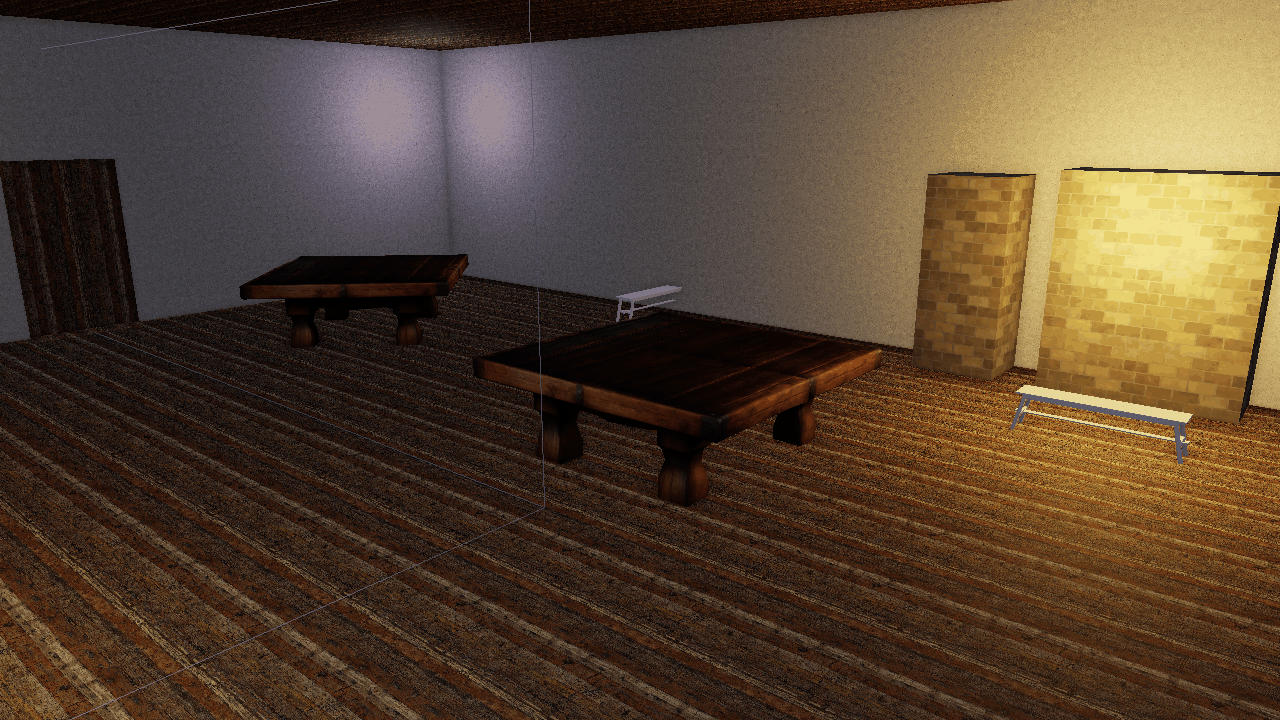
The tavern with default shading: Lambert diffuse, sharp terminator, neutral grade.
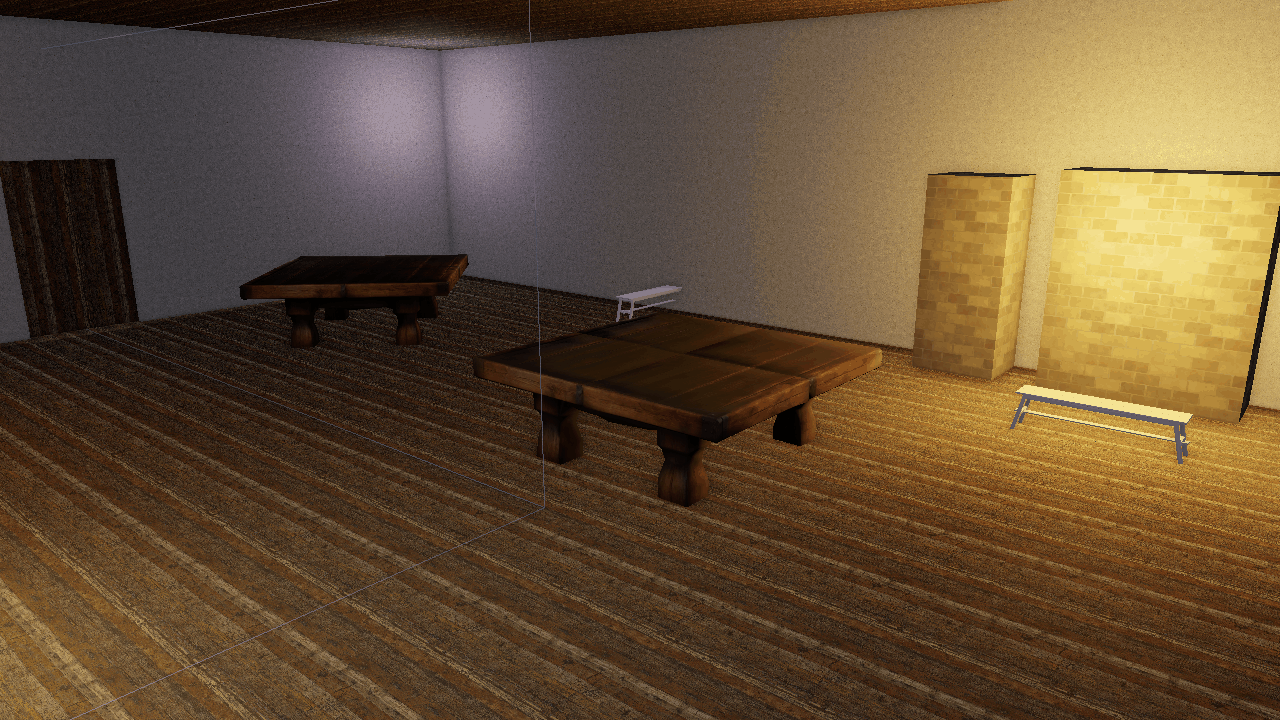
The same frame with Oren-Nayar 0.7, sheen 0.15, and a warm grade gain.
[environment]
diffuse_wrap = 0.25
oren_nayar = 0.7
sheen_color = [1.0, 0.9, 0.8]
sheen_strength = 0.15

[post_process]
ssao_samples = 16
grade_lift = [0.03, 0.02, 0.015]
grade_gain = [1.04, 1.0, 0.94]
film_grain = 0.02
The same levers are available headlessly, and CLI values win over the scene block:
flint render scene.toml --oren-nayar 0.7 --sheen-strength 0.15 --sheen-color 1,0.9,0.8 \
    --grade-gain 1.04,1,0.94 --ssao-samples 16
Runtime Control
The Rendering & Effects menu’s Lighting section exposes all six [environment] levers with a Reset button, plus shadow enable and resolution under Shadows. In code, SceneRenderer offers set_ambient / reset_ambient, set_diffuse_wrap, set_oren_nayar, set_sheen, set_shadow_resolution, and lighting_levers() to read the current state back for seeding UI.
Scripts do not currently have bindings for these levers; they are a per-scene look, not a per-frame effect. For per-frame mood changes use the sticky post-process overrides on the Post-Processing page.
Further Reading
- Rendering — the PBR pipeline these lights feed
- Post-Processing — volumetric shafts, grade and grain
- Sky — the procedural sky, which carries its own
ambient_sky/ambient_groundon theskycomponent, distinct from the[environment]keys here - File Formats — the
[environment]block reference
Sky
The sky component replaces the texture skybox with a procedural sky: a
vertical gradient, a sun disc that follows the scene’s light, a hashed
starfield, and FBM clouds that drift.
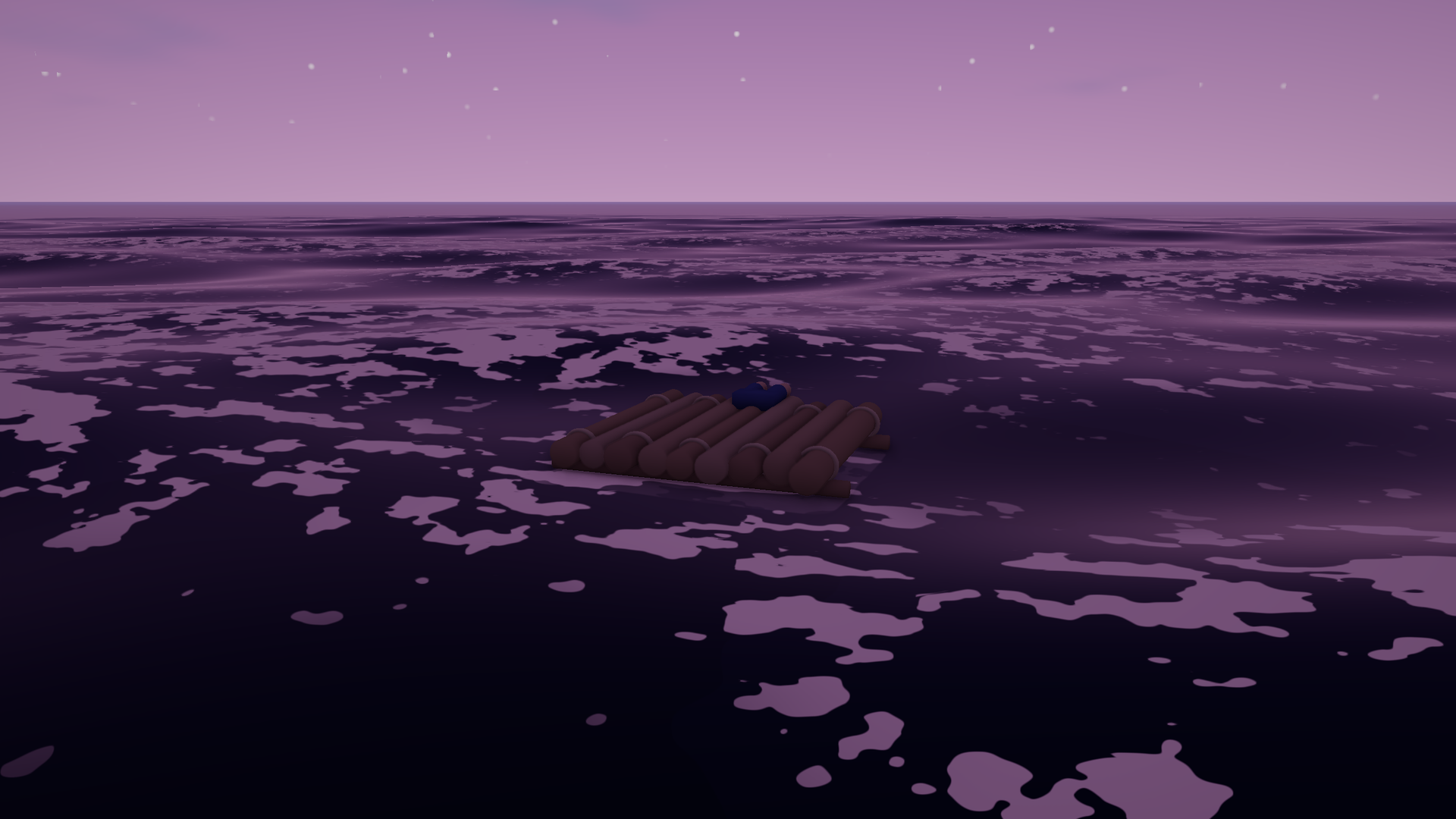
Every value in this frame is a number on one component. Nothing here is a texture.
[entities.sky_dome]
[entities.sky_dome.sky]
zenith_color = [0.10, 0.32, 0.70, 1.0]
horizon_color = [0.55, 0.75, 0.90, 1.0]
haze_color = [0.80, 0.88, 0.95, 0.55]
cloud_coverage = 0.38
star_opacity = 0.0
Add it and the skybox pipeline steps aside. One sky per scene.
Time of day belongs to your game
Flint does not have a time-of-day system, and that is deliberate. The sky
component is a state, not a clock. There is no hour field, no sun path
built into the engine, no assumption that your world has 24-hour days at all.
A game that wants a day/night cycle writes a script that interpolates its own
keyframes into these fields with set_field each frame. That script owns what
“dusk” means for that game — how long it lasts, what color it is, whether the
day is ten minutes or ten hours, whether there are days at all.
The payoff is that the same component serves a game with a wheeling sunrise-to-starscape cycle, a game permanently frozen at golden hour, and a game whose sky is driven by something other than time entirely.
The engine’s contribution is the Day / Time debug panel (F3), which
drives a game-side time_of_day component by convention — see
the CLI reference.
Fields
| Field | Effect |
|---|---|
zenith_color | Sky color straight up. |
horizon_color | Sky color at the horizon. |
haze_color | Horizon haze band; alpha is its strength. |
cloud_tint | Cloud color; alpha is opacity. |
sun_disc_size | Sun angular radius, in radians. |
sun_glow | Glow strength around the disc. |
star_opacity | Starfield visibility, 0 by day to 1 at night. |
cloud_coverage | 0 clear to 1 overcast. |
cloud_density | Cloud edge softness and thickness. |
cloud_scale | Cloud noise frequency. |
cloud_drift_x / cloud_drift_y | Cloud drift speed. |
ambient_sky / ambient_ground | Optional hemisphere ambient override. |
The sun
The sun disc is drawn where directional_lights[0] points — it is not
positioned independently. Move the light and the disc follows, which means the
visible sun and the light actually casting your shadows can never disagree.
Flint’s light direction points from surfaces toward the light.
Ambient
ambient_sky and ambient_ground override the hemisphere ambient in the light
uniforms. This is how a night gets genuinely dark: a script drops both along
with the sun’s intensity, and unlit surfaces fall away instead of staying
suspiciously legible.
Stars
Stars are a hash function, not a texture — no seams, no resolution, and free to
fade with star_opacity. The hash is deliberately sinless: fract(sin(x))
loses precision far from the origin on some GPUs and breaks into a visible
lattice.
Reflections
An ocean with sky_reflection_strength > 0 takes a per-frame snapshot of the
sky’s gradient and reflects it, Fresnel-weighted. Change the sky and the water
follows with no extra wiring.
The snapshot carries the gradient only, never the sun disc — see Ocean: water clarity for why.
See also
- Ocean — reflects this sky
- Rendering — lights, shadows, and the texture skybox
- Scripting —
set_fieldfor per-frame sky drives
Ocean
Flint renders an endless, physically-grounded ocean: a sum of Gerstner waves shaped by a JONSWAP wind-sea spectrum, drawn on a camera-following grid and shaded in hard cel bands. The waves are believable — real dispersion, real directional spread — while the look stays graphic.
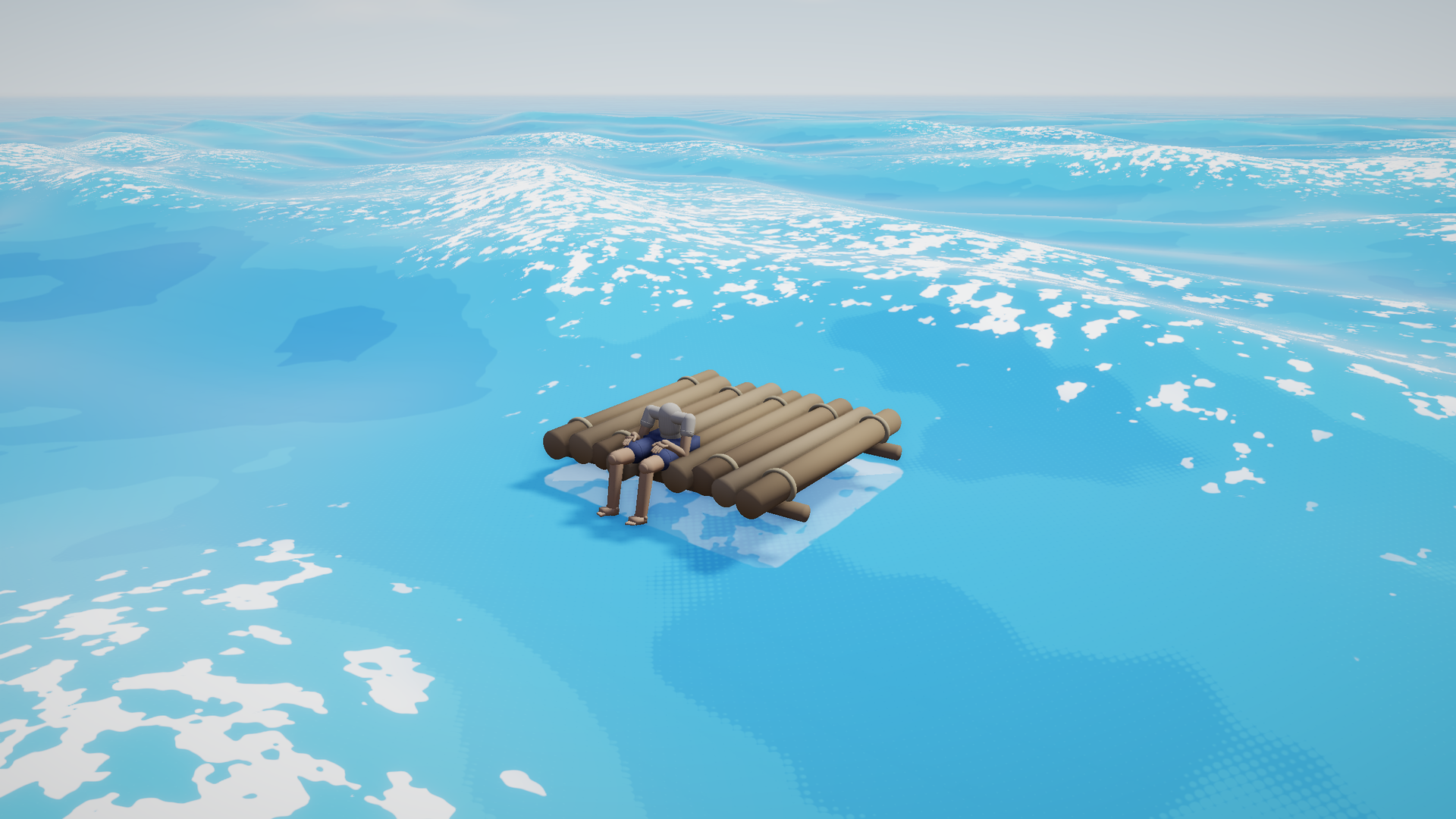
Flat bold blues, hard-edged white foam. The wave physics is real; the shading is a woodblock print.
Add one ocean component to a scene and you have a horizon-to-horizon sea:
[entities.ocean]
[entities.ocean.ocean]
seed = 7
num_waves = 12
wavelength_min = 5.0
wavelength_max = 70.0
amplitude = 0.85
choppiness = 0.7
wind_speed = 7.0
fetch_km = 60.0
One ocean per scene. The grid follows the camera, so there is no world size to configure and no edge to sail off.
The parity contract
This is the single most important thing to know about the ocean.
flint-core/src/ocean.rs is the sole source of truth for wave math. It
builds the wave array on the CPU, and the GPU only sums the array it is
given — ocean_shader.wgsl contains no spectrum logic of its own. That is
what lets a script ask ocean_height(x, z) and get the same answer the
renderer drew, which is what buoyancy, splash detection and camera work all
depend on.
If you change the wave math, CPU and GPU must move together. Two guards exist:
gpu_packing_matches_cpu_evaluationinflint-coreasserts the packed GPU layout evaluates to the CPU result.- A
wave_probescript pinning a visible buoy toocean_heightwill visibly detach from the surface the moment parity breaks.
A related trap: wave phase is precomputed per frame in f64 on the CPU and
uploaded. Never accumulate phase in f32 in the shader — over a long
session it drifts and the sea starts to shimmer.
The spectrum
Waves are not chosen by hand. You describe a sea state and the spectrum generates the wave set.
| Field | Meaning |
|---|---|
seed | Spectrum RNG seed. Same seed, same ocean, forever. |
num_waves | 1–16 Gerstner waves summed. |
wavelength_min / wavelength_max | The band the spectrum samples, in meters. |
amplitude | Total wave amplitude (max crest height) in meters. |
choppiness | 0 = rolling swells, 1 = sharp trochoidal crests. |
direction_deg / spread_deg | Primary travel direction and directional spread. Short waves wander further off-axis than long ones. |
speed_scale | Time multiplier. 0 freezes the sea without flattening it. |
wind_speed | Wind in m/s — moves the JONSWAP energy peak. |
fetch_km | How far the wind has blown over open water. Longer fetch puts energy into longer swell. |
peak_enhancement | JONSWAP gamma. 1 = broad confused sea, 3.3 = typical, higher = one narrow dominant swell. |
Each wave obeys the deep-water dispersion relation, so longer waves genuinely
travel faster. wind_speed and fetch_km are the expressive controls: raising
both moves energy into long swell and gives you an ocean that feels like it
has weather behind it.
Phase-safe fields
If you animate the ocean at runtime (a weather system, say), only some fields can change without visibly popping the sea:
- Safe to ramp:
amplitude,choppiness,wind_speed,fetch_km. Regenerating the spectrum preserves existing wave phases. - Load-time only:
direction_deg,spread_deg,seed,speed_scale, and the wavelength band. Changing these re-rolls the wave set and the surface jumps.
Pick a wavelength band wide enough at load time to cover every sea state you intend to reach, then move energy within it with wind and fetch.
Shading
The fragment shader is deliberately not a water shader in the photoreal sense.
Lighting is quantized into ramp_steps hard bands, and foam is a hard-edged
mask rather than a soft blend.
| Field | Effect |
|---|---|
deep_color / shallow_color | Water in wave shadow / in full light. |
foam_color | Crest foam. |
sss_color | Fake subsurface glow through backlit wave flanks. |
foam_threshold | Jacobian threshold — higher makes more foam. |
foam_noise_scale | World-space frequency of foam breakup. |
ramp_steps | Cel bands in the diffuse ramp (1–8). |
specular_strength | Sun glint. The glint is Fresnel-weighted, so it does not smear into a white disc under the camera. |
band_wobble | Noise on the band contours. 0 gives razor edges; a little wobble stops them reading as machine-made. |
band_dither / band_dither_scale | Halftone dot transition at band edges, in dots per meter. |
Foam comes from the Jacobian of the Gerstner displacement — that is, from where the surface is actually compressing toward a breaking crest. It is a physical quantity, not a height threshold, which is why the foam sits where foam belongs even in a confused sea.
The ocean writes depth, so scene fog applies to it correctly. It also fogs itself to the scene fog color before the composite’s sky cutoff, otherwise the far water would render as an unfogged dark band at the horizon.
Bioluminescence
foam_glow (0 = off) makes foam emissive in foam_glow_color. Drive it from a
time-of-day script to get plankton bloom nights where the wake lights up.
Contact foam
Give any entity an ocean_contact component and the ocean grows a splash ring
around its hull:
[entities.boat.ocean_contact]
half_x = 1.2
half_z = 1.15
The renderer tracks the hull’s center, yaw and extents, differentiates its position for velocity, and the shader computes churn from the water’s orbital velocity relative to the hull, projected into the nearest hull face. A flat sea stays quiet, the lee side stays quiet, and the windward face flares.
| Field | Effect |
|---|---|
splash_strength | Overall gain; 0 disables. |
splash_width | Max foam band width outward from the hull, in meters. |
splash_baseline | Churn floor on calm water. 0 makes foam vanish when flat. |
splash_response | Impact speed → churn gain (s/m). |
splash_flicker_speed / splash_noise_scale | Lapping rate and scalloped-edge frequency. |
On genuinely glassy water, set splash_baseline = 0 — a foam ring hugging a
motionless hull on a mirror reads as a bug.
Rain
rain_ripple (0..1) scatters expanding impact rings across the surface,
hashed on a world-space grid and scanned over a 3×3 cell neighborhood so rings
crossing cell boundaries do not tile into visible squares. They fade out by
~30 m. Drive it from the same weather signal that drives your rain particles.
Water clarity
With post-processing enabled the ocean does a grab pass and refracts whatever is underwater:
| Field | Effect |
|---|---|
turbidity | 0 = glass-clear, high = murk within half a meter. |
refraction_strength | Screen-space distortion of submerged geometry. |
absorption_color | Per-channel absorption rate. Red dies first in seawater. |
sky_reflection_strength | Fresnel-weighted analytic sky reflection. Needs a sky component. |
The sky reflection is a snapshot of the procedural sky’s gradient, so reflections track the time of day for free. It deliberately contains no sun disc — the cel specular already is the sun’s reflection, and including it here would draw two suns.
Surfaces seen from below flip their normal and drop both sky reflection and specular, so the underside of the water reads as water rather than as an opaque mirror of the sky.
The grid
| Field | Effect |
|---|---|
grid_scale | Inner metric scale of the camera-following grid, in meters. |
fade_start / fade_end | Where wave displacement starts fading and where the ocean goes flat. |
The mesh is a normalized grid, radially warped so the center has sub-meter cells and the rim reaches kilometers — past the geometric horizon at eye height, so the water’s edge is never visible. It follows the camera snapped to inner-cell multiples, which keeps waves world-anchored instead of swimming with the view.
Querying the ocean from scripts
let h  = ocean_height(x, z);        // Eulerian surface height (m)
let v  = ocean_velocity_y(x, z);    // vertical surface velocity (m/s)
let n  = ocean_normal(x, z);        // #{x, y, z} surface normal
ocean_height is what buoyancy is built on — sample it at a few points under a
hull and drive the transform from the result:
fn on_update() {
    let me = entity();
    let p = get_field(me, "transform", "position");
    let h = ocean_height(p.x, p.z);
    // ... ease the hull toward h, tilt from ocean_normal ...
}
ocean_velocity_y is the analytic ∂h/∂t, not a finite difference, and it is
the signal you want for impact cues: the relative approach speed between
water and hull tells you how hard a wave struck, which is what separates a lap
from a slam.
Sampling is cheap enough for a handful of probes per frame. It is not cheap enough for thousands.
Debugging
The Ocean Debug panel (F3 in the player) exposes the whole component
live — spectrum, colors, foam, contact foam, band edges, clarity, grid — and
Commit to File writes your tuning back into the scene TOML.
show_probe parks a bright buoy on the surface as a standing CPU/GPU parity
check.
Headless:
flint render scene.toml --schemas schemas --width 2560 --height 1440 --no-grid \
  --distance 9 --pitch 18 --yaw 35 --target 0,0.4,0
Note that flint render runs no scripts. If your hull floats by script,
it will render at its authored transform rather than on the water — frame
around it, or bake a fixture scene with the values you want.
See also
- Sky — the procedural sky the ocean reflects
- Post-Processing — including underwater render mode 5
- Scripting — the full Rhai API
Post-Processing
Flint includes an HDR post-processing pipeline that transforms the raw scene render into polished final output: bloom, SSAO, fog, volumetric lighting, depth of field, a painterly Kuwahara filter, color grading, film grain, tonemapping, vignette, FXAA, and whole-screen render modes.
How It Works
Instead of rendering directly to the screen, the scene is drawn to an intermediate HDR buffer (Rgba16Float format) that can store values brighter than 1.0. A series of fullscreen passes then process this buffer:
Scene render        Depth       Kuwahara     SSAO       Volumetric   Bloom chain    Composite pass        FXAA
(PBR, skinned,  ->  resolve  -> (optional -> depth-  -> shadow-   -> downsample  -> DoF, AO, god rays  -> (optional
 billboard,         (MSAA       painterly    based      based        upsample       bloom, fog, exposure    edge AA)
 particles,         sample 0)   pre-pass)    AO         god rays                    ACES, grade, desat,
 sky, ocean,                                                                        render mode, vignette,
 terrain, grass)                                                                    grain, dither
     |                 |            |           |           |            |                |                   |
 Rgba16Float       depth       filtered     AO         vol          bloom          sRGB surface or       sRGB
 HDR buffer        texture     HDR          texture    texture      texture        FXAA intermediate     surface
All scene pipelines — PBR, skinned mesh, billboard sprite, particle, skybox, sky, ocean, terrain and grass — render to the HDR buffer when post-processing is active. The PBR shader’s built-in tonemapping is automatically disabled so it outputs linear HDR values for the composite pass to process. Kuwahara and FXAA resources are only allocated when their effect is enabled.
Bloom
Bloom creates the soft glow around bright light sources — emissive materials, fire particles, bright specular highlights. The implementation uses the technique from Call of Duty: Advanced Warfare:
- Threshold — pixels brighter than
bloom_thresholdare extracted - Downsample — a 5-level mip chain progressively halves the resolution using a 13-tap filter
- Upsample — each mip level is upsampled with a 9-tap tent filter and additively blended back up the chain
- Composite — the final bloom texture is mixed into the scene at
bloom_intensitystrength
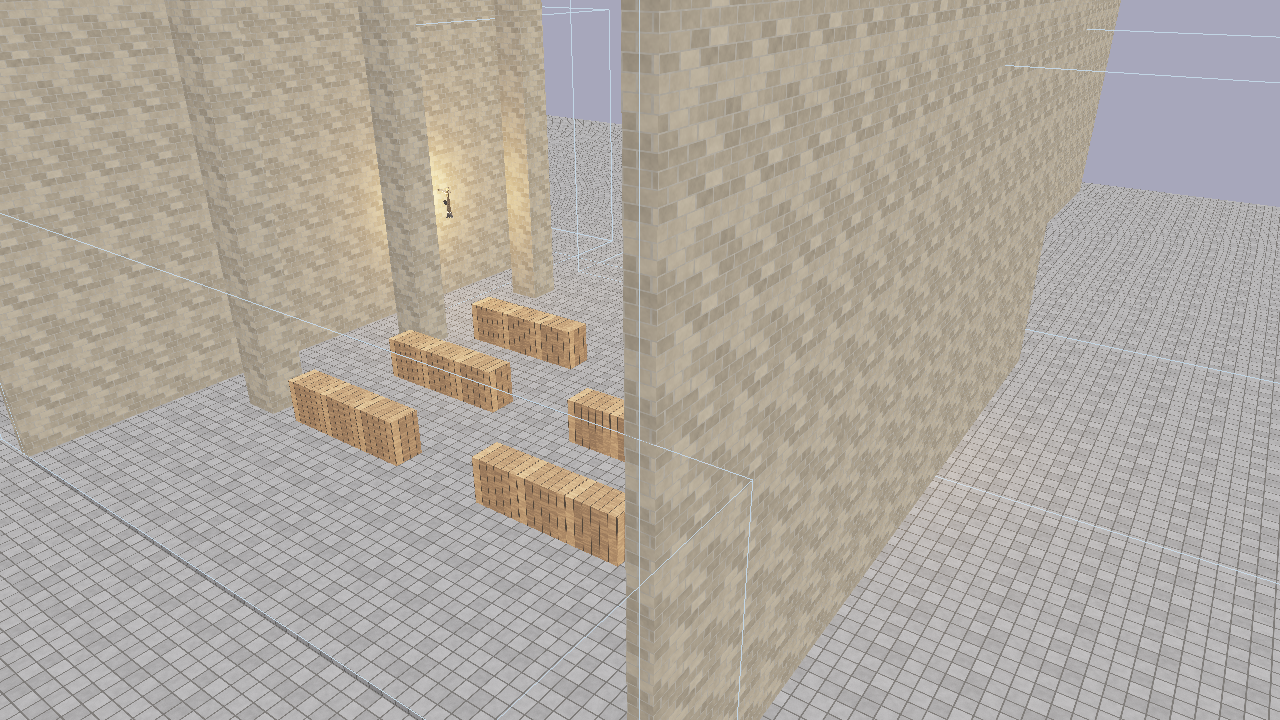
Post-processing enabled: bloom creates halos around emissive surfaces and bright lights.
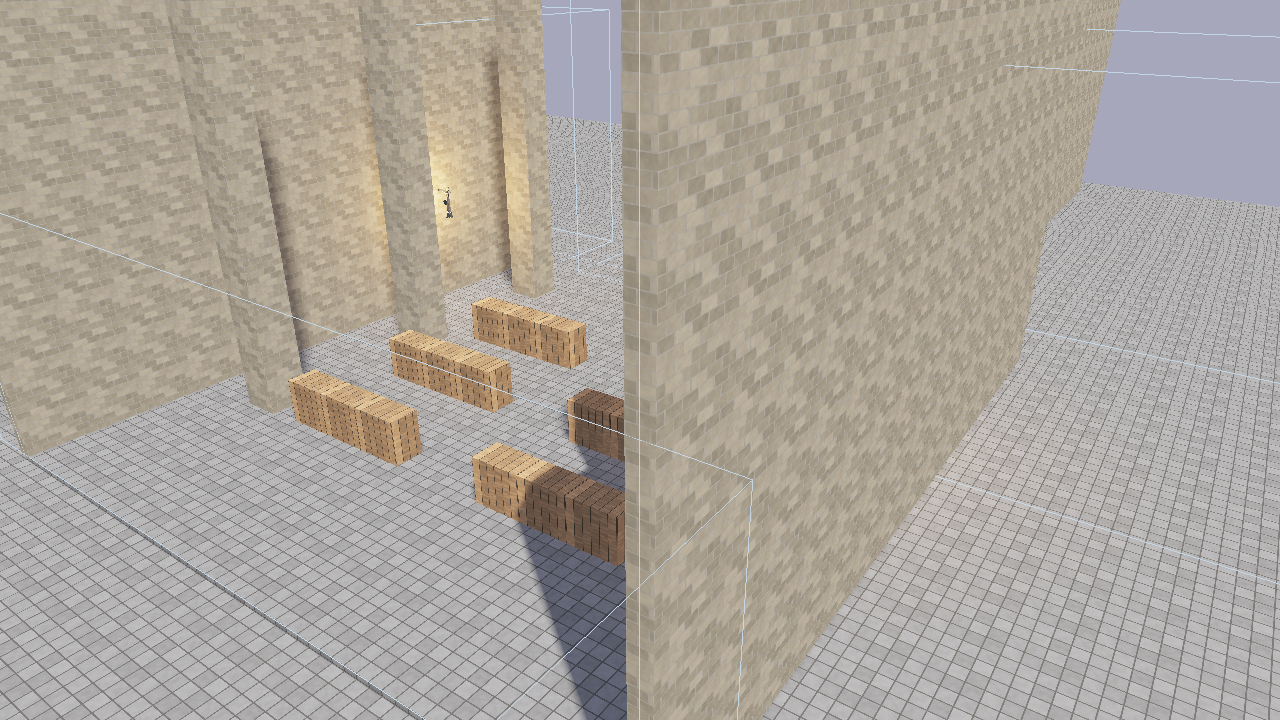
Post-processing disabled: the same scene rendered with shader-level tonemapping only.
| Field | Type | Default | Description |
|---|---|---|---|
bloom_enabled | bool | true | Enable bloom |
bloom_intensity | f32 | 0.04 | Mix strength of the bloom texture |
bloom_threshold | f32 | 1.0 | Minimum brightness extracted into the bloom chain |
The mip chain depth is calculated as floor(log2(min(width, height))) - 3, capped at 5 levels, ensuring the smallest mip is at least 8x8 pixels.
SSAO (Screen-Space Ambient Occlusion)
SSAO darkens crevices, corners, and areas where surfaces meet, adding depth and realism to a scene without requiring extra light sources. The implementation samples the depth buffer around each pixel to estimate how much ambient light would be blocked by nearby geometry.
| Field | Type | Default | Description |
|---|---|---|---|
ssao_enabled | bool | true | Enable SSAO |
ssao_radius | f32 | 0.5 | Sample radius in world units (larger = wider darkening) |
ssao_intensity | f32 | 1.0 | Occlusion strength (higher = darker crevices) |
ssao_samples | u32 | 64 | Hemisphere samples per pixel, 1–64 (ADR 0052) |
SSAO is the heaviest per-pixel pass in the post stack. The sample kernel is strided, so lower counts keep full radius coverage; ssao_samples = 16 is usually indistinguishable on soft matte scenes and roughly four times cheaper. The clay-look demo scenes use 16.
An SSAO depth bias (default 0.025) is exposed in the Rendering & Effects menu but has no scene key.
Depth of Field
Depth of field defocuses everything outside a focus band. The composite pass computes a circle of confusion per pixel from the depth buffer and gathers a CoC-weighted disc from the HDR source, so in-focus foreground does not bleed into defocused regions.
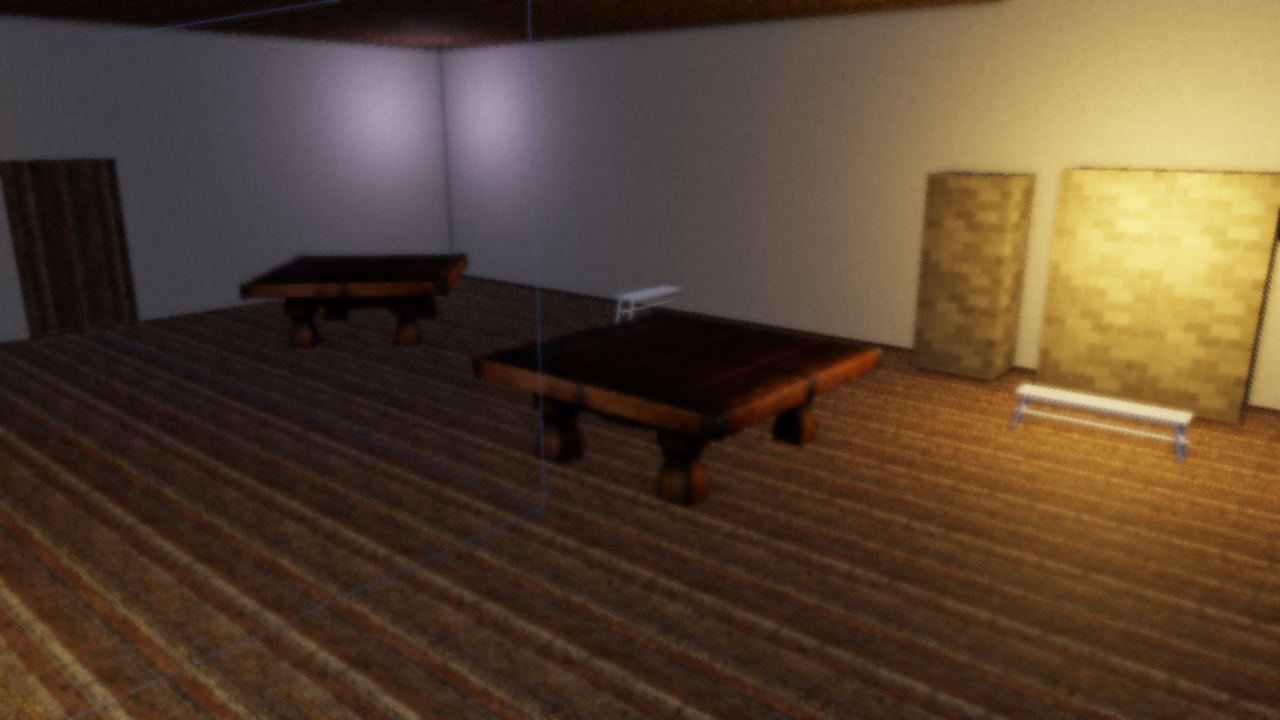
Focus plane at 3 m: the foreground is sharp and the room behind it falls away.
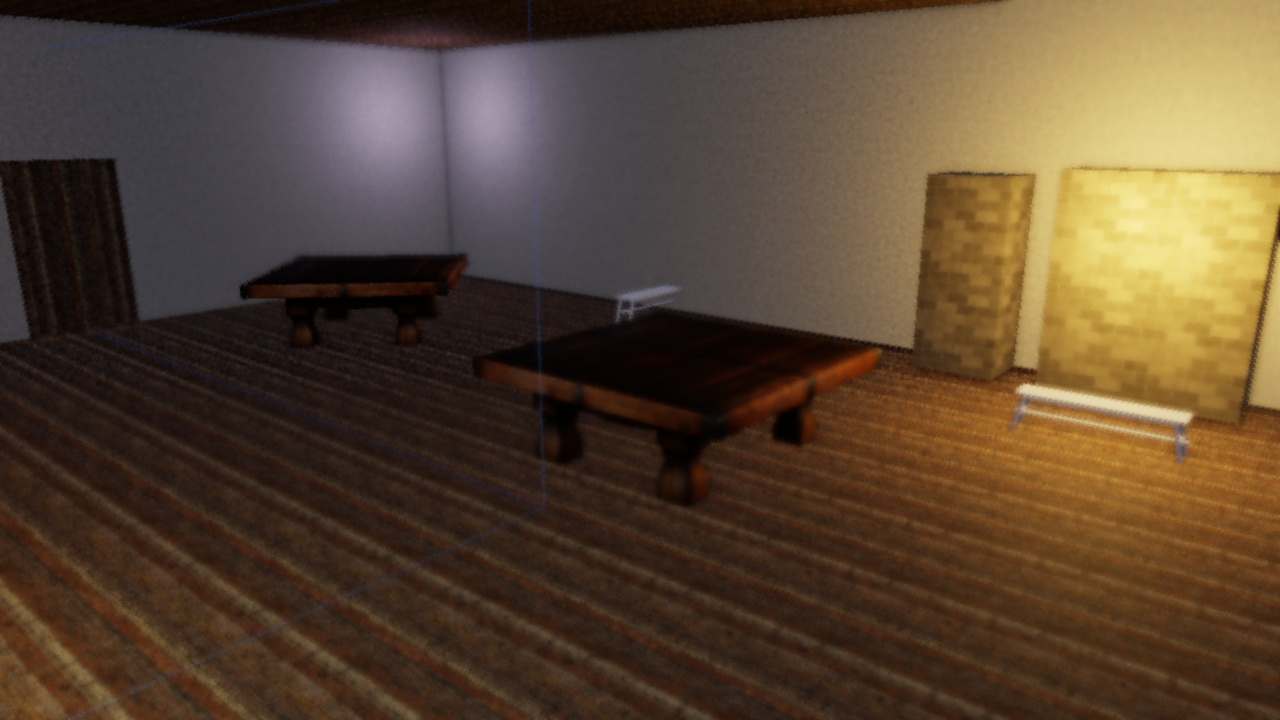
Focus plane at 12 m: the same frame with the focus pushed back.
| Field | Type | Default | Description |
|---|---|---|---|
dof_strength | f32 | 0.0 | 0 = off/sharp, 1 = full defocus |
dof_focus_distance | f32 | 10.0 | Distance of the focus plane in world units |
dof_focus_range | f32 | 5.0 | Half-width of the sharp band around the focus plane |
Distances are plain view-space meters. Earlier builds linearized depth with the OpenGL [-1, 1] convention, which made focus values drift with the far plane; ADR 0055 moved every depth consumer to wgpu’s [0, 1] convention, so dof_focus_distance = 10 now means ten meters from the camera.
In the scene viewer, the Rendering & Effects menu offers DoF follow: the focus plane tracks the last selected entity, which is a fast way to find a focus distance by eye.
Fog
Distance-based fog blends a configurable fog color into the scene based on pixel depth. Height-based falloff can be layered on top so fog is thicker near the ground and thins out at higher elevations. Fog is applied in linear HDR space, before tonemapping.
| Field | Type | Default | Description |
|---|---|---|---|
fog_enabled | bool | false | Enable distance fog |
fog_color | [f32; 3] | [0.7, 0.75, 0.82] | Fog color (linear RGB) |
fog_density | f32 | 0.02 | Exponential density factor |
fog_start | f32 | 5.0 | Distance where fog begins |
fog_end | f32 | 100.0 | Distance where fog reaches full opacity |
fog_height_enabled | bool | false | Enable height-based falloff |
fog_height_falloff | f32 | 0.1 | How quickly fog thins with altitude |
fog_height_origin | f32 | 0.0 | World Y where fog is thickest |
Volumetric Lighting (God Rays)
Volumetric lighting simulates light scattering through participating media (dust, fog, haze), producing visible shafts of light (god rays). The effect ray-marches from each pixel toward the camera, sampling the shadow map at each step to determine whether that point in space is lit or in shadow.
How it works
- For each screen pixel, reconstruct its world position from the depth buffer
- March
volumetric_samplessteps along the view ray from the pixel back toward the camera - At each step, project the position into shadow-map space and sample the cascaded shadow map
- Accumulate light contribution where the sample is not in shadow, applying exponential decay
- The resulting volumetric texture is additively blended into the scene during the composite pass
Because volumetric lighting depends on the shadow map, it requires at least one directional light with shadows enabled. The effect is disabled when shadows are off.
Per-light configuration
Each directional light can control its volumetric contribution independently via its light component (see Lighting for the full component):
[entities.sun.light]
type = "directional"
direction = [0.4, 0.6, 0.05]
color = [1.0, 0.92, 0.75]
intensity = 6.0
volumetric_intensity = 4.0               # god ray brightness (0 = no rays)
volumetric_color = [1.0, 0.88, 0.6]      # tint for the light shafts
| Light field | Type | Default | Description |
|---|---|---|---|
volumetric_intensity | f32 | 0.0 | Per-light god ray strength (0 = disabled for this light) |
volumetric_color | [f32; 3] | light color | Tint color for the shafts from this light |
Global scene settings
The [post_process] block controls the overall volumetric pass:
| Field | Type | Default | Description |
|---|---|---|---|
volumetric_enabled | bool | false | Enable volumetric lighting |
volumetric_samples | u32 | 32 | Ray-march steps per pixel (higher = smoother, more expensive) |
volumetric_density | f32 | 1.0 | Scattering density multiplier |
volumetric_max_distance | f32 | 100.0 | Maximum ray-march distance from camera |
volumetric_decay | f32 | 0.98 | Exponential decay per step (closer to 1.0 = shafts extend further) |
Example: dungeon window
[post_process]
volumetric_enabled = true
volumetric_samples = 64
volumetric_density = 30.0
volumetric_max_distance = 15.0
volumetric_decay = 0.998
exposure = 2.5

[entities.sun.light]
type = "directional"
direction = [0.4, 0.4, 0.05]
color = [1.0, 0.92, 0.75]
intensity = 6.0
volumetric_intensity = 4.0
volumetric_color = [1.0, 0.88, 0.6]
High volumetric_density with a short volumetric_max_distance and decay close to 1.0 produces thick, concentrated shafts — good for dusty interiors. For outdoor haze, use lower density and longer distance.
Kuwahara (Painterly Filter)
The anisotropic Kuwahara filter turns the HDR image into flat, brush-like patches that follow local edge direction. It runs as a pre-pass on the HDR buffer before SSAO and bloom, so lighting effects stay crisp on top of the painted surface. Three shaders cooperate: a structure-tensor pass, a tensor blur, and the sector filter itself.
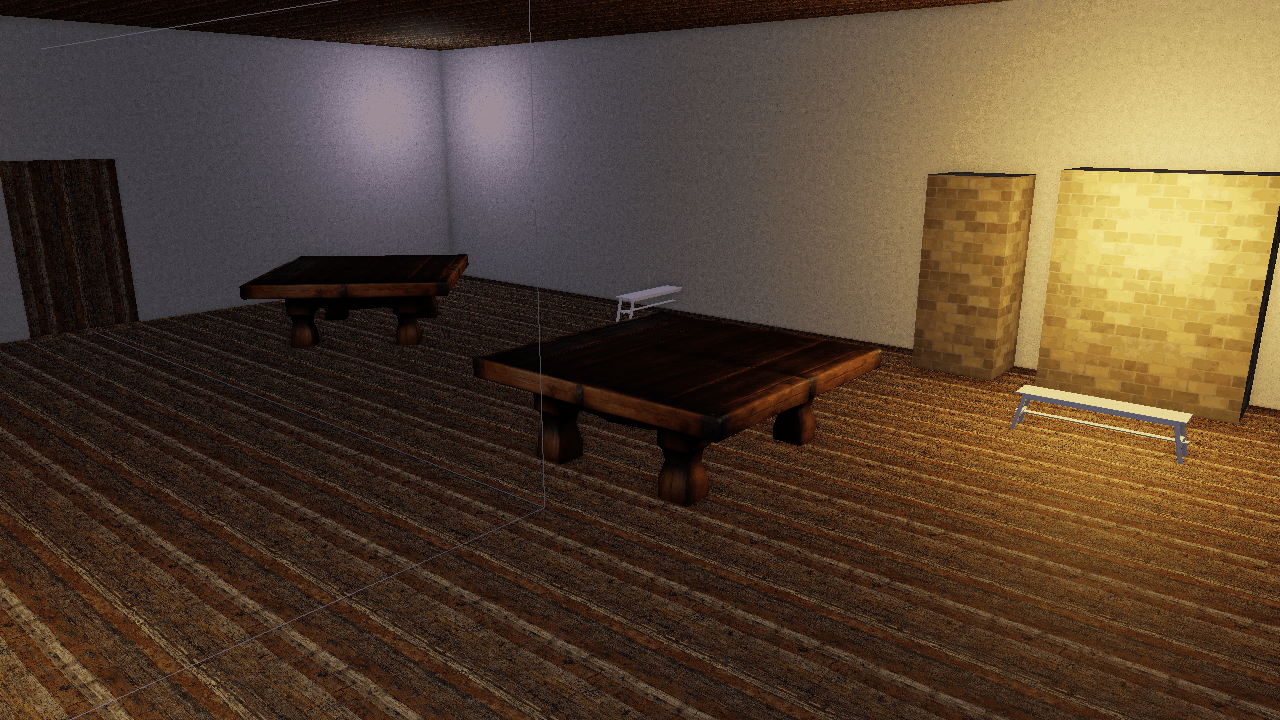
The tavern showcase with the Kuwahara pre-pass disabled.
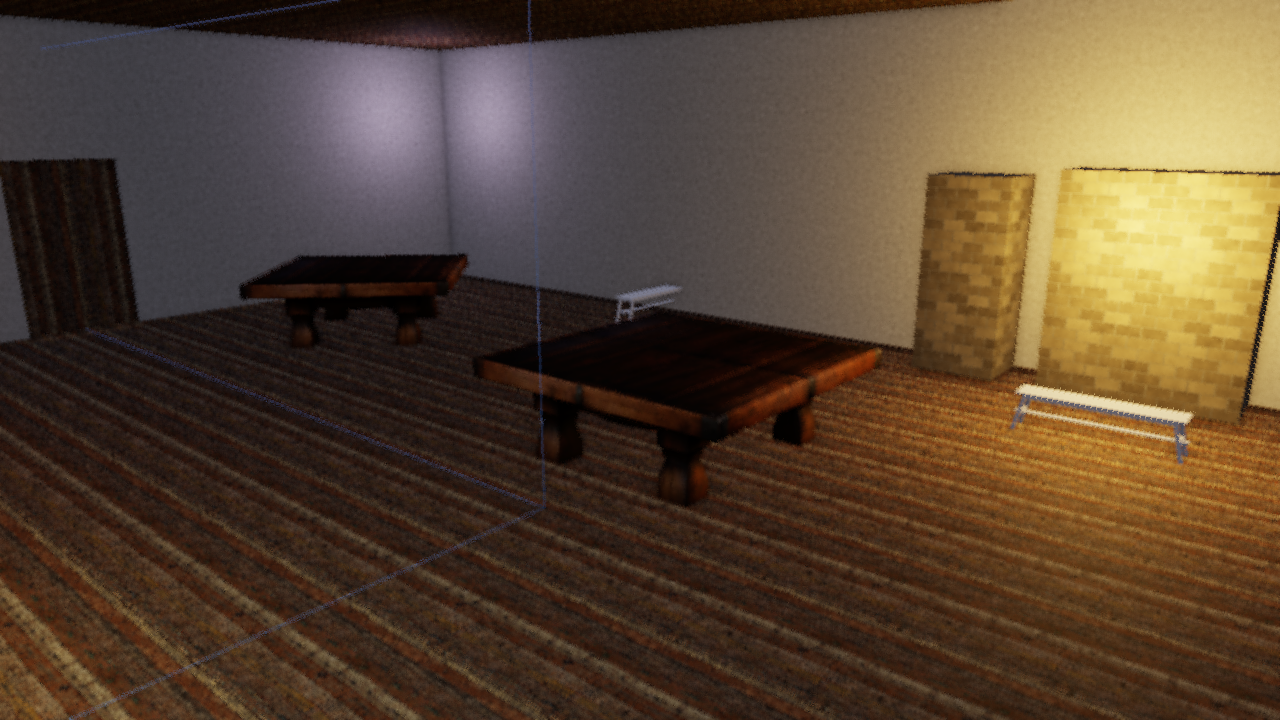
The same frame with the anisotropic Kuwahara filter, radius 4.
| Field | Type | Default | Description |
|---|---|---|---|
kuwahara_enabled | bool | false | Enable the filter |
kuwahara_radius | u32 | 4 | Kernel radius in pixels (1–8 in the menu; larger = broader strokes) |
kuwahara_sharpness | f32 | 8.0 | How strongly the lowest-variance sector wins |
kuwahara_hardness | f32 | 8.0 | Edge hardness between sectors |
kuwahara_anisotropy | f32 | 1.0 | 0 = isotropic disc, 1 = sectors stretch fully along the local edge direction |
The filter’s textures and pipelines are allocated the first time it is enabled, so scenes that never use it pay nothing.
Color Grade, Film Grain and FXAA
Three finishing controls from ADR 0050 sit at the end of the composite pass.
Color grade is an ASC-CDL-shaped lift/gamma/gain applied right after ACES tonemapping, so it grades the display-referred image: pow(max(color * gain + lift, 0), 1 / gamma). The grade is skipped entirely while all three are neutral.
Film grain is hash noise on pixel coordinates, luma-weighted so highlights stay clean, and time-quantized to 24 Hz. It reads the shared post time, which flint render fixes at 0 unless you pass --grain-time, so headless renders stay deterministic.
FXAA is a separate fullscreen pass after composite. It is off by default because the headless pixel-diff gates run without it.
| Field | Type | Default | Description |
|---|---|---|---|
grade_lift | [f32; 3] | [0, 0, 0] | Per-channel add after ACES (neutral = 0) |
grade_gamma | [f32; 3] | [1, 1, 1] | Per-channel midtone curve (neutral = 1) |
grade_gain | [f32; 3] | [1, 1, 1] | Per-channel multiply (neutral = 1) |
film_grain | f32 | 0.0 | Grain intensity; 0 = off, 0.02–0.05 is subtle |
fxaa | bool | false | Run the FXAA pass on the final composite |
Desaturation, Chromatic Aberration and Radial Blur
These three are the “feel” levers scripts reach for most; see the script notes below for which ones are sticky.
| Field | Type | Default | Description |
|---|---|---|---|
desaturate | f32 | 0.0 | Mix toward a darkened ash grey (0 = full color, 1 = drained). Applied after the grade, before render modes (ADR 0021) |
chromatic_aberration | f32 | 0.0 | Splits the red and blue channels radially from the screen center |
radial_blur | f32 | 0.0 | 8-tap blur that grows toward the screen edges while the center stays sharp |
Desaturation mixes toward luma * 0.62 rather than neutral grey on purpose: it matches the disintegration ladder of the music-session harness, so the language of “the world draining” reads the same in both.
Vignette, Exposure and Dither
| Field | Type | Default | Description |
|---|---|---|---|
exposure | f32 | 1.0 | Multiplier applied before ACES |
vignette_enabled | bool | false | Darken screen edges |
vignette_intensity | f32 | 0.3 | Vignette strength |
vignette_smoothness | f32 | 2.0 | Falloff exponent from center to edge |
dither_enabled | bool | false | 8x8 Bayer ordered dither to reduce banding |
dither_intensity | f32 | 0.03 | Dither strength (0.02–0.05 works best) |
MSAA
The scene passes can run with 4x multisample anti-aliasing (ADR 0058). Post-processing, shadow and blit passes stay single-sample; depth consumers such as SSAO, fog and DoF read a sample-0 depth resolve.
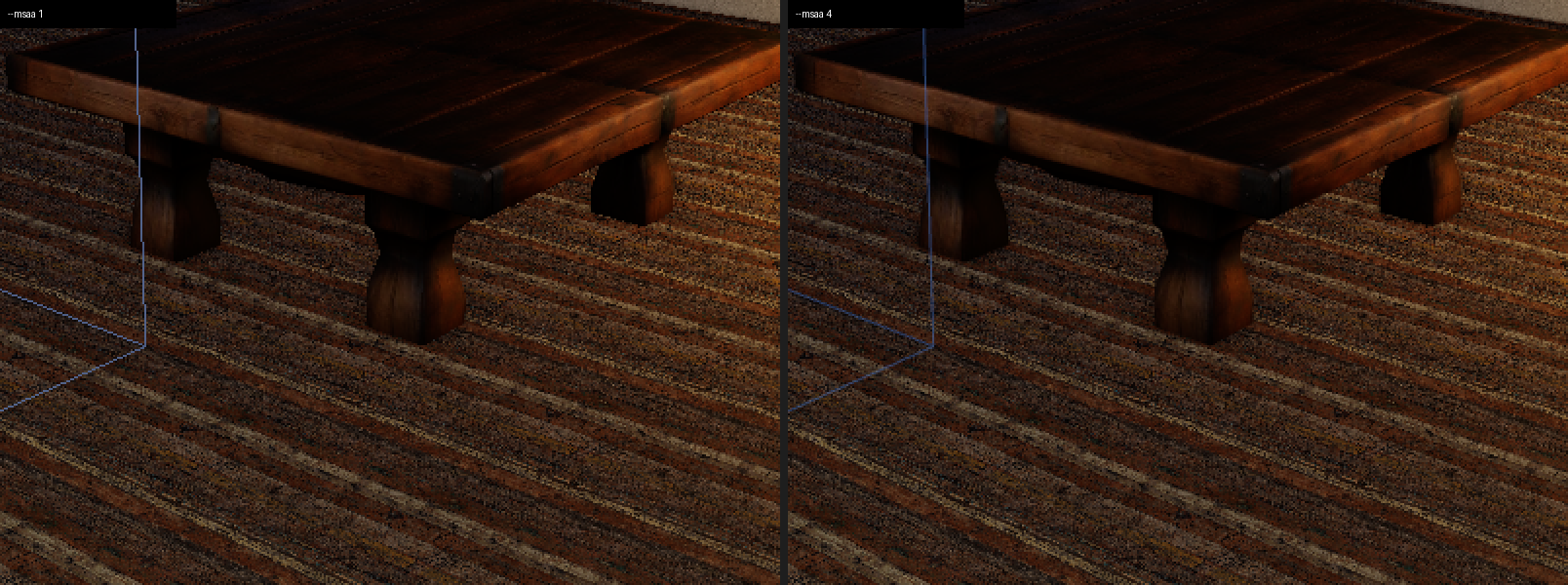
Left: single-sample. Right: --msaa 4. Geometry edges smooth out; post effects are unchanged.
MSAA is a launch option, not a scene key: flint render --msaa 4, flint-player --msaa 4, or RendererConfig::sample_count in code. Valid values are 1 and 4; anything else is clamped to 1 with a warning. The default stays 1 so headless pixel gates remain single-sample.
Scene Configuration
Add a [post_process] block to your scene TOML to configure per-scene settings:
[post_process]
bloom_enabled = true
bloom_intensity = 0.04
bloom_threshold = 1.0
ssao_enabled = true
ssao_radius = 0.5
ssao_intensity = 1.0
ssao_samples = 16
fog_enabled = true
fog_density = 0.02
fog_color = [0.7, 0.75, 0.82]
volumetric_enabled = false
dof_strength = 0.4
dof_focus_distance = 8.0
dof_focus_range = 4.0
kuwahara_enabled = false
grade_lift = [0.03, 0.02, 0.015]
grade_gamma = [1.0, 1.0, 1.0]
grade_gain = [1.04, 1.0, 0.94]
film_grain = 0.03
fxaa = false
vignette_enabled = true
vignette_intensity = 0.3
exposure = 1.0
All fields are optional — omitted values use their defaults. The full key list with defaults is in File Formats.
When the pipeline is disabled (--no-postprocess or the menu checkbox), most effects are zeroed: bloom, vignette, fog, dither, desaturate, film grain, DoF, render mode and grade. Two are not: chromatic_aberration and radial_blur predate the gate and stay live even with post-processing off.
The scene viewer applies the scene’s [post_process] block on load (ADR 0046). The Rendering & Effects menu can swap between the authored block and the viewer’s default look.
CLI Flags
Override post-processing settings from the command line:
# Disable all post-processing
flint render scene.toml --no-postprocess

# Adjust bloom and exposure
flint render scene.toml --bloom-intensity 0.08 --bloom-threshold 0.8 --exposure 1.5

# SSAO, with the cheap sample count
flint render scene.toml --ssao-radius 0.5 --ssao-intensity 1.0 --ssao-samples 16

# Fog
flint render scene.toml --fog-density 0.02 --fog-color 0.7,0.75,0.82 --fog-height-falloff 0.1

# Volumetric lighting
flint render scene.toml --volumetric-density 1.0 --volumetric-samples 32

# Depth of field
flint render scene.toml --dof 0.6 --dof-focus 10 --dof-range 5

# Kuwahara
flint render scene.toml --kuwahara-radius 4 --kuwahara-sharpness 8 --kuwahara-hardness 8 --kuwahara-anisotropy 1

# Grade, grain, FXAA, MSAA
flint render scene.toml --grade-lift 0.03,0.02,0.015 --grade-gain 1.04,1,0.94 --film-grain 0.03 --fxaa --msaa 4

# Combine flags
flint play scene.toml --bloom-intensity 0.1 --exposure 1.2 --volumetric-density 5.0
| Flag | Description |
|---|---|
--no-postprocess | Disable the entire post-processing pipeline |
--no-shadows | Disable shadow mapping (also disables volumetric) |
--msaa <1|4> | Scene-pass MSAA sample count (default 1) |
--bloom-intensity <f32> | Override bloom intensity |
--bloom-threshold <f32> | Override bloom brightness threshold |
--exposure <f32> | Override exposure multiplier |
--ssao-radius <f32> | Override SSAO sample radius |
--ssao-intensity <f32> | Override SSAO strength |
--ssao-samples <u32> | Override SSAO samples per pixel, 1–64 |
--fog-density <f32> | Override fog density (0 disables fog) |
--fog-color <r,g,b> | Override fog color |
--fog-height-falloff <f32> | Enable height fog with given falloff |
--volumetric-density <f32> | Override volumetric density (0 disables) |
--volumetric-samples <u32> | Override volumetric ray-march steps |
--dither-intensity <f32> | Override dither strength |
--desaturate <f32> | Desaturation toward ash grey, 0–1 |
--dof <f32> | Depth-of-field strength (0 = off) |
--dof-focus <f32> | Focus plane distance in world units |
--dof-range <f32> | Focus half-width in world units |
--kuwahara-radius <u32> | Enable Kuwahara with this radius |
--kuwahara-sharpness <f32> | Kuwahara sector sharpness |
--kuwahara-hardness <f32> | Kuwahara sector hardness |
--kuwahara-anisotropy <f32> | Kuwahara anisotropy, 0–1 |
--film-grain <f32> | Film grain intensity |
--grain-time <f32> | Post time for grain and mode animation (default 0) |
--grade-lift <r,g,b> | Color grade lift |
--grade-gamma <r,g,b> | Color grade gamma |
--grade-gain <r,g,b> | Color grade gain |
--fxaa | Enable the FXAA pass |
--render-mode <0-5> | Stylized render mode (see below) |
--mode-mix <f32> | Render mode blend strength, 0–1 |
--mode-params <x,y,z,w> | Per-mode parameters |
--oren-nayar, --sheen-strength, --sheen-color | Lighting levers, documented in Lighting |
CLI flags take precedence over scene TOML settings.
The Rendering & Effects Menu (F4)
There are no longer per-effect function keys. ADR 0053 consolidated every render and post-process debug control into one egui window, opened with F4 in both the player and the scene viewer. Every toggle above appears there with its non-binary parameters, and changes write straight through to the renderer.
| Section | Controls |
|---|---|
| Post chain | Post-processing on/off, exposure, vignette + intensity + smoothness, chromatic aberration, radial blur, desaturate. Player only: Freeze script post overrides, so a running script cannot fight your edits |
| SSAO | Enabled, radius, intensity, bias, samples |
| Depth of field | Strength, focus distance, focus range |
| Fog | Enabled, color, density, start, end, height fog + falloff + origin |
| Bloom | Enabled, intensity, threshold, soft threshold |
| Grade / Grain / FXAA | Lift, gamma, gain, Neutral grade button, film grain, FXAA |
| Kuwahara | Enabled, radius, sharpness, hardness, anisotropy |
| Render mode | Mode combo (None, Matrix, Blood, Drunk, Tron, Underwater), mix, params |
| Dither / Volumetric | Dither + intensity, volumetric + samples + density + max distance + decay |
| Shadows | Enabled, resolution (512 / 1024 / 2048 / 4096; rebuilds the shadow pass) |
| Lighting | Ambient sky, ambient ground, diffuse wrap, Oren-Nayar, sheen color, sheen strength, Reset lighting |
| Camera | Vertical FOV |
| Debug mode | Shading combo over all eight debug modes |
The scene viewer adds two entries of its own: a toggle between the scene’s authored [post_process] block and the viewer’s default look, and DoF follow. In the player the menu is compiled in with the debug-hud feature (on by default) and F3 deliberately leaves it alone: F3 toggles the scene-component panels (ocean, grass, time of day, and so on), F4 owns this one.
When the pipeline is toggled off, the PBR shader’s built-in ACES tonemapping and gamma correction are automatically restored, so the scene always looks correct regardless of the pipeline state.
Shader Integration
When the post-processing pipeline is active, the engine sets enable_tonemapping = 0 in the PBR uniform buffer, forcing shaders to output raw linear HDR values. The composite pass then applies, in this order:
- Drunk sway — render mode 3 warps the sample UV before anything is read
- Radial blur — 8-tap gather from the HDR source, edges only
- Depth of field — CoC-weighted disc gather from the same source
- Chromatic aberration — radial red/blue channel split
- SSAO — multiplies by the AO texture
- Volumetric — adds the god-ray texture
- Bloom — adds the bloom texture at
bloom_intensity - Fog — blends fog color by depth and optional height falloff, still in linear HDR
- Exposure and ACES tonemapping — maps HDR to displayable range
- Color grade — lift/gamma/gain on the display-referred image
- Desaturation — mix toward ash grey
- Render mode — Matrix, Blood, Tron, or Underwater own the color from here
- Vignette — edge darkening
- Film grain — 24 Hz hash noise, before dither because grain is signal
- Dither — 8x8 Bayer, always last inside composite
The composite output stays linear; the sRGB render target applies gamma encoding in hardware. If FXAA is on, composite renders into an intermediate texture and the FXAA pass resolves it to the surface.
When post-processing is disabled (via --no-postprocess or the menu), the shader handles tonemapping and gamma internally. This dual-path design ensures backward compatibility with scenes that don’t use post-processing.
Render Modes
Render modes are whole-screen stylizations that branch after ACES tonemapping and before vignette. They are not debug views: they are a supported way to make the world visibly stop being itself for a while.
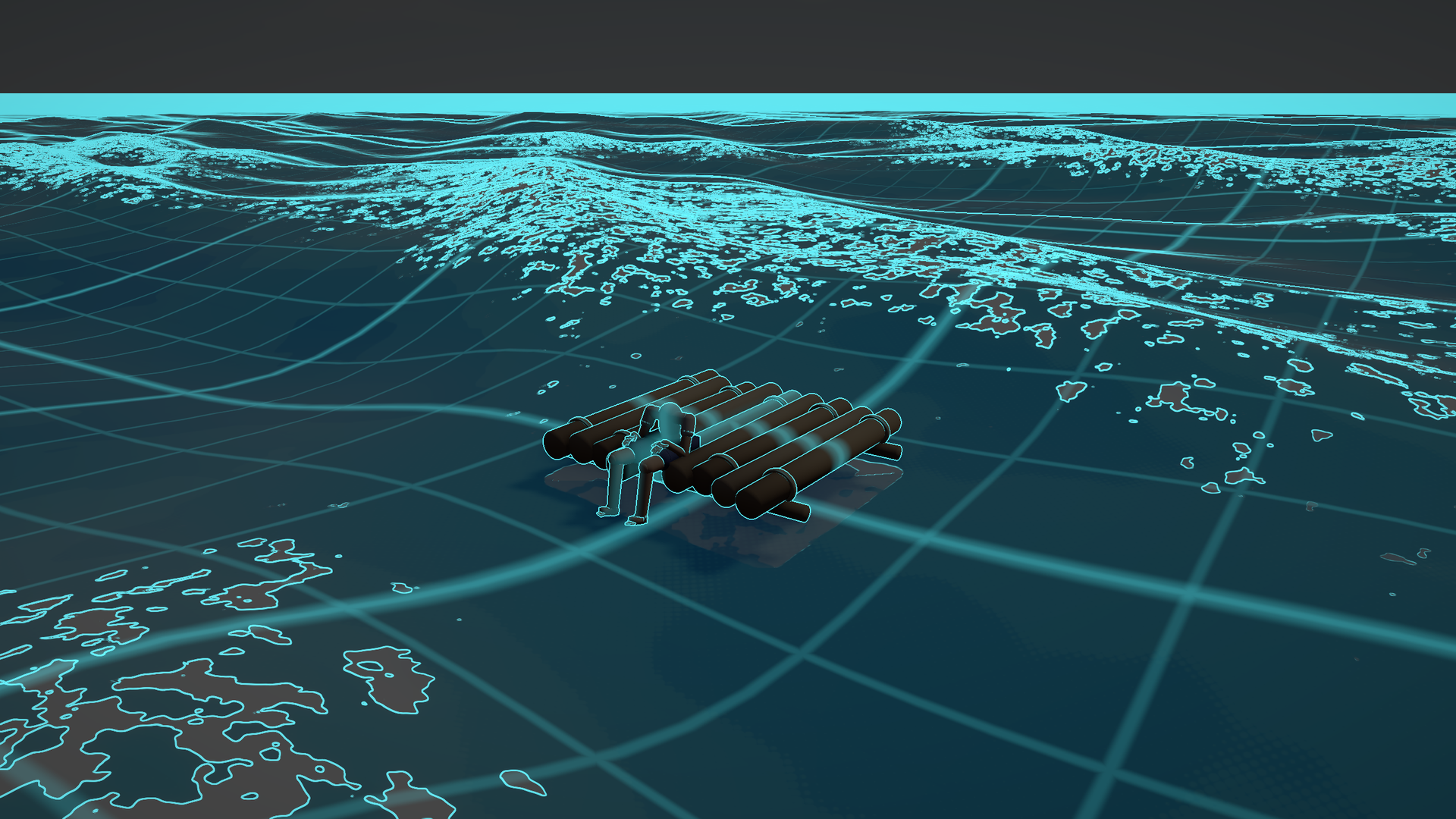
Mode 4 over an ocean scene: depth-reconstructed world grid, Sobel edges on depth and luminance.
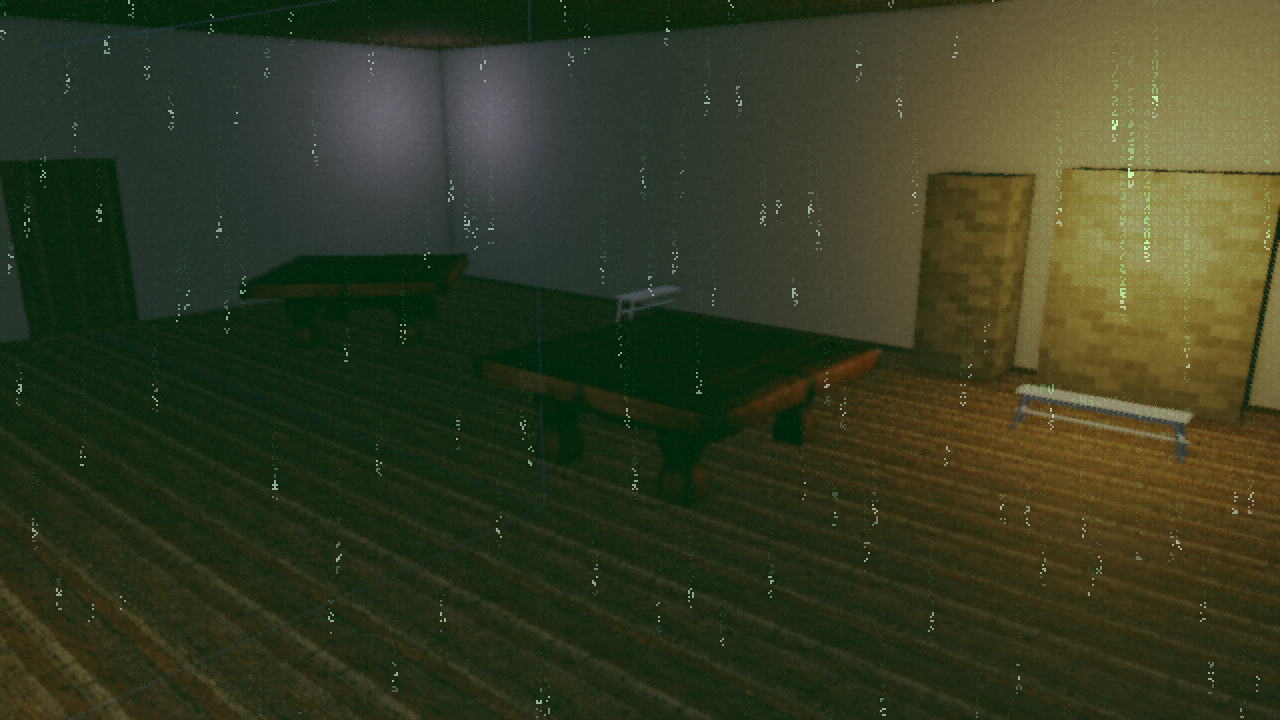
Mode 1: dot-matrix glyphs whose brightness and density track scene luminance.
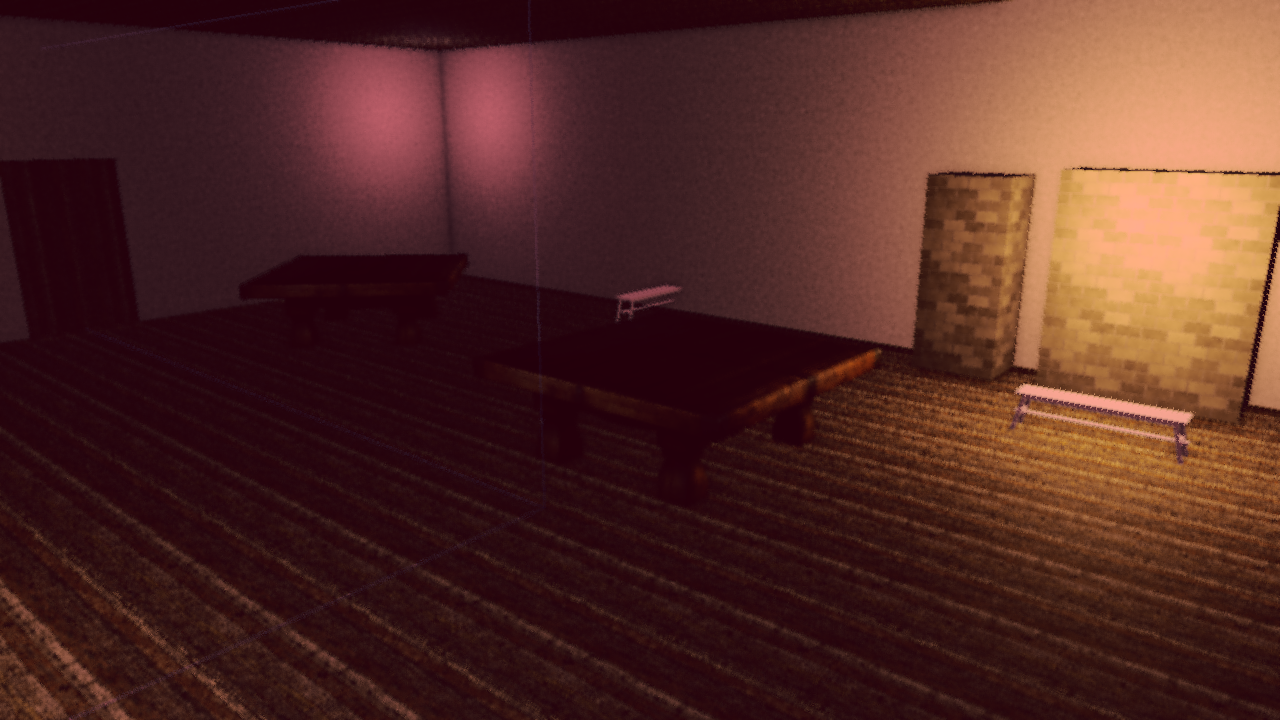
Mode 2: the palette remap, with the ocean recoloring itself through its own shader.
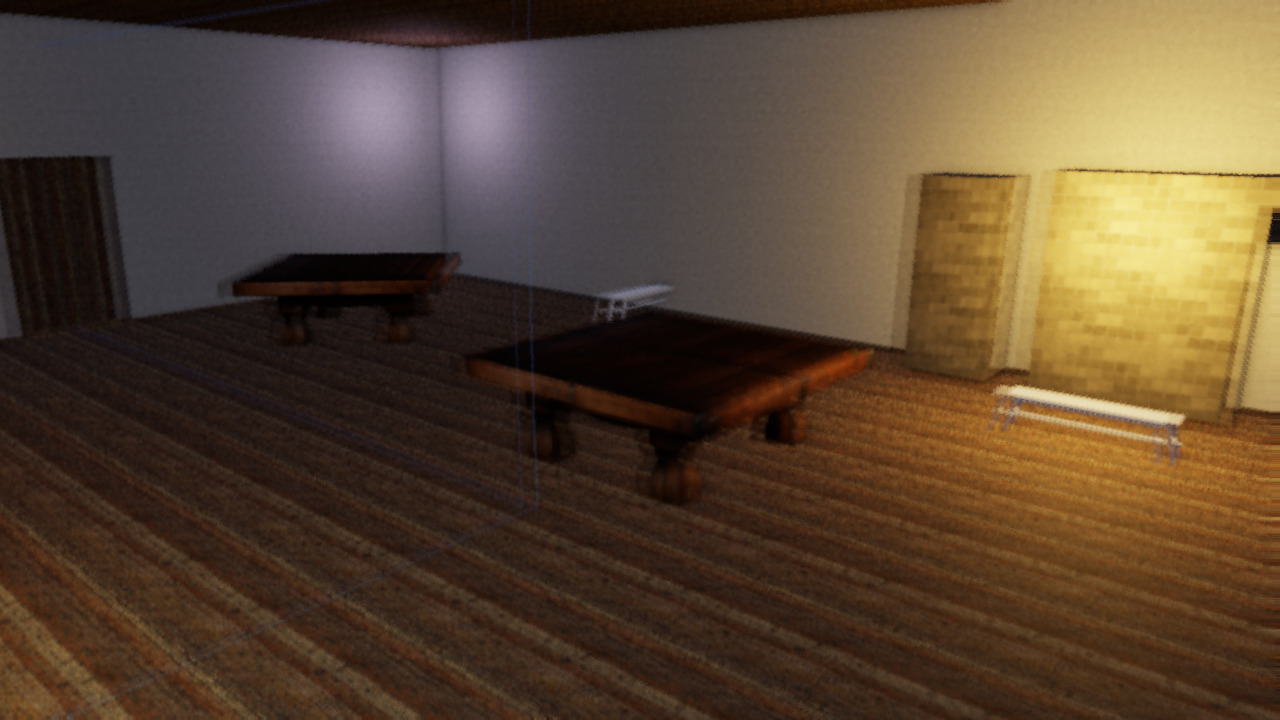
Mode 3: UV sway across the whole composite chain plus a ghosting double-tap.

Mode 5: masked by the per-pixel waterline, with banded absorption and a foam lip on the line.
| Mode | Name | What it does |
|---|---|---|
| 0 | None | Normal output. |
| 1 | Matrix | Procedural dot-matrix glyphs per 8x12 px cell. Brightness and density track scene luminance, with per-column rain heads. |
| 2 | Blood | Palette remap. Ocean scenes recolor through the ocean shader too, so the water is genuinely a different sea rather than a red filter over a blue one. |
| 3 | Drunk | Pre-sample UV sway warping the whole composite chain, plus a ghosting double-tap. |
| 4 | Tron | Depth Sobel + luminance edges in cyan over a dimmed scene, with a world-space grid reconstructed from depth so it rides real geometry. |
| 5 | Underwater | Masks per pixel against a waterline plane, not a patch mask. Banded murk absorption, a wobbled foam lip on the line, light shafts, Snell-window brightening. |
Four uniforms carry the state: render_mode, mode_mix (0..1 blend),
mode_time, and a mode_params vec4 whose meaning is per-mode.
| Mode | mode_params |
|---|---|
| 1–4 | x = bleed-mask scale, y = mask style (0 = fbm patches, 1 = radial iris), z = rate, w = spare |
| 5 | x = signed eye depth in meters (+ = submerged), y = sea energy 0..1, z = daylight 0..1, w = bioluminescence 0..1 |
Modes 1–4 fade in through an fbm bleed mask whose threshold sweeps across
the noise span, so patch coverage grows with mode_mix and pins to full
coverage at 1. Mode 5 ignores the mask entirely: being underwater is a fact
about where your eye is, not a patch that spreads.
From scripts
set_render_mode(4, 0.85);                  // mode, mix
set_render_mode_params(3.0, 0.0, 6.0, 0.0);
set_desaturation(0.5);                     // sticky
set_dof(0.6);                              // sticky
set_dof_focus(8.0, 4.0);                   // distance, range; sticky
set_render_mode is transient, and it is the only post-process override that
is. Every other override (exposure, bloom, fog, chromatic aberration,
desaturation, depth of field) is sticky: set it once and it persists. The
render mode is zeroed the frame your script stops calling it.
That asymmetry is deliberate. A sticky render mode plus a script that crashed, hot-reloaded, or was disabled mid-effect would leave the world permanently inside a hallucination with no way out. Instead, a dead script means a healed world. The cost is that you must call it every frame the effect is active:
fn on_update() {
    let m = current_mix();          // your own envelope
    if m > 0.001 {
        set_render_mode(active_mode, m);
    }
    // stop calling -> the engine restores the world by itself
}
Sticky effects a mode borrows (FOV, radial blur, chromatic aberration) are not covered by this, so zero them yourself when your effect ends. The player’s F4 menu has a Freeze script post overrides checkbox for the moments you want to tune by hand while a script is still writing.
Headless
flint render scene.toml --schemas schemas \
  --render-mode 4 --mode-mix 1.0 --mode-params 3,0,6,0
Since flint render runs no scripts, these flags are the fixture: there
is no script to drive the mode for you.
One practical note: modes 1 and 4 key off scene luminance, so they read best in daylight even if your game schedules them at night. A night scene renders the Matrix mode nearly black.
Design Decisions
- Rgba16Float for the HDR buffer provides sufficient precision for bloom extraction without the memory cost of Rgba32Float
- Progressive downsample/upsample (rather than a single Gaussian blur) produces wide, natural-looking bloom cheaply
- 1x1 black fallback texture when bloom is disabled avoids conditional bind group creation
- Lazy allocation — Kuwahara and FXAA pipelines and textures are created the first time they are enabled, so the default path pays nothing for them
- Gate-safe defaults — MSAA, FXAA and film grain default off, and grain time is pinned at 0 headlessly, so
flint renderoutput stays byte-stable for pixel-diff gates - Resize handling —
PostProcessResourcesare recreated on window resize since the HDR texture and bloom mip chain are resolution-dependent - Extended shadow depth — the shadow frustum’s depth range is extended beyond the camera frustum so off-screen casters (ceilings, walls behind the camera) are captured in the shadow map, which is critical for correct volumetric shafts in enclosed spaces
Further Reading
- Rendering — the PBR pipeline that feeds into post-processing
- Lighting — the light component, shadows, and the clay-look shading levers
- Headless Rendering — using post-processing flags in CI
- CLI Reference — full command options
- File Formats — the
[post_process]scene block
Audio
Flint’s audio system provides spatial 3D sound via the flint-audio crate, built on Kira 0.11. Sounds can be positioned in 3D space with distance attenuation, played as ambient loops, or triggered by game events like collisions.
Spatial Audio
Spatial sounds are attached to entities via the audio_source component. The sound’s volume attenuates with distance from the listener (the player camera):
- min_distance — full volume within this radius
- max_distance — silence beyond this radius
- Volume falls off smoothly between the two
The listener position and orientation are updated each frame to match the first-person camera, so sounds pan and attenuate as you move through the scene.
Ambient Loops
Non-spatial sounds play on the main audio track at constant volume regardless of listener position. Set spatial = false on an audio_source to use this mode — useful for background music, ambient atmosphere, and UI sounds.
Preloading
At scene load the player loads every file named by an audio_source component, then preloads every audio file it finds under audio/ (searching the scene directory, then its parent, the game root) so that play_sound("name") from a script never stalls on decode. A scene with a large stem library pays for that in load time. Opt out per scene:
[scene]
name = "Silent Corridor"
preload_audio = false
With preload_audio = false only audio_source files load, and music sessions resolve their stems through their own path. The default is true (ADR 0066, scene audio preload opt-out).
Mixer Buses
Every ordinary sound routes through one of two buses — music and sfx — both children
of Kira’s main track. (A running music session adds its own six-bus stem mixer on the same device; that mixer is owned by flint-music, not by audio_source, and is described on its own page.)
main  ──┬── music     (audio_source.bus = "music")
        └── sfx       (everything else, including all one-shots)
Opt a source into the music bus in the scene:
[entities.score.audio_source]
file = "audio/theme_night.ogg"
bus = "music"
loop = true
autoplay = true
Initial gains come from the CLI:
flint play scene.toml --music-volume 0.8 --sfx-volume 1.0
flint play scene.toml --music-volume 0     # mute the score, keep the world
Bus gain multiplies underneath per-sound volume. A script crossfading between two music beds keeps working at any bus gain, and a player who has turned the music down does not have their fades overridden.
The master low-pass applies to both buses, so set_audio_lowpass muffles the
entire mix — score included — which is what you want when the effect is
“something is between you and the world” rather than “the sfx got quieter”.
One-shots (play_sound, play_sound_at) are always sfx.
Music Sessions
A scene that carries a music_session component turns the audio engine into the host for a rhythm-driven chart: flint-music opens a ChartSession on the same Kira manager the ordinary buses use (ADR 0017, shared audio manager), so the world’s sounds and the suite’s stems mix together and one master low-pass muffles both. For the length of the session the gamepad is handed to a 1 kHz capture thread that stamps every stick and button event with the audio clock (ADR 0018, gamepad handoff).
While a session is active, only the lean stick and the pulse button reach
InputState. Every other gamepad control is consumed by the capture thread; keyboard input still flows through winit as normal. Scripts that need the pad for anything else during a chart should read the conducted parameters instead.
The component, its configuration files, the ladder and reintegration mechanics, and the seven flint subcommands that go with it are on the Music Sessions page.
Audio Schemas
Three component schemas define audio behavior:
audio_source (audio_source.toml) — a sound attached to an entity:
| Field | Type | Default | Description |
|---|---|---|---|
file | string | Path to audio file (relative to scene directory) | |
volume | f32 | 1.0 | Playback volume (0.0–2.0) |
pitch | f32 | 1.0 | Playback speed/pitch (0.1–4.0) |
loop | bool | false | Loop the sound continuously |
spatial | bool | true | 3D positioned (uses entity transform) |
min_distance | f32 | 1.0 | Distance at full volume |
max_distance | f32 | 25.0 | Distance at silence |
autoplay | bool | true | Start playing on scene load |
bus | string | "sfx" | Mixer bus: "sfx" or "music" |
Looping component sources must keep
autoplay = true. Components have no play/stop API — scripts can only fade their volume. If you need a sound that starts on cue, use a one-shot instead.
audio_listener (audio_listener.toml) — marks which entity receives audio:
| Field | Type | Default | Description |
|---|---|---|---|
active | bool | true | Whether this listener is active |
audio_trigger (audio_trigger.toml) — event-driven sounds:
| Field | Type | Default | Description |
|---|---|---|---|
on_collision | string | Sound to play on collision start | |
on_interact | string | Sound to play on player interaction | |
on_enter | string | Sound when entering a trigger volume | |
on_exit | string | Sound when exiting a trigger volume |
Dynamic Parameter Sync
Audio source parameters (volume and pitch) can be changed at runtime via set_field() and the engine automatically syncs changes to the playing audio each frame. This enables dynamic audio effects like engine RPM simulation or distance-based volume curves:
#![allow(unused)]
fn main() {
// Adjust engine sound pitch based on speed
let rpm_ratio = speed / max_speed;
set_field(engine_sound, "audio_source", "pitch", 0.5 + rpm_ratio * 1.5);
set_field(engine_sound, "audio_source", "volume", 0.3 + rpm_ratio * 0.7);
}
Changes are applied with a 16ms tween for smooth transitions (no clicks or pops).
Scene Transition Behavior
When a scene transition occurs (via load_scene() or reload_scene()), all playing sounds are explicitly stopped with a short fade-out before the old scene is unloaded. This prevents audio bleed between scenes — sounds from the previous scene won’t continue playing into the new one.
Architecture
The audio system has three main components:
- AudioEngine — wraps Kira’s
AudioManager, handles sound file loading, listener positioning, and spatial track creation. Sounds route through spatial tracks for 3D positioning, or through a mixer bus for non-positional playback. - AudioSync — bridges TOML
audio_sourcecomponents to Kira spatial tracks. Discovers new audio entities each frame and updates spatial positions from entity transforms. - AudioTrigger — maps game events (collisions, interactions) to
AudioCommands that play sounds at specific positions.
The system implements the RuntimeSystem trait, ticking in the update() phase of the game loop (not fixed_update(), since audio doesn’t need fixed-timestep processing).
Graceful Degradation
AudioManager::new() can fail on headless machines or CI environments without an audio device. The engine wraps the manager in Option and silently skips audio operations when unavailable. This means scenes with audio components work correctly in all environments — you just won’t hear anything.
Adding Audio to a Scene
# A crackling fire with spatial falloff
[entities.fireplace]
archetype = "furniture"

[entities.fireplace.transform]
position = [5.0, 0.5, 3.0]

[entities.fireplace.audio_source]
file = "audio/fire_crackle.ogg"
volume = 0.8
loop = true
spatial = true
min_distance = 1.0
max_distance = 15.0

# Background tavern ambience (non-spatial)
[entities.ambience]

[entities.ambience.audio_source]
file = "audio/tavern_ambient.ogg"
volume = 0.3
loop = true
spatial = false
Supported audio formats: OGG, WAV, MP3, FLAC (via Kira’s symphonia backend).
Scripting Integration
Audio can be controlled from Rhai scripts using deferred commands. The script API produces ScriptCommand values that the player processes after the script update phase:
| Function | Description |
|---|---|
play_sound(name) | Play a non-spatial sound at default volume |
play_sound(name, volume) | Play a non-spatial sound at the given volume (0.0–1.0) |
play_sound_at(name, x, y, z, volume) | Play a spatial sound at a 3D position |
stop_sound(name) | Stop a playing sound |
#![allow(unused)]
fn main() {
// In a Rhai script:
fn on_interact() {
    play_sound("door_open");                          // Non-spatial
    play_sound_at("glass_clink", 5.0, 1.0, 3.0, 0.8); // Spatial at position
}
}
Sound names match files in the audio/ directory. All .ogg, .wav, .mp3, and .flac files are automatically loaded at startup.
Further Reading
- Scripting — full scripting API including audio functions
- Animation — animation system that can trigger audio events
- Physics and Runtime — the game loop and event bus that drives audio triggers
- Schemas — component and archetype definitions
Music Sessions
A music session turns a scene into a rhythm-driven space: a fixed set of stems plays sample-locked on the audio clock, a beatmap chart says what the player’s controller should be doing on each beat, and the world’s audio and visuals come apart or re-gather as one thing depending on how well the two agree. The machinery lives in two engine crates, flint-music and flint-input-capture, and is switched on per scene by a music_session component. It grew out of Starchild but nothing in it is game-specific: any scene with a suite manifest and a chart can run one.
The design rule throughout is “linear composition, adaptive playback”: the music is authored once as a suite, and the engine adapts how it is played back, never what it is.
The Crates
flint-music is the data-contract and judgment layer. It parses suite manifests and charts, validates them against each other and against the stem files, keeps musical time (tempo map, conductor), judges input against the chart, integrates the result into a single coherence value, drives the six-bus stem mixer through the disintegration ladder, sequences reintegration after a full fail, records and replays sessions, and renders a scripted session offline to WAV. It never touches a gamepad.
flint-input-capture owns the gamepad on a dedicated thread polling at 1 kHz (default), far above frame rate, so pulse timing resolves at millisecond granularity instead of once per frame. Every event is stamped with a compensated suite sample: the bridged audio-clock sample minus the total judgment offset (measured output latency plus tap calibration), so the event carries the musical moment the player was responding to. On Windows the crate uses gilrs on the XInput backend rather than the default (ADR 0011, gilrs XInput backend), because the default backend delivers nothing to console applications.
Neither crate is optional at build time. The player links both; without an audio device or a gamepad the session simply degrades, as described below.
Verb Space
Charts never see buttons. The capture thread maps physical controls onto a small verb space, and the chart is written in those verbs:
| Verb | Kind | Range | Meaning |
|---|---|---|---|
lean | continuous, vec2 | [-1, 1] | Left stick. The primary tracking channel. |
sway | continuous, vec2 | [-1, 1] | Right stick. |
pressure_l / pressure_r | continuous, scalar | [0, 1] | Trigger depth. |
pulse | discrete | The one plain beat hit (South button). | |
press | discrete | Rising onset of a trigger squeeze; depth is judged from the pressure stream, never carried on the event. | |
flick | discrete, with direction | Right stick goes from quiet to hard deflection within a beat-scale instant. |
Which of these the pad produces is a verb map (ADR 0030, full verb map capture):
prototype(default): left stick islean; South button or right trigger ispulse. Byte-identical to the earliest builds.full: left stick islean, South ispulse, triggers becomepressure_l/pressure_rstreams withpressonsets, right stick becomesswayplus the flick detector. The right trigger no longer emits a plain pulse.
Select it with input_map on the component or --input-map on the CLI harnesses.
Suite Manifest and Chart
A suite is two TOML files, both carrying schema_version = 0.
The manifest (*.suite.toml) describes the music:
schema_version = 0

[suite]
id = "prologue"
title = "Prologue"

[audio]
sample_rate = 48000

[[tempo]]
sample = 0
bpm = 96.0
time_signature = [4, 4]

[[sections]]
name = "intro"
start_sample = 0
pulse_window_ms = 90.0

[reintegration]
re_entry_sections = ["intro", "verse"]
lead_bus = "home_theme"
reassembly_bars = 4

[buses.foundation]
file = "stems/foundation.wav"
[buses.harmony]
file = "stems/harmony.wav"
[buses.texture]
silent = true
The bus set is fixed at six: foundation, harmony, world_voice, home_theme, child_motif, texture. home_theme and child_motif are the motif buses and must stay isolated (never share a file with another bus). Optional [[degraded_alternates]] entries name a pre-composed degraded take for a bus over a sample range (ADR 0032, degraded alternate playback).
The chart (*.chart.toml) says what the player should do, in beats:
[[curves]]keys:channel,beat,value(one or two numbers),interpinlinear|hold|smooth.[[pulses]]:beat,kindinpulse|press|flick, optionalwindow_ms,strength,direction.[[cues]]:beat,cuename, optionalparamstable. Cues reach scripts throughconducted_cues()(ADR 0033, cue params and conducted cues).[[intensity]]keys:beat,value.
Both parsers are shape-tolerant on purpose. Unknown bus names, channels or kinds parse fine and are reported by flint validate-suite as coded issues; only structurally unreadable input fails to parse.
The music_session Component
Add the component to any entity in the scene. Its schema file lives in the game’s schemas/components/ directory, not in the engine’s, so the engine reads it by name and validates the fields itself:
[entities.conductor.music_session]
manifest = "music/prologue.suite.toml"
chart = "music/prologue.chart.toml"
lean_mode = "arrival"
input_map = "full"
ladder_config = "config/ladder.toml"
bars = 64
quit_on_finish = false
| Field | Type | Default | Description |
|---|---|---|---|
manifest | string | required | Suite manifest, relative to the game root |
chart | string | required | Beatmap chart |
lean_mode | string | "arrival" | arrival judges gross motion toward beat-anchored targets (ADR 0013, arrival lean mode); track judges the stick against the curve on a fine grid |
input_map | string | "prototype" | Verb map, prototype or full |
coherence_config | string | config/coherence.toml if present | Explicit path must load; the default is optional |
ladder_config | string | config/ladder.toml if present | Same contract |
gradient_config | string | config/gradient.toml if present | Same contract; absent means inert |
haptics_config | string | config/haptics.toml if present | Same contract; absent never emits an event |
bars | integer | play the suite out | Stop after this many bars |
quit_on_finish | bool | false | Exit the player when the session finishes (ADR 0036) |
tuning_config | string | Parsed and logged, not yet read | |
bindings | string | Declarative only. The script named here must be loaded through an ordinary script component; the session warns if the file does not exist |
Paths are resolved against the game root (the scene’s base_dir), the same place scripts/ and audio/ live.
Lifecycle
- Shared audio manager. The session opens on the player’s existing Kira manager rather than its own (ADR 0017, shared audio manager). Stems and
audio_sourcesounds share one device, one clock. If there is no audio device the session is skipped with a console notice and everything else in the scene runs. - Timing offsets. Measured output latency and tap calibration are read from the newest files under
logs/latency/in the game root. Missing values are announced loudly on the console: run the latency harness for the former andflint calibratefor the latter. - Gamepad handoff. The capture thread takes the pad for the session’s duration (ADR 0018, gilrs handoff and InputState downsample). The same event stream is down-sampled into the ordinary
InputStatesois_action_pressedand friends keep working frame-quantised, with a pulse press released on the next tick so edge detection sees a full down/up pair. - Teardown fades the stems over 50 ms and restores the scene’s authored post-processing values.
While a session is active only
leanandpulsereachInputState. Every other pad control is dropped inside the capture crate. Keyboard input stays on winit throughout. This is an accepted gap of ADR 0018; design your session scenes so that nothing else needs the pad.
The session ticks once per frame from the player’s frame loop. Each tick drains capture events, judges them, advances coherence, observes the ladder, runs the reintegration sequencer, applies the resolved mixer state, and publishes a ConductedSnapshot for scripts.
Coherence
Everything downstream sees one number in [0, 1] (ADR 0010, coherence model). It is a leaky integrator with asymmetric, bar-denominated time constants: the continuous tracking signal sets a per-step target and the value eases toward it, rising with rise_bars and falling with fall_bars. Judged pulses enter as bounded impulses: a hit nudges up by how clean it was, a miss down by miss_penalty, a spurious pulse by spurious_penalty (default 0, because this is flow, not evaluation). The sway and pressure channels have weights that default to 0, so an unmodified config produces bit-identical values on any chart. All of it is plain f64 arithmetic in a fixed order: same records in, same value out. Every knob is in config/coherence.toml and reloadable mid-session.
The Ladder
The disintegration ladder (ADR 0015, disintegration ladder config) is ordered rungs, each with a coherence threshold and a full description of the degraded state. It is data, config/ladder.toml, hot-reloadable:
schema_version = 0
arm_above = 0.8

[[rungs]]
name = "haze"
enter_below = 0.6
exit_above = 0.7
ramp_ms = 350.0
[rungs.audio]
lpf_hz = 4000.0
thin_db = { texture = -6.0 }
[rungs.visual]
desaturate = 0.3

[[rungs]]
name = "dropout"
enter_below = 0.3
exit_above = 0.45
[rungs.audio]
drop = ["texture"]
warble_depth_semitones = 0.3
warble_rate_hz = 1.5
[rungs.visual]
chromatic = 0.5
blur = 0.4

[full_fail]
enter_below = 0.15
exit_above = 0.25
hold_ms = 1500.0

[seam]
fade_ms = 30.0
rewind_beats = 4.0
rewind_drop_semitones = -30.0
pickup_beats = 2.0
lead_in_beats = 0.0
Rules the ladder keeps:
- Rung parameters are absolute. A deeper rung states the whole degraded state; it does not stack on the rung above.
- Hysteresis is in the thresholds.
enter_belowis lower thanexit_above, so a noisy value at a boundary never flickers the world. - Protected buses. Only
texture,world_voiceandharmonycan be thinned or dropped.foundationand the two motif buses are never touched by gain or dropout. The low-pass applies to every non-motif bus, foundation included: filtering the whole world is the woozy intent, silencing its pulse is not. - Arming. The ladder arms only once coherence first reaches
arm_above; the world can only come apart after it has first cohered. - One writer. The resolved
LadderParamsfor the current rung is the single source of truth. The audio half is applied as idempotent Kira tweens on the mixer; the visual half rides on the frame to the post-processing stack.
Full Fail and Reintegration
Below full_fail.enter_below, held for hold_ms, the reintegration sequencer takes over (ADR 0014, reintegration seam mechanism). The state machine is Playing → Failing → Reassembling → Playing:
- Rewind. For
seam.rewind_beatsthe whole world spins down like a record played backwards, a playback-rate ramp on every stem landing atrewind_drop_semitones, mirrored visually. The gesture is measured in beats so it starts on a beat and ends exactly at the seam. - Pickup. In the last
pickup_beatsbefore the seam the lead bus plays the re-entry material winding up from the spin-down rate to full speed, arriving on the re-entry downbeat. - Seam. On the next reachable bar line the old timeline fades out over
fade_ms(an envelope, not a cut) and every stem re-plays sample-locked from the previous re-entry section. The lead motif bus enters at full level; the rest enter at -60 dB. Withlead_in_beatsabove 0 (validated 0..8, default 0) the ensemble re-enters that many beats before the checkpoint downbeat, so the player gets a “3, 4, go” of prep time. - Reassembly. Over the manifest’s
reassembly_barsthe entering buses ramp in and the ladder runs in reverse, lerping from the deepest rung back to clean, so the world re-gathers as one thing.
Coherence is not reset. A player still absent after reassembly fails again, which is the designed loop; only the debounce restarts. Input is never interrupted and the judge is rewound at the seam.
Audio Gradient and Haptics
Two optional drivers sit beside the ladder, both pure evaluators that feed the same single mixer writer:
- Gradient (ADR 0024, error-driven audio gradient;
config/gradient.toml). Tune: lean error drives the depth of a zero-mean pitch LFO on one degradable bus, so off the lean the voice wavers and on it the voice settles. Sink: at stick-neutral the mix thins by per-bus gain trims. Scripts are read-only toward audio by design; the gradient never goes through Rhai. - Haptics (ADR 0026, haptic entrainment architecture;
config/haptics.toml). Pre-beat tick, pulse-landing thump, rewind grind, pickup ticks. The driver is event-shaped: it never sees coherence or lean error, because a buzz-when-wrong reads as punishment. Motor writes happen inflint-input-capture’s rumble engine over direct XInput (ADR 0025, rumble spike direct XInput), fired early by a feel-tuned lead.
Post-Processing Integration
The rung’s visual half maps onto three post-processing fields (ADR 0021, post-stack desaturation and blur mapping): blur becomes radial blur scaled by 0.6, chromatic and desaturate map 1:1. Each frame the session writes authored + rung × scale into any slot a script has not overridden, so script overrides win, preroll leaves the world untouched, and a ladder that recovers to clean restores the authored look. The F4 menu’s “Freeze script post overrides” switch stops these stamps so panel edits stick while tuning.
Scripts
A running session publishes a ConductedSnapshot every frame and the conducted_* family in Scripting reads it (ADR 0020, conducted parameters script surface): conducted_lean(), conducted_target(), conducted_next_target(), conducted_next_pulse(), conducted_coherence(), conducted_beat_phase(), conducted_bar(), conducted_section(), conducted_pulses(), conducted_cues(), conducted_desaturate(), conducted_blur(), conducted_chromatic(), conducted_reassembly(), conducted_rewind(), conducted_no_input(), conducted_preroll(). With no session running the snapshot is neutral (coherence and reassembly 1.0, lookaheads effectively infinite), so a script binding 1 - conducted_coherence() to fog shows nothing.
Scripts are read-only toward the session. Nothing in Rhai can change a bus gain, a rung, or the chart.
Recording, Replay and Offline Render
Every judgment is logged, and the input stream can be recorded to logs/sessions/<name>.session.jsonl: one JSON header line (suite, chart, sample rate, both offsets, config snapshots) then one event per line, each stamped with its compensated suite sample. Because the stamp is already musical time, flint replay-chart feeds the identical judgment and coherence code with no clock, no audio and no gamepad, and produces the same numbers. Synthetic profiles (perfect, late:<ms>, neglect) generate a stream from the chart alone. flint render-suite plays a scripted *.events.toml (bus gain, low-pass and detune changes at bar:N, beat:F or sample:N times) through the real scheduler and mixer into a WAV, deterministically.
Debug Surfaces
All of these compile only with the player’s debug-hud cargo feature (on by default) and never ship in the felt experience:
| Key | Surface |
|---|---|
` (backquote) | Music Guide: upcoming pulse, press and flick windows with a countdown, per-channel targets beside the live stick and trigger state (ADR 0035, music guide debug panel) |
\ (backslash) | Manifest Map: a full-width bottom strip of the whole suite, with sections, bar ruler, tempo changes, re-entry points, a playhead and this run’s judged pulses and seams (ADR 0037) |
F9 | Force fail: trigger the full rewind, seam and reassembly without playing down to it. Routed through the ordinary trigger path so it exercises the real failure code |
With no gamepad visible, a debug-hud build arms a keyboard fallback (ADR 0064, debug keyboard input fallback): arrow keys are lean, Space is pulse. Prototype verbs only; it is a plumbing check, not a feel surface.
Workflow
The CLI harnesses form a pipeline; each is documented in the Music CLI reference:
flint validate-suitecross-checks manifest, chart and stem files.flint play-suiteplays the stems sample-locked with a console readout of position and per-bus state.flint calibraterecords the player’s median tap offset tologs/latency/.flint play-chartruns the full reactive loop with live capture;--windowadds wordless visual cues,--recordwrites a session file.flint replay-chartre-judges a recorded or synthetic session headlessly.flint render-suiterenders a scripted session to WAV for listening tests and automated evidence.
Once the suite plays well in the harness, the music_session component brings the same session into flint play.
Further Reading
- Audio: the two-bus
flint-audiomixer the session shares a device with - Post-Processing: the fields the ladder drives
- Scripting: the
conducted_*surface - Debug Panels: how the Music Guide and Manifest Map fit the panel system
Animation
Flint’s animation system provides two tiers of animation through the flint-animation crate: property tweens for simple transform animations defined in TOML, and skeletal animation for character rigs imported from glTF files with GPU vertex skinning.
Tier 1: Property Animation
Property animations are the simplest form — animate any transform property (position, rotation, scale) or custom float field over time using keyframes. No 3D modeling tool required; clips are defined entirely in TOML.
Animation Clips
Clips are .anim.toml files stored in the demo/animations/ directory:
# animations/door_swing.anim.toml
name = "door_swing"
duration = 0.8

[[tracks]]
interpolation = "Linear"

[tracks.target]
type = "Rotation"

[[tracks.keyframes]]
time = 0.0
value = [0.0, 0.0, 0.0]

[[tracks.keyframes]]
time = 0.8
value = [0.0, 90.0, 0.0]

[[events]]
time = 0.0
event_name = "door_creak"
Interpolation Modes
| Mode | Behavior |
|---|---|
| Step | Jumps instantly to the next keyframe value |
| Linear | Linearly interpolates between keyframes |
| CubicSpline | Smooth interpolation with in/out tangents (matches glTF spec) |
Track Targets
Each track animates a specific property:
| Target | Description |
|---|---|
Position | Entity position [x, y, z] |
Rotation | Entity rotation in euler degrees [x, y, z] |
Scale | Entity scale [x, y, z] |
CustomFloat | Any numeric component field (specify component and field) |
Animation Events
Clips can fire game events at specific times — useful for triggering sounds (footstep at a specific frame), spawning particles, or notifying scripts. Events fire once per loop cycle.
Attaching an Animation
Add an animator component to any entity in your scene:
[entities.platform]
archetype = "furniture"

[entities.platform.transform]
position = [2.0, 0.5, 3.0]

[entities.platform.animator]
clip = "platform_bob"
autoplay = true
loop = true
speed = 1.0
The animation system scans for .anim.toml files at startup and matches clip names to animator components.
Tier 2: Skeletal Animation
For characters and complex articulated meshes, skeletal animation imports bone hierarchies from glTF files and drives them with GPU vertex skinning.
Pipeline
glTF file (.glb)
  ├── Skin: joint hierarchy + inverse bind matrices
  ├── Mesh: positions, normals, UVs, joint_indices, joint_weights
  └── Animations: per-joint translation/rotation/scale channels
         │
         ▼
  ┌──────────────────────┐
  │   flint-import        │  Extract skeleton, clips, skinned vertices
  └──────────┬───────────┘
             │
  ┌──────────▼───────────┐
  │   flint-animation     │  Evaluate keyframes → bone matrices each frame
  └──────────┬───────────┘
             │
  ┌──────────▼───────────┐
  │   flint-render        │  Upload bone matrices → vertex shader skinning
  └──────────────────────┘
How It Works
- Import —
flint-importextracts the skeleton (joint hierarchy, inverse bind matrices) and animation clips (per-joint keyframe channels) from glTF files - Evaluate — each frame,
flint-animationsamples the current clip time to produce local joint poses, walks the bone hierarchy to compute global transforms, and multiplies by inverse bind matrices to get final bone matrices - Render — bone matrices are uploaded to a per-entity GPU storage buffer. The skinned vertex shader transforms each vertex by its weighted bone influences. Because each entity owns its buffer, two entities instancing the same skinned asset animate independently: a crowd of the same model no longer shows whichever skeleton uploaded last.
The importer handles all three glTF interpolation modes. CUBICSPLINE samplers store three outputs per timestamp (in_tangent, value, out_tangent) and are consumed as triples; a sampler with fewer than 3 x timestamps outputs warns and degrades to LINEAR. Rotation tracks are also made hemisphere-continuous at clip load: Blender exports adjacent keys as q then -q on large joint rotations, and the Hermite curve between them would collapse through zero and snap the joint. Such keys (value and both tangents) are negated so the curve stays on one side of the sphere.
Skinned Vertices
Skeletal meshes use a separate SkinnedVertex type with 6 attributes (vs. 4 for static geometry), avoiding 32 bytes of wasted bone data on every static vertex in the scene:
| Attribute | Type | Description |
|---|---|---|
position | vec3 | Vertex position |
normal | vec3 | Vertex normal |
color | vec4 | Vertex color |
uv | vec2 | Texture coordinates |
joint_indices | uvec4 | Indices of 4 influencing bones |
joint_weights | vec4 | Weights for each bone (sum to 1.0) |
Crossfade Blending
Smooth transitions between skeletal clips (e.g., idle to walk) use crossfade blending controlled by the animator component:
[entities.character.animator]
clip = "idle"
playing = true
loop = true
blend_target = "walk"      # Crossfade into this clip
blend_duration = 0.3       # Over 0.3 seconds
Blending uses slerp for rotation quaternions and lerp for translation/scale, producing smooth pose interpolation.
The engine clears blend_target when the crossfade completes. It is a
request, not a state — once the fade lands, the field is retired and the clip
you faded into becomes the plain clip. Scripts must not treat a non-empty
blend_target as “currently blending to X” beyond the fade, and must not
re-assert it every frame: a target that never retires re-arms its own crossfade
forever, and the clip plays only its first blend_duration seconds on loop.
Calling blend_to with the clip that is already playing is a deliberate
restart, not a no-op. That is what lets a held key chain discrete steps —
each press re-triggers the same clip from the top.
flint edit <model.glb>plays clips directly and never goes through the blend path, so a clip that previews correctly can still be broken in play. Verify crossfades inflint play.
Animation Layers
Layers run extra clips on their own clocks and compose them onto the base pose, in array order, after any crossfade. Each layer has a weight, a mode, and an optional bone mask:
[entities.starthing.animator]
clip = "WalkCycle"
layers = [
  { clip = "StarCower", weight = 1.0, mode = "additive", mask = "head" },
]
| Key | Type | Default | Description |
|---|---|---|---|
clip | string | “” | Clip to play on this layer (empty = inactive slot; indices stay stable) |
weight | f32 | 1.0 | Live dial, 0 = off |
mode | string | “additive” | additive or override (see below) |
mask | string | “” | Root joint name; the layer only touches that joint and its descendants. A name that is not in the skeleton masks out every joint, so a typo makes the layer contribute nothing rather than everything |
speed | f32 | 1.0 | Multiplier on the entity’s base speed |
fade_target | f32 | — | Weight to ramp toward (see the fade section below) |
fade_duration | f32 | 0.0 | Seconds for the ramp; the engine zeroes it when the ramp lands |
Layer indices run from 0 to 254; the script API silently ignores anything at 255 or above (layer IDs travel as a byte in runtime bookkeeping).
Additive layers contribute each keyed joint’s delta from rest, scaled
by weight. They suit overlays authored as “rest plus a gesture” — a breathing
chest, the starthing’s cowering star-arms. Override layers blend each
keyed joint toward the clip’s pose by weight — “upper body aims while the
legs keep walking”, usually paired with a mask like mask = "spine".
Either way a layer only touches joints its clip actually keys (composing identity onto an un-keyed joint would corrupt one whose rest rotation is not identity), and because layers are composed after blending, they survive base crossfades — the character keeps breathing through the transition from idle to walk rather than holding its breath for 0.3 seconds.
Layers are ordered: an additive layer under an override is replaced where the override keys; an additive layer on top of an override adds to it.
The older single-layer fields still work and are treated as layers[0]:
layer_clip = "breathe"     # legacy alias for layers = [{ clip = "breathe", weight = ... }]
layer_weight = 1.0
When layers is non-empty it wins and the legacy pair is ignored. The script
API (set_anim_layer & co.) migrates the legacy pair into layers[0] the
first time it touches an entity.
Previewing layers
flint edit <model.gltf> has a Layers stack under the timeline: add rows,
pick a clip per layer, drag weights (they work while paused), flip
Add/Over, choose a mask joint, and solo/mute rows. The Skeleton colour
combo under View paints the armature overlay and the node tree:
- Last writer — yellow = base clip, one colour per layer, grey = rest pose
- Ln weight — grey → layer colour by the weight that layer applied
- Ln mask / Ln keyed joints — which bones the mask / clip reaches
Hover a joint in the node tree for a per-layer breakdown. The same setup can be rendered headlessly:
flint edit models/starthing.gltf --render out.png --clip WalkCycle --layer StarCower:1.0:head
# --layer clip[:weight[:mask[:mode]]], repeatable, in order
Layer fades
A layer’s weight is a live dial, so a script that sets it pops the pose. To
ramp instead, set fade_target and fade_duration on the layer table (or call
fade_anim_layer(entity, index, weight, seconds)). The engine owns the weight
while the ramp runs: it writes the ramped value back to layers[i].weight
every frame and zeroes fade_duration when it arrives, so the next
sync_from_world doesn’t re-arm it — the same contract as blend_target. Any
plain set_anim_layer_weight cancels a ramp in flight. The previewer’s Layers
row shows → target (seconds left) while a fade runs.
Sequences
A *.sequence.toml is a list of timestamped animator events — everything the
script API can do to an animator, written down with times so it can be
played, scrubbed and rendered identically in the previewer and the player:
name = "starthing_showcase"
# duration = 6.0   # optional; default = last event time + its transition
loop = false

[[events]]
time = 0.0
kind = "blend"            # crossfade the base clip (duration 0 = hard cut)
clip = "BreathingIdle"
duration = 0.0

[[events]]
time = 1.5
kind = "blend"
clip = "WalkCycle"
duration = 0.4

[[events]]
time = 2.5
kind = "layer"            # set a layer slot; omitted keys keep their value
index = 0
clip = "StarCower"
mode = "additive"
mask = "head"
weight = 1.0
fade = 0.3                # ramp the weight over 0.3 s (omit = instant)

[[events]]
time = 4.0
kind = "speed"
value = 1.3

[[events]]
time = 5.5
kind = "layer"
index = 0
weight = 0.0
fade = 0.4

[[events]]
time = 6.0
kind = "cue"              # named marker for scripts
name = "done"
Event kinds: blend { clip, duration }, layer { index, clip?, weight?, fade, mode?, mask? }, speed { value }, cue { name }. Events are sorted by time
(stable, so same-time events keep authored order) and each fires exactly once
when the playhead reaches its time. Sequences run before the
skeletal tier each frame, so their writes land the same frame.
A looping sequence fires everything up to min(time, duration), then wraps,
re-arms every event (including those at t = 0) and fires from zero again,
repeating while the frame still overruns. A large dt therefore neither skips
events nor delays the next pass by a frame: a 1 s loop with a cue at 0.8 s,
advanced by 0.5 then 0.6, fires start, tail, start. A looping sequence whose
resolved duration is zero is rejected at load (looping sequence has zero duration); a non-looping one with only t = 0 events fires them and completes
on its first advance.
Base-clip changes always go through blend_target (a tracked skeletal entity
never re-reads clip); a duration of 0 is clamped to 1 ms because the
crossfade path ignores non-positive durations.
Previewing a sequence
flint edit models/starthing.gltf --sequence animations/starthing_showcase.sequence.toml
flint edit models/starthing.gltf --sequence animations/starthing_showcase.sequence.toml \
    --render t3.png --anim-time 3.0        # headless: pose at t = 3 s
The bottom panel gains a Sequence section: play/pause (P), Restart
(R / Home), a Loop toggle (--sequence-loop sets it from the CLI; ticking it after the end restarts), a seek slider, and a marker strip with one tick per
event (orange = blend, layer colour = layer, grey = speed, cyan = cue; dim =
not yet fired; hover for details, click to seek). Seeking and --anim-time
both replay the sequence from t = 0 in 1/120 s steps after restoring the
animator to its pre-sequence state, so the pose at any time is deterministic —
rendering the same --anim-time twice yields identical pixels. Cues fired
during playback print [sequence] cue '<name>' at <t>s.
Sequences at runtime
The player loads every *.sequence.toml from the scene’s animations/
directory (or ../animations/) and registers it by name. Scripts start one
with play_sequence(entity, name) and stop it with stop_sequence(entity);
both just write animator.sequence, so a scene can also autoplay one:
[entities.hero.animator]
clip = "Idle"
playing = true
sequence = "intro_bow"
When a non-looping sequence ends the engine clears animator.sequence, so
play_sequence with the same name is a fresh start. Cues reach the owning
entity’s script:
#![allow(unused)]
fn main() {
fn on_sequence_cue(sequence, cue) {
    if cue == "done" { play_sequence(self_entity(), "idle_loop"); }
}
}
Rest Poses
Pose buffers are seeded from the glTF bind-local TRS, not from identity. This matters for sparse clips: a clip that keys only an arm would otherwise collapse every un-keyed limb onto its parent, and your character would fold up the moment it played.
Skeleton Schema
The skeleton component references a glTF skin:
[entities.character.skeleton]
skin = "Armature"           # Name of the glTF skin
Entities with both animator and skeleton components use the skeletal animation path. Entities with only animator use property tweens.
Animator Schema
The animator component controls playback for both tiers:
| Field | Type | Default | Description |
|---|---|---|---|
clip | string | “” | Current animation clip name |
playing | bool | false | Whether the animation is playing |
autoplay | bool | false | Start playing on scene load |
loop | bool | true | Loop when the clip ends |
speed | f32 | 1.0 | Playback speed (-10.0 to 10.0) |
blend_target | string | “” | Clip to crossfade into (cleared by the engine when the fade completes) |
blend_duration | f32 | 0.3 | Crossfade duration in seconds |
layers | array of tables | [] | Animation layers { clip, weight, mode, mask, speed, fade_target, fade_duration }, composed in order |
sequence | string | “” | Name of a *.sequence.toml from the scene’s animations/ directory driving this animator. Set by play_sequence(), cleared by the engine when a non-looping sequence finishes |
layer_clip | string | “” | Legacy alias for layers[0] (additive, unmasked) |
layer_weight | f32 | 1.0 | Legacy alias for layers[0].weight |
Architecture
- AnimationPlayer — clip registry and per-entity playback state for property tweens
- AnimationSync — bridges ECS
animatorcomponents to property animation playback, auto-discovers new entities each frame - SkeletalSync — bridges ECS to skeletal animation, manages per-entity skeleton state and bone matrix computation
- AnimationSystem — top-level
RuntimeSystemimplementation that ticks both tiers
Animation runs in update() (variable-rate), not fixed_update(), because smooth interpolation benefits from matching the rendering frame rate rather than the physics tick rate.
Scripting Integration
Animations can be controlled from Rhai scripts by writing directly to the animator component. The AnimationSync system picks up changes on the next frame:
| Function | Description |
|---|---|
play_clip(entity_id, clip_name) | Start playing a named animation clip |
stop_clip(entity_id) | Stop the current animation |
blend_to(entity_id, clip, duration) | Crossfade to another clip over the given duration |
set_anim_speed(entity_id, speed) | Set animation playback speed |
set_anim_layer(entity_id, index, clip, weight) | Play clip on a layer (additive, unmasked) |
set_anim_layer_ex(entity_id, index, clip, weight, mode, mask) | Same with "additive"/"override" and a root-joint mask |
set_anim_layer_weight(entity_id, index, weight) | Set a layer’s weight instantly (cancels a fade) |
fade_anim_layer(entity_id, index, weight, seconds) | Ramp a layer’s weight over seconds |
clear_anim_layer(entity_id, index) | Leave an inactive slot |
play_sequence(entity_id, name) / stop_sequence(entity_id) | Drive the animator from a *.sequence.toml |
on_sequence_cue(sequence, cue) | Callback: a sequence passed a cue event |
#![allow(unused)]
fn main() {
// In a Rhai script:
fn on_interact() {
    let me = self_entity();
    play_clip(me, "door_swing");
}

fn on_init() {
    let me = self_entity();
    blend_to(me, "idle", 0.3);  // Smooth transition to idle
}
}
Further Reading
- Scripting — full scripting API including animation functions
- Audio — audio system that responds to animation events
- Rendering — the skinned mesh GPU pipeline
- Physics and Runtime — the game loop that drives animation
- File Formats —
.anim.tomlformat reference
Terrain
Flint’s terrain system provides heightmap-based outdoor environments via the flint-terrain crate. Rolling hills, mountains, valleys, and open landscapes are defined by a grayscale heightmap image and textured with up to four blended surface layers controlled by an RGBA splat map.
How It Works
A single terrain component on an entity defines the entire terrain surface:
Heightmap PNG          flint-terrain              flint-render
  grayscale    ──►  Chunked mesh generation  ──►  TerrainPipeline
  257x257           positions/normals/UVs          PBR lighting
                    triangle indices               splat-map blending
                                                   cascaded shadows

Splat Map PNG                                    flint-physics
  RGBA channels  ──►  4-layer texture blend      Rapier trimesh
  R=grass G=dirt       tiled from world pos       collision collider
  B=rock  A=sand
The heightmap is a grayscale PNG (8-bit or 16-bit) where black is the lowest point and white is the highest. The terrain is divided into chunks for efficient rendering — each chunk is an independent draw call with its own vertex and index buffers.
Adding Terrain to a Scene
Create an entity with the terrain archetype:
[entities.ground]
archetype = "terrain"

[entities.ground.transform]
position = [-128, 0, -128]

[entities.ground.terrain]
heightmap = "terrain/heightmap.png"
splat_map = "terrain/splatmap.png"
layer0_texture = "terrain/grass.png"
layer1_texture = "terrain/dirt.png"
layer2_texture = "terrain/rock.png"
layer3_texture = "terrain/sand.png"
width = 256.0
depth = 256.0
height_scale = 50.0
texture_tile = 16.0
The transform.position sets the world-space origin of the terrain. The heightmap is placed starting at that position, extending width units along X and depth units along Z. Heights range from 0 to height_scale units along Y.
Heightmap
The heightmap is a grayscale PNG image. Each pixel encodes a height value:
- 8-bit grayscale — 256 height levels
- 16-bit grayscale — 65,536 height levels (recommended for large terrains)
The heightmap resolution determines mesh detail. A 257x257 image with chunk_resolution = 64 produces a 4x4 grid of chunks, each with 65x65 vertices (16,641 vertices per chunk, 24,576 triangles per chunk).
Heights are sampled with bilinear interpolation for smooth surfaces, even with lower-resolution heightmaps.
Creating Heightmaps
Any image editor that outputs grayscale PNGs works. Common approaches:
- Photoshop/GIMP — paint or use noise filters, export as grayscale PNG
- World Machine / Gaea — procedural terrain generation tools
- Python + Pillow — generate programmatically with noise functions
- Real-world data — USGS elevation data converted to grayscale
The dimensions should ideally be (N * chunk_resolution) + 1 for clean chunk boundaries (e.g., 257, 513, 1025).
Splat Map
The splat map is an RGBA PNG that controls how four texture layers blend across the terrain surface:
| Channel | Layer | Typical Use |
|---|---|---|
| R (red) | Layer 0 | Grass |
| G (green) | Layer 1 | Dirt |
| B (blue) | Layer 2 | Rock |
| A (alpha) | Layer 3 | Sand |
At each pixel, the RGBA weights are normalized so they always sum to 1.0. A pixel with (255, 0, 0, 0) shows pure grass; (128, 128, 0, 0) shows a 50/50 grass-dirt blend.
If no splat map is provided, the terrain uses the default white texture uniformly.
Creating Splat Maps
Splat maps can be painted manually in any image editor that supports RGBA channels, or generated algorithmically based on height and slope:
- Low flat areas — grass (red channel)
- Mid elevations — dirt (green channel)
- Steep slopes / high peaks — rock (blue channel)
- Very low areas — sand (alpha channel)
Texture Tiling
Layer textures are tiled across the terrain surface based on world position, not the terrain UV. The texture_tile field controls how many times the texture repeats per 100 world units:
texture_tile | Repetitions per 100 units | Good for |
|---|---|---|
| 4.0 | 4x | Large rock formations |
| 12.0 | 12x | General ground cover |
| 24.0 | 24x | Fine detail (grass blades) |
Higher values produce finer detail but may show visible tiling at a distance. Future updates will add detail textures and triplanar mapping to mitigate this.
Component Schema
| Field | Type | Default | Description |
|---|---|---|---|
heightmap | string | Path to grayscale PNG (relative to scene directory) | |
width | f32 | 256.0 | World-space extent along X axis |
depth | f32 | 256.0 | World-space extent along Z axis |
height_scale | f32 | 50.0 | Maximum height in world units |
chunk_resolution | i32 | 64 | Vertices per chunk edge (higher = more detail) |
texture_tile | f32 | 16.0 | Texture tiling factor per 100 world units |
splat_map | string | “” | Path to RGBA splat map PNG |
layer0_texture | string | “” | Layer 0 texture (splat R channel) |
layer1_texture | string | “” | Layer 1 texture (splat G channel) |
layer2_texture | string | “” | Layer 2 texture (splat B channel) |
layer3_texture | string | “” | Layer 3 texture (splat A channel) |
metallic | f32 | 0.0 | PBR metallic value for terrain surface |
roughness | f32 | 0.85 | PBR roughness value for terrain surface |
Grass
Terrain can carry a GPU-instanced grass layer. Blades are scattered by a compute shader, drawn as crossed quads with wind sway and bend-on-contact, and cast into the two nearest shadow cascades. Nothing is authored by hand: density comes from the splat map, so grass grows exactly where the grass layer is painted.
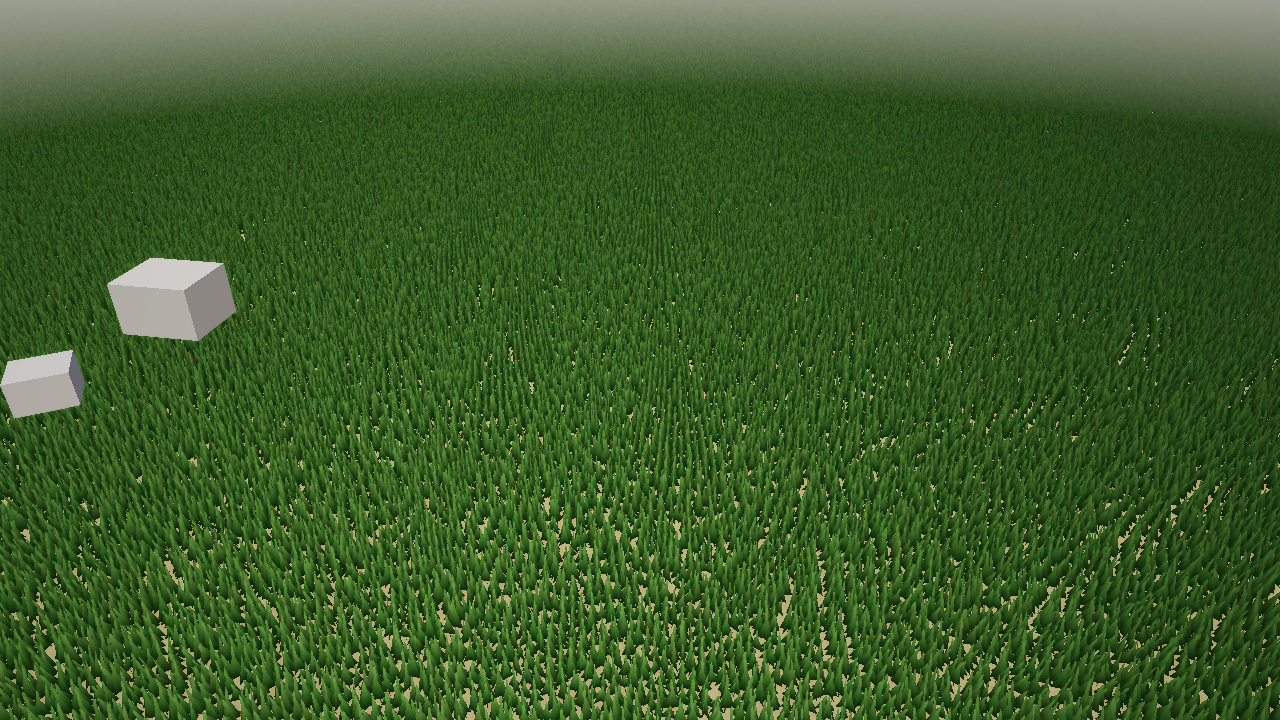
The Rolling Meadow demo: stylised grass driven by the splat map’s red channel, with golden-hour lighting.
Grass is a block of dotted keys on the same terrain component:
[entities.ground.terrain]
heightmap = "terrain/heightmap.png"
splat_map = "terrain/splatmap.png"
width = 384.0
depth = 384.0
"grass.enabled" = true
"grass.density" = 50.0
"grass.max_distance" = 100.0
"grass.fade_start" = 70.0
"grass.blade_height" = 0.43
"grass.color_base" = [0.12, 0.42, 0.08]
"grass.color_tip" = [0.35, 0.72, 0.18]
"grass.wind_direction" = [0.8, 0.0, 0.6]
"grass.wind_strength" = 0.09
| Field | Type | Default | Description |
|---|---|---|---|
grass.enabled | bool | false | Turn the grass layer on |
grass.density | f32 | 8.0 | Blades per square metre |
grass.max_distance | f32 | 80.0 | Distance from the camera at which grass stops |
grass.fade_start | f32 | 60.0 | Distance where probabilistic thinning begins |
grass.blade_width | f32 | 0.08 | Blade width in metres |
grass.blade_height | f32 | 0.4 | Base blade height in metres |
grass.height_variation | f32 | 0.3 | Random height scale, 0 to 1 |
grass.color_base | vec3 | [0.15, 0.45, 0.1] | Colour at the root, linear RGB |
grass.color_tip | vec3 | [0.3, 0.7, 0.15] | Colour at the tip |
grass.color_dry | vec3 | [0.55, 0.5, 0.2] | Dry tint mixed in per blade |
grass.dry_amount | f32 | 0.15 | How much of the field is dry, 0 to 1 |
grass.wind_direction | vec3 | [1.0, 0.0, 0.3] | Wind direction in the XZ plane |
grass.wind_speed | f32 | 1.0 | Sway frequency multiplier |
grass.wind_strength | f32 | 0.15 | Maximum sway displacement in metres |
grass.bend_radius | f32 | 2.0 | Radius around an entity within which blades bend away |
grass.bend_strength | f32 | 0.8 | How far they bend, 0 to 1 |
grass.density_source | string | “splat” | splat reads the splat map; map is reserved for a dedicated density texture |
grass.density_layer | i32 | 0 | Which splat channel drives density (0 = R, 1 = G, 2 = B, 3 = A) |
grass.density_threshold | f32 | 0.1 | Minimum splat weight before a blade may spawn |
How it works, per frame:
- A compute pass walks a grid whose spacing is
1 / sqrt(density), samples the splat map’sdensity_layerat each cell, skips cells underdensity_threshold, applies a probabilistic falloff betweenfade_startandmax_distance, and writes a 32-byte instance (position on the heightmap, rotation, height scale, packed tint) into a storage buffer. - A render pass draws one shared blade mesh per instance. The vertex shader sways blades by a time-driven wind term and pushes them away from up to eight entity positions within
bend_radius; the fragment shader blendscolor_basetocolor_tipalong the blade, mixes incolor_dry, and shades with the same lighting levers and PCSS shadows as other geometry. The player feeds the camera position as the bend entity. - The shadow pass renders the instances into the nearest two cascades, so grass darkens the ground under it.
The pipeline participates in MSAA when the player runs with --msaa 4, and grass appears in flint render snapshots at time zero, so the wind is frozen but the field is fully populated.
The Grass Debug panel (F3 in the player, see Debug Panels) exposes every field above live and can commit them back to the scene file, which is how the meadow demo’s numbers were found.
Physics Collision
Terrain automatically gets a trimesh physics collider via Rapier. The mesh geometry is exported as vertices and triangle indices, then registered as a fixed (immovable) rigid body. This means:
- Characters walk on the terrain surface naturally
- Objects collide with the terrain
- Raycasts hit the terrain for line-of-sight checks
The collider shape exactly matches the rendered mesh, so what you see is what you collide with.
Height Sampling from Scripts
The terrain_height(x, z) function is available in Rhai scripts to query the terrain height at any world position:
#![allow(unused)]
fn main() {
fn on_update() {
    let me = self_entity();
    let pos = get_position(me);

    // Get terrain height at entity's XZ position
    let ground_y = terrain_height(pos.x, pos.z);

    // Snap entity to terrain surface
    set_position(me, pos.x, ground_y + 0.5, pos.z);
}
}
This is useful for:
- NPC placement — keep characters on the ground
- Projectile impact — detect when a projectile hits terrain
- Camera clamping — prevent the camera from going below ground
- Vegetation scattering — place objects at correct heights
The function uses bilinear interpolation on the heightmap data, matching the rendered surface exactly. It returns 0.0 if no terrain is loaded.
Rendering
Terrain uses its own TerrainPipeline with full PBR lighting — the same Cook-Torrance BRDF, cascaded shadow maps, point lights, and spot lights as regular scene geometry. Terrain both casts and receives shadows.
The rendering order places terrain early in the pass (after the skybox, before entity geometry) to fill the depth buffer for efficient occlusion culling of objects behind hills.
When post-processing is active, the terrain outputs linear HDR values like all other scene geometry. The composite pass handles tonemapping, bloom, fog, and other effects.
Scene Transitions
Terrain is fully cleared and reloaded during scene transitions. When load_scene() is called:
- Current terrain draw calls and physics collider are removed
- New scene is loaded
- New terrain (if any) is generated, uploaded to GPU, and registered with physics
- The
terrain_height()callback is updated to use the new heightmap
Architecture
The terrain system is split across crates to maintain clean dependency boundaries:
flint-terrain— pure data crate (no GPU dependency). Generates chunked mesh geometry from heightmap data. Outputs raw positions, normals, UVs, and indices.flint-render—TerrainPipelineandterrain_shader.wgsl. Assembles GPU vertex buffers from terrain data, handles splat-map texture blending and PBR lighting.GrassPipelinewithgrass_compute.wgslandgrass_render.wgslowns the grass layer;flint-terrainonly holds itsGrassConfig.flint-physics— reuses existingregister_static_trimesh()for collision. No terrain-specific physics code needed.flint-script—terrain_height(x, z)Rhai function via callback pattern.
This separation means flint-terrain can be used independently for tools, CLI commands, or headless processing without pulling in the GPU stack.
Limitations
- One terrain per scene — currently only the first terrain entity is loaded
- No mesh LOD — all chunks render at full resolution regardless of distance (chunks outside the camera frustum are culled; grass thins with distance)
- No runtime deformation — terrain is static after loading
- CPU-side simulation — no GPU compute for terrain generation
- Fixed PBR parameters — metallic and roughness are uniform across the entire terrain surface
See the Terrain Roadmap for planned features including LOD, sculpting, auto-splatting, triplanar mapping, and more.
Further Reading
- Rendering — the PBR pipeline that terrain builds on
- Post-Processing — bloom, fog, and SSAO that apply to terrain
- Physics and Runtime — the collision system terrain integrates with
- Scripting —
terrain_height()and other script APIs - Schemas — component and archetype definitions
Particles
Flint’s particle system provides GPU-instanced visual effects through the flint-particles crate. Fire, smoke, sparks, dust motes, magic effects — any volumetric visual that needs hundreds or thousands of small, short-lived elements.
Note: Particle effects are dynamic simulations that accumulate over time. Use
flint playto see them in action — headlessflint rendercaptures a single frame and won’t show accumulated particles.
How It Works
Each entity with a particle_emitter component owns a pool of particles simulated on the CPU and rendered as camera-facing quads via GPU instancing. The pipeline is:
TOML component                CPU simulation              GPU rendering
particle_emitter   ──►  ParticleSync reads config  ──►  ParticlePipeline
  emission_rate         spawn/integrate/kill             instanced draw
  gravity               pack into instance buffer        storage buffer
  color_start/end       (swap-remove pool)               alpha or additive
Unlike billboard sprites (which are individual ECS entities), particles are pooled per-emitter — a single entity can own thousands of particles without overwhelming the ECS.
Adding Particles to a Scene
Add a particle_emitter component to any entity:
[entities.campfire]
[entities.campfire.transform]
position = [0, 0.2, 0]

[entities.campfire.particle_emitter]
emission_rate = 40.0
max_particles = 200
lifetime_min = 0.3
lifetime_max = 0.8
speed_min = 1.5
speed_max = 3.0
direction = [0, 1, 0]
spread = 20.0
gravity = [0, 2.0, 0]
size_start = 0.15
size_end = 0.02
color_start = [1.0, 0.7, 0.1, 0.9]
color_end = [1.0, 0.1, 0.0, 0.0]
blend_mode = "additive"
shape = "sphere"
shape_radius = 0.15
autoplay = true
Emission Shapes
The shape field controls where new particles spawn relative to the emitter:
| Shape | Fields | Description |
|---|---|---|
point | (none) | All particles spawn at the emitter origin |
sphere | shape_radius | Random position within a sphere |
cone | shape_angle, shape_radius | Particles emit in a cone around direction |
box | shape_extents, shape_axis_u, shape_axis_v | Random position within a box. Axis-aligned by default; give shape_axis_u and shape_axis_v world directions to orient it (see below) |
Every shape is translated by shape_offset before the emitter position is applied, so a trail can spawn a little behind the entity that owns it.
Oriented Boxes
A box emitter can be rotated without rotating the entity (ADR 0061, prologue flight trails). shape_extents.x runs along shape_axis_u, shape_extents.y along shape_axis_v, and shape_extents.z along their cross product. The two axes are normalised and orthogonalised for you; if either is zero, or they are parallel, the box falls back to axis-aligned. Because both axes are live fields, a script can point the spawn slab along an entity’s lateral motion every frame:
fn on_update() {
    let me = self_entity();
    let p = get_position(me);
    let last = get_field(me, "trail_state", "last_pos");   // your own component
    let dx = p.x - last.x;
    let dz = p.z - last.z;
    if dx * dx + dz * dz > 0.0001 {
        set_field(me, "particle_emitter", "shape_axis_u", [dx, 0.0, dz]);
    }
    set_field(me, "trail_state", "last_pos", #{ x: p.x, y: p.y, z: p.z });
}
Blend Modes
| Mode | Use Case | Description |
|---|---|---|
alpha | Smoke, dust, fog | Standard alpha blending — particles fade naturally |
additive | Fire, sparks, magic | Colors add together — bright, glowing effects |
Additive blending is order-independent, making it ideal for dense effects. Alpha blending looks best for soft, diffuse effects.
Value Over Lifetime
Particles interpolate linearly between start and end values over their lifetime:
size_start/size_end— particles can grow (smoke expanding) or shrink (sparks dying)color_start/color_end— RGBA transition. Setcolor_endalpha to 0 for fade-out
Sprite Sheet Animation
For textured particles (flame sprites, explosion frames), use sprite sheets:
[entities.explosion.particle_emitter]
texture = "explosion_sheet.png"
frames_x = 4
frames_y = 4
animate_frames = true   # Auto-advance frames over particle lifetime
With animate_frames = true, each particle plays through the sprite sheet from birth to death.
Bursts and Duration
For one-shot effects (explosions, impacts), combine bursts with limited duration:
[entities.explosion.particle_emitter]
emission_rate = 0.0      # No continuous emission
burst_count = 50         # 50 particles on each burst
duration = 0.5           # Emitter runs for 0.5 seconds
looping = false          # Don't repeat
autoplay = true          # Fire immediately
For periodic bursts (fountain, heartbeat), set looping = true with a duration.
Component Schema
| Field | Type | Default | Description |
|---|---|---|---|
emission_rate | f32 | 10.0 | Particles per second (0 = burst-only) |
burst_count | i32 | 0 | Particles fired on each burst/loop start |
max_particles | i32 | 256 | Pool capacity (max 10,000) |
lifetime_min | f32 | 1.0 | Minimum particle lifetime in seconds |
lifetime_max | f32 | 2.0 | Maximum particle lifetime in seconds |
speed_min | f32 | 1.0 | Minimum initial speed |
speed_max | f32 | 3.0 | Maximum initial speed |
direction | vec3 | [0,1,0] | Base emission direction (local space) |
spread | f32 | 15.0 | Random deviation angle in degrees |
gravity | vec3 | [0,-9.81,0] | Acceleration applied per frame (world space) |
damping | f32 | 0.0 | Velocity decay per second |
size_start | f32 | 0.1 | Particle size at birth |
size_end | f32 | 0.0 | Particle size at death |
color_start | vec4 | [1,1,1,1] | RGBA color at birth |
color_end | vec4 | [1,1,1,0] | RGBA color at death |
texture | string | “” | Sprite texture (empty = white dot) |
stretch | f32 | 0.0 | Velocity-aligned billboard stretch, in seconds |
frames_x | i32 | 1 | Sprite sheet columns |
frames_y | i32 | 1 | Sprite sheet rows |
animate_frames | bool | false | Auto-advance frames over lifetime |
blend_mode | string | “alpha” | "alpha" or "additive" |
shape | string | “point” | "point", "sphere", "cone", "box" |
shape_radius | f32 | 0.5 | Radius for sphere/cone shapes |
shape_angle | f32 | 30.0 | Half-angle for cone shape (degrees) |
shape_extents | vec3 | [0.5,0.5,0.5] | Half-extents for box shape |
shape_offset | vec3 | [0,0,0] | Spawn-region translation relative to the emitter position |
shape_axis_u | vec3 | [0,0,0] | Box orientation: extents.x runs along this world direction (zero = axis-aligned) |
shape_axis_v | vec3 | [0,0,0] | Box orientation: extents.y along this direction, extents.z along u x v (zero = axis-aligned) |
world_space | bool | true | true: particles detach and stay where they were born. false: particles are simulated relative to the emitter and ride with it (resolved to world space when the instance buffer is packed) |
duration | f32 | 0.0 | Emitter duration (0 = infinite) |
looping | bool | true | Loop when duration expires |
playing | bool | false | Current playback state |
autoplay | bool | true | Start emitting on scene load |
Live Fields
The particle system re-reads the component every frame, so a script can retune a running emitter with set_field. These fields take effect on the next frame without restarting the emitter:
emission_rate, gravity, damping, size_start, size_end, color_start, color_end, blend_mode, texture, direction, spread, speed_min, speed_max, lifetime_min, lifetime_max, stretch, shape, shape_offset, shape_axis_u, shape_axis_v.
Everything else (max_particles, the sprite-sheet layout, duration, looping, world_space) is read when the emitter is created. Changing playing or autoplay starts or stops it, and a start resets the emitter clock.
Scripting Integration
Particles can be controlled from Rhai scripts:
| Function | Description |
|---|---|
emit_burst(entity_id, count) | Fire N particles immediately |
start_emitter(entity_id) | Start continuous emission |
stop_emitter(entity_id) | Stop emission (existing particles finish) |
set_emission_rate(entity_id, rate) | Change emission rate dynamically |
#![allow(unused)]
fn main() {
// Rhai script: burst of sparks on impact
fn on_collision() {
    let me = self_entity();
    emit_burst(me, 30);
}

// Rhai script: toggle emitter with interaction
fn on_interact() {
    let me = self_entity();
    let playing = get_field(me, "particle_emitter", "playing");
    if playing {
        stop_emitter(me);
    } else {
        start_emitter(me);
    }
}
}
Architecture
- ParticlePool — swap-remove array for O(1) particle death, contiguous alive iteration
- ParticleSync — bridges ECS
particle_emittercomponents to the simulation, auto-discovers new emitters each frame - ParticleSystem — top-level
RuntimeSystemthat ticks simulation inupdate()(variable-rate, not fixed-step) - ParticlePipeline — wgpu render pipeline with alpha and additive variants, storage buffer for instances
The particle system runs after animation (emitter transforms may be animated) and before the renderer refresh. Instance data is packed contiguously and uploaded to a GPU storage buffer for efficient instanced drawing.
Recipes
Fire
emission_rate = 40.0
gravity = [0, 2.0, 0]
color_start = [1.0, 0.7, 0.1, 0.9]
color_end = [1.0, 0.1, 0.0, 0.0]
blend_mode = "additive"
shape = "sphere"
shape_radius = 0.15
Smoke
emission_rate = 8.0
gravity = [0, 0.5, 0]
damping = 0.3
size_start = 0.1
size_end = 0.6
color_start = [0.4, 0.4, 0.4, 0.3]
color_end = [0.6, 0.6, 0.6, 0.0]
blend_mode = "alpha"
Sparks
emission_rate = 15.0
speed_min = 3.0
speed_max = 6.0
spread = 45.0
gravity = [0, -9.81, 0]
size_start = 0.03
size_end = 0.01
color_start = [1.0, 0.9, 0.3, 1.0]
color_end = [1.0, 0.3, 0.0, 0.0]
blend_mode = "additive"
Dust Motes
emission_rate = 5.0
speed_min = 0.05
speed_max = 0.2
spread = 180.0
gravity = [0, 0.02, 0]
damping = 0.5
size_start = 0.02
size_end = 0.02
color_start = [1.0, 1.0, 0.9, 0.5]
color_end = [1.0, 1.0, 0.9, 0.0]
shape = "box"
shape_extents = [2.0, 1.0, 2.0]
Rain
Rain is the case stretch exists for. A camera-facing quad makes rain look
like falling confetti; a velocity-aligned one makes it look like rain.
emission_rate = 4000.0
lifetime = 1.2
gravity = [0.6, -14.0, 0.0]      # tilt X/Z to slant with the wind
speed_min = 0.0
speed_max = 0.5
size_start = 0.012
size_end = 0.012
color_start = [0.72, 0.78, 0.86, 0.5]
color_end = [0.72, 0.78, 0.86, 0.0]
texture = "textures/rain_drop.png"
stretch = 0.03                   # elongate along on-screen motion
shape = "box"
shape_extents = [14.0, 0.5, 14.0]
world_space = true
stretch is in seconds: the quad elongates along its on-screen motion by
|velocity| * stretch, so faster drops draw longer streaks with no extra
authoring. Keep it small — 0.03 already reads as heavy rain, and large values
smear particles into ribbons.
Practical notes:
- Attach the emitter to something that follows the camera and reposition it each frame. Rain only needs to exist where it can be seen.
- Budget properly:
emission_rate × lifetimeis roughly how many are alive. The example is ~4800, under the 6000 cap. - Slant the fall by tilting the
gravityvector rather than by giving particles horizontal velocity — it stays coherent as gusts change. - Particles are unlit. Dim
color_start/color_endto match your scene’s light, or night rain will glow.
Particle textures are resolved against the scene directory first, then its parent, and are loaded at scene load.
Further Reading
- Scripting — full scripting API including particle functions
- Animation — animate emitter transforms with property tweens
- Rendering — the GPU pipeline that draws particles
- Physics and Runtime — the game loop that drives particle simulation
Physics and Runtime
Flint’s runtime layer transforms static scenes into interactive, playable experiences. The flint-runtime crate provides the game loop infrastructure, and flint-physics integrates the Rapier 3D physics engine for collision detection and character movement.
The Game Loop
The game loop uses a fixed-timestep accumulator pattern. Physics simulation steps at a constant rate (1/60s by default) regardless of how fast or slow the rendering runs. This ensures deterministic behavior across different hardware.
The loop structure:
- Tick the clock — advance time, accumulate delta into the physics budget
- Process input — read keyboard and mouse state into
InputState - Fixed-step physics — while enough time has accumulated, step the physics simulation
- Character controller — apply player movement based on input and physics state
- Update audio — sync listener position to camera, process trigger events, update spatial tracks
- Advance animation — tick property tweens and skeletal playback, write updated transforms to ECS, upload bone matrices to GPU
- Run scripts — execute Rhai scripts (
on_update, event callbacks), process deferred commands (audio, events) - Render — draw the frame with the current entity positions, HUD overlay (crosshair, interaction prompts)
The RuntimeSystem trait provides a standard interface for systems that plug into this loop. Physics, audio, animation, and scripting each implement RuntimeSystem with initialize(), fixed_update(), update(), and shutdown() methods.
Physics with Rapier 3D
The flint-physics crate wraps Rapier 3D and bridges it to Flint’s TOML-based component system:
- PhysicsWorld — manages Rapier’s rigid body set, collider set, and simulation pipeline
- PhysicsSync — reads
rigidbodyandcollidercomponents from entities and creates corresponding Rapier bodies. Static bodies for world geometry (walls, floors, furniture), kinematic bodies for the player. - CharacterController — kinematic first-person movement with gravity, jumping, ground detection, and sprint
Physics Schemas
Three component schemas define physics properties:
Rigidbody (rigidbody.toml) — determines how an entity participates in physics:
body_type:"static"(immovable world geometry),"dynamic"(simulated), or"kinematic"(script-controlled)mass,gravity_scale
Collider (collider.toml) — defines the collision shape:
shape:"box","sphere", or"capsule"size: dimensions of the collision volumefriction: surface friction coefficient
Character Controller (character_controller.toml) — first-person movement parameters:
move_speed,jump_force,height,radius,camera_mode
The player archetype (player.toml) bundles these together with a transform for a ready-to-use player entity.
Adding Physics to a Scene
To make a scene playable, add physics components to entities:
# The player entity
[entities.player]
archetype = "player"

[entities.player.transform]
position = [0, 1, 0]

[entities.player.character_controller]
move_speed = 6.0
jump_force = 7.0

# A wall with a static collider
[entities.north_wall]
archetype = "wall"

[entities.north_wall.transform]
position = [0, 2, -10]

[entities.north_wall.collider]
shape = "box"
size = [20, 4, 0.5]

[entities.north_wall.rigidbody]
body_type = "static"
Then play the scene:
flint play my_scene.scene.toml
Raycasting
The physics system provides raycasting for line-of-sight checks, hitscan weapons, and interaction targeting. PhysicsWorld::raycast() casts a ray through the Rapier collision world and returns the first hit:
#![allow(unused)]
fn main() {
pub struct EntityRaycastHit {
    pub entity_id: EntityId,
    pub distance: f32,
    pub point: [f32; 3],
    pub normal: [f32; 3],
}
}
The function resolves Rapier collider handles back to Flint EntityIds through the collider-to-entity map maintained by PhysicsSync. An optional exclude_entity parameter lets callers exclude a specific entity (typically the shooter) from the results.
Raycasting is exposed to scripts via the raycast() function — see Scripting: Physics API for the script-level interface and examples.
Input System
The InputState struct provides a config-driven, device-agnostic input layer. It tracks keyboard, mouse, and gamepad state each frame and evaluates logical actions from physical bindings.
How It Works
All input flows through a unified Binding model:
- Keyboard keys (
Key { code }) — any winitKeyCodename (e.g.,"KeyW","Space","ShiftLeft") - Mouse buttons (
MouseButton { button }) —"Left","Right","Middle","Back","Forward" - Mouse delta (
MouseDelta { axis, scale }) — raw mouse movement for camera look - Mouse wheel (
MouseWheel { axis, scale }) — scroll wheel input - Gamepad buttons (
GamepadButton { button, gamepad }) — any gilrs button name (e.g.,"South","RightTrigger") - Gamepad axes (
GamepadAxis { axis, gamepad, deadzone, scale, invert, threshold, direction }) — analog sticks and triggers with full processing pipeline
Actions have two kinds:
- Button — discrete on/off (pressed/released). Any binding value >= 0.5 counts as pressed.
- Axis1d — continuous analog value. All binding values are summed.
Input Configuration Files
Bindings are defined in TOML files with a layered loading model:
version = 1
game_id = "doom_fps"

[actions.move_forward]
kind = "button"
[[actions.move_forward.bindings]]
type = "key"
code = "KeyW"
[[actions.move_forward.bindings]]
type = "gamepad_axis"
axis = "LeftStickY"
direction = "negative"
threshold = 0.35
gamepad = "any"

[actions.fire]
kind = "button"
[[actions.fire.bindings]]
type = "mouse_button"
button = "Left"
[[actions.fire.bindings]]
type = "gamepad_button"
button = "RightTrigger"
gamepad = "any"

[actions.look_x]
kind = "axis1d"
[[actions.look_x.bindings]]
type = "mouse_delta"
axis = "x"
scale = 2.0
[[actions.look_x.bindings]]
type = "gamepad_axis"
axis = "RightStickX"
deadzone = 0.15
scale = 1.0
gamepad = "any"
Config Layering
Configs are loaded with deterministic precedence (later layers override earlier):
- Engine built-in defaults — hardcoded WASD + mouse baseline (always present)
- Game default config —
<game_root>/config/input.toml(checked into the repo) - User overrides —
~/.flint/input_{game_id}.toml(per-player remapping, written at runtime) - CLI override —
--input-config <path>flag (one-off testing/debugging)
Scenes can also reference an input config via the input_config field in the [scene] table.
Default Action Bindings
When no config files are present, the built-in defaults provide:
| Action | Default Binding | Kind |
|---|---|---|
move_forward | W | Button |
move_backward | S | Button |
move_left | A | Button |
move_right | D | Button |
jump | Space | Button |
interact | E | Button |
sprint | Left Shift | Button |
weapon_1 | 1 | Button |
weapon_2 | 2 | Button |
reload | R | Button |
fire | Left Mouse Button | Button |
Games can define any number of custom actions in their config files. Scripts access them with is_action_pressed("custom_action").
Gamepad Support
Gamepad input is handled via the gilrs crate. The player polls gamepad events each frame and routes them through the same binding system as keyboard/mouse:
- Buttons are matched by gilrs
Debugnames:South,East,North,West,LeftTrigger,RightTrigger,DPadUp, etc. - Axes support deadzone filtering, scale, invert, and optional threshold for button-like behavior
- Multi-gamepad is supported via
GamepadSelector::Any(first match) orGamepadSelector::Index(n)(specific controller) - Disconnected gamepads are automatically cleaned up
Runtime Rebinding
Bindings can be remapped at runtime through the rebind_action() API:
- Call
begin_rebind_capture(action, mode)to enter capture mode - The next physical input (key press, mouse click, or gamepad button/axis) becomes the new binding
- The mode determines conflict resolution:
- Replace — clear all existing bindings, set the new one
- Add — append to the binding list (allows multiple inputs for one action)
- Swap — remove this binding from any other action, assign to target
- User overrides are automatically saved to
~/.flint/input_{game_id}.toml
Runtime Physics Updates
The physics system handles several runtime updates beyond the core simulation:
- Sensor flag updates — when game logic marks an entity as dead, its collider can be set to a sensor (non-solid) so other entities pass through it
- Kinematic body sync — script-controlled position changes are written back to Rapier kinematic bodies each frame
- Collision event drain — the
ChannelEventCollectorcollects collision and contact events each physics step; these are drained and dispatched as script callbacks (on_collision,on_trigger_enter,on_trigger_exit)
Further Reading
- Scripting — Rhai scripting system for game logic
- Audio — spatial audio with Kira
- Animation — property tweens and skeletal animation
- Rendering — the PBR rendering pipeline
- Schemas — component and archetype definitions including physics schemas
- CLI Reference — the
playcommand and player binary
Scripting
Flint’s scripting system provides runtime game logic through Rhai, a lightweight embedded scripting language. Scripts can read and write entity data, respond to game events, control animation and audio, and hot-reload while the game is running.
Overview
The flint-script crate integrates Rhai into the game loop:
- ScriptEngine — compiles and runs
.rhaiscripts, manages per-entity state (scope, AST, callbacks) - ScriptSync — discovers entities with
scriptcomponents, handles hot-reload by watching file timestamps - ScriptSystem — implements
RuntimeSystemfor game loop integration, running inupdate()(variable-rate)
Scripts run each frame during the update() phase, after physics and before rendering. This gives them access to the latest physics state while allowing their output to affect the current frame’s visuals.
Script Component
Attach a script to any entity with the script component:
[entities.my_door]
archetype = "door"

[entities.my_door.script]
source = "door_interact.rhai"
enabled = true
| Field | Type | Default | Description |
|---|---|---|---|
source | string | "" | Path to .rhai file (relative to the scripts/ directory) |
enabled | bool | true | Whether the script is active |
Script files live in the scripts/ directory next to your scene file.
Event Callbacks
Scripts define behavior through callback functions. The engine detects which callbacks are defined in each script’s AST and only calls those that exist:
| Callback | Signature | When It Fires |
|---|---|---|
on_init | fn on_init() | Once when the script is first loaded |
on_update | fn on_update() | Every frame. Use delta_time() for frame delta |
on_collision | fn on_collision(other_id) | When this entity collides with another |
on_trigger_enter | fn on_trigger_enter(other_id) | When another entity enters a trigger volume |
on_trigger_exit | fn on_trigger_exit(other_id) | When another entity exits a trigger volume |
on_action | fn on_action(action_name) | When an input action fires (e.g., "jump", "interact") |
on_interact | fn on_interact() | When the player presses Interact near this entity |
on_draw_ui | fn on_draw_ui() | Every frame after on_update, for 2D HUD draw commands |
on_collision_exit | fn on_collision_exit(other_id) | When a contact with another entity ends |
on_scene_enter / on_scene_exit | fn on_scene_enter() | Around scene transitions (see Scene Transition API) |
on_sequence_cue | fn on_sequence_cue(sequence, cue) | An animation sequence passed a cue event (see Animation) |
on_animation_end | fn on_animation_end(clip) | A once sprite clip finished (see 2D Sprites) |
The on_interact callback is sugar for the common pattern of proximity-based interaction. It automatically checks the entity’s interactable component for range (default 3.0) and enabled (default true) before firing.
API Reference
All functions are available globally in every script. Entity IDs are passed as i64 (Rhai’s native integer type).
Entity API
| Function | Returns | Description |
|---|---|---|
self_entity() | i64 | The entity ID of the entity this script is attached to |
this_entity() | i64 | Alias for self_entity() |
get_entity(name) | i64 | Look up an entity by name. Returns -1 if not found |
entity_exists(id) | bool | Check whether an entity ID is valid |
entity_name(id) | String | Get the name of an entity |
has_component(id, component) | bool | Check if an entity has a specific component |
get_component(id, component) | Map | Get an entire component as a map (or () if missing) |
get_field(id, component, field) | Dynamic | Read a component field value |
set_field(id, component, field, value) | — | Write a component field value |
get_position(id) | Map | Get entity position as #{x, y, z} |
set_position(id, x, y, z) | — | Set entity position |
get_rotation(id) | Map | Get entity rotation (euler degrees) as #{x, y, z} |
set_rotation(id, x, y, z) | — | Set entity rotation (euler degrees) |
distance(a, b) | f64 | Euclidean distance between two entities |
set_parent(child_id, parent_id) | — | Set an entity’s parent in the hierarchy |
get_parent(id) | i64 | Get the parent entity ID (-1 if none) |
get_children(id) | Array | Get child entity IDs as an array |
get_world_position(id) | Map | World-space position as #{x, y, z} (accounts for parent transforms) |
set_material_color(id, r, g, b, a) | — | Set the material base color (RGBA, 0.0–1.0) |
find_entities_with(component) | Array | All entity IDs that have the given component |
entity_count_with(component) | i64 | Count of entities with the given component |
spawn_entity(name) | i64 | Create a new entity. Returns its ID or -1 on failure |
despawn_entity(id) | — | Remove an entity from the world |
Input API
| Function | Returns | Description |
|---|---|---|
is_action_pressed(action) | bool | Whether an action is currently held |
is_action_just_pressed(action) | bool | Whether an action was pressed this frame |
is_action_just_released(action) | bool | Whether an action was released this frame |
action_value(action) | f64 | Analog value for Axis1d actions (0.0 if not bound) |
mouse_delta_x() | f64 | Horizontal mouse movement this frame |
mouse_delta_y() | f64 | Vertical mouse movement this frame |
Action names are defined by input configuration files and are fully customizable per game. The built-in defaults include: move_forward, move_backward, move_left, move_right, jump, interact, sprint, weapon_1, weapon_2, reload, fire. Games can define arbitrary custom actions in their input config TOML files and query them from scripts with is_action_pressed("custom_action").
Input bindings support keyboard, mouse, and gamepad devices. See Physics and Runtime: Input System for the config file format and layered loading model.
Time API
| Function | Returns | Description |
|---|---|---|
delta_time() | f64 | Seconds since last frame |
total_time() | f64 | Total elapsed time since scene start |
Audio API
Audio functions produce deferred commands that the player processes after the script update phase:
| Function | Description |
|---|---|
play_sound(name) | Play a non-spatial sound at default volume |
play_sound(name, volume) | Play a non-spatial sound at the given volume (0.0–1.0) |
play_sound_at(name, x, y, z, volume) | Play a spatial sound at a 3D position |
play_sound_at(name, x, y, z, volume, pitch) | As above, with a pitch multiplier |
stop_sound(name) | Stop a playing sound |
Sound names match the audio files loaded from the audio/ directory (without extension). A one-shot naming a file that is not there fails silently — it logs a warning and plays nothing.
Varying pitch slightly per trigger (say 0.9–1.1) is the cheapest way to stop a
repeated one-shot sounding like a repeated one-shot.
Spatial one-shot tracks attenuate to silence at 25 m. An event further away
than that must use non-spatial play_sound with a hand-scaled volume, or it
will simply not be heard.
Animation API
Animation functions write directly to the animator component on the target entity. The AnimationSync system picks up changes on the next frame:
| Function | Description |
|---|---|
play_clip(entity_id, clip_name) | Start playing a named animation clip |
stop_clip(entity_id) | Stop the current animation |
blend_to(entity_id, clip, duration) | Crossfade to another clip over the given duration |
set_anim_speed(entity_id, speed) | Set animation playback speed |
set_anim_layer(entity_id, index, clip, weight) | Play clip on layer index (additive, unmasked) at weight |
set_anim_layer_ex(entity_id, index, clip, weight, mode, mask) | Same, with "additive"/"override" and a root-joint mask |
set_anim_layer_weight(entity_id, index, weight) | Set a layer’s weight instantly (cancels a fade) |
fade_anim_layer(entity_id, index, weight, seconds) | Ramp a layer’s weight over seconds (engine writes the ramp back each frame) |
play_sequence(entity_id, name) | Play a *.sequence.toml (timestamped blend/layer/speed/cue events) on this animator |
stop_sequence(entity_id) | Stop the active sequence |
clear_anim_layer(entity_id, index) | Deactivate a layer (slot kept so indices stay stable) |
Weights are floats — write 0.5, never 0 (Rhai does not coerce ints).
Coordinate System
Flint uses a Y-up, right-handed coordinate system:
- Forward =
-Z(into the screen) - Right =
+X - Up =
+Y
Euler angles are stored as (pitch, yaw, roll) in degrees, applied in ZYX order. Positive yaw rotates counter-clockwise when viewed from above (i.e., turns left).
Use the direction helpers (forward_from_yaw, right_from_yaw) to convert a yaw angle into a world-space direction vector. These encode the coordinate convention so scripts don’t need to compute the trig manually.
Math API
| Function | Returns | Description |
|---|---|---|
PI() | f64 | The constant π (3.14159…) |
TAU() | f64 | The constant τ = 2π (6.28318…) |
deg_to_rad(degrees) | f64 | Convert degrees to radians |
rad_to_deg(radians) | f64 | Convert radians to degrees |
forward_from_yaw(yaw_deg) | Map | Forward direction vector #{x, y, z} for a given yaw in degrees |
right_from_yaw(yaw_deg) | Map | Right direction vector #{x, y, z} for a given yaw in degrees |
wrap_angle(degrees) | f64 | Normalize an angle to [0, 360) |
clamp(val, min, max) | f64 | Clamp a value to a range |
lerp(a, b, t) | f64 | Linear interpolation between a and b |
random() | f64 | Random value in [0, 1) |
random_range(min, max) | f64 | Random value in [min, max) |
sin(x) | f64 | Sine (radians) |
cos(x) | f64 | Cosine (radians) |
abs(x) | f64 | Absolute value |
sqrt(x) | f64 | Square root |
floor(x) | f64 | Floor |
ceil(x) | f64 | Ceiling |
min(a, b) | f64 | Minimum of two values |
max(a, b) | f64 | Maximum of two values |
atan2(y, x) | f64 | Two-argument arctangent (radians) |
Ocean API
Available when the scene has an ocean component. All coordinates
are world-space; all queries are evaluated on the same clock the renderer used
this frame, so what you sample is what is on screen.
| Function | Returns | Description |
|---|---|---|
ocean_height(x, z) | f64 | Eulerian surface height in meters |
ocean_velocity_y(x, z) | f64 | Vertical surface velocity in m/s (analytic ∂h/∂t) |
ocean_normal(x, z) | Map | Surface normal #{x, y, z} |
// Float a hull on five probe points.
let p = get_field(me, "transform", "position");
let h = ocean_height(p.x, p.z);
ocean_velocity_y is the impact signal: the relative approach speed between
water and hull is what distinguishes a lap from a slam. Without a scene ocean
these return 0 (and #{0,1,0}) rather than failing.
A handful of probes per frame is cheap. Thousands are not.
Input and Cursor API
| Function | Returns | Description |
|---|---|---|
any_input_just_pressed() | bool | True on the frame any key, mouse button, or gamepad button was pressed |
set_cursor_captured(captured) | Capture (hide + lock) or release the mouse cursor |
any_input_just_pressed reads raw presses and bypasses action maps
entirely — it is for “press any key to continue”, where the whole point is that
you do not care which key.
set_cursor_captured(true) is how a scene gets mouse-look without a
character-controller player entity. The engine only captures automatically for
scenes that have one, so a fixed-camera or custom-camera scene must ask.
Event API
| Function | Description |
|---|---|
fire_event(name) | Fire a named game event |
fire_event_data(name, data) | Fire an event with a data map payload |
Log API
| Function | Description |
|---|---|
log(msg) | Log an info-level message |
log_info(msg) | Alias for log() |
log_warn(msg) | Log a warning |
log_error(msg) | Log an error |
Physics API
Physics functions provide raycasting and camera access for combat, line-of-sight checks, and interaction targeting:
| Function | Returns | Description |
|---|---|---|
raycast(ox, oy, oz, dx, dy, dz, max_dist) | Map or () | Cast a ray from origin in direction. Returns hit info or () if nothing hit |
move_character(id, dx, dy, dz) | Map or () | Collision-corrected kinematic movement. Returns #{x, y, z, grounded} |
get_collider_extents(id) | Map or () | Collider shape dimensions (see below) |
get_camera_position() | Map | Camera world position as #{x, y, z} |
get_camera_direction() | Map | Camera forward vector as #{x, y, z} |
set_camera_position(x, y, z) | — | Override camera position from script |
set_camera_target(x, y, z) | — | Override camera look-at target from script |
set_camera_fov(fov) | — | Override camera field of view (degrees) from script |
set_camera_orthographic(enabled) | — | Switch the camera between orthographic and perspective projection |
set_camera_ortho_height(height) | — | Orthographic half-height in world units |
set_camera_roll(radians) | — | Roll the camera about its view axis (ADR 0022, camera roll override) |
The raycast() function automatically excludes the calling entity’s collider from results. On a hit, it returns a map with these fields:
| Field | Type | Description |
|---|---|---|
entity | i64 | Entity ID of the hit object |
distance | f64 | Distance from origin to hit point |
point_x, point_y, point_z | f64 | World-space hit position |
normal_x, normal_y, normal_z | f64 | Surface normal at hit point |
move_character performs collision-corrected kinematic movement using Rapier’s shape-sweep. The entity must have rigidbody and collider components. The returned map contains the corrected position and a grounded flag:
#![allow(unused)]
fn main() {
fn on_update() {
    let me = self_entity();
    let dt = delta_time();
    let result = move_character(me, 0.0, -9.81 * dt, 5.0 * dt);
    if result != () {
        set_position(me, result.x, result.y, result.z);
        if result.grounded {
            // Can jump
        }
    }
}
}
get_collider_extents returns the collider shape dimensions. The returned map varies by shape:
- Box:
#{shape: "box", half_x, half_y, half_z} - Capsule:
#{shape: "capsule", radius, half_height} - Sphere:
#{shape: "sphere", radius}
Returns () if the entity has no collider.
Example: Hitscan weapon
#![allow(unused)]
fn main() {
fn fire_weapon() {
    let cam_pos = get_camera_position();
    let cam_dir = get_camera_direction();
    let hit = raycast(cam_pos.x, cam_pos.y, cam_pos.z,
                      cam_dir.x, cam_dir.y, cam_dir.z, 100.0);
    if hit != () {
        let target = hit.entity;
        if has_component(target, "health") {
            let hp = get_field(target, "health", "current_hp");
            set_field(target, "health", "current_hp", hp - 25);
        }
    }
}
}
2D Physics
For sprite games the physics world is a flat plane. These mirror the 3D calls above:
| Function | Returns | Description |
|---|---|---|
set_velocity_2d(id, vx, vy) | — | Set a 2D body’s velocity (deferred command, applied after the script batch) |
get_velocity_2d(id) | Map or () | Current velocity as #{vx, vy}, or () if the entity has no 2D body |
overlap_rect(x, y, w, h) | Array | IDs of every entity whose collider overlaps the rectangle |
raycast_2d(ox, oy, dx, dy, max_dist) | Map or () | #{entity, distance, point_x, point_y, normal_x, normal_y} or () |
2D Camera
A follow camera with deadzone and smoothing, plus a stackable shake. All positions are world units on the sprite plane; the camera sits at z = 10 looking down -z so every sprite layer stays in front of it.
| Function | Returns | Description |
|---|---|---|
camera_follow(id, offset_x, offset_y, speed, deadzone_w, deadzone_h) | — | Track an entity each frame: the camera only moves when the target leaves the deadzone rectangle, then eases toward it with frame-rate-independent smoothing at speed. Applies any active shake |
camera_follow_position() | Map | Current smoothed follow position as #{x, y} |
camera_follow_set(x, y) | — | Teleport the follow position (use on scene enter or respawn to avoid a long ease) |
camera_shake(amplitude, frequency, decay) | — | Start or stack a shake. Amplitude takes the max of current and new; frequency in Hz; amplitude decays exponentially at decay per second |
camera_shake_stop() | — | Cancel the shake immediately |
camera_apply_shake() | — | Advance and apply the shake to a camera you position yourself with set_camera_position (not needed when camera_follow is in use) |
Chunks
Large 2D worlds stream in .chunk.toml files at runtime:
| Function | Returns | Description |
|---|---|---|
load_chunk(path, offset_x, offset_y, chunk_id) | — | Load a chunk file, translating its entities by the offset, under a name you choose |
unload_chunk(chunk_id) | — | Despawn every entity that chunk loaded |
is_chunk_loaded(chunk_id) | bool | Whether that chunk is currently resident |
Spline API
Query spline entities for path-following, track layouts, and procedural placement:
| Function | Returns | Description |
|---|---|---|
spline_closest_point(spline_id, x, y, z) | Map or () | Nearest point on spline to query position. Returns #{t, x, y, z, dist_sq} |
spline_sample_at(spline_id, t) | Map or () | Sample spline at parameter t (0.0–1.0). Returns #{x, y, z, fwd_x, fwd_y, fwd_z, right_x, right_y, right_z} |
spline_is_gap(spline_id, t) | bool | Whether t falls inside one of the spline’s authored gaps (gap_starts / gap_ends in spline_data; ranges may wrap past 1.0) |
spline_gap_at(spline_id, t) | Map or () | The gap containing t as #{start_t, end_t}, or () if t is on solid track |
The t parameter wraps for closed splines. The returned forward and right vectors are normalized and can be used for orientation.
Particle API
| Function | Description |
|---|---|
emit_burst(entity_id, count) | Fire N particles immediately |
start_emitter(entity_id) | Start continuous emission |
stop_emitter(entity_id) | Stop emission (existing particles finish their lifetime) |
set_emission_rate(entity_id, rate) | Change emission rate dynamically |
See Particles for full component schema and recipes.
Post-Processing API
Control the HDR post-processing pipeline at runtime from scripts:
| Function | Description |
|---|---|
set_vignette(intensity) | Set vignette intensity (0.0 = none, 1.0 = heavy) |
set_bloom_intensity(intensity) | Set bloom strength (0.0 = none) |
set_exposure(value) | Set exposure multiplier (1.0 = default) |
set_chromatic_aberration(amount) | Set chromatic aberration strength |
set_radial_blur(amount) | Set radial blur strength |
set_ssao_intensity(value) | Set SSAO intensity |
set_fog_density(value) | Set fog density |
set_fog_color(r, g, b) | Set fog color (linear 0–1) |
set_render_mode(mode, mix) | Stylized render mode (see below) |
set_render_mode_params(x, y, z, w) | Per-mode tuning parameters |
set_desaturation(amount) | Desaturate toward ash grey (0 = full colour, 1 = grey; ADR 0021) |
set_dof(strength) | Depth-of-field defocus strength (0 = sharp, 1 = full blur) |
set_dof_focus(distance, range) | Focus plane distance and half-width, in view metres |
These overrides are applied each frame and combine with the scene’s [post_process] baseline settings. Useful for dynamic effects like speed vignetting, boost bloom, or exposure flashes.
All of these are sticky except set_render_mode. Set an override once and
it persists until you change it. The render mode is the deliberate exception:
it is cleared the frame your script stops calling it, so a crashed or
hot-reloaded script cannot strand the world inside an effect. Call it every
frame the effect is active. See
Post-Processing: Render Modes.
Conducted Parameters API
When a scene carries a music_session component, the player fills a per-frame snapshot of the session’s state and exposes it to every script through these getters (ADR 0020, conducted-parameters script surface). Without a session every getter returns a neutral value: a clean, settled world with coherence and reassembly at 1.0, zero lean, and 1e6 beats until anything upcoming. Bindings written as 1 - conducted_coherence() therefore show nothing when no music is running, and scripts never need to test for a session.
| Function | Returns | Description |
|---|---|---|
conducted_lean() | #{x, y} | The player’s lean, both axes in [-1, 1] |
conducted_target() | #{x, y} | The chart’s current lean target |
conducted_next_target() | #{x, y, beats} | The next authored lean key and suite beats until its anchor (ADR 0023). beats = 1e6 and x/y = the current target when nothing is upcoming |
conducted_next_pulse() | #{beats, open} | Suite beats until the next judgment window’s anchor, and whether that window is open right now (a press would land) |
conducted_sway() | #{x, y} | Right-stick sway (zeros under the prototype input map) |
conducted_pressure_l() / conducted_pressure_r() | f64 | Trigger depths in [0, 1] (zeros under the prototype map) |
conducted_coherence() | f64 | The coherence integrator, 1.0 = fully in step |
conducted_beat() | f64 | Suite beats from zero, accumulated across tempo changes |
conducted_beat_phase() / conducted_bar_phase() | f64 | 0..1 within the current beat / bar |
conducted_bar() | i64 | Current bar number |
conducted_section() | String | Current section name, "" when none |
conducted_pulses() | Array | Pulses judged this frame, each #{age, err_ms, kind} with kind one of "hit", "miss", "spurious". Empty most frames |
conducted_cues() | Array | Chart cues fired this frame, each #{name, age, params} (ADR 0033). params is the cue’s flat table as floats, strings and bools; nested tables are dropped |
conducted_desaturate() / conducted_blur() / conducted_chromatic() | f64 | Ladder visual ramps, 0 = clean |
conducted_reassembly() | f64 | 1 in normal play, 0 rising to 1 while re-gathering after a full fail |
conducted_rewind() | f64 | Rewind-interlude progress, 0 = not rewinding |
conducted_no_input() | bool | The session has seen no input since the bar-2 check |
conducted_preroll() | bool | Still in the count-in; the world should stay untouched |
All scalars are f64, so compare and multiply with float literals. A typical binding reads the snapshot in on_update and writes a post-process override:
fn on_update() {
    let grey = conducted_desaturate();
    set_desaturation(grey);
    let p = conducted_next_pulse();
    if p.open { set_vignette(0.4); } else { set_vignette(0.2); }
}
Audio Filter API
| Function | Description |
|---|---|
set_audio_lowpass(cutoff_hz) | Set master bus low-pass filter cutoff frequency (Hz) |
The low-pass filter affects all audio output. Pass 20000.0 for no filtering, lower values for a muffled effect. Useful for speed-dependent audio (e.g., wind rush at high speed) or dramatic transitions.
Scene Transition API
Load new scenes, manage game state, and persist data across transitions:
| Function | Returns | Description |
|---|---|---|
load_scene(path) | — | Begin transition to a new scene |
reload_scene() | — | Reload the current scene |
current_scene() | String | Path of the current scene |
transition_progress() | f64 | Progress of the current transition (0.0–1.0) |
transition_phase() | String | Current transition phase ("idle", "exiting", "loading", "entering") |
is_transitioning() | bool | Whether a scene transition is in progress |
complete_transition() | — | Advance to the next transition phase |
Scene transitions follow a lifecycle: Idle -> Exiting -> Loading -> Entering -> Idle. During the Exiting and Entering phases, on_draw_ui() still runs so scripts can draw fade effects using transition_progress(). Call complete_transition() to advance phases — this gives scripts full control over transition timing and visuals.
Two additional callbacks fire during transitions:
| Callback | Signature | When It Fires |
|---|---|---|
on_scene_enter | fn on_scene_enter() | After a new scene is loaded and ready |
on_scene_exit | fn on_scene_exit() | Before the current scene is unloaded |
Game State Machine API
A pushdown automaton for managing game states (playing, paused, custom):
| Function | Returns | Description |
|---|---|---|
push_state(name) | — | Push a named state onto the stack |
pop_state() | — | Pop the top state (returns to previous) |
replace_state(name) | — | Replace the top state |
current_state() | String | Name of the current (top) state |
state_stack() | Array | All state names from bottom to top |
register_state(name, config) | — | Register a custom state template |
Built-in state templates:
"playing"— all systems run (default)"paused"— physics, scripts, animation, particles, and audio are paused; rendering runs;on_draw_ui()still fires (for pause menus)"loading"— all systems paused
Persistent Data API
Key-value store that survives scene transitions:
| Function | Returns | Description |
|---|---|---|
persist_set(key, value) | — | Store a value |
persist_get(key) | Dynamic | Retrieve a value (or () if not set) |
persist_has(key) | bool | Check if a key exists |
persist_remove(key) | — | Remove a key |
persist_clear() | — | Clear all persistent data |
persist_keys() | Array | List all keys |
persist_save(path) | — | Save store to a TOML file |
persist_load(path) | — | Load store from a TOML file |
Data-Driven UI API
Load and manipulate TOML-defined UI documents at runtime:
| Function | Returns | Description |
|---|---|---|
load_ui(path) | i64 | Load a UI document (.ui.toml). Returns a handle |
unload_ui(handle) | — | Unload a UI document |
ui_set_text(element_id, text) | — | Set the text content of a UI element |
ui_show(element_id) | — | Show a hidden UI element |
ui_hide(element_id) | — | Hide a UI element |
ui_set_visible(element_id, visible) | — | Set element visibility |
ui_set_color(element_id, r, g, b, a) | — | Set element text/foreground color |
ui_set_bg_color(element_id, r, g, b, a) | — | Set element background color |
ui_set_style(element_id, property, value) | — | Override a single style property |
ui_reset_style(element_id) | — | Remove all style overrides |
ui_set_class(element_id, class_name) | — | Change an element’s style class |
ui_exists(element_id) | bool | Check if a UI element exists |
ui_get_rect(element_id) | Map | Get resolved position/size as #{x, y, width, height} |
Older scenes place HUD elements as entities with screen_anchor, ui_text and ui_fill components instead of a UI document. Those are driven with entity-level setters:
| Function | Description |
|---|---|
set_text(entity_id, text) | Write ui_text.text |
set_text_color(entity_id, r, g, b, a) | Write ui_text.color |
ui_set_value(entity_id, value) | Write ui_fill.value (a 0–1 bar fill) |
set_anchor(entity_id, anchor) | Write screen_anchor.anchor ("top-left" through "bottom-right") |
set_anchor_offset(entity_id, x, y) | Write screen_anchor.offset_x / offset_y |
UI documents are defined with paired .ui.toml (layout) and .style.toml (styling) files, following an HTML/CSS/JS-like separation of concerns. See File Formats for the format specification.
UI Draw API
The draw API lets scripts render 2D overlays each frame via the on_draw_ui() callback. Draw commands are issued in screen-space coordinates (logical points, not physical pixels) and rendered by the engine through egui.
Draw Primitives
| Function | Description |
|---|---|
draw_text(x, y, text, size, r, g, b, a) | Draw text at position |
draw_text_ex(x, y, text, size, r, g, b, a, layer) | Draw text with explicit layer |
draw_text_stroked(x, y, text, size, r, g, b, a, stroke_r, stroke_g, stroke_b, stroke_a, stroke_width) | Text with an outline stroke behind it |
draw_rect(x, y, w, h, r, g, b, a) | Draw filled rectangle |
draw_rect_ex(x, y, w, h, r, g, b, a, rounding, layer) | Filled rectangle with corner rounding and layer |
draw_rect_outline(x, y, w, h, r, g, b, a, thickness) | Rectangle outline |
draw_circle(x, y, radius, r, g, b, a) | Draw filled circle |
draw_circle_ex(x, y, radius, r, g, b, a, layer) | Filled circle with explicit layer |
draw_circle_outline(x, y, radius, r, g, b, a, thickness) | Circle outline |
draw_circle_outline_ex(x, y, radius, r, g, b, a, thickness, layer) | Circle outline with explicit layer |
draw_line(x1, y1, x2, y2, r, g, b, a, thickness) | Draw a line segment |
draw_line_ex(x1, y1, x2, y2, r, g, b, a, thickness, layer) | Line segment with explicit layer |
draw_sprite(x, y, w, h, name) | Draw a sprite image |
draw_sprite_ex(x, y, w, h, name, u0, v0, u1, v1, r, g, b, a, layer) | Sprite with custom UV coordinates, tint, and layer |
Query Functions
| Function | Returns | Description |
|---|---|---|
screen_width() | f64 | Logical screen width in points |
screen_height() | f64 | Logical screen height in points |
measure_text(text, size) | Map | Approximate text size as #{width, height} |
find_nearest_interactable() | Map or () | Nearest interactable entity info, or () if none in range |
find_nearest_interactable() returns a map with entity (ID), prompt_text, interaction_type, and distance fields when an interactable entity is within range.
Layer Ordering
All _ex draw variants accept a layer parameter which must be an integer (0, 1, -1), not a float. Using 0.0 instead of 0 will cause a “Function not found” error because Rhai does not implicitly convert between float and int. Commands are sorted by layer before rendering:
- Negative layers render behind (background elements)
- Layer 0 is the default
- Positive layers render in front (foreground elements)
Coordinate System
Coordinates are in egui logical points, not physical pixels. On high-DPI displays, logical points differ from pixels by the scale factor. Use screen_width() and screen_height() for layout calculations — they return the correct logical dimensions.
Sprite Loading
Sprite names map to image files in the sprites/ directory (without extension). Supported formats: PNG, JPG, BMP, TGA. Textures are lazy-loaded on first use and cached for subsequent frames.
Sprite API
Runtime control of the sprite component on 2D entities (see 2D Sprites for the component and clip formats):
| Function | Description |
|---|---|
set_sprite_source_rect(entity_id, x, y, w, h) | Source rectangle in texture pixels (manual atlas frames) |
set_sprite_flip(entity_id, flip_x, flip_y) | Mirror horizontally / vertically |
set_sprite_tint(entity_id, r, g, b, a) | Multiply colour |
set_sprite_visible(entity_id, visible) | Show or hide without removing the component |
set_sprite_layer(entity_id, layer) / get_sprite_layer(entity_id) | Draw-order layer (integer; higher draws in front) |
Data-Driven UI System
For structured interfaces like menus, HUDs, and dialog boxes, Flint provides a data-driven UI system that separates layout, style, and logic into distinct files. The procedural draw_* API above continues to work alongside it for dynamic elements like minimaps or particle trails.
The pattern is:
- Layout (
.ui.toml) — element tree with types, hierarchy, anchoring, and default text/images - Style (
.style.toml) — named style classes with visual properties (colors, sizes, fonts, padding) - Logic (
.rhai) — scripts load UI documents and manipulate elements at runtime
File Format: .ui.toml
[ui]
name = "Race HUD"
style = "ui/race_hud.style.toml"   # Path to companion style file

[elements.speed_panel]
type = "panel"
anchor = "bottom-center"
class = "hud-panel"

[elements.speed_label]
type = "text"
parent = "speed_panel"
class = "speed-text"
text = "0"

[elements.lap_counter]
type = "text"
anchor = "top-right"
class = "lap-text"
text = "Lap 1/3"
| Field | Type | Default | Description |
|---|---|---|---|
type | string | "panel" | Element type: panel, text, rect, circle, image |
anchor | string | "top-left" | Screen anchor for root elements (see below) |
parent | string | — | Parent element ID (child inherits position from parent) |
class | string | "" | Style class name from the companion .style.toml |
text | string | "" | Default text content (for text elements) |
src | string | "" | Image source path (for image elements) |
visible | bool | true | Initial visibility |
Anchor points: top-left, top-center, top-right, center-left, center, center-right, bottom-left, bottom-center, bottom-right
File Format: .style.toml
[styles.hud-panel]
width = 200
height = 60
bg_color = [0.0, 0.0, 0.0, 0.6]
rounding = 8
padding = [12, 8, 12, 8]
layout = "stack"

[styles.speed-text]
font_size = 32
color = [1.0, 1.0, 1.0, 1.0]
text_align = "center"
width_pct = 100

[styles.lap-text]
font_size = 24
color = [1.0, 0.85, 0.2, 1.0]
width = 120
height = 30
x = -10
y = 10
Style properties:
| Property | Type | Default | Description |
|---|---|---|---|
x, y | float | 0 | Offset from anchor point or parent |
width, height | float | 0 | Fixed dimensions in logical points |
width_pct, height_pct | float | — | Percentage of parent width/height (0–100) |
height_auto | bool | false | Auto-size height from children extent |
color | [r,g,b,a] | [1,1,1,1] | Primary color (text color, shape fill) |
bg_color | [r,g,b,a] | [0,0,0,0] | Background color (panels) |
font_size | float | 16 | Text font size |
text_align | string | "left" | Text alignment: left, center, right |
rounding | float | 0 | Corner rounding for panels/rects |
opacity | float | 1.0 | Element opacity multiplier |
thickness | float | 1 | Stroke thickness for outlines |
radius | float | 0 | Circle radius |
layer | int | 0 | Render layer (negative = behind, positive = in front) |
padding | [l,t,r,b] | [0,0,0,0] | Interior padding (left, top, right, bottom) |
layout | string | "stack" | Child flow: stack (vertical) or horizontal |
margin_bottom | float | 0 | Space below element in flow layout |
Rhai API: Data-Driven UI
| Function | Returns | Description |
|---|---|---|
load_ui(layout_path) | i64 | Load a .ui.toml document. Returns a handle (-1 on error) |
unload_ui(handle) | — | Unload a previously loaded UI document |
ui_set_text(element_id, text) | — | Change an element’s text content |
ui_show(element_id) | — | Show an element |
ui_hide(element_id) | — | Hide an element |
ui_set_visible(element_id, visible) | — | Set element visibility |
ui_set_color(element_id, r, g, b, a) | — | Override primary color |
ui_set_bg_color(element_id, r, g, b, a) | — | Override background color |
ui_set_style(element_id, prop, value) | — | Override any style property by name |
ui_reset_style(element_id) | — | Clear all runtime overrides |
ui_set_class(element_id, class) | — | Switch an element’s style class |
ui_exists(element_id) | bool | Check if an element exists in any loaded document |
ui_get_rect(element_id) | Map or () | Get resolved screen rect as #{x, y, w, h} |
Element IDs are the TOML key names from the layout file (e.g., "speed_label", "lap_counter"). Functions search all loaded documents when resolving an element ID.
Example: Menu with Data-Driven UI
# ui/main_menu.ui.toml
[ui]
name = "Main Menu"
style = "ui/main_menu.style.toml"

[elements.title]
type = "text"
anchor = "top-center"
class = "title"
text = "MY GAME"

[elements.menu_panel]
type = "panel"
anchor = "center"
class = "menu-container"

[elements.btn_play]
type = "text"
parent = "menu_panel"
class = "menu-item"
text = "Play"

[elements.btn_quit]
type = "text"
parent = "menu_panel"
class = "menu-item"
text = "Quit"
#![allow(unused)]
fn main() {
// scripts/menu.rhai
let menu_handle = 0;
let selected = 0;

fn on_init() {
    menu_handle = load_ui("ui/main_menu.ui.toml");
}

fn on_update() {
    // Highlight selected item
    if selected == 0 {
        ui_set_color("btn_play", 1.0, 0.85, 0.2, 1.0);
        ui_set_color("btn_quit", 0.6, 0.6, 0.6, 1.0);
    } else {
        ui_set_color("btn_play", 0.6, 0.6, 0.6, 1.0);
        ui_set_color("btn_quit", 1.0, 0.85, 0.2, 1.0);
    }

    if is_action_just_pressed("move_forward") { selected = 0; }
    if is_action_just_pressed("move_backward") { selected = 1; }

    if is_action_just_pressed("interact") {
        if selected == 0 { load_scene("scenes/level1.scene.toml"); }
    }
}
}
When to Use Each UI Approach
| Approach | Best For |
|---|---|
Data-driven (.ui.toml + .style.toml) | Menus, HUD panels, dialog boxes, score displays — anything with stable structure |
Procedural (draw_* API) | Crosshairs, damage flashes, debug overlays, dynamic effects — anything computed per-frame |
| Both together | Load a HUD layout for structure, use draw_* for dynamic overlays on top |
Hot-Reload
The script system checks file modification timestamps each frame. When a .rhai file changes on disk:
- The file is recompiled to a new AST
- If compilation succeeds, the old AST is replaced and the new version takes effect immediately
- If compilation fails, the old AST is kept and an error is logged — the game never crashes from a script typo
This enables a fast iteration workflow: edit a script in your text editor, save, and see the result in the running game without restarting.
Interactable System
The interactable component marks entities that the player can interact with at close range. It works together with scripting to create interactive objects:
[entities.tavern_door]
archetype = "door"

[entities.tavern_door.interactable]
prompt_text = "Open Door"
range = 3.0
interaction_type = "use"
enabled = true

[entities.tavern_door.script]
source = "door_interact.rhai"
| Field | Type | Default | Description |
|---|---|---|---|
prompt_text | string | "Interact" | Text shown on the HUD when in range |
range | f32 | 3.0 | Maximum interaction distance from the player |
interaction_type | string | "use" | Type of interaction: use, talk, examine |
enabled | bool | true | Whether this interactable is currently active |
When the player is within range of an enabled interactable entity, the HUD displays a crosshair and the prompt_text. Pressing the Interact key (E) fires the on_interact callback on the entity’s script.
The find_nearest_interactable() function scans all interactable entities each frame to determine which (if any) to highlight. The HUD prompt fades in and out based on proximity.
Example: Interactive Door
#![allow(unused)]
fn main() {
// scripts/door_interact.rhai

let door_open = false;

fn on_interact() {
    let me = self_entity();
    door_open = !door_open;

    if door_open {
        play_clip(me, "door_swing");
        play_sound("door_open");
        log("Door opened");
    } else {
        play_clip(me, "door_close");
        play_sound("door_close");
        log("Door closed");
    }
}
}
Example: Flickering Torch
#![allow(unused)]
fn main() {
// scripts/torch_flicker.rhai

fn on_update() {
    let me = self_entity();
    let t = total_time();

    // Flicker the emissive intensity with layered sine waves
    let flicker = 0.8 + 0.2 * sin(t * 8.0) * sin(t * 13.0 + 0.7);
    set_field(me, "material", "emissive_strength", clamp(flicker, 0.3, 1.0));
}
}
Example: NPC Bartender
#![allow(unused)]
fn main() {
// scripts/bartender.rhai

fn on_init() {
    let me = self_entity();
    play_clip(me, "idle");
    log("Bartender ready to serve");
}

fn on_interact() {
    let me = self_entity();
    let player = get_entity("player");
    let dist = distance(me, player);

    // Face the player
    let my_pos = get_position(me);
    let player_pos = get_position(player);
    let angle = atan2(player_pos.x - my_pos.x, player_pos.z - my_pos.z);
    set_rotation(me, 0.0, angle * 57.2958, 0.0);

    // React
    play_sound("glass_clink");
    blend_to(me, "wave", 0.3);
    log("Bartender waves at you");
}
}
Architecture
on_init ──► ScriptEngine.call_inits()
                │
                ▼
            per-entity Scope + AST
                │
                ▼
on_update ──► ScriptEngine.call_updates()
                │
                ▼
events ────► ScriptEngine.process_events()
                │                    │
                ▼                    ▼
        ECS reads/writes      ScriptCommands
        (via ScriptCallContext)  (PlaySound, FireEvent, Log,
                                  LoadScene, LoadChunk, SetVelocity2D, ...)
                                     │
on_draw_ui ► ScriptEngine            ▼
                │              PlayerApp processes
                ▼              deferred commands
          DrawCommands
          (Text, Rect, Circle,
           Line, Sprite)
                │
                ▼
          egui layer_painter()
          renders 2D overlay
Each entity gets its own Rhai Scope, preserving persistent variables between frames. The Engine is shared across all entities. World access happens through a ScriptCallContext that holds a raw pointer to the FlintWorld — valid only during the call batch, cleared immediately after.
The context also carries the per-frame inputs the host fills before each batch: the InputState snapshot (actions, mouse, touch, swipes), the ConductedSnapshot from the music session (neutral when there is none), the set of loaded chunk IDs, and the camera follow / shake state. Setters such as set_vignette or set_camera_roll write Option overrides on the context that the player applies after the batch; ScriptCommand is the deferred-effect channel for anything that needs the world mutably (spawning, scene loads, chunk loads, 2D velocity). Chart cue parameters cross the boundary as a small CueParam enum (Number, Text, Flag) so flint-script never depends on flint-music.
Example: Combat HUD
For game-specific UI, use a dedicated hud_controller entity with a script component. The entity has no physical presence in the world — it exists only to run the HUD script:
[entities.hud_controller]

[entities.hud_controller.script]
source = "hud.rhai"
#![allow(unused)]
fn main() {
// scripts/hud.rhai

fn on_draw_ui() {
    let sw = screen_width();
    let sh = screen_height();

    // Crosshair
    let cx = sw / 2.0;
    let cy = sh / 2.0;
    draw_line(cx - 10.0, cy, cx + 10.0, cy, 0.0, 1.0, 0.0, 0.8, 2.0);
    draw_line(cx, cy - 10.0, cx, cy + 10.0, 0.0, 1.0, 0.0, 0.8, 2.0);

    // Health bar
    let player = get_entity("player");
    if player != -1 && has_component(player, "health") {
        let hp = get_field(player, "health", "current_hp");
        let max_hp = get_field(player, "health", "max_hp");
        let pct = hp / max_hp;

        draw_rect(20.0, sh - 40.0, 200.0, 20.0, 0.2, 0.2, 0.2, 0.8);
        draw_rect(20.0, sh - 40.0, 200.0 * pct, 20.0, 0.8, 0.1, 0.1, 0.9);
        draw_text(25.0, sh - 38.0, `HP: ${hp}/${max_hp}`, 14.0, 1.0, 1.0, 1.0, 1.0);
    }

    // Interaction prompt
    let interact = find_nearest_interactable();
    if interact != () {
        let prompt = interact.prompt_text;
        let tw = measure_text(prompt, 18.0);
        draw_text(cx - tw.width / 2.0, cy + 40.0, `[E] ${prompt}`, 18.0, 1.0, 1.0, 1.0, 0.9);
    }
}
}
This pattern keeps all game-specific HUD logic in scripts rather than engine code. The engine provides only the generic draw primitives.
Further Reading
- Audio — sound system that scripts can control
- Animation — animation system driven by script commands
- Physics and Runtime — the game loop that calls scripts
- Rendering — billboard sprites and the PBR pipeline
- Building a Tavern — tutorial using scripts for interactive entities
2D Sprites
Flint’s 2D sprite system provides GPU-instanced flat-quad rendering for side-scrollers, top-down games, and any project that needs sprite-based visuals. It sits alongside the existing 3D billboard sprite pipeline but uses an orthographic camera and XY-plane alignment instead of camera-facing quads.
How It Works
2D sprites render as axis-aligned quads on the XY plane using a dedicated Sprite2dPipeline in flint-render. The pipeline follows the same storage-buffer instancing pattern as the particle system — one draw call per texture batch, quads generated from vertex_index in the shader, no vertex buffers needed.
Scene TOML              CPU collection              GPU rendering
sprite component  ──►  Collect instances   ──►  Sprite2dPipeline
  mode = "sprite2d"    batch by texture           instanced draw
  texture, layer       sort by layer              storage buffer
  tint, flip           pack Sprite2dInstanceGpu    orthographic proj
Key differences from 3D billboard sprites:
| Billboard | Sprite2D | |
|---|---|---|
| Orientation | Always faces camera | Fixed on XY plane |
| Camera | Perspective (3D scene) | Orthographic |
| Z-ordering | Depth buffer | Layer field (integer) |
| Depth write | Yes (binary alpha discard) | No (layer-based sorting) |
| Use case | Items/NPCs in 3D world | 2D games |
Setting Up a 2D Scene
A 2D scene needs an orthographic camera and sprites set to sprite2d mode:
[scene]
name = "My 2D Game"

[camera]
projection = "orthographic"
ortho_height = 10.0            # visible height in world units
position = [0.0, 0.0, 50.0]   # Z offset doesn't affect ortho rendering
target = [0.0, 0.0, 0.0]

[entities.player]
archetype = "sprite"
[entities.player.transform]
position = [0.0, 2.0, 0.0]
[entities.player.sprite]
mode = "sprite2d"
texture = "player.png"
width = 1.0
height = 2.0
layer = 10
tint = [1.0, 1.0, 1.0, 1.0]

[entities.background]
archetype = "sprite"
[entities.background.transform]
position = [0.0, 0.0, 0.0]
[entities.background.sprite]
mode = "sprite2d"
texture = "sky.png"
width = 20.0
height = 12.0
layer = 0
The layer field controls draw order — higher layers render in front. Unlike depth-buffer sorting, this gives you explicit, deterministic control over what overlaps what.
Sprite Component
The sprite component works for both billboard and sprite2d modes. Set mode = "sprite2d" to switch to flat rendering.
| Field | Type | Default | Description |
|---|---|---|---|
texture | string | "" | Sprite texture file (empty = solid color from tint) |
width | f32 | 1.0 | World-space width |
height | f32 | 1.0 | World-space height |
mode | string | "billboard" | "billboard" (3D camera-facing) or "sprite2d" (flat XY quad) |
layer | i32 | 0 | Z-order layer for 2D sorting (higher = in front) |
tint | vec4 | [1,1,1,1] | RGBA color multiplier |
flip_x | bool | false | Mirror horizontally |
flip_y | bool | false | Mirror vertically |
source_rect | vec4 | [0,0,0,0] | Source rectangle in pixels [x, y, w, h]; [0,0,0,0] = full texture |
anchor_y | f32 | 0.0 | Vertical anchor (0 = bottom, 0.5 = center) |
frame | i32 | 0 | Current sprite sheet frame index |
frames_x | i32 | 1 | Columns in sprite sheet |
frames_y | i32 | 1 | Rows in sprite sheet |
fullbright | bool | true | Bypass PBR lighting (always true for 2D) |
visible | bool | true | Show/hide the sprite |
Texture Atlases
For sprite sheets and texture packing, Flint supports .atlas.toml sidecar files that define named regions within a texture:
# sprites/player_sheet.atlas.toml
[atlas]
texture = "player_sheet.png"

[atlas.regions]
idle_0  = [0,   0, 64, 64]
idle_1  = [64,  0, 64, 64]
run_0   = [0,  64, 64, 64]
run_1   = [64, 64, 64, 64]
run_2   = [128, 64, 64, 64]
run_3   = [192, 64, 64, 64]
Each region is [x, y, width, height] in pixel coordinates. The AtlasRegistry loads all .atlas.toml files from a directory and resolves region names to UV rectangles at runtime.
Sprite Sheet Animation
The flint-animation crate provides frame-based sprite animation through .sprite.toml clip files and the sprite_animator component.
Defining Clips
Animation clips live in .sprite.toml files alongside your scene:
# animations/character.sprite.toml

[animation.idle]
texture = "character_sheet.png"
frame_size = [64, 64]
frames = [
    { col = 0, row = 0, duration_ms = 300 },
    { col = 1, row = 0, duration_ms = 300 },
]
loop_mode = "loop"

[animation.run]
texture = "character_sheet.png"
frame_size = [64, 64]
frames = [
    { col = 0, row = 1, duration_ms = 100 },
    { col = 1, row = 1, duration_ms = 100 },
    { col = 2, row = 1, duration_ms = 100 },
    { col = 3, row = 1, duration_ms = 100 },
]
loop_mode = "loop"

[animation.jump]
texture = "character_sheet.png"
frame_size = [64, 64]
frames = [
    { col = 0, row = 2, duration_ms = 150 },
    { col = 1, row = 2, duration_ms = 200 },
    { col = 2, row = 2, duration_ms = 300 },
]
loop_mode = "once"
Each frame specifies a column and row in the sprite sheet, plus a duration in milliseconds. A single file can contain multiple named clips.
Loop Modes
| Mode | Behavior |
|---|---|
loop | Repeats indefinitely from the start |
ping_pong | Plays forward then backward, repeating |
once | Plays once and stops on the last frame |
Attaching Animation
Add a sprite_animator component alongside the sprite component:
[entities.player]
archetype = "animated_sprite"
[entities.player.transform]
position = [0.0, 2.0, 0.0]
[entities.player.sprite]
mode = "sprite2d"
texture = "character_sheet.png"
width = 2.0
height = 2.0
[entities.player.sprite_animator]
clip = "idle"
playing = true
speed = 1.0
The animated_sprite archetype bundles transform, sprite (mode = sprite2d), and sprite_animator together.
Sprite Animator Component
| Field | Type | Default | Description |
|---|---|---|---|
clip | string | "" | Active animation clip name |
playing | bool | false | Whether animation is playing |
speed | f32 | 1.0 | Playback speed multiplier (0–10) |
How Playback Works
SpriteAnimSync runs each frame during the animation update:
- Sync from world — reads
sprite_animator.clipandsprite_animator.playingfrom the ECS, detects changes - Advance — steps playback time by
delta * speed, finds the current frame in the clip - Write back — computes the source rectangle from the frame’s col/row and writes
sprite.source_rectback to the ECS
The source rectangle tells the GPU which portion of the sprite sheet to display. This happens automatically — scripts only need to set the clip name and playing state.
Scripting Integration
Control sprite animation from Rhai scripts:
| Function | Description |
|---|---|
sprite_play(entity_id, clip_name) | Start playing a clip |
sprite_stop(entity_id) | Stop playback |
sprite_set_speed(entity_id, speed) | Set playback speed |
sprite_is_playing(entity_id) | Check if currently playing |
The on_animation_end(clip_name) callback fires when a once clip finishes:
#![allow(unused)]
fn main() {
// Rhai script: character animation controller
fn on_init() {
    let me = self_entity();
    sprite_play(me, "idle");
}

fn on_update() {
    let me = self_entity();
    let vx = 0.0;

    if action_held("move_right") { vx = 1.0; }
    if action_held("move_left")  { vx = -1.0; }

    if vx != 0.0 {
        sprite_play(me, "run");
        set_field(me, "sprite", "flip_x", vx < 0.0);
    } else {
        sprite_play(me, "idle");
    }
}

fn on_animation_end(clip) {
    if clip == "jump" {
        sprite_play(self_entity(), "idle");
    }
}
}
Architecture
- Sprite2dPipeline (
flint-render) — wgpu render pipeline with orthographic projection, storage buffer instancing, per-texture batching - Sprite2dInstanceGpu — 80-byte per-instance struct: position, size, UV rect, tint, flip flags
- TextureAtlas / AtlasRegistry (
flint-render) — parses.atlas.tomlfiles, resolves region names to pixel rectangles - SpriteAnimClip (
flint-animation) — frame sequence with per-frame duration and loop mode - SpriteAnimSync (
flint-animation) — bridges ECSsprite_animatorcomponents to playback state, writessource_rectback each frame
Further Reading
- Touch Input — mobile-friendly input for 2D games
- Animation — property tweens and skeletal animation
- Scripting — full scripting API including sprite animation functions
- Rendering — the GPU pipeline architecture
Touch Input
Flint’s input system extends seamlessly to touchscreens through touch zones — named screen regions that map to the same action bindings used by keyboard and gamepad. A single input config can drive a game on desktop and mobile without code changes.
How It Works
Touch input integrates into the existing InputState system in flint-runtime:
Touch event (OS)         Normalized tracking         Action evaluation
TouchStart(id, x, y) ──► TouchPoint { id, pos,  ──► binding_value(TouchZone)
TouchMove(id, x, y)      start_pos, phase,          checks zone containment
TouchEnd(id)              start_time }               produces action values
Touch coordinates are normalized to [0..1] range (0,0 = top-left, 1,1 = bottom-right), making zone definitions resolution-independent. Tap detection uses physics: a touch qualifies as a tap when elapsed time < 300ms and movement distance < 20 pixels.
Touch Zones
Touch zones are named rectangular screen regions. Five built-in zones cover the most common layouts:
| Zone | Region | Common Use |
|---|---|---|
full_screen | Entire screen | Global taps, swipes |
left_half | Left 50% | Move left, D-pad left |
right_half | Right 50% | Move right, D-pad right |
top_half | Top 50% | Look up, jump |
bottom_half | Bottom 50% | Look down, crouch |
Zones are defined as normalized rectangles (x, y, width, height). For example, left_half is (0.0, 0.0, 0.5, 1.0).
Input Configuration
Touch zones use the same InputConfig TOML format as keyboard and gamepad bindings. A single action can have multiple binding types:
# input.toml
version = 1
game_id = "my_game"

[actions.move_left]
kind = "button"
[[actions.move_left.bindings]]
type = "key"
code = "KeyA"
[[actions.move_left.bindings]]
type = "touch_zone"
zone = "left_half"

[actions.move_right]
kind = "button"
[[actions.move_right.bindings]]
type = "key"
code = "KeyD"
[[actions.move_right.bindings]]
type = "touch_zone"
zone = "right_half"

[actions.jump]
kind = "button"
[[actions.jump.bindings]]
type = "key"
code = "Space"
Touch zone bindings support a scale field (default 1.0) that multiplies the action value, just like gamepad axis bindings.
Binding Format
[[actions.my_action.bindings]]
type = "touch_zone"
zone = "left_half"     # Zone name (one of the 5 built-in zones)
scale = 1.0            # Optional: action value multiplier
Mouse-as-Touch Emulation
By default, Flint emulates touch input from mouse clicks on desktop. Left-click-and-drag produces touch events as finger ID 0, letting you test touch-based games without a touchscreen.
- Enabled by default (
emulate_touch_from_mouse = true) - Automatically disabled when a real touch event arrives
- Left mouse button maps to finger 0
- Mouse position maps to touch position
This means touch-zone bindings work immediately on desktop during development.
Tap Detection
Taps are detected automatically when a touch ends:
- Duration < 300ms (from touch start to touch end)
- Distance < 20 pixels (from start position to end position)
Taps are available for one frame after detection and are consumed on read.
Scripting API
Touch state is accessible from Rhai scripts via these functions:
Touch Tracking
| Function | Returns | Description |
|---|---|---|
touch_count() | i64 | Number of currently active touches |
touch_x(index) | f64 | Normalized X position (0–1) of touch at index |
touch_y(index) | f64 | Normalized Y position (0–1) of touch at index |
is_touching(id) | bool | Whether the given touch ID is currently active |
touch_just_started(id) | bool | Whether the touch ID just became active this frame |
touch_just_ended(id) | bool | Whether the touch ID just ended this frame |
Tap Detection
| Function | Returns | Description |
|---|---|---|
tap_count() | i64 | Number of taps detected this frame |
tap_x(index) | f64 | Normalized X position of tap at index |
tap_y(index) | f64 | Normalized Y position of tap at index |
Swipe Detection
A swipe is a touch that travelled far enough, fast enough, before lifting. The engine classifies it into one of four directions; the position reported is where the swipe started.
| Function | Returns | Description |
|---|---|---|
swipe_count() | i64 | Number of swipes detected this frame |
swipe_direction(index) | String | "up", "down", "left" or "right" (empty if out of range) |
swipe_x(index) / swipe_y(index) | f64 | Normalized start position of the swipe (-1.0 if out of range) |
is_swipe(direction) | bool | Whether any swipe in that direction happened this frame |
Example: Touch-Driven Movement
#![allow(unused)]
fn main() {
// scripts/touch_controller.rhai
fn on_update() {
    let me = self_entity();
    let speed = 5.0;
    let dt = delta_time();

    // Action-based movement works with both keyboard and touch
    if action_held("move_left") {
        let pos = get_position(me);
        set_position(me, pos.x - speed * dt, pos.y, pos.z);
    }
    if action_held("move_right") {
        let pos = get_position(me);
        set_position(me, pos.x + speed * dt, pos.y, pos.z);
    }

    // Direct tap handling for jumping
    if tap_count() > 0 {
        // Jump on any tap
        fire_event("jump");
    }
}

fn on_draw_ui() {
    // Visualize active touches (useful for debugging)
    let w = screen_width();
    let h = screen_height();

    for i in 0..touch_count() {
        let tx = touch_x(i) * w;
        let ty = touch_y(i) * h;
        draw_circle(tx, ty, 20.0, 1.0, 1.0, 1.0, 0.4);
    }
}
}
Design Philosophy
The touch system is intentionally minimal. Rather than providing virtual joysticks, gesture recognizers, or complex multi-touch state machines, it gives you:
- Zone-based action bindings — works with the existing input config system
- Raw touch state — positions, phases, and tap detection exposed to scripts
- Mouse emulation — desktop testing without hardware
Game-specific touch UI (virtual D-pads, on-screen buttons, swipe gestures) belongs in scripts, not the engine. The engine provides the primitives; scripts compose them into the interaction model that fits each game.
Further Reading
- 2D Sprites — the rendering system for 2D games
- Scripting — full scripting API reference
- Physics and Runtime — the input system and game loop
- Deploying to Android — building and running on mobile devices
Procedural Generation
The flint-procgen crate produces game-ready assets from small TOML specs: trees as glTF meshes with LOD chains, PBR texture sets from pattern parameters or a node graph, and skinned creatures from a bone hierarchy. Generation is deterministic (same spec, same seed, same bytes), runs from the CLI with flint gen, previews live in flint edit, and resolves on demand inside the player so a scene can reference a spec by name as if it were a file on disk.
Procgen is the offline, rule-driven half of asset creation; AI asset generation is the other half. They share the content store and the provenance sidecars.
A Spec
A spec is a *.procgen.toml file with four parts: which generator, metadata, how to seed, and the generator’s parameters.
generator = "tree_v1"

[meta]
name = "oak_tree_01"
description = "A sturdy oak with spreading branches"
version = "1.0.0"
tags = ["tree", "vegetation", "oak"]

[seed]
mode = "fixed"
value = 42

[params]
trunk_height = 4.5
trunk_radius_base = 0.35
branch_method = "lsystem"
branch_levels = 3
crown_shape = "sphere"
crown_radius = 3.5
leaf_style = "billboard"
leaf_color_base = "#2D8C0D"
bark_color_base = "#573214"

[[lod]]
level = 0
target_triangles = 8000

[[lod]]
level = 1
target_triangles = 2000
| Section | Field | Description |
|---|---|---|
| top | generator | Registered generator type name |
[meta] | name | Unique name. This is what scenes and the resolver look up |
description, version, tags | Search and provenance metadata | |
[seed] | mode | fixed (use value), random (fresh seed every run), derived (hash derive_from) |
[params] | Opaque table; each generator defines and validates its own keys | |
[[lod]] | level, target_triangles | Optional decimation targets, level 0 is full detail |
Every generator publishes a JSON Schema for its params table, which is what the previewer uses to build its parameter editor and what flint gen --dry-run validates against.
Generators
tree_v1
Trunk, branches, leaves and bark in one pass. The trunk is a noise-displaced tapered tube (trunk_height, trunk_radius_base, trunk_radius_top, trunk_segments, radial_segments, trunk_curve_noise). Branches come from one of two methods: branch_method = "lsystem" with lsystem_iterations and lsystem_angle_variation, or "space_colonization", which grows toward attractor points filling a crown of crown_shape (sphere, ellipsoid, hemisphere), crown_radius and crown_height_ratio. branch_levels, branch_angle_min/max, branch_length_falloff, branch_radius_falloff and branch_radial_segments shape the hierarchy. Leaves are leaf_style = "billboard" quads placed leaves_per_tip at each branch tip plus leaf_along_branch_density along branches deeper than leaf_along_branch_min_depth, with leaf_size, leaf_size_variation, leaf_spread_radius, leaf_color_base and leaf_color_variation. Bark gets a generated normal map (bark_color_base, bark_roughness, bark_normal_strength, bark_normal_resolution). With [[lod]] levels the output is a mesh chain, exported to one GLB.
texture_v1
Produces an image set, by default albedo, normal and roughness (output_maps), at width by height, optionally seamless. Two routes:
Patterns. pattern selects a base-shape producer whose per-pixel field (cell ids, heights, edge distances) is turned into PBR maps by shared derivation parameters: base_color, color_variation, mortar_color, mortar_threshold, roughness_base, roughness_variation, roughness_mortar, normal_strength, detail_scale, detail_strength.
| Pattern | Good for |
|---|---|
voronoi_brick | Stone walls, cobbles, cracked earth |
perlin_organic | Layered rock, dirt, bark, natural surfaces |
tiling_grid | Manufactured tiles, bricks, panels |
Pipeline. pattern = "pipeline" switches to a composable node graph: an ordered [[params.ops]] list where each op reads named fields and writes named outputs.
[params]
pattern = "pipeline"
width = 512
height = 512
seamless = true

[[params.ops]]
type = "voronoi_texture"
output = "membrane"
scale = 8.0
feature = "smooth_f1"

[[params.ops]]
type = "map_range"
input = "membrane"
output = "veins"
from_min = 0.0
from_max = 0.3
interpolation = "smootherstep"
The op set: brick_grid, voronoi_grid, domain_warp, cell_height, cell_bulge, noise_layer, blend, mortar_groove, cell_color, mortar_color, derive_normal, cell_roughness, math, map_range, color_ramp, checker_texture, gradient_texture, wave_texture, white_noise, voronoi_texture, musgrave_texture, invert, brightness_contrast, hsv_adjust, gamma, clamp, blur, sharpen, edge_detect, edge_erode. Each op has its own parameter schema; the texture pipeline editor exposes them all.
creature_v1
A skinned mesh from a data-driven skeleton. Everything anatomical is in the spec; the generator only knows bones, shapes and chains.
[[params.bones]]:name, optionalparent,position,rotation.[[params.body_parts]]: ashape(for exampleellipsoid) withdimensions, attached to abone, using a namedmaterial.[[params.limb_chains]]:name,parent_bone,attach_offset, segment definitions, andmirror = trueto generate the bilateral twin. Chains create their own bones.[params.materials.<name>]: colour and PBR values referenced by body parts.symmetry = "bilateral"mirrors across X.
The output is a skinned GLB with a skeleton the animation system can drive.
Determinism and Seeds
All randomness flows through a SeededRng forked by name per stage ("pattern", "pipeline", and so on), so adding a stage never disturbs the numbers an earlier one draws. A fixed seed reproduces the asset bit for bit; derived hashes a string so a spec can be reseeded by, say, an entity name; random is for variants. flint gen --seed N overrides whatever the spec says, and --batch N --seed-start S writes N sequential-seed variants with the seed inserted into each filename.
Generators are stateless and Send + Sync; parameters live in the spec and randomness in the RNG.
flint gen
flint gen specs/oak_tree.procgen.toml -o tree.glb
flint gen specs/stone_wall.procgen.toml -o wall.png
flint gen specs/oak_tree.procgen.toml --dry-run          # cost estimate, no output
flint gen specs/oak_tree.procgen.toml --seed 7 --register
flint gen specs/beetle.procgen.toml --batch 5 --seed-start 100
flint gen specs/oak_tree.procgen.toml --validate --style-guide styles/lowpoly.toml --strict
| Flag | Description |
|---|---|
-o, --output | File or directory. Derived from meta.name and the output kind when omitted |
--seed | Override the spec’s seed |
--dry-run | Print the generator’s cost estimate without generating |
--format | Force glb or png instead of inferring from the extension |
--batch N, --seed-start S | Sequential-seed variants |
--register | Store the output in .flint/assets and write a .asset.toml sidecar recording spec hash, seed and content hash |
--force | Regenerate even when a registered output with the same spec hash and seed exists |
--validate, --strict, --style-guide | Run the output validator (geometry, materials, style constraints); --strict turns warnings into exit code 1 |
Image sets write one PNG per map with the map name suffixed.
Previewing
flint edit opens the right tool by inspecting the spec:
- Procgen previewer (any spec whose pattern is not
pipeline): a 3D orbit viewport for meshes or texture tabs for images, plus a parameter panel generated from the generator’s schema. Edits regenerate live.Rrerolls the seed,Ctrl+Ssaves the spec,Ctrl+Shift+Ssaves as,Ctrl+Eexports the output,Spaceresets the view,Ttoggles tiled preview for textures,Otoggles auto-orbit with[and]for speed,Tabhides the panels.--watchreloads when the file changes on disk. - Texture pipeline editor (
pattern = "pipeline"): a three-pane node editor built on egui-snarl, with global parameters and the selected node’s parameters on the left, the graph in the middle, and the output maps with a channel browser on the right.Ctrl+ZandCtrl+Shift+Zundo and redo,Deleteremoves the selected node,Ctrl+Ssaves,Ctrl+Eexports.
flint edit specs/oak_tree.procgen.toml
flint edit specs/alien_organic.procgen.toml     # pipeline pattern, opens the node editor
Specs in Scenes
The player indexes every *.procgen.toml in specs/ beside the scene, ../specs/ (the game root when scenes live in levels/), and models/ by meta.name, later directories overriding earlier ones. When an entity’s model.asset, material.texture or sprite.texture names something that is neither a file on disk nor already in the mesh cache but is an indexed spec, the resolver generates it and uploads the result straight to the GPU:
[entities.old_oak.model]
asset = "garden_tree"            # specs/garden_tree.procgen.toml

[entities.floor.material]
texture = "crypt_floor"          # specs/crypt_floor.procgen.toml, an image set
Outputs are cached in memory keyed by spec hash and seed under a 256 MB budget, and queued generation is limited to a few milliseconds per frame so a scene full of specs streams in without a hitch. A random seed makes every instance unique; a fixed seed makes them identical, which is the difference between a cave full of beetles and one boss.
Headless flint render does not run the resolver. For snapshots of procgen-backed scenes, generate the assets first with flint gen -o models/<name>.glb so they resolve as files.
Architecture
- Algorithms: noise (Perlin, simplex, Worley, FBM), an L-system engine, space colonization, and a mesh builder with primitives, extrusion, normals, tangents, UVs and simplification.
- Generators:
tree,texture(patterns, node graph, map derivation) andcreature(body parts, limb chains, skeleton builder), registered throughGeneratorRegistry. - Spec, seed and RNG:
ProcGenSpec,Seed,SeededRng. - Output:
MeshData,ImageData,SkinnedMeshData, GLB export with LOD chains and skins. - Runtime:
ProcGenResolver(discovery, cache, frame-budgeted queue), used by the player. - Validation:
validate_outputwith style-guide constraints.
flint-procgen-ai sits on top for tool-time spec creation and refinement from prompts; it is not linked into the player.
Further Reading
- AI Asset Generation: the provider-driven half of the pipeline
- Assets: the content store and sidecars
--registerwrites into - Animation: driving the skeletons
creature_v1produces - CLI Reference:
flint genandflint edit
AI Asset Generation
Flint includes an integrated AI asset generation pipeline through the flint-asset-gen crate. The system connects to external AI services to produce textures, 3D models, and audio from text descriptions, while maintaining visual consistency through style guides and validating results against constraints.
Overview
The pipeline follows a request-enrich-generate-validate-catalog flow:
Description + Style Guide
        │
        ▼
  Prompt Enrichment (palette, materials, constraints)
        │
        ▼
  GenerationProvider (Flux / Meshy / ElevenLabs / Mock)
        │
        ▼
  Post-generation Validation (geometry, materials)
        │
        ▼
  Content-Addressed Storage + Asset Catalog
Providers
Flint uses a pluggable GenerationProvider trait. Each provider handles one or more asset types:
| Provider | Asset Types | Service | Description |
|---|---|---|---|
| Flux | Textures | Flux API | AI image generation for PBR textures |
| Meshy | 3D Models | Meshy API | Text-to-3D model generation (GLB output) |
| ElevenLabs | Audio | ElevenLabs API | AI sound effect and voice generation |
| Mock | All | Local | Generates minimal valid files for testing without network access |
The GenerationProvider trait defines the interface:
#![allow(unused)]
fn main() {
pub trait GenerationProvider: Send {
    fn name(&self) -> &str;
    fn supported_kinds(&self) -> Vec<AssetKind>;
    fn health_check(&self) -> Result<ProviderStatus>;
    fn generate(&self, request: &GenerateRequest, style: Option<&StyleGuide>, output_dir: &Path) -> Result<GenerateResult>;
    fn submit_job(&self, request: &GenerateRequest, style: Option<&StyleGuide>) -> Result<GenerationJob>;
    fn poll_job(&self, job: &GenerationJob) -> Result<JobPollResult>;
    fn download_result(&self, job: &GenerationJob, output_dir: &Path) -> Result<GenerateResult>;
    fn build_prompt(&self, request: &GenerateRequest, style: Option<&StyleGuide>) -> String;
}
}
The Mock provider generates solid-color PNGs, minimal valid GLB files, and silence WAV files — useful for testing workflows and CI pipelines without API keys or network access.
Style Guides
Style guides enforce visual consistency across generated assets. They are TOML files that define a palette, material constraints, geometry constraints, and prompt modifiers:
# styles/medieval_tavern.style.toml
[style]
name = "medieval_tavern"
description = "Weathered medieval fantasy tavern"
prompt_prefix = "Medieval fantasy tavern style, low-fantasy realism"
prompt_suffix = "Photorealistic textures, warm candlelight tones"
negative_prompt = "modern, sci-fi, neon, plastic, chrome"
palette = ["#8B4513", "#A0522D", "#D4A574", "#4A4A4A", "#2F1B0E"]

[style.materials]
roughness_range = [0.6, 0.95]
metallic_range = [0.0, 0.15]
preferred_materials = ["aged oak wood", "rough-hewn stone", "hammered wrought iron"]

[style.geometry]
max_triangles = 5000
require_uvs = true
require_normals = true
When a style guide is active, the provider enriches the generation prompt by prepending the prompt_prefix, appending palette colors and material descriptors, and adding the prompt_suffix. The negative_prompt tells AI services what to avoid.
Style guides are searched in styles/ then .flint/styles/ by name (e.g., medieval_tavern finds styles/medieval_tavern.style.toml).
Semantic Asset Definitions
The asset_def component describes what an entity needs in terms of assets, expressed as intent rather than file paths:
[entities.tavern_wall]
archetype = "wall"

[entities.tavern_wall.asset_def]
name = "tavern_wall_texture"
description = "Rough stone wall with mortar lines, medieval tavern interior"
type = "texture"
material_intent = "rough stone"
wear_level = 0.7
tags = ["wall", "interior", "medieval"]
| Field | Type | Description |
|---|---|---|
name | string | Asset name identifier |
description | string | What this asset is for (used as the generation prompt) |
type | string | Asset type: texture, model, or audio |
material_intent | string | Material intent (e.g., “aged wood”, “rough stone”) |
wear_level | f32 | How worn/damaged (0.0 = pristine, 1.0 = heavily worn) |
size_class | string | Size class: small, medium, large, huge |
tags | array | Tags for categorization |
These definitions let the batch resolver automatically generate all assets a scene needs.
Batch Resolution
The flint asset resolve command can resolve an entire scene’s asset needs at once using different strategies:
| Strategy | Behavior |
|---|---|
strict | All assets must already exist in the catalog. Missing assets are errors. |
placeholder | Missing assets get placeholder geometry. |
ai_generate | Missing assets are generated via AI providers and stored in the catalog. |
human_task | Missing assets produce task files for manual creation. |
ai_then_human | Generate with AI first, then produce review tasks for human approval. |
# Generate all missing assets for a scene using AI
flint asset resolve my_scene.scene.toml --strategy ai_generate --style medieval_tavern

# Create task files for a human artist
flint asset resolve my_scene.scene.toml --strategy human_task --output-dir tasks/
Model Validation
After generating a 3D model, Flint can validate it against a style guide’s constraints. The validator imports the GLB file through the same import_gltf() pipeline used by the player, then checks:
- Triangle count against
geometry.max_triangles - UV coordinates present if
geometry.require_uvsis set - Normals present if
geometry.require_normalsis set - Material properties against
materials.roughness_rangeandmaterials.metallic_range
flint asset validate model.glb --style medieval_tavern
Each check reports Pass, Warn, or Fail status.
Build Manifests
Build manifests track the provenance of all generated assets in a project. They record which provider generated each asset, what prompt was used, and the content hash:
flint asset manifest --assets-dir assets --output build/manifest.toml
The manifest scans .asset.toml sidecar files for provider properties to identify which assets were AI-generated vs. manually created. This is useful for auditing, reproducing builds, and tracking which assets need regeneration when style guides change.
Configuration
Flint uses a layered configuration system for API keys and provider settings:
Global config (~/.flint/config.toml):
[providers.flux]
api_key = "your-flux-key"
enabled = true

[providers.meshy]
api_key = "your-meshy-key"
enabled = true

[providers.elevenlabs]
api_key = "your-elevenlabs-key"
enabled = true

[generation]
default_style = "medieval_tavern"
Project config (.flint/config.toml): overrides global settings for this project.
Environment variables: override both config files:
FLINT_FLUX_API_KEYFLINT_MESHY_API_KEYFLINT_ELEVENLABS_API_KEY
The layering order is: global config < project config < environment variables.
CLI Commands
| Command | Description |
|---|---|
flint asset generate <type> -d "<prompt>" | Generate a single asset |
flint asset generate texture -d "stone wall" --style medieval_tavern | Generate with style guide |
flint asset generate model -d "wooden chair" --provider meshy | Generate with specific provider |
flint asset resolve <scene> --strategy ai_generate | Batch-generate all missing scene assets |
flint asset validate <file> --style <name> | Validate a model against style constraints |
flint asset manifest | Generate a build manifest of all generated assets |
flint asset regenerate <name> --seed 42 | Regenerate an existing asset with a new seed |
flint asset job status <id> | Check status of an async generation job |
flint asset job list | List all generation jobs |
Runtime Catalog Integration
The player can optionally load the asset catalog at startup for runtime asset resolution. When an entity references an asset by name, the resolution chain is:
- Look up the name in the
AssetCatalog - If found, resolve the content hash
- Load from the
ContentStorepath (.flint/assets/<hash>) - Fall back to file-based loading if not in the catalog
This means scenes can seamlessly reference both pre-imported and AI-generated assets by name, without hardcoding file paths.
Further Reading
- Assets — content-addressed storage and catalog system
- File Formats —
.style.tomlandasset_def.tomlformat reference - CLI Reference — full command documentation
- AI Agent Workflow — using AI generation in automated workflows
Building a Tavern
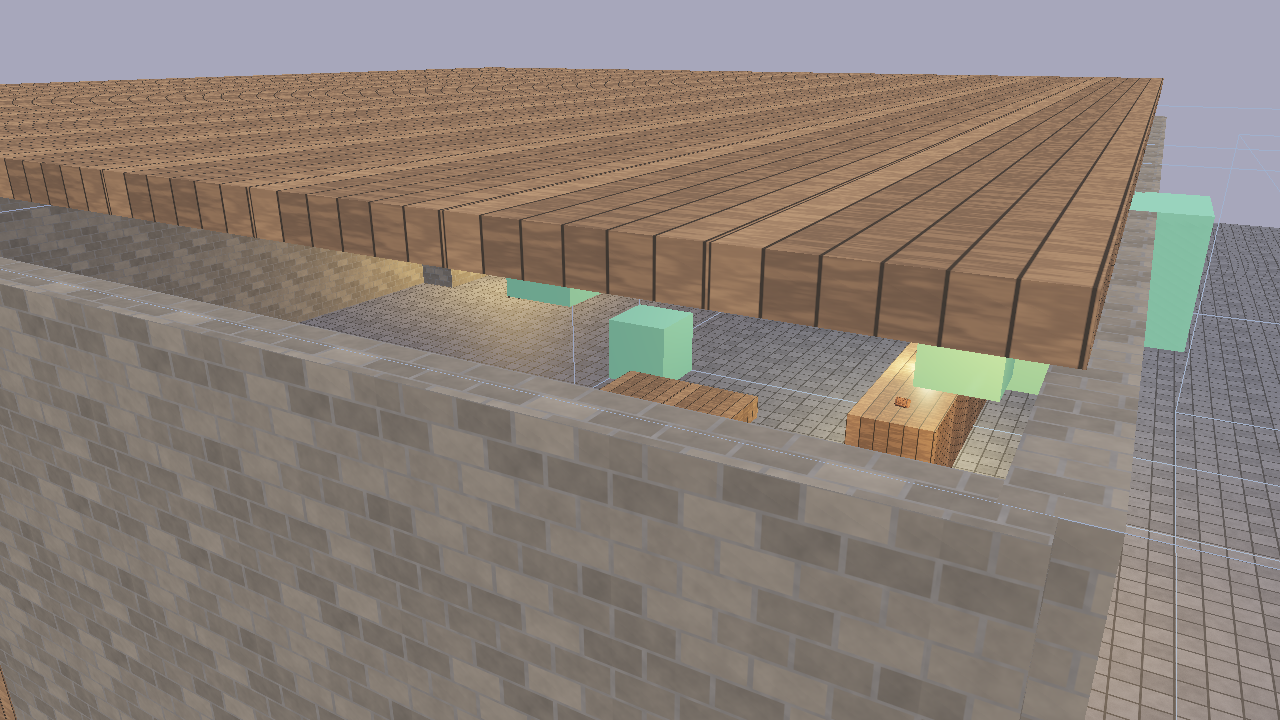
This tutorial walks through building a complete tavern scene from scratch using Flint’s CLI. By the end, you’ll have a walkable tavern with physics, audio, animation, scripted NPCs, and interactive objects.
1. Initialize the Project
flint init tavern-game
cd tavern-game
This creates a project directory with schemas/ containing default component and archetype definitions.
2. Create the Scene
flint scene create levels/tavern.scene.toml --name "The Rusty Flagon"
3. Build the Rooms
Create the tavern’s three rooms using parent-child hierarchy:
SCENE="levels/tavern.scene.toml"

# Main hall
flint entity create --archetype room --name "main_hall" --scene $SCENE
flint entity create --archetype room --name "kitchen" --scene $SCENE
flint entity create --archetype room --name "storage" --scene $SCENE
Now edit the TOML directly to set positions and dimensions. Each room needs a transform and bounds:
[entities.main_hall]
archetype = "room"

[entities.main_hall.transform]
position = [0.0, 0.0, 0.0]

[entities.main_hall.bounds]
size = [15.0, 4.0, 12.0]
4. Add Physics Colliders
For the scene to be walkable, surfaces need physics colliders. Add walls, floor, and ceiling:
[entities.floor]
archetype = "wall"

[entities.floor.transform]
position = [0.0, -0.25, 0.0]

[entities.floor.collider]
shape = "box"
size = [20.0, 0.5, 20.0]

[entities.floor.rigidbody]
body_type = "static"

[entities.north_wall]
archetype = "wall"

[entities.north_wall.transform]
position = [0.0, 2.0, -10.0]

[entities.north_wall.collider]
shape = "box"
size = [20.0, 4.0, 0.5]

[entities.north_wall.rigidbody]
body_type = "static"
Repeat for all walls. Static rigidbodies are immovable world geometry that the player collides with.
5. Create the Player
The player entity bundles a character controller, transform, and audio listener:
[entities.player]
archetype = "player"

[entities.player.transform]
position = [0.0, 1.0, 5.0]

[entities.player.character_controller]
move_speed = 6.0
jump_force = 7.0
height = 1.8
radius = 0.3
6. Add Furniture
Place objects throughout the tavern:
[entities.bar_counter]
archetype = "furniture"

[entities.bar_counter.transform]
position = [-3.0, 0.5, -2.0]
scale = [3.0, 1.0, 0.8]

[entities.bar_counter.collider]
shape = "box"
size = [3.0, 1.0, 0.8]

[entities.bar_counter.rigidbody]
body_type = "static"

[entities.fireplace]
archetype = "furniture"

[entities.fireplace.transform]
position = [5.0, 0.5, -8.0]

[entities.fireplace.material]
emissive = [1.0, 0.4, 0.1]
emissive_strength = 2.0
7. Add Audio
Attach spatial sounds to entities:
[entities.fireplace.audio_source]
file = "audio/fire_crackle.ogg"
volume = 0.8
loop = true
spatial = true
min_distance = 1.0
max_distance = 15.0

[entities.ambience]

[entities.ambience.audio_source]
file = "audio/tavern_ambient.ogg"
volume = 0.3
loop = true
spatial = false
Place audio files (OGG, WAV, MP3, or FLAC) in the audio/ directory next to the scene.
8. Add Animations
Create animation clips in animations/:
# animations/platform_bob.anim.toml
name = "platform_bob"
duration = 4.0

[[tracks]]
interpolation = "CubicSpline"

[tracks.target]
type = "Position"

[[tracks.keyframes]]
time = 0.0
value = [2.0, 0.5, 3.0]

[[tracks.keyframes]]
time = 2.0
value = [2.0, 1.5, 3.0]

[[tracks.keyframes]]
time = 4.0
value = [2.0, 0.5, 3.0]
Attach an animator to the entity:
[entities.platform.animator]
clip = "platform_bob"
autoplay = true
loop = true
speed = 1.0
9. Add Interactable Objects
Make the door interactive with a script:
[entities.front_door]
archetype = "door"

[entities.front_door.transform]
position = [0.0, 1.0, -5.0]

[entities.front_door.interactable]
prompt_text = "Open Door"
range = 3.0
interaction_type = "use"

[entities.front_door.script]
source = "door_interact.rhai"
Create the script in scripts/door_interact.rhai:
#![allow(unused)]
fn main() {
let door_open = false;

fn on_interact() {
    let me = self_entity();
    door_open = !door_open;

    if door_open {
        play_clip(me, "door_swing");
        play_sound("door_open");
    } else {
        play_clip(me, "door_close");
        play_sound("door_close");
    }
}
}
10. Add NPCs
Create NPC entities with scripts for behavior:
[entities.bartender]
archetype = "npc"

[entities.bartender.transform]
position = [-3.0, 0.0, -3.0]

[entities.bartender.interactable]
prompt_text = "Talk to Bartender"
range = 3.0
interaction_type = "talk"

[entities.bartender.script]
source = "bartender.rhai"
11. Validate and Test
# Check the scene against constraints
flint validate levels/tavern.scene.toml

# View in the scene viewer with hot-reload
flint edit levels/tavern.scene.toml --watch

# Walk through the tavern in first person
flint play levels/tavern.scene.toml
12. The Finished Result
The demo/phase4_runtime.scene.toml in the Flint repository is a complete implementation of this tavern, with:
- Three rooms (main hall, kitchen, storage) with physics colliders on all surfaces
- A bar counter, tables, fireplace, and barrels
- Four NPCs: bartender, two patrons, and a mysterious stranger with scripted behaviors
- Spatial audio: fire crackle, ambient tavern noise, door sounds, glass clinks
- Property animations: bobbing platform, door swings
- Interactable doors and NPCs with HUD prompts
- Footstep sounds synced to player movement
# Try the finished demo
cargo run --bin flint -- play demo/phase4_runtime.scene.toml
Further Reading
- Scripting — full Rhai API reference
- Audio — spatial audio system
- Animation — property tweens and skeletal animation
- Physics and Runtime — game loop and character controller
Writing Constraints
This guide walks through authoring constraint rules for your Flint project. Constraints are declarative TOML rules that define what a valid scene looks like, checked by flint validate.
Anatomy of a Constraint File
Constraint files live in schemas/constraints/ and contain one or more [[constraint]] entries:
[[constraint]]
name = "unique_identifier"
description = "Human-readable explanation"
query = "entities where <condition>"
severity = "error"
message = "Violation message for '{name}'"

[constraint.kind]
type = "<kind>"
# kind-specific fields...
- name — unique identifier, used in logs and JSON output
- description — what the rule checks (for documentation)
- query — which entities this constraint applies to
- severity —
"error"fails validation,"warning"is advisory - message — shown when violated.
{name}is replaced with the entity name
Choosing the Right Kind
required_component — “Entity X must have component Y”
The most common kind. Use when an archetype needs a specific component:
[[constraint]]
name = "doors_have_transform"
description = "Every door must have a transform"
query = "entities where archetype == 'door'"
severity = "error"
message = "Door '{name}' is missing a transform component"
[constraint.kind]
type = "required_component"
archetype = "door"
component = "transform"
value_range — “Field X must be between A and B”
Validates that a numeric field is within bounds:
[[constraint]]
name = "door_angle_range"
description = "Door open angle must be between 0 and 180"
query = "entities where archetype == 'door'"
severity = "warning"
message = "Door '{name}' has an invalid open_angle"
[constraint.kind]
type = "value_range"
field = "door.open_angle"
min = 0.0
max = 180.0
required_child — “Entity X must have a child of archetype Y”
Enforces parent-child relationships:
[[constraint]]
name = "rooms_have_door"
description = "Every room needs at least one exit"
query = "entities where archetype == 'room'"
severity = "error"
message = "Room '{name}' has no door"
[constraint.kind]
type = "required_child"
archetype = "room"
child_archetype = "door"
reference_valid — “This reference field must point to an existing entity”
Checks referential integrity:
[[constraint]]
name = "door_target_exists"
description = "Door target room must exist"
query = "entities where archetype == 'door'"
severity = "error"
message = "Door '{name}' references a non-existent target"
[constraint.kind]
type = "reference_valid"
field = "door.target_room"
query_rule — “This query must return the expected count”
The most flexible kind, for arbitrary rules:
[[constraint]]
name = "one_player"
description = "Playable scenes need exactly one player"
query = "entities where archetype == 'player'"
severity = "error"
message = "Scene must have exactly one player entity"
[constraint.kind]
type = "query_rule"
rule_query = "entities where archetype == 'player'"
expected = "exactly_one"
Auto-Fix Strategies
Add a [constraint.fix] section to enable automatic repair:
[[constraint]]
name = "rooms_have_bounds"
query = "entities where archetype == 'room'"
severity = "error"
message = "Room '{name}' needs bounds"
[constraint.kind]
type = "required_component"
archetype = "room"
component = "bounds"
[constraint.fix]
strategy = "set_default"
Available strategies:
- set_default — add the missing component with schema defaults
- add_child — create a child entity of the required archetype
- remove_invalid — remove entities that violate the rule
- assign_from_parent — copy a value from the parent entity
Testing Constraints
Always test with --dry-run first to preview changes:
# See what violations exist
flint validate levels/tavern.scene.toml --schemas schemas
# Preview auto-fix changes without applying
flint validate levels/tavern.scene.toml --fix --dry-run
# Apply fixes
flint validate levels/tavern.scene.toml --fix
JSON output gives machine-readable results for CI:
flint validate levels/tavern.scene.toml --format json
Organizing Constraint Files
Group related constraints into files by topic:
schemas/constraints/
├── basics.toml # Fundamental rules (transform required, etc.)
├── physics.toml # Physics constraints (collider sizes, mass ranges)
├── audio.toml # Audio constraints (volume ranges, spatial settings)
└── gameplay.toml # Game-specific rules (one player, door connectivity)
All .toml files in schemas/constraints/ are loaded automatically.
Cascade Detection
When auto-fix modifies one entity, it might cause a different constraint to fail. Flint handles this by running fix-validate cycles. If a cycle is detected (the same violation keeps appearing), the fixer stops and reports the issue.
Further Reading
- Constraints — constraint system reference
- Queries — query syntax used in constraint selectors
- File Formats — constraint TOML format
Importing Assets
This guide walks through importing external files into Flint’s content-addressed asset store.
Basic Import
Import a glTF model with the flint asset import command:
flint asset import models/chair.glb --name tavern_chair --tags furniture,medieval
This does three things:
- Hashes the file (SHA-256) and stores it under
.flint/assets/<hash>/ - Extracts mesh, material, and texture data (for glTF/GLB files)
- Writes a
.asset.tomlsidecar with metadata
Content-Addressed Storage
Every imported file is stored by its content hash:
.flint/
└── assets/
├── a1/
│ └── a1b2c3d4e5f6... (the actual file)
└── f7/
└── f7a8b9c0d1e2... (another file)
The first two hex characters of the hash form a subdirectory, preventing any single directory from having too many entries. Identical files are automatically deduplicated — importing the same model twice stores it only once.
glTF/GLB Import
For 3D models, the importer extracts structured data:
$ flint asset import models/tavern_door.glb --name tavern_door
Imported: 3 mesh(es), 2 texture(s), 2 material(s)
Asset 'tavern_door' registered.
Hash: sha256:a1b2c3...
Type: Mesh
Sidecar: assets/meshes/tavern_door.asset.toml
Extracted data includes:
- Meshes — vertex positions, normals, texture coordinates, indices, and optionally joint indices/weights for skeletal meshes
- Materials — PBR properties (base color, roughness, metallic, emissive)
- Textures — embedded or referenced image files
- Skeletons — joint hierarchy and inverse bind matrices (if the model has skins)
- Animations — per-joint keyframe channels (translation, rotation, scale)
Sidecar Metadata
Each imported asset gets an .asset.toml file in the assets/ directory:
[asset]
name = "tavern_chair"
type = "mesh"
hash = "sha256:a1b2c3d4e5f6..."
source_path = "models/chair.glb"
format = "glb"
tags = ["furniture", "medieval"]
For AI-generated assets, the sidecar also records provenance:
[asset.properties]
prompt = "weathered wooden tavern chair"
provider = "meshy"
Tagging and Organization
Tags help organize and filter assets:
# Import with tags
flint asset import models/barrel.glb --name barrel --tags furniture,storage,medieval
# Filter by tag
flint asset list --tag medieval
# Filter by type
flint asset list --type mesh
# Get details on a specific asset
flint asset info tavern_chair
Asset Catalog
The catalog is built by scanning all .asset.toml files in the assets/ directory. It provides indexed lookup by name, type, and tag:
# List all assets
flint asset list
# JSON output for scripting
flint asset list --format json
Resolving References
Check that a scene’s asset references are satisfied:
# Strict mode --- all references must exist
flint asset resolve levels/tavern.scene.toml --strategy strict
# Placeholder mode --- missing assets replaced with fallback geometry
flint asset resolve levels/tavern.scene.toml --strategy placeholder
# AI generation --- missing assets created by AI providers
flint asset resolve levels/tavern.scene.toml --strategy ai_generate --style medieval_tavern
Supported Formats
| Format | Type | Import Support |
|---|---|---|
.glb, .gltf | 3D Model | Full (mesh, material, texture, skeleton, animation) |
.png, .jpg, .bmp, .tga, .hdr | Texture | Hash and catalog |
.wav, .ogg, .mp3, .flac | Audio | Hash and catalog |
| Other | Generic | Hash and catalog (type guessed from extension) |
Further Reading
- Assets — content-addressed storage concept
- AI Asset Generation — generating assets with AI providers
- File Formats —
.asset.tomlsidecar format
Headless Rendering
Flint can render scenes to PNG images without opening a window. This enables automated screenshots, visual regression testing, and CI pipeline integration.
The flint render Command
flint render levels/tavern.scene.toml --output preview.png
This loads the scene, renders a single frame with PBR shading and shadows, applies the scene’s [post_process] block, and writes the result to a PNG file.
Camera Options
If the scene has a [camera] block, the render starts from that authored framing. The orbit-style flags override it:
flint render levels/tavern.scene.toml \
--output preview.png \
--width 1920 --height 1080 \
--distance 30 \
--yaw 45 \
--pitch 30
| Flag | Default | Description |
|---|---|---|
--output <path> | render.png | Output file path |
--width <px> | 1920 | Image width in pixels |
--height <px> | 1080 | Image height in pixels |
--distance <units> | scene [camera] or auto | Camera distance from the target |
--yaw <degrees> | scene [camera] or auto | Horizontal camera angle |
--pitch <degrees> | scene [camera] or auto | Vertical camera angle |
--target <x,y,z> | scene [camera] or auto | Camera look-at point (comma-separated) |
--fov <degrees> | scene [camera] or auto | Field of view in degrees |
--no-grid | false | Disable ground grid |
--schemas <path> | schemas | Path to schemas directory (repeatable) |
--msaa <1|4> | 1 | Scene-pass MSAA sample count |
Post-Processing Flags
Every [post_process] key has a flag. CLI values win over the scene block:
# Disable all post-processing (raw shader output)
flint render scene.toml --no-postprocess --output raw.png
# Custom bloom settings
flint render scene.toml --bloom-intensity 0.08 --bloom-threshold 0.8
# Adjust exposure
flint render scene.toml --exposure 1.5
# Cheaper SSAO, depth of field, a warm grade
flint render scene.toml --ssao-samples 16 --dof 0.6 --dof-focus 10 --dof-range 5 \
--grade-lift 0.03,0.02,0.015 --grade-gain 1.04,1,0.94
| Flag | Default | Description |
|---|---|---|
--no-postprocess | false | Disable entire post-processing pipeline |
--bloom-intensity <f32> | 0.04 | Bloom mix strength |
--bloom-threshold <f32> | 1.0 | Minimum brightness for bloom |
--exposure <f32> | 1.0 | Exposure multiplier |
--ssao-radius <f32> | 0.5 | SSAO sample radius |
--ssao-intensity <f32> | 1.0 | SSAO strength (0 disables) |
--ssao-samples <u32> | 64 | SSAO samples per pixel, 1–64 |
--fog-density <f32> | 0.02 | Fog density (enables fog; 0 disables) |
--fog-color <r,g,b> | 0.7,0.75,0.82 | Fog color |
--fog-height-falloff <f32> | 0.1 | Enables height fog with this falloff |
--volumetric-density <f32> | 1.0 | Enables god rays with this density |
--volumetric-samples <u32> | 32 | Volumetric ray-march steps |
--dither-intensity <f32> | 0.03 | Enables ordered dither |
--desaturate <f32> | 0 | Desaturation toward ash grey, 0–1 |
--dof <f32> | 0 | Depth-of-field strength |
--dof-focus <f32> | 10.0 | Focus plane distance, world units |
--dof-range <f32> | 5.0 | Focus half-width, world units |
--kuwahara-radius <u32> | 4 | Enables the Kuwahara filter with this radius |
--kuwahara-sharpness <f32> | 8.0 | Kuwahara sector sharpness |
--kuwahara-hardness <f32> | 8.0 | Kuwahara sector hardness |
--kuwahara-anisotropy <f32> | 1.0 | Kuwahara anisotropy, 0–1 |
--render-mode <0-5> | 0 | Stylized render mode |
--mode-mix <f32> | 0 | Render mode blend, 0–1 |
--mode-params <x,y,z,w> | 0,0,0,0 | Per-mode parameters |
--film-grain <f32> | 0 | Film grain intensity |
--grain-time <f32> | 0 | Post time driving grain and mode animation |
--grade-lift <r,g,b> | 0,0,0 | Color grade lift |
--grade-gamma <r,g,b> | 1,1,1 | Color grade gamma |
--grade-gain <r,g,b> | 1,1,1 | Color grade gain |
--fxaa | false | Run the FXAA pass |
Lighting Flags
The [environment] shading levers can be overridden too; see Lighting.
| Flag | Default | Description |
|---|---|---|
--oren-nayar <f32> | scene or 0 | Lambert to Oren-Nayar diffuse blend, 0–1 |
--sheen-strength <f32> | scene or 0 | Charlie-sheen rim strength (keep at or below about 0.3) |
--sheen-color <r,g,b> | 1,1,1 | Sheen tint |
--no-shadows | false | Disable shadow mapping (also disables volumetric light) |
--shadow-resolution <px> | 2048 | Shadow map resolution per cascade |
Debug Rendering Flags
Render debug visualizations for diagnostics:
# Wireframe view
flint render scene.toml --debug-mode wireframe --output wireframe.png
# Surface normals
flint render scene.toml --debug-mode normals --output normals.png
# Other modes: depth, uv, unlit, metalrough
flint render scene.toml --debug-mode depth --output depth.png
# Wireframe overlay on solid geometry
flint render scene.toml --wireframe-overlay --output overlay.png
# Normal arrows
flint render scene.toml --show-normals --output arrows.png
# Raw linear output (no tonemapping)
flint render scene.toml --no-tonemapping --output linear.png
| Flag | Default | Description |
|---|---|---|
--debug-mode <mode> | (none) | wireframe, normals, depth, uv, unlit, metalrough |
--wireframe-overlay | false | Draw wireframe edges over solid shading |
--show-normals | false | Draw face-normal direction arrows |
--no-tonemapping | false | Disable tonemapping for raw linear output |
Both wireframe modes include skinned meshes, drawn in their bind pose.
Determinism and the Gates
flint render is built to be byte-stable so that pixel-diff gates can trust it. Identical scene, flags and GPU driver produce identical PNGs, with these caveats:
- Time is pinned. Film grain and render-mode animation read a post time that headless render fixes at 0. Pass
--grain-timeto pick a different but equally repeatable frame; two renders at the same value match, different values differ. - MSAA and FXAA default off precisely so the default path stays single-sample and single-pass. Turn them on for hero shots, not for baselines.
- Animation does not run. Skinned meshes render at bind pose. For a posed headless frame use the model previewer’s render mode instead:
flint edit model.glb --render out.png --anim-time 1.5, or--sequence file.sequence.toml --anim-time 2.0to replay a timed sequence deterministically. - Particles start at t = 0, so emitters appear empty.
- Cost levers are free to change without affecting geometry:
--ssao-samples 16is roughly four times cheaper than the default 64 and usually indistinguishable on matte scenes (ADR 0052), which matters when a CI job renders dozens of frames.
CI Pipeline Integration
Headless rendering works on machines without a display. Use it in CI to catch visual regressions:
# Example GitHub Actions step
- name: Render preview
run: |
cargo run --bin flint -- render levels/tavern.scene.toml \
--output screenshots/tavern.png \
--width 1920 --height 1080
- name: Upload screenshot
uses: actions/upload-artifact@v4
with:
name: screenshots
path: screenshots/
Visual Regression Testing
A basic visual regression workflow:
-
Baseline — render a reference image and commit it:
flint render levels/tavern.scene.toml --output tests/baseline/tavern.png -
Test — after changes, render again and compare:
flint render levels/tavern.scene.toml --output tests/current/tavern.png # Compare with your preferred tool (ImageMagick, pixelmatch, etc.) -
Update — if the change is intentional, update the baseline:
cp tests/current/tavern.png tests/baseline/tavern.png
Keep baselines on the default flags (no --msaa, no --fxaa, no --grain-time) so a lever you added for a hero shot never silently changes the gate.
Rendering Multiple Views
Script multiple renders for different angles:
#!/bin/bash
SCENE="levels/tavern.scene.toml"
for angle in 0 90 180 270; do
flint render "$SCENE" \
--output "screenshots/view_${angle}.png" \
--yaw $angle --pitch 25 --distance 25 \
--width 1920 --height 1080
done
Rendering Pipeline Details
Headless rendering uses the same wgpu PBR pipeline as the interactive viewer:
- Cook-Torrance BRDF with roughness/metallic workflow and the
[environment]shading levers - Cascaded shadow mapping for directional light shadows, with PCSS when the light has an
angular_size - glTF mesh rendering with full material support
- Skinned mesh rendering at bind pose (no animation is evaluated headlessly)
- The full post-processing chain, including Kuwahara and FXAA when enabled
The only difference from interactive rendering is that the output goes to a texture-to-buffer copy instead of a swapchain surface.
Further Reading
- Rendering — the PBR rendering pipeline
- Post-Processing — what every flag above controls
- Lighting — the light component and shading levers
- AI Agent Workflow — using headless renders for agent verification
- CLI Reference — full command options
AI Agent Workflow
This guide covers how AI coding agents interact with Flint to build game scenes programmatically. It describes the agent interaction loop, error handling patterns, and best practices.
The Agent Interaction Loop
An agent building a scene follows a create-validate-query-render cycle:
┌──────────────────────────────────────────────────┐
│ │
│ 1. Discover ──► 2. Create ──► 3. Validate ─┐ │
│ ▲ │ │
│ │ 4. Query ◄─── 5. Fix ◄─────┘ │
│ │ │ │
│ └──────────────┤ │
│ ▼ │
│ 6. Render ──► Human Review │
│ │
└──────────────────────────────────────────────────┘
Step 1: Discover Available Schemas
Before creating entities, the agent learns what’s available:
# List available archetypes
flint schema --list-archetypes --schemas schemas
# Inspect a specific archetype
flint schema player --schemas schemas
# Inspect a component
flint schema collider --schemas schemas
This tells the agent what fields exist, their types, and their defaults.
Step 2: Create Scene and Entities
# Create the scene file
flint scene create levels/dungeon.scene.toml --name "Dungeon Level 1"
# Create entities
flint entity create --archetype room --name "entrance" \
--scene levels/dungeon.scene.toml
flint entity create --archetype door --name "iron_gate" \
--parent "entrance" \
--scene levels/dungeon.scene.toml
Or the agent can write TOML directly — often faster for complex scenes:
[scene]
name = "Dungeon Level 1"
[entities.entrance]
archetype = "room"
[entities.entrance.transform]
position = [0.0, 0.0, 0.0]
[entities.entrance.bounds]
size = [10.0, 4.0, 10.0]
[entities.iron_gate]
archetype = "door"
parent = "entrance"
[entities.iron_gate.transform]
position = [0.0, 1.5, -5.0]
Step 3: Validate
Check the scene against constraints:
flint validate levels/dungeon.scene.toml --format json --schemas schemas
JSON output example:
{
"valid": false,
"violations": [
{
"constraint": "doors_have_transform",
"entity": "iron_gate",
"severity": "error",
"message": "Door 'iron_gate' is missing a transform component"
}
]
}
The agent parses this JSON, understands what’s wrong, and proceeds to fix it.
Step 4: Query to Verify
After fixing violations, the agent can query to confirm the scene state:
# Verify the door now has a transform
flint query "entities where archetype == 'door'" \
--scene levels/dungeon.scene.toml --format json
# Count entities
flint query "entities" \
--scene levels/dungeon.scene.toml --format json | jq length
Step 5: Fix and Iterate
If validation fails, the agent can either:
-
Auto-fix — let Flint handle it:
flint validate levels/dungeon.scene.toml --fix --dry-run --format json flint validate levels/dungeon.scene.toml --fix -
Manual fix — edit the TOML to add missing data
Step 6: Render for Review
Generate a preview image for human (or vision-model) review:
flint render levels/dungeon.scene.toml --output preview.png \
--width 1920 --height 1080 --distance 25 --yaw 45
AI Asset Generation
Agents can generate assets alongside scene construction:
# Generate textures for the scene
flint asset generate texture \
-d "rough dungeon stone wall, torch-lit" \
--style medieval_tavern \
--name dungeon_wall_texture
# Generate a 3D model
flint asset generate model \
-d "iron-bound wooden door, medieval dungeon" \
--provider meshy \
--name iron_door_model
# Batch-generate all missing assets for the entire scene
flint asset resolve levels/dungeon.scene.toml \
--strategy ai_generate \
--style medieval_tavern
Semantic asset definitions in the scene file guide batch generation:
[entities.wall_section.asset_def]
name = "dungeon_wall_texture"
description = "Rough stone dungeon wall with moss and cracks"
type = "texture"
material_intent = "rough stone"
wear_level = 0.8
Error Handling Patterns
Exit Codes
All Flint commands use standard exit codes:
- 0 — success
- 1 — error (validation failure, missing file, etc.)
flint validate levels/dungeon.scene.toml --format json
if [ $? -ne 0 ]; then
echo "Validation failed, fixing..."
flint validate levels/dungeon.scene.toml --fix
fi
JSON Error Output
Error details are always available in JSON:
flint validate levels/dungeon.scene.toml --format json 2>/dev/null
Idempotent Operations
Most Flint operations are idempotent — running them twice produces the same result. This is important for agents that may retry failed operations.
Example: Agent Building a Complete Scene
Here’s a complete agent workflow script:
#!/bin/bash
set -e
SCENE="levels/generated.scene.toml"
SCHEMAS="schemas"
# 1. Create scene
flint scene create "$SCENE" --name "Agent-Generated Level"
# 2. Build structure
flint entity create --archetype room --name "main_room" --scene "$SCENE"
flint entity create --archetype room --name "side_room" --scene "$SCENE"
flint entity create --archetype door --name "connecting_door" \
--parent "main_room" --scene "$SCENE"
# 3. Add player
flint entity create --archetype player --name "player" --scene "$SCENE"
# 4. Validate (will likely fail --- no transforms yet)
flint validate "$SCENE" --schemas "$SCHEMAS" --format json || true
# 5. Auto-fix what we can
flint validate "$SCENE" --schemas "$SCHEMAS" --fix
# 6. Verify
ENTITY_COUNT=$(flint query "entities" --scene "$SCENE" --format json | jq length)
echo "Scene has $ENTITY_COUNT entities"
# 7. Render preview
flint render "$SCENE" --output preview.png --schemas "$SCHEMAS" \
--width 1920 --height 1080
echo "Scene built successfully. Preview: preview.png"
Best Practices
- Always validate after creating entities — catch problems early
- Use JSON output — easier to parse than text
- Use
--dry-runbefore--fix— preview changes before applying - Write TOML directly for complex scenes — faster than many CLI commands
- Use semantic asset definitions — let batch resolution handle asset generation
- Render previews — visual verification catches issues that validation can’t
Further Reading
- AI Agent Interface — the design philosophy
- CLI-First Workflow — composable commands
- AI Asset Generation — the AI asset pipeline
- CLI Reference — full command documentation
Building a Game Project
This guide walks through setting up a standalone game project that uses Flint’s engine schemas while defining its own game-specific components, scripts, and assets.
Setting Up a Game Repository
Game projects live in their own git repositories with the Flint engine included as a git subtree. This gives you a single clone with everything needed to build and play, while keeping game and engine commits separate.
1. Create the repository
mkdir my_game && cd my_game
git init
mkdir schemas schemas/components schemas/archetypes scripts scenes sprites audio
2. Add the engine as a subtree
git remote add flint-engine https://github.com/chrischaps/Flint.git
git subtree add --prefix=engine flint-engine main --squash
The --squash flag collapses engine history into one commit, keeping your game history clean. Full engine history stays in the Flint repo.
3. Create convenience scripts
play.bat — launch any scene by name:
@echo off
set SCENE=%~1
if "%SCENE%"=="" set SCENE=level_1
cargo run --manifest-path engine\Cargo.toml --bin flint-player -- scenes\%SCENE%.scene.toml --schemas engine\schemas --schemas schemas %2 %3 %4
build.bat — build the engine in release mode:
@echo off
cargo build --manifest-path engine\Cargo.toml --release
Directory Structure
my_game/ (your git repo)
├── engine/ (git subtree ← Flint repo)
│ ├── crates/
│ ├── schemas/ (engine schemas: transform, material, etc.)
│ └── Cargo.toml
├── schemas/
│ ├── components/ # Game-specific component definitions
│ │ ├── health.toml
│ │ ├── weapon.toml
│ │ └── enemy_ai.toml
│ └── archetypes/ # Game-specific archetype bundles
│ ├── enemy.toml
│ └── pickup.toml
├── scripts/ # Rhai game logic scripts
│ ├── player_weapon.rhai
│ ├── enemy_ai.rhai
│ └── hud.rhai
├── scenes/ # Scene files
│ └── level_1.scene.toml
├── sprites/ # Billboard sprite textures
├── audio/ # Sound effects and music
├── play.bat # Convenience launcher
└── build.bat # Engine build script
Multi-Schema Layering
The key to the game project pattern is the --schemas flag, which accepts multiple paths. Schemas load in order, with later paths overriding earlier ones:
cargo run --manifest-path engine\Cargo.toml --bin flint-player -- ^
scenes\level_1.scene.toml ^
--schemas engine\schemas ^
--schemas schemas
This loads:
- Engine schemas from
engine/schemas/— built-in components liketransform,material,rigidbody,collider,character_controller,sprite, etc. - Game schemas from
schemas/— game-specific components likehealth,weapon,enemy_ai
If both directories define a component with the same name, the game’s version takes priority.
Defining Game Components
Create component schemas in schemas/components/:
# schemas/components/health.toml
[component.health]
description = "Hit points for damageable entities"
[component.health.fields]
max_hp = { type = "i32", default = 100, min = 1 }
current_hp = { type = "i32", default = 100, min = 0 }
# schemas/components/weapon.toml
[component.weapon]
description = "Weapon carried by the player"
[component.weapon.fields]
name = { type = "string", default = "Pistol" }
damage = { type = "i32", default = 10 }
fire_rate = { type = "f32", default = 0.5 }
ammo = { type = "i32", default = 50 }
max_ammo = { type = "i32", default = 100 }
Defining Game Archetypes
Bundle game components with engine components:
# schemas/archetypes/enemy.toml
[archetype.enemy]
description = "A hostile NPC with health and a sprite"
components = ["transform", "health", "sprite", "collider", "rigidbody", "script"]
[archetype.enemy.defaults.health]
max_hp = 50
current_hp = 50
[archetype.enemy.defaults.sprite]
fullbright = true
[archetype.enemy.defaults.rigidbody]
body_type = "kinematic"
[archetype.enemy.defaults.collider]
shape = "box"
size = [1.0, 2.0, 1.0]
Writing the Scene
Reference game archetypes in your scene file just like engine archetypes:
[scene]
name = "Level 1"
[entities.player]
archetype = "player"
[entities.player.transform]
position = [0, 1, 0]
[entities.player.character_controller]
move_speed = 8.0
[entities.player.health]
max_hp = 100
current_hp = 100
[entities.enemy_1]
archetype = "enemy"
[entities.enemy_1.transform]
position = [10, 0, 5]
[entities.enemy_1.sprite]
texture = "enemy"
width = 1.5
height = 2.0
[entities.enemy_1.script]
source = "enemy_ai.rhai"
[entities.hud_controller]
[entities.hud_controller.script]
source = "hud.rhai"
Script-Driven Game Logic
All game-specific behavior lives in Rhai scripts. The engine provides generic APIs (entity, input, audio, physics, draw) and your scripts implement game rules:
#![allow(unused)]
fn main() {
// scripts/hud.rhai
fn on_draw_ui() {
let sw = screen_width();
let sh = screen_height();
// Crosshair
let cx = sw / 2.0;
let cy = sh / 2.0;
draw_line(cx - 8.0, cy, cx + 8.0, cy, 0.0, 1.0, 0.0, 0.8, 2.0);
draw_line(cx, cy - 8.0, cx, cy + 8.0, 0.0, 1.0, 0.0, 0.8, 2.0);
// Health display
let player = get_entity("player");
if player != -1 && has_component(player, "health") {
let hp = get_field(player, "health", "current_hp");
let max_hp = get_field(player, "health", "max_hp");
draw_text(20.0, sh - 30.0, `HP: ${hp}/${max_hp}`, 16.0, 1.0, 1.0, 1.0, 1.0);
}
}
}Running the Game
# Via convenience script
.\play.bat level_1
# Via the standalone player directly
cargo run --manifest-path engine\Cargo.toml --bin flint-player -- ^
scenes\level_1.scene.toml --schemas engine\schemas --schemas schemas
Asset Resolution
Scripts, audio, and sprite paths are resolved relative to the game project root. When a scene lives in scenes/, the engine looks for:
- Scripts in
scripts/ - Audio in
audio/ - Sprites in
sprites/
Engine Subtree Workflow
The engine at engine/ is a full copy of the Flint repo. You can edit engine code directly, and manage updates with standard git subtree commands:
# Pull latest engine changes
git subtree pull --prefix=engine flint-engine main --squash
# Push engine edits back to the Flint repo
git subtree push --prefix=engine flint-engine main
Engine edits are normal commits in your game repo. The subtree commands handle splitting and merging the engine/ prefix.
Further Reading
- Schemas — component and archetype schema system
- Scripting — full Rhai scripting API
- Rendering — billboard sprites and PBR pipeline
- CLI Reference — the
playcommand and--schemasflag
Deploying to Android
Flint games can be packaged as Android APKs and run on physical devices. The engine uses the same wgpu/Vulkan rendering, Rhai scripting, and TOML scene format on mobile — no code changes needed. Touch input, orthographic cameras, and 2D sprites work identically across desktop and Android.
Prerequisites
1. Android SDK
Install via Android Studio or the standalone sdkmanager:
- compileSdk: API level 34
- Build Tools: 34.x
- NDK: latest version
2. Rust Android Target
rustup target add aarch64-linux-android
3. cargo-ndk
cargo install cargo-ndk
4. Environment Variables
export ANDROID_HOME=/path/to/android/sdk
export ANDROID_NDK_HOME=$ANDROID_HOME/ndk/<version>
Building an APK
From the Flint engine root:
# Quick build + install to a connected device
./scripts/android-build.sh /path/to/your/game
# Or manual Gradle build
cd android
./gradlew assembleDebug -PgameDir=/path/to/your/game
The -PgameDir parameter points to your game project directory (the one containing scene files, schemas, scripts, etc.).
What the Build Does
The Gradle build runs two tasks:
-
cargoNdkBuild— Cross-compiles theflint-androidcrate as a native shared library (libflint_android.so) for ARM64 (arm64-v8a) usingcargo ndk. The library is placed inapp/src/main/jniLibs/. -
copyGameAssets— Copies your game’s assets into the APK:- Scene files (
*.scene.toml,*.sprite.toml,*.anim.toml) - Directories:
schemas/,scripts/,sprites/,textures/,models/,audio/,animations/ - Engine schemas are copied separately into
engine/schemas/ - Generates
asset_manifest.txtlisting every bundled file path
- Scene files (
Asset Manifest
Android’s NDK AAssetDir_getNextFileName() only enumerates files within a directory — it does not list subdirectories. To work around this, the Gradle build generates an asset_manifest.txt listing every relative file path. At runtime, the extractor reads this manifest and copies each file individually.
How It Runs
When the APK launches:
android_main()initializes Android logging (visible inlogcat)- Asset extraction copies all bundled files from the APK to internal storage so that
std::fscode works unchanged — no virtual filesystem needed - Version marker (
.asset_version) prevents redundant extraction on subsequent launches - Schema loading loads engine schemas then game schemas (same merge order as desktop)
- Scene discovery finds the first
*.scene.tomlfile in the extracted assets - Player event loop starts the game using the same
PlayerAppas desktop, with Android surface integration
Architecture Decisions
Extract, Don’t Abstract
Rather than building a virtual filesystem that intercepts all file reads, Flint extracts APK assets to internal storage at startup. This means every std::fs::read_to_string(), image::open(), gltf::import(), and Rhai script load works exactly as on desktop. The extraction happens once, takes a fraction of a second for typical game assets.
NativeActivity over GameActivity
Flint uses Android’s built-in NativeActivity (hasCode = "false" in the manifest) rather than Google’s Jetpack GameActivity. NativeActivity has zero Java dependencies — the entire app is Rust.
GPU Limits
Mobile GPUs may not support desktop-default wgpu limits. The Android entry point uses wgpu::Limits::downlevel_defaults() as a base, then overrides max_texture_dimension_2d with the adapter’s actual reported capability.
Platform API Level
The minimum API level is 26 (Android 8.0), required for:
- AAudio — the audio backend used by Kira
- Vulkan — the graphics backend used by wgpu
Surface Lifecycle
Android can pause and resume apps at any time. Flint handles this gracefully:
suspended()— drops the window and surface, preserves GPU device and all game stateresumed()— recreates the window and surface, continues rendering
The first resumed() call performs full initialization (GPU device, pipelines, scene loading). Subsequent calls only recreate the surface.
Game Project Structure
A typical game project targeting Android:
my_game/
scenes/
main.scene.toml # Entry scene (first .scene.toml found)
schemas/
components/ # Game-specific components
archetypes/ # Game-specific archetypes
scripts/
player.rhai
hud.rhai
sprites/
player_sheet.png
animations/
character.sprite.toml
audio/
music.ogg
input.toml # Touch + keyboard bindings
The build copies this entire structure into the APK. Engine schemas are bundled separately, and the schema merge order (engine then game) is preserved.
Testing on Desktop
Touch-zone bindings work on desktop via mouse emulation (enabled by default). Left-click-and-drag emulates a single finger touch, so you can test the full touch interaction model without a device.
# Test your touch-enabled game on desktop
flint play scenes/main.scene.toml --schemas schemas
Debugging
Logcat
All log::info!, log::warn!, and log::error! calls from Rust appear in Android logcat with the tag flint:
adb logcat -s flint:*
Common Issues
| Issue | Cause | Fix |
|---|---|---|
| Black screen on launch | Scene file not found in extracted assets | Check asset_manifest.txt includes your scene |
| Crash on surface creation | GPU doesn’t support required features | Check adb logcat for wgpu errors; ensure Vulkan device |
| No audio | API level < 26 | AAudio requires Android 8.0+ |
| Touch not responding | WindowEvent::Touch not reaching input state | Verify process_touch_* calls in PlayerApp |
Further Reading
- Touch Input — touch zones, tap detection, and scripting API
- 2D Sprites — the rendering system for mobile-friendly 2D games
- Building a Game Project — structuring a game that uses Flint as a subtree
Debug Panels
Flint’s runtime tuning surface is a set of egui debug panels that live in the flint-debug-ui crate and are hosted by the player and, for one of them, by the scene viewer. They exist so that a tuning session ends as a diff to the scene file rather than as notes: every panel edits live values, and most can write those values back into the scene TOML.
Panels are dev surface. They compile only when the player’s debug-hud cargo feature is on (it is on by default), and a feature-off build carries zero panel code and must still compile.
Keys
| Key | What it toggles | Host |
|---|---|---|
F3 | Every scene-component panel the current scene created (ocean, day/time, weather, grass, camera, reality, visitor, dead calm) | player |
F4 | The Rendering & Effects panel, on its own so it never flips out of phase with F3 | player and scene viewer |
` (backquote) | Music Guide, only while a music session runs | player |
\ (backslash) | Manifest Map timeline strip, same condition | player |
Escape | Releases the mouse so panels can be clicked; clicking the world recaptures it | player |
Opening any panel releases the cursor; closing the last one recaptures it if the scene has a player entity. When a key has nothing to toggle (no panels in the scene, no music session, no renderer) the player logs a note instead of failing.
The old per-effect function keys (F1 debug-mode cycle, F4 shadows, F5 to F10 per-effect toggles, F12 kuwahara) are gone. Everything they flipped now lives in the Rendering & Effects panel, along with the non-binary parameters those keys could never expose (ADR 0053, consolidated render debug menu).
Layout
Side panels are fold-open headers distributed across up to three columns. Column assignment is a greedy lightest-bin pass over a per-panel weight so the tall panels do not all land in one column: Rendering & Effects weighs 60, Ocean Debug 46, Grass Debug 22, Reality 20, Weather 15, Day / Time 10, and anything else, including every game-supplied panel, 6. The assignment is deterministic and never produces an empty column.
A panel can instead ask for the Bottom layout, a full-width strip. The Manifest Map uses it; timeline-shaped panels should.
The Panel Roster
Scene-component panels are created only when their driving component is present on some entity, so a scene with no ocean never sees an ocean panel.
| Panel | Component | What it tunes |
|---|---|---|
| Ocean Debug | ocean | Wave spectrum, colours, foam, contact foam, cel band edges, clarity and turbidity, grid, CPU/GPU parity probe |
| Day / Time | time_of_day | Clock readout, 0 to 24 h scrub, preset hours, natural-advance toggle, day counter, day length, sun path tilt |
| Weather | weather | Weather state, with one-shot triggers |
| Camera | camera_tuning | Vertical FOV (the same component is applied even without the panel) |
| Grass Debug | terrain with grass.enabled | Every field of the grass block |
| Reality | reality | Read-only status of a script-scheduled “reality tear” (active render mode, mix, time to next) plus trigger and end-now buttons |
| Visitor | raft_visitor | Visitor state |
| Dead Calm | dead_calm | Dead-calm state |
| Rendering & Effects | always, when a renderer exists | See below |
| Music Guide | active music session | Upcoming input windows and per-channel targets |
| Manifest Map | active music session | Suite structure, playhead, this run’s history |
time_of_day, weather, reality, raft_visitor and dead_calm are game-side component conventions; the engine ships the panel, the game ships the schema.
Rendering & Effects (F4)
One consolidated home for every render and post-effect control. Its groups, top to bottom:
- Post chain: “Freeze script post overrides” (player only; see below), post-processing on/off, exposure, vignette on/off, vignette intensity and smoothness, chromatic aberration, radial blur, desaturate.
- SSAO: enabled, radius, intensity, bias, samples (1 to 64; 16 is the quality/cost sweet spot).
- Depth of field: strength, focus distance, focus range.
- Fog: enabled, colour, density, start, end, height fog on/off, height falloff, height origin.
- Bloom: enabled, intensity, threshold, soft threshold.
- Grade / Grain / FXAA: lift, gamma, gain, a “Neutral grade” reset, film grain, FXAA.
- Kuwahara: enabled, radius, sharpness, hardness, anisotropy.
- Render mode: mode combo (none, matrix, blood, drunk, tron, underwater), mix, the four mode params.
- Dither / Volumetric: dither on/off and intensity, volumetric on/off, samples, density, decay.
- Shadows: enabled, resolution combo (512, 1024, 2048, 4096). Changing resolution rebuilds the shadow pass.
- Lighting: ambient sky, ambient ground, diffuse wrap, Oren-Nayar, sheen colour and strength, “Reset lighting”. These are the lighting levers.
- Camera: vertical FOV.
- Debug mode: the shading combo (PBR, wireframe overlay, wireframe only, normals, depth, UV checker, unlit, metallic/roughness).
Every field maps onto a [post_process], [environment] or [camera] key documented in Post-Processing and File Formats, or onto a flint render flag, so a value found in the panel can be authored.
In the scene viewer the same panel gains two extras: a switch between the scene’s authored [post_process] block and the viewer’s own defaults, and DoF follow, which keeps the focus plane on the last selected entity.
Live Mirror and Write-Through
Every panel follows one ownership model:
- While the panel is clean the host refreshes it from live engine state every frame. What you see is the truth about the current value, including values a script is driving.
- When you edit a field the panel becomes dirty. The host applies the panel’s state back to the engine, routing expensive work by per-group change flags (a post-config upload is cheap; a shadow-pass rebuild or a debug-mode pipeline swap is not), then clears the dirty flag.
- Fields a script stamps each frame are visibly reclaimed on the next frame. The panel does not pretend to own a value it does not own.
For the render panel the player adds Freeze script post overrides: while frozen, script and ladder stamps on the post fields are skipped so panel edits stick. It is a tuning aid, not a way to override a game.
Commit to File on a scene-component panel writes its current values back into the scene TOML through the scene document patcher, field by field, keeping the rest of the file untouched. Values a game script owns each frame (a day counter, a published factor) are deliberately never committed.
Adding a Panel from a Game
A panel is any type implementing the DebugPanel trait from flint-debug-ui:
#![allow(unused)]
fn main() {
pub trait DebugPanel {
fn name(&self) -> &str; // egui id and title
fn ui(&mut self, ui: &mut egui::Ui); // draw the contents
fn is_open(&self) -> bool;
fn toggle(&mut self);
fn layout(&self) -> PanelLayout { PanelLayout::SideRight }
fn is_dirty(&self) -> bool; // unapplied edits?
fn clear_dirty(&mut self);
fn as_any(&self) -> &dyn std::any::Any;
fn as_any_mut(&mut self) -> &mut dyn std::any::Any;
}
}The player holds Vec<Box<dyn DebugPanel>> and renders them generically. Construction follows one pattern: look for the first entity carrying the driving component, build a config from that component, and push the panel with the scene path and entity name so Commit to File knows where to write. The host then downcasts through as_any_mut when it needs the concrete config to apply. Unknown panel names take the default column weight; nothing else needs registering.
Keep panels out of the felt experience. They are judgment-shaped by design and should never double as a HUD; the script-driven UI is for that.
Further Reading
- Post-Processing: every field in the render panel
- Lighting: the lighting levers group
- Music Sessions: the Music Guide and Manifest Map
- The Scene Viewer: the viewer’s F4 extras
CLI Reference
Flint’s CLI is the primary interface for all engine operations. Below is a reference of available commands.
Commands
| Command | Description |
|---|---|
flint init <name> | Initialize a new project |
flint entity create | Create an entity in a scene |
flint entity delete | Delete an entity from a scene |
flint scene create | Create a new scene file |
flint scene list | List scene files |
flint scene info | Show scene metadata and entity count |
flint query "<query>" | Query entities with the Flint query language |
flint schema <name> | Inspect a component or archetype schema |
flint validate <scene> | Validate a scene against constraints |
flint asset import | Import a file into the asset store |
flint asset list | List assets in the catalog |
flint asset info | Show details for a specific asset |
flint asset resolve | Check asset references in a scene |
flint asset generate | Generate an asset using AI providers |
flint asset validate | Validate a generated model against style constraints |
flint asset manifest | Generate a build manifest of all generated assets |
flint asset regenerate | Regenerate an existing asset with new parameters |
flint asset job status | Check status of an async generation job |
flint asset job list | List all generation jobs |
flint edit <file> | Unified interactive editor (auto-detects file type) |
flint play <scene> | Play a scene with first-person controls and physics |
flint render <scene> | Render a scene to PNG (headless) |
flint gen <spec> | Run a procedural generation spec to produce meshes or textures |
flint prefab view <template> | Preview a prefab template in the viewer |
flint validate-suite <manifest> | Validate a musical suite manifest and optional chart (music commands) |
flint play-suite <manifest> | Play a suite’s stems sample-locked, no judgment |
flint calibrate <manifest> | Tap-to-beat latency calibration, written to logs/latency/ |
flint play-chart <manifest> | Play a suite against its chart with live gamepad capture |
flint replay-chart <manifest> | Replay a recorded or synthetic session through judgment, headless |
flint render-suite <manifest> | Render a scripted suite session to WAV, offline and deterministic |
flint spike-rumble | Time the gamepad rumble command paths |
The seven music commands are documented on their own page: Music Commands.
The play Command
Launch a scene as an interactive first-person experience with physics:
flint play demo/phase4_runtime.scene.toml
flint play levels/tavern.scene.toml --schemas schemas --fullscreen
| Flag | Description |
|---|---|
--schemas <path> | Path to schemas directory (repeatable; later paths override earlier). Default: schemas |
--fullscreen | Launch in fullscreen mode |
--input-config <path> | Input config overlay path (highest priority, overrides all other layers) |
--music-volume <f32> | Initial gain for the music mixer bus |
--sfx-volume <f32> | Initial gain for the sfx mixer bus |
--music-volume 0 is the quickest way to audition a scene’s sound design
without its score. See Audio: Mixer Buses.
The standalone flint-player binary takes the same flags plus --msaa <1|4>
(default 1) for multisample anti-aliasing of the scene passes; flint play
does not expose --msaa.
Player Controls (Defaults)
These are the built-in defaults. Games can override any binding via input config files (see Physics and Runtime: Input System).
| Input | Action |
|---|---|
| WASD | Move |
| Mouse | Look around |
| Left Click | Fire (weapon) |
| Space | Jump |
| Shift | Sprint |
| E | Interact with nearby object |
| R | Reload |
| 1 / 2 | Select weapon slot |
| Escape | Release cursor / Exit |
| F2 | Toggle the render stats overlay (FPS, frame time, draw stats) |
| F3 | Toggle the scene debug panels (see below); leaves the Rendering & Effects panel alone |
| F4 | Toggle the Rendering & Effects menu: every render and post-processing control, including debug shading mode, shadows, and the lighting levers |
| F9 | Force a music-session full-fail (debug builds only, needs a running session) |
` | Toggle the Music Guide overlay (debug builds only) |
\ | Toggle the Manifest Map timeline strip (debug builds only) |
| F11 | Toggle fullscreen |
The per-effect F-keys of earlier releases (F1 debug mode, F4 shadows, F5 bloom, F6 post-processing and so on) are gone; all of those toggles and their parameters live in the F4 menu (see Post-Processing: The Rendering & Effects menu). F9, ` and \ exist only when the player is built with the default debug-hud feature.
Gamepad controllers are also supported when connected. Bindings for gamepad buttons and axes can be configured in input config TOML files.
Debug Panels (F3)
F3 opens live tuning panels for whichever systems the current scene actually
uses. Each panel is created only when its driving component is present, so a
scene with no ocean never sees an ocean panel and a scene with no panels at all
logs a note instead. Panels are fold-open headers distributed across up to three
size-balanced columns.
Built-in panels:
| Panel | Component | Controls |
|---|---|---|
| Ocean Debug | ocean | Wave spectrum, colors, foam, contact foam, cel band edges, clarity/turbidity, grid, CPU/GPU parity probe |
| Day / Time | time_of_day | Clock readout, 0–24 h scrub slider, preset hours, natural-advance toggle, day counter, day length (with the effective ramped length), sun path tilt |
| Camera | camera_tuning | Vertical FOV |
| Grass Debug | grass | Density, height, wind, LOD distances |
| Weather | weather | Read-only state/wind/sea, forced_state override, one-shot snap / lightning-strike buttons |
| Reality | reality | Read-only active render-mode tear and mix, trigger-mode and end-now buttons, mix pin |
| Visitor | raft_visitor | Read-only phase/day plus a trigger-visit button |
| Dead Calm | dead_calm | Read-only phase/calm plus trigger and end-now buttons |
| Rendering & Effects | (always, when a renderer is active) | Post chain, SSAO, depth of field, fog, bloom, grade/grain/FXAA, Kuwahara, render mode, dither/volumetric, shadows and resolution, lighting levers, camera FOV, debug shading mode. Owned by F4, not F3 |
| Music Guide | music_session | Upcoming pulse/press/flick windows with countdown, per-channel targets beside the live stick and trigger state (`) |
| Manifest Map | music_session | Full-width bottom strip: sections, bar ruler, tempo/meter changes, re-entry points, playhead and this run’s judged pulses and seams (\) |
The full roster and the DebugPanel trait are described in Debug Panels.
Edits apply live through the world’s components. Commit to File writes the current values back into the scene TOML, so a tuning session ends as a diff rather than as notes. Values a game script owns each frame (a day counter, a published factor) are deliberately never committed.
Games can add their own panels for their own components; unknown panels simply take a default size weight in the column layout.
Escape releases the mouse so panels can be clicked; clicking the world
recaptures it.
The play command requires the scene to have a player archetype entity with a character_controller component. Physics colliders on other entities define the walkable geometry.
Game Project Pattern
Games that define their own schemas, scripts, and assets use multiple --schemas paths. Game projects typically live in their own repositories with the engine included as a git subtree at engine/. The engine schemas come first, then the game-specific schemas overlay on top:
# From a game project root (engine at engine/)
cargo run --manifest-path engine/Cargo.toml --bin flint-player -- \
scenes/level_1.scene.toml \
--schemas engine/schemas \
--schemas schemas
This loads the engine’s built-in components (transform, material, rigidbody, etc.) from engine/schemas/, then adds game-specific components (health, weapon, enemy AI) from the game’s own schemas/. See Schemas: Game Project Schemas for directory structure details and Building a Game Project for the full workflow.
Standalone Player Binary
The player is also available as a standalone binary for distribution:
cargo run --bin flint-player -- demo/phase4_runtime.scene.toml --schemas schemas
# With game project schemas (from a game repo with engine subtree)
cargo run --manifest-path engine/Cargo.toml --bin flint-player -- \
scenes/level_1.scene.toml --schemas engine/schemas --schemas schemas
The render Command
Render a scene to a PNG image without opening a window:
flint render demo/phase3_showcase.scene.toml --output hero.png --schemas schemas
flint render scene.toml -o shot.png --distance 20 --pitch 30 --yaw 45 --target 0,1,0 --no-grid
| Flag | Default | Description |
|---|---|---|
--output <path> / -o | render.png | Output file path |
--width <px> | 1920 | Image width |
--height <px> | 1080 | Image height |
--distance <f32> | (auto) | Camera distance from target |
--yaw <deg> | (auto) | Horizontal camera angle |
--pitch <deg> | (auto) | Vertical camera angle |
--target <x,y,z> | (auto) | Camera look-at point |
--fov <deg> | (auto) | Field of view |
--no-grid | false | Disable ground grid |
--debug-mode <mode> | (none) | wireframe, normals, depth, uv, unlit, metalrough |
--wireframe-overlay | false | Wireframe edges on solid geometry |
--show-normals | false | Normal direction arrows |
--no-tonemapping | false | Raw linear output |
--no-shadows | false | Disable shadow mapping |
--shadow-resolution <px> | 2048 | Shadow map resolution per cascade. A real control since the per-resolution texel upload (ADR 0049); earlier builds silently filtered as if 2048 |
--msaa <n> | 1 | MSAA sample count for the scene passes: 1 (off) or 4. Default 1 keeps headless pixel-diff gates single-sample (ADR 0058) |
--no-postprocess | false | Disable post-processing |
--bloom-intensity <f32> | 0.04 | Bloom strength |
--bloom-threshold <f32> | 1.0 | Bloom brightness threshold |
--exposure <f32> | 1.0 | Exposure multiplier |
--ssao-radius <f32> | 0.5 | SSAO sample radius |
--ssao-intensity <f32> | 1.0 | SSAO intensity (0 = disabled) |
--ssao-samples <n> | 64 | SSAO hemisphere samples per pixel, 1–64; the kernel is strided so lower counts keep full radius coverage. 16 is ~4x cheaper |
--fog-density <f32> | 0.02 | Fog density (0 = disabled) |
--fog-color <r,g,b> | 0.7,0.75,0.82 | Fog color |
--fog-height-falloff <f32> | 0.1 | Fog height falloff (enables height fog) |
--dither-intensity <f32> | 0.03 | Ordered dither strength (enables dither; 0 = disabled) |
--volumetric-density <f32> | 1.0 | Volumetric light density (enables god rays) |
--volumetric-samples <n> | 32 | Volumetric ray-march sample count |
--desaturate <f32> | 0 | Drain colour toward ash-grey (0 = full colour, 1 = fully drained) |
--dof <f32> | 0 | Depth-of-field strength (0 = sharp, 1 = full defocus) |
--dof-focus <f32> | 10.0 | Focus plane distance in world units |
--dof-range <f32> | 5.0 | Focus half-width in world units |
--kuwahara-radius <n> | 4 | Kuwahara filter radius in pixels (enables Kuwahara) |
--kuwahara-sharpness <f32> | 8.0 | Kuwahara sector sharpness |
--kuwahara-hardness <f32> | 8.0 | Kuwahara sector hardness |
--kuwahara-anisotropy <f32> | 1.0 | Kuwahara anisotropy (0 = isotropic, 1 = full) |
--film-grain <f32> | 0 | Animated film grain (0 = off; 0.02–0.05 is subtle) |
--grain-time <s> | 0.0 | Post time for grain and render-mode animation. Deterministic: two renders at the same value are identical |
--grade-lift <r,g,b> | 0,0,0 | Colour-grade lift (per-channel add after ACES) |
--grade-gamma <r,g,b> | 1,1,1 | Colour-grade gamma (per-channel curve) |
--grade-gain <r,g,b> | 1,1,1 | Colour-grade gain (per-channel multiply) |
--fxaa | false | Enable the FXAA anti-aliasing pass |
--oren-nayar <f32> | 0 | Oren-Nayar diffuse blend (0 = Lambert, 1 = full); see Lighting |
--sheen-strength <f32> | 0 | Charlie-sheen rim strength (keep at or below about 0.3) |
--sheen-color <r,g,b> | 1,1,1 | Charlie-sheen rim tint |
--render-mode <n> | 0 | Stylized render mode: 1 Matrix, 2 blood, 3 drunk, 4 Tron, 5 underwater |
--mode-mix <f32> | 0.0 | Render mode blend strength, 0–1 |
--mode-params <x,y,z,w> | 0,0,0,0 | Per-mode parameters (see Render Modes) |
--schemas <path> | schemas | Schemas directory (repeatable) |
When no camera flags are given, the render starts from the scene’s [camera] block if it has one. The camera and post flags override the scene’s authored [camera] and [post_process] values.
flint renderruns no scripts. Anything your game drives from a script — a render mode, a time of day, a floating hull, an animated character — will not happen. The render-mode flags exist precisely so a stylized frame can be captured without one. For script-driven world state, bake a fixture scene with the values you want; for animation, note that skinned meshes render at bind pose headlessly. To capture a posed frame of a rigged model, use the model previewer instead:flint edit model.glb --render out.png --anim-time 1.5(optionally with--clip,--layeror--sequence).
The edit Command
Unified interactive editor that auto-detects file type and opens the appropriate tool:
flint edit levels/demo.scene.toml # Scene viewer (hot-reload)
flint edit levels/demo.scene.toml --spline # Spline/track editor
flint edit models/character.glb # Model previewer (orbit camera)
flint edit models/character.glb --watch # Model previewer with file watching
flint edit specs/oak_tree.procgen.toml # Procgen previewer (mesh/texture)
flint edit specs/stone_wall.procgen.toml # Texture pipeline editor (if pipeline pattern)
flint edit terrain.terrain.toml # Terrain editor
File Type Detection
| Extension | Tool | Description |
|---|---|---|
.scene.toml, .chunk.toml | Scene viewer | Hot-reload, egui inspector, gizmos |
.procgen.toml (pipeline pattern) | Texture pipeline editor | Node graph for texture specs |
.procgen.toml (other) | Procgen previewer | Live preview of generated mesh/texture |
.terrain.toml | Terrain editor | Heightmap terrain editing |
.glb, .gltf | Model previewer | Orbit camera, animation playback |
Common Flags
| Flag | Default | Description |
|---|---|---|
--schemas <path> | schemas | Schemas directory (repeatable) |
--width <px> | (auto) | Window width |
--height <px> | (auto) | Window height |
--no-grid | false | Disable ground grid |
--watch | false | Watch for file changes |
--seed <u64> | (auto) | Override seed (procgen) |
--no-inspector | false | Hide egui inspector (scene) |
--spline | false | Open the spline/track editor instead of the viewer (scene) |
--auto-orbit | false | Start with the turntable auto-orbit on (scene/model/procgen); toggle with O, speed with [ / ] |
Model Previewer Flags
| Flag | Default | Description |
|---|---|---|
--distance <f32> | (auto) | Camera orbit distance |
--yaw <deg> | (auto) | Horizontal camera angle |
--pitch <deg> | (auto) | Vertical camera angle |
--target <x,y,z> | (auto) | Camera look-at point |
--fov <deg> | (auto) | Field of view |
--no-animate | false | Disable animation playback |
--clip <name> | (none) | Start with a specific animation clip |
--anim-speed <f32> | 1.0 | Animation playback speed multiplier |
--layer <clip[:weight[:mask[:mode]]]> | (none) | Add an animation layer; repeatable. mode is additive or override, mask a root joint name |
--sequence <file.sequence.toml> | (none) | Play a sequence of timestamped animator events |
--sequence-loop | false | Loop the sequence regardless of its loop setting |
--anim-time <s> | (none) | With --render: sample the animation (or replay the sequence) at this time |
--render <path> | (none) | Render to PNG instead of opening a window |
Scene Viewer Controls
| Input | Action |
|---|---|
| Left-click | Select entity / pick gizmo axis |
| Left-drag | Orbit camera (or drag gizmo if axis selected) |
| Right-drag | Pan camera |
| Scroll | Zoom |
| W / A / S / D | Orbit camera (when no entity is selected) |
| Q / E | Zoom out / in (when no entity is selected) |
| W / E / R | Switch gizmo mode: translate / rotate / scale (while an entity is selected) |
| Space | Return to the scene’s authored [camera] framing (viewer default if the scene has none) |
| O | Toggle auto-orbit |
[ / ] | Slow down / speed up auto-orbit |
| Ctrl+S | Save scene to disk |
| Ctrl+Z | Undo position change |
| Ctrl+Shift+Z | Redo position change |
| Escape | Cancel gizmo drag / exit |
| F2 | Toggle the render stats overlay |
| F3 | Toggle normal arrows |
| F4 | Toggle the Rendering & Effects menu (all render and post toggles and parameters, debug shading mode, shadows, an authored-vs-viewer-default post switch, and DoF follow) |
The viewer applies the scene’s [post_process] block on load; the F4 menu’s “authored” switch flips between those values and the viewer defaults. The earlier F1 (debug mode), F2 (wireframe overlay) and F4 (shadows) keys were folded into the F4 menu.
When an entity is selected, a translate gizmo appears with colored axis arrows (red = X, green = Y, blue = Z) and plane handles. Click and drag an axis or plane to move the entity. Position changes can be undone/redone and saved back to the scene file.
Spline Editor Controls (--spline)
| Input | Action |
|---|---|
| Left-click | Select control point |
| Left-drag | Move control point on constraint plane |
| Alt + drag | Move control point vertically (Y axis) |
| Middle-drag | Orbit camera |
| Right-drag | Pan camera |
| Scroll | Zoom |
| Tab / Shift+Tab | Cycle through control points |
| I | Insert a new control point after selected |
| Delete | Remove selected control point |
| Ctrl+S | Save spline to disk |
| Ctrl+Z | Undo |
Legacy aliases:
flint serve,flint preview,flint gen-preview,flint tex-edit,flint terrain-edit, andflint spline-editstill work. They are hidden subcommands that open the same toolsflint editdispatches to; they are omitted fromflint --help.
The asset generate Command
Generate assets using AI providers:
flint asset generate texture -d "rough stone wall" --style medieval_tavern
flint asset generate model -d "wooden chair" --provider meshy --seed 42
flint asset generate audio -d "tavern ambient noise" --duration 10.0
| Flag | Description |
|---|---|
-d, --description | Generation prompt (required) |
--name | Asset name (derived from description if omitted) |
--provider | Provider to use: flux, meshy, elevenlabs, mock |
--style | Style guide name (e.g., medieval_tavern) |
--width, --height | Image dimensions for textures (default: 1024x1024) |
--seed | Random seed for reproducibility |
--tags | Comma-separated tags |
--output | Output directory (default: .flint/generated) |
--duration | Audio duration in seconds (default: 3.0) |
Generated assets are automatically stored in content-addressed storage and registered in the asset catalog with a .asset.toml sidecar. Models are validated against style constraints after generation.
The gen Command
Run a procedural generation spec to produce meshes (GLB) or textures (PNG):
flint gen specs/oak_tree.procgen.toml -o tree.glb
flint gen specs/stone_wall.procgen.toml -o wall.png
flint gen specs/oak_tree.procgen.toml --dry-run
flint gen specs/oak_tree.procgen.toml --seed 42 -o tree.glb
flint gen specs/oak_tree.procgen.toml --batch 10 --seed-start 0
| Flag | Default | Description |
|---|---|---|
-o, --output <path> | (derived from spec) | Output file or directory |
--seed <u64> | (from spec) | Override the spec’s seed |
--dry-run | false | Print estimated cost without generating |
--format <fmt> | (auto) | Force output format: glb or png |
--batch <N> | (none) | Generate N variants with sequential seeds |
--seed-start <u64> | 0 | Starting seed for batch generation |
--register | false | Store output in content store with provenance |
--force | false | Regenerate even if cached |
--validate | false | Validate output after generation |
--strict | false | Treat warnings as failures |
--style-guide <path> | (none) | Style guide TOML for validation constraints |
The prefab view Command
Preview a prefab template in the interactive viewer:
flint prefab view prefabs/kart.prefab.toml --schemas engine/schemas --schemas schemas
| Flag | Default | Description |
|---|---|---|
--prefix <string> | "preview" | Prefix for ${PREFIX} substitution |
--schemas <path> | schemas | Schemas directory (repeatable) |
This command loads the .prefab.toml template, performs variable substitution, builds a synthetic scene from the expanded entities, and launches the viewer for visual inspection. Useful for verifying prefab structure and appearance without creating a full scene.
Common Flags
| Flag | Description |
|---|---|
--scene <path> | Path to scene file |
--schemas <path> | Path to schemas directory (repeatable for multi-schema layering; default: schemas) |
--format <fmt> | Output format: json, toml, or text |
--fix | Apply auto-fixes (with validate) |
--dry-run | Preview changes without applying |
Usage
# Get help
flint --help
flint <command> --help
# Examples
flint init my-game
flint edit levels/tavern.scene.toml # Interactive scene viewer
flint edit models/character.glb --watch # Model previewer
flint play levels/tavern.scene.toml
flint render levels/tavern.scene.toml -o shot.png
flint gen specs/oak_tree.procgen.toml -o tree.glb
flint query "entities where archetype == 'door'" --scene levels/tavern.scene.toml
Music Commands
Seven subcommands drive the rhythm system described in Music Sessions. They work on a suite manifest (*.suite.toml), a chart (*.chart.toml) and the optional tuning files under config/; see File Formats: Music Session Files for the file grammar.
The usual order is: validate the suite, play it raw to hear the stems, calibrate the player’s latency, play the chart live, replay the recording headless to reproduce judgment, and render a scripted session to WAV for listening or CI.
Every command takes --base-dir <path>: the directory the manifest’s file paths are relative to (default: the current directory). Reports and logs land under that directory’s logs/.
flint validate-suite
Check a suite manifest, and optionally cross-check a chart against it.
flint validate-suite music/prototype.suite.toml
flint validate-suite music/prototype.suite.toml --chart music/prototype.chart.toml --no-assets
| Flag | Default | Description |
|---|---|---|
<manifest> | (required) | Path to the suite manifest |
--chart <path> | (none) | Chart to cross-check: channels, pulse kinds, interpolation modes, beats inside the suite |
--no-assets | false | Skip the asset pass (stem file existence, sample rate, duration) |
--base-dir <path> | cwd | Manifest path root |
Validation is shape-tolerant: unknown channels or pulse kinds parse fine and are reported here rather than rejected at load.
flint play-suite
Play a validated suite’s stems on the six fixed buses, sample-locked, with no chart and no judgment. This is the “does the music itself work” check.
flint play-suite music/prototype.suite.toml --bars 8
| Flag | Default | Description |
|---|---|---|
<manifest> | (required) | Path to the suite manifest |
--bars <n> | (to the end) | Stop after this many bars |
--base-dir <path> | cwd | Manifest path root |
flint calibrate
Tap-to-beat latency calibration. Plays the suite’s beat grid, collects the player’s taps, and writes the median offset to logs/latency/calibration-*.toml. Later play-chart sessions read the offset so judgment is measured against what the player heard, not what the clock said.
flint calibrate music/prototype.suite.toml --taps 24
| Flag | Default | Description |
|---|---|---|
<manifest> | (required) | Path to the suite manifest |
--taps <n> | 16 | Number of taps to collect |
--base-dir <path> | cwd | Manifest path root |
flint play-chart
Play a suite against its chart with live gamepad capture. This is the development harness for the whole reactive loop: coherence, the disintegration ladder, the seam and reintegration, the audio gradient and haptics. A gamepad is expected; input is captured on a dedicated 1 kHz thread using the XInput backend.
flint play-chart music/prototype.suite.toml --chart music/prototype.chart.toml
flint play-chart music/prototype.suite.toml --chart music/prototype.chart.toml \
--window --record take_03 --ladder config/ladder.toml --input-map full
| Flag | Default | Description |
|---|---|---|
<manifest> | (required) | Path to the suite manifest |
--chart <path> | (required) | Beatmap chart for the suite |
--base-dir <path> | cwd | Manifest path root |
--bars <n> | (to the end) | Stop after this many bars |
--config <path> | config/coherence.toml if present | Coherence config TOML |
--lean-mode <mode> | arrival | Lean judgment: arrival (be at each target on its beat, roll freely between) or track (follow the curve continuously) |
--ladder <path> | config/ladder.toml if present | Disintegration ladder TOML |
--gradient <path> | config/gradient.toml if present, else inert | Error-driven audio gradient TOML |
--haptics <path> | config/haptics.toml if present, else no rumble | Haptics TOML |
--input-map <map> | prototype | Physical-to-verb mapping: prototype (left stick = lean, South / R2 = pulse) or full (adds sway on the right stick, trigger pressure, press onsets and flicks) |
--record <name> | (none) | Record the input session to logs/sessions/<name>.session.jsonl |
--window | false | Open a bare visual window that absorbs keystrokes from gamepad-to-keyboard mappers and shows wordless cues. Console output continues underneath |
--spike-input-secs <n> | (none) | Run the input-granularity spike for n seconds and exit, with no audio |
If the input backend sees no gamepad the command warns loudly at startup rather than recording a silent session. The player’s debug keyboard fallback (arrows = lean, Space = pulse) applies only to flint play scenes with a music_session component, not to this command.
flint replay-chart
Replay a recorded or synthetic session through judgment, fully headless. The same recording replayed twice produces the same judgment log, which is what makes the feel work reviewable.
# Reproduce a recorded take
flint replay-chart music/prototype.suite.toml --chart music/prototype.chart.toml \
--session logs/sessions/take_03.session.jsonl
# Synthetic player, 40 ms late on everything, with reactive audio rendered to WAV
flint replay-chart music/prototype.suite.toml --chart music/prototype.chart.toml \
--synthetic late:40 --ladder config/ladder.toml --render out/late40.wav
| Flag | Default | Description |
|---|---|---|
<manifest> | (required) | Path to the suite manifest |
--chart <path> | (required) | Beatmap chart for the suite |
--base-dir <path> | cwd | Manifest path root |
--session <path> | (none) | Session file to replay. Conflicts with --synthetic |
--synthetic <profile> | (none) | Synthesize a session instead: perfect, late:<ms> or neglect |
--config <path> | the session’s recorded snapshot | Coherence config TOML |
--lean-mode <mode> | arrival | arrival or track; must match the run being reproduced (judgment-log headers record it) |
--ladder <path> | config/ladder.toml if present | Disintegration ladder TOML. With --render, makes the render reactive (the full fall-and-reintegration loop) |
--gradient <path> | config/gradient.toml if present, else inert | Error-gradient TOML, applied inside the reactive render only |
--out <path> | logs/judgment/replay.jsonl | Judgment log output path |
--save-session <path> | (none) | Also save the replayed event stream as a session file (useful after --synthetic) |
--render <path> | (none) | Also render the suite audio over the replayed span to this WAV |
flint render-suite
Render a scripted suite session to a 32-bit float stereo WAV, offline and deterministic. The event script schedules bus gain, low-pass and detune changes on bars or beats, so a whole arrangement can be auditioned or diffed without playing it.
flint render-suite music/prototype.suite.toml --script music/intro.events.toml -o out/intro.wav
flint render-suite music/prototype.suite.toml -o out/full.wav --duration-bars 32 --status-every beat
| Flag | Default | Description |
|---|---|---|
<manifest> | (required) | Path to the suite manifest |
-o, --output <path> | (required) | Output WAV path |
--script <path> | (none) | Event script (*.events.toml) of scheduled bus changes and markers |
--base-dir <path> | cwd | Manifest path root |
--duration-bars <n> | length of the longest stem | Render this many bars. Conflicts with --duration-seconds |
--duration-seconds <s> | (none) | Render this many seconds |
--status-every <unit> | bar | Status line cadence: bar or beat |
--chunk-frames <n> | 128 | Processing chunk size in frames, which is also the scheduling granularity |
flint spike-rumble
Fire the gamepad’s force-feedback motors, time the command paths, and write the report beside the audio-latency and input-granularity spikes in logs/latency/. Used to characterise a controller before enabling haptics.
flint spike-rumble
flint spike-rumble --no-feel
| Flag | Default | Description |
|---|---|---|
--base-dir <path> | cwd | Directory whose logs/latency/ receives the report |
--no-feel | false | Skip the operator-felt tick / thump / grind demo; timing only |
File Formats
All Flint data formats use TOML (session recordings are JSON Lines). This page is the reference for every file type the engine reads or writes. Procgen specs (.procgen.toml) and terrain files (.terrain.toml) are covered on their own pages: Procedural Generation and Terrain.
Scene Files (.scene.toml)
The primary data format. Each scene file contains metadata and a collection of named entities with their component data.
[scene]
name = "Scene Name"
version = "1.0"
description = "Optional one-line description"
input_config = "custom_input.toml" # Optional input binding config
preload_audio = true # Optional; false skips the blanket audio/ preload
[camera] # Optional authored framing
position = [0, 4, 12]
target = [0, 1, 0]
[entities.<name>]
archetype = "<archetype>"
parent = "<parent_name>" # Optional parent entity
[entities.<name>.<component>]
field = value
[scene] key | Type | Default | Description |
|---|---|---|---|
name | string | (required) | Human-readable scene name |
version | string | "1.0" | Format version |
description | string | (none) | Free-text description |
input_config | string | (none) | Game-level input binding overlay (see Input Configuration) |
preload_audio | bool | true | When false, the player skips preloading every file under audio/ at scene load so a scene with a large audio folder starts instantly. Sounds named by audio_source components and music-session stems still load through their own paths; this only gates the convenience preload for script-triggered sounds. |
Scenes may also include optional top-level [camera], [environment] and [post_process] blocks, and a [prefabs] section (see Prefab Templates).
[camera]
The authored framing. flint render starts from it when no camera flags are given, and the scene viewer seeds its orbit camera from it (Space returns to it). Absent, both fall back to an automatic framing.
[camera]
projection = "perspective" # or "orthographic"
position = [0, 4, 12]
target = [0, 1, 0]
fov = 60.0 # perspective only
near = 0.1
far = 500.0
# ortho_height = 10.0 # orthographic only: half-height in world units
| Key | Type | Default | Description |
|---|---|---|---|
projection | string | "perspective" | "perspective" or "orthographic" |
ortho_height | f32 | 0 | Orthographic half-height in world units (orthographic only) |
position | [f32; 3] | (auto) | Camera position |
target | [f32; 3] | (auto) | Look-at point |
fov | f32 | (renderer default) | Vertical field of view in degrees (perspective only) |
near | f32 | (renderer default) | Near clipping plane |
far | f32 | (renderer default) | Far clipping plane |
[environment]
Skybox and the scene-wide shading levers. Every lever is optional and its absence means “exactly the legacy shading” (see Lighting). Fog is not here; it lives in [post_process].
[environment]
skybox = "textures/dusk_panorama.png"
ambient_sky = [0.35, 0.40, 0.50]
ambient_ground = [0.18, 0.14, 0.10]
diffuse_wrap = 0.3
oren_nayar = 0.7
sheen_color = [1.0, 0.9, 0.8]
sheen_strength = 0.15
| Key | Type | Default | Description |
|---|---|---|---|
skybox | string | (none) | Equirectangular panorama image for the skybox |
ambient_sky | [f32; 3] | renderer default | Hemisphere ambient colour from above (linear) |
ambient_ground | [f32; 3] | renderer default | Hemisphere ambient colour from below (linear) |
diffuse_wrap | f32 | 0 | Diffuse terminator wrap; 0 = physically sharp, 0.2–0.5 = soft matte |
oren_nayar | f32 | 0 | Blend from Lambert toward Oren-Nayar diffuse (0–1); sigma comes from material roughness |
sheen_color | [f32; 3] | [1, 1, 1] | Charlie-sheen rim tint (linear); only matters with a non-zero strength |
sheen_strength | f32 | 0 | Charlie-sheen rim strength; keep at or below about 0.3 |
[post_process]
Configures the HDR post-processing pipeline. Every key is optional. See Post-Processing for what each effect does and the matching flint render flags.
[post_process]
bloom_enabled = true
bloom_intensity = 0.04
ssao_samples = 16
dof_strength = 0.5
dof_focus_distance = 8.0
film_grain = 0.03
grade_gain = [1.04, 1.0, 0.94]
fxaa = false
| Key | Type | Default | Description |
|---|---|---|---|
bloom_enabled | bool | true | Bloom pass |
bloom_intensity | f32 | 0.04 | Bloom strength |
bloom_threshold | f32 | 1.0 | Brightness above which pixels bloom |
vignette_enabled | bool | false | Edge darkening |
vignette_intensity | f32 | 0.3 | Vignette strength |
vignette_smoothness | f32 | 2.0 | Vignette falloff curve |
exposure | f32 | 1.0 | Exposure multiplier before tone mapping |
ssao_enabled | bool | true | Screen-space ambient occlusion |
ssao_radius | f32 | 0.5 | SSAO sample radius (world units) |
ssao_intensity | f32 | 1.0 | SSAO darkening strength |
ssao_samples | u32 | 64 | Hemisphere samples per pixel, 1–64. The heaviest per-pixel cost in the stack; 16 is ~4x cheaper and usually indistinguishable on matte scenes |
fog_enabled | bool | false | Distance fog |
fog_color | [f32; 3] | [0.7, 0.75, 0.82] | Fog colour |
fog_density | f32 | 0.02 | Exponential fog density |
fog_start | f32 | 5.0 | Distance at which fog begins |
fog_end | f32 | 100.0 | Distance at which fog saturates |
fog_height_enabled | bool | false | Height-based fog |
fog_height_falloff | f32 | 0.1 | How quickly height fog thins with altitude |
fog_height_origin | f32 | 0.0 | World Y where height fog is densest |
dither_enabled | bool | false | Ordered dither |
dither_intensity | f32 | 0.03 | Dither strength |
volumetric_enabled | bool | false | Volumetric light (god rays) |
volumetric_samples | u32 | 32 | Ray-march steps |
volumetric_density | f32 | 1.0 | Scattering density |
volumetric_max_distance | f32 | 100.0 | Ray-march cut-off |
volumetric_decay | f32 | 0.98 | Per-step energy decay |
chromatic_aberration | f32 | 0 | Colour-fringe amount at the frame edge |
radial_blur | f32 | 0 | Zoom-blur amount from the frame centre |
desaturate | f32 | 0 | Drain toward ash-grey; 0 = full colour, 1 = fully drained |
dof_strength | f32 | 0 | Depth-of-field defocus; 0 = sharp |
dof_focus_distance | f32 | 10.0 | Focus plane distance in view metres |
dof_focus_range | f32 | 5.0 | Half-width of the in-focus band in view metres |
kuwahara_enabled | bool | false | Anisotropic Kuwahara (painterly) pre-pass |
kuwahara_radius | u32 | 4 | Filter radius in pixels |
kuwahara_sharpness | f32 | 8.0 | Sector weighting sharpness |
kuwahara_hardness | f32 | 8.0 | Sector edge hardness |
kuwahara_anisotropy | f32 | 1.0 | 0 = isotropic, 1 = fully anisotropic |
film_grain | f32 | 0 | Animated grain; 0.02–0.05 is subtle |
grade_lift | [f32; 3] | [0, 0, 0] | Per-channel add after ACES tone mapping |
grade_gamma | [f32; 3] | [1, 1, 1] | Per-channel midtone curve |
grade_gain | [f32; 3] | [1, 1, 1] | Per-channel multiply |
fxaa | bool | false | FXAA pass on the final composite. Off by default so headless pixel-diff gates stay single-path |
Scenes are loaded by flint-scene and can be edited with flint entity create, flint entity delete, or by hand. At load, each authored component is validated against its schema (warnings only) and any schema field with a default that the entity did not set is filled in (see Scenes). The flint edit --watch viewer reloads automatically when the file changes.
Component Schemas (schemas/components/*.toml)
Define the fields, types, and defaults for each component kind. Components are dynamic — they exist as schema TOML, not compiled Rust types.
[component.<name>]
description = "Human-readable description"
[component.<name>.fields]
field_name = { type = "<type>", default = <value>, description = "..." }
Supported field types: bool, i32, i64, f32, f64, string, vec2, vec3, vec4, color, transform, enum, entity_ref, array. vec2 and vec4 are validated as float arrays. Schema default values are applied at scene load for every listed component that omits the field (see Schemas).
Key component schemas: transform, material, door, bounds, rigidbody, collider, character_controller, audio_source, audio_listener, audio_trigger, animator, skeleton, script, interactable, sprite, asset_def.
Archetype Schemas (schemas/archetypes/*.toml)
Bundle components together with sensible defaults for common entity types.
[archetype.<name>]
description = "..."
components = ["comp1", "comp2"]
[archetype.<name>.defaults.<component>]
field = value
Constraint Files (schemas/constraints/*.toml)
Declarative validation rules checked by flint validate. Each file can contain multiple [[constraint]] entries.
[[constraint]]
name = "rule_name"
description = "What this constraint checks"
query = "entities where archetype == 'door'"
severity = "error" # "error" or "warning"
message = "Door '{name}' is missing a transform component"
[constraint.kind]
type = "required_component" # Constraint type
archetype = "door"
component = "transform"
Constraint kinds: required_component, required_child, value_range, reference_valid, query_rule.
Animation Clips (animations/*.anim.toml)
TOML-defined keyframe animation clips for property tweens. Loaded by scanning the animations directory at startup.
name = "clip_name"
duration = 0.8
[[tracks]]
interpolation = "Linear" # "Step", "Linear", or "CubicSpline"
[tracks.target]
type = "Rotation" # "Position", "Rotation", "Scale", or "CustomFloat"
# component = "material" # Required for CustomFloat
# field = "emissive_strength" # Required for CustomFloat
[[tracks.keyframes]]
time = 0.0
value = [0.0, 0.0, 0.0] # [x, y, z] (euler degrees for rotation)
[[tracks.keyframes]]
time = 0.8
value = [0.0, 90.0, 0.0]
# in_tangent = [...] # Optional, for CubicSpline
# out_tangent = [...]
[[events]] # Optional timed events
time = 0.0
event_name = "door_start"
CubicSpline tracks read in_tangent / out_tangent on each keyframe; the glTF importer fills them from CUBICSPLINE samplers.
Animation Sequences (animations/*.sequence.toml)
An ordered list of timestamped animator events: crossfade the base clip, set a layer, change speed, or raise a named cue for the entity’s script. The player loads every sequence in the scene’s animations/ directory; scripts start one with play_sequence(entity, name), and the model previewer plays one with flint edit model.glb --sequence <file>. See Animation: Sequences.
name = "intro_bow"
loop = false # Optional; default false
# duration = 6.0 # Optional; default = last event time + its transition
[[events]]
time = 0.0
kind = "blend" # blend | layer | speed | cue
clip = "walk"
duration = 0.3 # Crossfade seconds; 0 = hard cut
[[events]]
time = 1.0
kind = "layer"
index = 0 # Layer slot (0..254)
clip = "wave" # Omitted fields keep their current value
weight = 1.0
fade = 0.25 # Ramp the weight over this many seconds
mode = "additive" # additive | override
mask = "spine" # Root joint of the affected subtree
[[events]]
time = 2.5
kind = "speed"
value = 0.5
[[events]]
time = 4.0
kind = "cue"
name = "done" # Delivered to on_sequence_cue(sequence, cue)
| Key | Type | Description |
|---|---|---|
name | string | Sequence name, as used by play_sequence |
loop | bool | Wrap at duration and fire events again from t = 0 |
duration | f64 | Explicit length in seconds. A looping sequence whose resolved duration is 0 is a load error |
events[].time | f64 | Seconds from the start |
events[].kind | string | blend (clip, duration), layer (index, clip, weight, fade, mode, mask), speed (value), cue (name) |
Asset Sidecars (assets/**/*.asset.toml)
Metadata files stored alongside imported assets in the catalog.
[asset]
name = "asset_name"
type = "mesh" # mesh, texture, material, audio, script
hash = "sha256:a1b2c3..."
source_path = "models/chair.glb"
format = "glb"
tags = ["furniture", "medieval"]
[asset.properties] # Optional provider-specific metadata
prompt = "wooden tavern chair"
provider = "meshy"
Style Guides (styles/*.style.toml)
Define visual vocabulary for consistent AI asset generation. Searched in styles/ then .flint/styles/.
[style]
name = "medieval_tavern"
description = "Weathered medieval fantasy tavern"
prompt_prefix = "Medieval fantasy tavern style, low-fantasy realism"
prompt_suffix = "Photorealistic textures, warm candlelight tones"
negative_prompt = "modern, sci-fi, neon, plastic"
palette = ["#8B4513", "#A0522D", "#D4A574", "#4A4A4A"]
[style.materials]
roughness_range = [0.6, 0.95]
metallic_range = [0.0, 0.15]
preferred_materials = ["aged oak wood", "rough-hewn stone", "hammered wrought iron"]
[style.geometry]
max_triangles = 5000
require_uvs = true
require_normals = true
Semantic Asset Definitions (schemas/components/asset_def.toml)
The asset_def component schema describes what an entity needs in terms of assets, expressed as intent. Used by the batch resolver to auto-generate missing assets.
[entities.tavern_wall.asset_def]
name = "tavern_wall_texture"
description = "Rough stone wall with mortar lines"
type = "texture"
material_intent = "rough stone"
wear_level = 0.7
size_class = "large"
tags = ["wall", "interior"]
Prefab Templates (prefabs/*.prefab.toml)
Reusable entity group templates with variable substitution. Prefabs define a set of entities that can be instantiated multiple times in a scene with different prefixes and per-instance overrides.
[prefab]
name = "template_name"
description = "Optional description"
[entities.body]
[entities.body.transform]
position = [0, 0, 0]
[entities.body.model]
asset = "model_name"
[entities.child]
parent = "${PREFIX}_body"
[entities.child.transform]
position = [0.5, 0, 0]
All string values containing ${PREFIX} are replaced with the instance prefix. Entity names are prepended with the prefix (e.g., body becomes player_body with prefix "player").
Scenes instantiate prefabs in a [prefabs] section:
[prefabs.player]
template = "template_name"
prefix = "player"
[prefabs.player.overrides.body.transform]
position = [0, 0, 0]
[prefabs.ai1]
template = "template_name"
prefix = "ai1"
[prefabs.ai1.overrides.body.transform]
position = [5, 0, -3]
Overrides are deep-merged at the field level — specifying one field in a component preserves all other fields from the template.
See Scenes: Prefabs for usage details.
Spline Files (splines/*.spline.toml)
Define smooth 3D paths using Catmull-Rom control points. Used for track layouts, camera paths, and procedural geometry generation.
[spline]
name = "Track Name"
closed = true # true for closed loops, false for open paths
[sampling]
spacing = 2.0 # Distance between sampled points (meters)
[[control_points]]
position = [0, 0, 0]
twist = 0.0 # Banking angle in degrees
[[control_points]]
position = [0, 0, -50]
twist = 0.0
[[control_points]]
position = [50, 0, -100]
twist = 5.0 # Banked turn
| Field | Type | Description |
|---|---|---|
spline.name | string | Human-readable name |
spline.closed | bool | Whether the spline forms a closed loop |
sampling.spacing | f32 | Distance between sampled points along the curve |
control_points[].position | [f32; 3] | 3D position [x, y, z] |
control_points[].twist | f32 | Banking angle in degrees (interpolated with C1 continuity via Catmull-Rom) |
The engine samples the control points into a dense array using Catmull-Rom interpolation, stored as the spline_data ECS component. Scripts can query this data via spline_closest_point() and spline_sample_at().
UI Layouts (ui/*.ui.toml)
Data-driven UI element trees. Loaded by scripts via load_ui(). Each layout file references a companion style file.
[ui]
name = "Race HUD"
style = "ui/race_hud.style.toml"
[elements.<id>]
type = "panel" # panel, text, rect, circle, image
anchor = "bottom-center" # Screen anchor (root elements only)
class = "hud-panel" # Style class from .style.toml
parent = "parent_id" # Optional parent element
text = "Default text" # For text elements
src = "logo.png" # For image elements
visible = true
Element types: panel (container with background), text (styled text), rect (filled or outlined rectangle), circle (filled circle), image (sprite).
Anchor points: top-left, top-center, top-right, center-left, center, center-right, bottom-left, bottom-center, bottom-right.
See Scripting: Data-Driven UI for the full layout/style/API reference.
UI Styles (ui/*.style.toml)
Named style classes for UI elements. Referenced by .ui.toml layout files.
[styles.<class-name>]
width = 200
height = 60
color = [1.0, 1.0, 1.0, 1.0] # Primary color (RGBA)
bg_color = [0.0, 0.0, 0.0, 0.6] # Background color
font_size = 24
text_align = "center" # left, center, right
rounding = 8
opacity = 1.0
padding = [12, 8, 12, 8] # [left, top, right, bottom]
layout = "stack" # stack (vertical) or horizontal
layer = 0 # Render depth ordering
width_pct = 100 # Percentage of parent width
margin_bottom = 4 # Spacing in flow layout
Style properties support float, color ([r,g,b,a]), string, and boolean values. See Scripting: Style Properties for the complete property table.
Rhai Scripts (scripts/*.rhai)
Game logic scripts written in Rhai. Attached to entities via the script component. See Scripting for the full API reference.
#![allow(unused)]
fn main() {
fn on_init() {
log("Entity initialized");
}
fn on_update() {
let dt = delta_time();
// Called every frame — use delta_time() for frame delta
}
fn on_interact() {
// Called when the player interacts with this entity
play_sound("door_open");
}
}Input Configuration (config/input.toml, ~/.flint/input_{game_id}.toml)
Define action-to-binding mappings for keyboard, mouse, and gamepad input. Loaded with layered precedence: engine defaults → game config → user overrides → CLI override.
version = 1
game_id = "doom_fps"
[actions.move_forward]
kind = "button"
[[actions.move_forward.bindings]]
type = "key"
code = "KeyW"
[[actions.move_forward.bindings]]
type = "gamepad_axis"
axis = "LeftStickY"
direction = "negative"
threshold = 0.35
gamepad = "any"
[actions.fire]
kind = "button"
[[actions.fire.bindings]]
type = "mouse_button"
button = "Left"
[[actions.fire.bindings]]
type = "gamepad_button"
button = "RightTrigger"
gamepad = "any"
[actions.look_x]
kind = "axis1d"
[[actions.look_x.bindings]]
type = "mouse_delta"
axis = "x"
scale = 2.0
[[actions.look_x.bindings]]
type = "gamepad_axis"
axis = "RightStickX"
deadzone = 0.15
scale = 1.0
invert = false
gamepad = "any"
Binding types: key, mouse_button, mouse_delta, mouse_wheel, gamepad_button, gamepad_axis. Action kinds: button (discrete), axis1d (analog). Gamepad selector: "any" or a numeric index. User overrides are written automatically when bindings are remapped at runtime.
Music Session Files
The rhythm system (Music Sessions) has its own family of files. All carry schema_version = 0. The full grammar lives with the flint-music crate; this is the map.
| File | Purpose |
|---|---|
*.suite.toml | Suite manifest: [suite] id and title, [audio] sample_rate, [[tempo]] anchors (sample, bpm, time_signature), [[sections]] (name, start_sample, pulse_window_ms), [reintegration] (re_entry_sections, lead_bus, reassembly_bars), and one [buses.<name>] per fixed bus (foundation, harmony, world_voice, home_theme, child_motif, texture) with file or silent = true. Optional [[degraded_alternates]]. Checked by flint validate-suite. |
*.chart.toml | Beatmap: suite id, [[curves]] (channel ∈ lean, sway, pressure_l, pressure_r; beat; value; interp ∈ linear, hold, smooth), [[pulses]] (beat, kind ∈ pulse, press, flick, optional window_ms, strength, direction), [[cues]] (beat, cue, optional params), [[intensity]] (beat, value). |
*.events.toml | Offline event script for flint render-suite: [[events]] with at = "bar:N" or "beat:N", bus, action ∈ set_gain (db, ramp_ms), set_lpf (hz, ramp_ms), set_detune (semitones, ramp_ms), marker (label). |
*.session.jsonl | Recorded input session (flint play-chart --record): one JSON object per line, a header (suite, chart, sample rate, latency and calibration offsets, config snapshots) followed by lean (sample, x, y) and pulse (sample, kind) events stamped in suite samples. Replayed by flint replay-chart --session. |
config/coherence.toml | Coherence integrator tuning (--config) |
config/ladder.toml | Disintegration ladder: rungs, hysteresis, per-rung audio and visual params, and the [seam] table (lead_in_beats 0–8, default 0) (--ladder) |
config/gradient.toml | Error-driven audio gradient (--gradient) |
config/haptics.toml | Rumble entrainment (--haptics) |
logs/latency/calibration-*.toml | Written by flint calibrate; the median tap offset feeds later sessions. flint spike-rumble writes its timing report beside it |
logs/sessions/*.session.jsonl, logs/judgment/*.jsonl | Default locations for recorded sessions and replay judgment logs |
Configuration (~/.flint/config.toml, .flint/config.toml)
Layered configuration for API keys and generation settings. Global config is merged with project-level config; environment variables override both.
[providers.flux]
api_key = "your-api-key"
enabled = true
[providers.meshy]
api_key = "your-api-key"
enabled = true
[providers.elevenlabs]
api_key = "your-api-key"
enabled = true
[generation]
default_style = "medieval_tavern"
Environment variable overrides: FLINT_FLUX_API_KEY, FLINT_MESHY_API_KEY, FLINT_ELEVENLABS_API_KEY.
Architecture Overview
Flint is structured as a twenty-seven-member Cargo workspace (twenty-six crates under crates/ plus the tools/arch-analyzer binary) with clear dependency layering. Each crate has a focused responsibility, and dependencies flow in one direction — from the binaries down to core types.
Workspace Structure
flint/
├── crates/
│ ├── flint-cli/ # CLI binary (clap). Entry point for all commands.
│ ├── flint-asset-gen/ # AI asset generation: providers, style guides, batch resolution
│ ├── flint-procgen/ # Procedural generation: Generator trait, registry, tree/texture/creature generators
│ ├── flint-procgen-ai/ # AI-assisted procgen: ProcGenAgent trait, spec creation/refinement
│ ├── flint-player/ # Standalone player binary with game loop, physics, audio, animation, scripting
│ ├── flint-android/ # Android entry point (NativeActivity, APK asset extraction)
│ ├── flint-script/ # Rhai scripting: ScriptEngine, ScriptSync, hot-reload
│ ├── flint-viewer/ # egui-based GUI inspector with hot-reload
│ ├── flint-debug-ui/ # DebugPanel trait + the F3/F4 panel roster (Rendering & Effects, ocean, sky, ...)
│ ├── flint-music/ # Rhythm sessions: suite manifests, charts, tempo maps, ladder, seam, replay
│ ├── flint-input-capture/# 1 kHz gamepad capture thread stamped against the audio clock
│ ├── flint-particles/ # GPU-instanced particle system with pooling and emission shapes
│ ├── flint-animation/ # Two-tier animation: property tweens + skeletal/glTF
│ ├── flint-audio/ # Kira spatial audio: 3D sounds, ambient loops, triggers
│ ├── flint-terrain/ # Heightmap terrain with splat-map blending
│ ├── flint-runtime/ # Game loop infrastructure (GameClock, InputState, EventBus, GameStateMachine)
│ ├── flint-physics/ # Rapier 3D integration (PhysicsWorld, CharacterController)
│ ├── flint-render/ # wgpu PBR renderer with Cook-Torrance shading + skinned mesh pipeline
│ ├── flint-import/ # File importers (glTF/GLB with skeleton/skin extraction)
│ ├── flint-asset/ # Content-addressed asset storage and catalog
│ ├── flint-constraint/ # Constraint definitions and validation engine
│ ├── flint-query/ # PEG query language (pest parser)
│ ├── flint-scene/ # TOML scene serialization/deserialization
│ ├── flint-ecs/ # hecs wrapper with stable IDs, names, hierarchy
│ ├── flint-schema/ # Component/archetype schema loading and validation
│ └── flint-core/ # Fundamental types: EntityId, Transform, Vec3, etc.
├── tools/
│ ├── arch-analyzer/ # syn-based workspace analyzer that emits crate/dependency/metrics JSON
│ └── arch-viewer/ # Static web page that renders that JSON as an interactive graph
├── schemas/ # Default component, archetype, and constraint definitions
├── demo/ # Showcase scenes and build scripts
└── docs/ # This documentation (mdBook)
Design Decisions
Dynamic Components
The most significant architectural choice: components are stored as toml::Value rather than Rust types. This means:
- Archetypes are runtime data, not compiled types
- New components can be defined in TOML without recompiling
- The schema system validates component data against definitions
- Trade-off: less compile-time safety, more flexibility
Stable Entity IDs
Entity IDs are monotonically increasing 64-bit integers that never recycle. A BiMap maintains the mapping between EntityId and hecs Entity handles. On scene load, the ID counter adjusts to be above the maximum existing ID.
Scene as Source of Truth
The TOML file on disk is canonical. In-memory state is derived from it. The flint edit viewer (with --watch) re-parses the entire file on change rather than attempting incremental updates. This is simpler and avoids synchronization bugs.
Fixed-Timestep Physics
The game loop uses a fixed-timestep accumulator pattern (1/60s default). Physics simulation steps at a constant rate regardless of frame rate, ensuring deterministic behavior. Rendering interpolates between physics states for smooth visuals.
Error Handling
All crates use thiserror for error types. Each crate defines its own error enum and a Result<T> type alias. Errors propagate upward through the crate hierarchy.
Technology Choices
| Component | Technology | Rationale |
|---|---|---|
| Language | Rust | Performance, safety, game ecosystem |
| ECS | hecs | Lightweight, standalone, well-tested |
| Rendering | wgpu 23 | Cross-platform, modern GPU API |
| Windowing | winit 0.30 | ApplicationHandler trait pattern |
| Physics | Rapier 3D 0.22 | Mature Rust physics, character controller |
| Audio | Kira 0.11 | Rust-native, game-focused, spatial audio |
| GUI | egui 0.30 | Immediate-mode, easy integration with wgpu; also drives the debug panels and player HUD |
| Gamepads | gilrs + gilrs-core | Frame-rate polling in the player; direct 1 kHz polling and rumble in flint-input-capture |
| Audio decoding | symphonia, hound | Stem decoding and WAV output for offline suite renders in flint-music |
| Noise / RNG | noise, rand, rand_chacha | Deterministic procgen and terrain generation |
| Node editor | egui-snarl | The texture pipeline editor inside flint edit |
| Native dialogs | rfd | File pickers in the editors |
| Scene format | TOML | Human-readable, diffable, good Rust support |
| Query parser | pest | PEG grammar, good error messages |
| Scripting | Rhai 1.24 | Sandboxed, embeddable, Rust-native |
| AI generation | ureq | Lightweight HTTP client for provider APIs |
| CLI framework | clap (derive) | Ergonomic, well-documented |
| Error handling | thiserror + anyhow | Typed errors in libraries, flexible in binary |
Data Flow
Flint has two entry points: the CLI for scene authoring and validation, and the player for interactive gameplay. Both flow through the same crate hierarchy:
User / AI Agent
│
├──────────────────────────────────┐
▼ ▼
flint-cli flint-player
(scene authoring, rhythm tools) (interactive gameplay)
│ │
├──► flint-viewer (GUI) ├──► flint-runtime (game loop, input)
├──► flint-query (queries) ├──► flint-physics (Rapier 3D)
├──► flint-scene (load/save) ├──► flint-audio (Kira spatial audio)
├──► flint-render (renderer) ├──► flint-music (rhythm sessions)
├──► flint-constraint(validation) ├──► flint-input-capture (1 kHz gamepad)
├──► flint-asset (catalog) ├──► flint-animation (tweens + skeletal)
├──► flint-asset-gen (AI gen) ├──► flint-particles (GPU particles)
├──► flint-procgen (proc gen) ├──► flint-script (Rhai scripting)
├──► flint-music (suite tools) ├──► flint-terrain (heightmap terrain)
├──► flint-input-capture ├──► flint-debug-ui (F3/F4 panels, optional)
├──► flint-player (play) └──► flint-render (PBR + skinned mesh)
└──► flint-import (glTF import) │
│ ▼
▼ flint-import (glTF meshes + skins)
flint-ecs │
flint-schema ▼
flint-core flint-ecs
flint-schema
flint-core
flint-cli depends on flint-player directly: flint play is the player embedded in the CLI, and the rhythm commands (play-chart, replay-chart, render-suite, …) drive flint-music and flint-input-capture without a scene at all. flint-procgen-ai is tool-time only and is not a default workspace member.
Crate Details
flint-core
Fundamental types shared by all crates. Minimal external dependencies (thiserror, serde, sha2).
EntityId— stable 64-bit entity identifierContentHash— SHA-256 based content addressingTransform,Vec3,Color— geometric primitivesFlintError— base error type
flint-schema
Loads component and archetype definitions from TOML files. Provides a registry for introspection. Supports field types (bool, i32, i64, f32, f64, string, vec2, vec3, vec4, color, transform, enum, entity_ref) with validation constraints. Since the scene loader started applying field defaults and validating on load, the registry is consulted at runtime as well as by flint validate.
flint-ecs
Wraps hecs with:
BiMap<EntityId, hecs::Entity>for stable ID mapping- Named entity lookup
- Parent-child relationship tracking
- Atomic ID counter for deterministic allocation
flint-scene
TOML serialization and deserialization for scenes. Handles the mapping between on-disk format and in-memory ECS world.
flint-query
PEG parser (pest) for the query language. Parses queries like entities where archetype == 'door' and executes them against the ECS world.
Supported operators: ==, !=, >, <, >=, <=, contains
flint-constraint
Constraint engine that validates scenes against declarative TOML rules. Supports required components, value ranges, reference validity, and custom query rules. Includes an auto-fix system with cascade detection.
flint-asset
Content-addressed asset storage with SHA-256 hashing. Manages an asset catalog with name/hash/type/tag indexing. Supports resolution strategies (strict, placeholder).
flint-import
File importers for bringing external assets into the content-addressed store. Supports glTF/GLB with mesh, material, and texture extraction.
flint-render
wgpu 23 PBR renderer with:
- Cook-Torrance shading — physically-based BRDF with roughness/metallic workflow
- Cascaded shadow mapping — directional light shadows across multiple distance ranges
- glTF mesh rendering — imported models rendered with full material support
- Billboard sprite pipeline — camera-facing quads with sprite sheet animation and binary alpha
- Camera modes — orbit (scene viewer) and first-person (player), sharing view/projection math
- Headless mode — render to PNG for CI and automated screenshots
flint-viewer
egui-based GUI inspector built on top of flint-render:
- Entity tree with selection, transform gizmos, undo/redo, TOML write-back
- Component property editor
- Constraint violation overlay
- Hot-reload via file watching (
flint edit --watch) - Hosts the
flint-debug-uipanels, including the F4 Rendering & Effects menu
flint-debug-ui
The summonable debug overlay shared by the viewer and the player:
DebugPaneltrait (name,ui,is_open,toggle,layout, dirty tracking) andPanelLayout::{SideRight, Bottom}assign_columns()balances open panels across three side columns by a per-panel weight- Panel roster: Rendering & Effects (
RENDER_DEBUG_PANEL, F4), Ocean, Day / Time, Camera, Grass, Reality, Weather, Visitor, Dead Calm - Depends on
flint-render(it mirrors and writes through to renderer state),flint-terrain, andflint-scene - Optional in the player behind the default-on
debug-hudcargo feature; feature-off builds carry no debug surface
flint-runtime
Game loop infrastructure for interactive scenes:
GameClock— fixed-timestep accumulator (1/60s default)InputStateandInputConfig— keyboard/mouse/gamepad tracking with TOML-configured action bindingsEventBus— decoupled event dispatch between systemsRuntimeSystemtrait — standard interface for update/render systemsGameStateMachine— pushdown automaton for game states (play, pause, menu) with per-systemSystemPolicyPersistentStore— key-value data that survives scene transitions
flint-physics
Rapier 3D integration:
PhysicsWorld— manages Rapier rigid body and collider sets, raycasting viaEntityRaycastHitPhysicsSync— bridges TOML component data to Rapier bodies, maintains collider-to-entity mappingCharacterController— kinematic first-person movement with gravity, jumping, and ground detection- Uses kinematic bodies for player control, static bodies for world geometry
flint-audio
Kira 0.11 integration for game audio:
AudioEngine— wraps Kira AudioManager, handles sound loading and listener positioningAudioSync— bridges TOMLaudio_sourcecomponents to Kira spatial tracksAudioTrigger— maps game events (collision, interaction) to sound playback- Spatial 3D audio with distance attenuation, non-spatial ambient loops
- Graceful degradation when no audio device is available (headless/CI)
flint-music
Data contract and runtime for rhythm-driven games (“linear composition, adaptive playback”). Originated in Starchild, engine-generic:
SuiteManifest(tempo map, sections, re-entry points, a fixed six-bus stem inventory) andChart(continuous input curves, discrete pulses, scene cues), withvalidate_manifest/validate_chartcross-checking both against the stems on diskConductor,TempoMap,MusicalPosition— beat/bar arithmetic and theClockBridgethat maps the audio clock onto game timeChartSession/ChartCore— the per-frame judgment loop producingConductedFramevalues that scripts read through theconducted_*APICoherence,Judge,Ladder/LadderDriver,Reintegrator— the disintegration ladder, hysteresis, and the seam that brings the ensemble back inGradientDriver,HapticsDriver,BusMixer— error-driven audio gradient, rumble entrainment, six-bus stem mixingSessionWriter/read_session/synthesize—.session.jsonlrecording, replay, and synthetic input profilesrender_offline/write_wav— headless suite rendering behindflint render-suite- Depends only on
flint-coreplus kira, symphonia, hound
flint-input-capture
A dedicated thread that owns Gilrs and polls it at 1 kHz (CaptureConfig::poll_hz), stamping each event with a latency-compensated suite sample from the ClockBridge and emitting flint-music InputEvents over a channel:
VerbMap::{Prototype, Full}maps sticks, buttons and triggers onto the chart verb space (lean,sway,pulse,press,flick,pressure_l/r); charts never see buttonsmeasure_granularityreports the driver’s real poll cadence;rumbledrives haptics directly over XInput- Uses the gilrs XInput backend on Windows because the default WGI backend delivers nothing to console apps
- Depends on
flint-coreandflint-music
flint-animation
Two-tier animation system:
- Tier 1: Property tweens —
AnimationClipwith keyframe tracks targeting transform properties (position, rotation, scale) or custom fields. Step, Linear, and CubicSpline interpolation. Clips defined in.anim.tomlfiles. - Tier 2: Skeletal animation —
SkeletonandSkeletalCliptypes for glTF skin/joint hierarchies. GPU vertex skinning via bone matrix storage buffer. Crossfade blending between clips. AnimationSyncbridges ECSanimatorcomponents to property playbackSkeletalSyncbridges ECS to skeletal playback with bone matrix computation- Layer stack (additive / override, per-joint masks, weight fades) and timed
.sequence.tomlplayback withon_sequence_cuecallbacks - glTF
CUBICSPLINEsamplers import with tangents and hemisphere-continuous quaternion keys
flint-particles
GPU-instanced particle system for visual effects:
- ParticlePool — swap-remove array for O(1) particle death, contiguous alive iteration
- ParticleSync — bridges ECS
particle_emittercomponents to the simulation, auto-discovers new emitters each frame - ParticleSystem — top-level
RuntimeSystemthat ticks simulation inupdate()(variable-rate, not fixed-step) - ParticlePipeline — wgpu render pipeline with alpha and additive variants, storage buffer for instances
- Emission shapes: point, sphere, cone, box. Value-over-lifetime interpolation for size and color.
flint-script
Rhai scripting engine for runtime game logic:
ScriptEngine— compiles.rhaifiles, manages per-entityScopeandAST, dispatches callbacksScriptSync— discovers entities withscriptcomponents, monitors file timestamps for hot-reloadScriptSystem—RuntimeSystemimplementation running inupdate()(variable-rate)- Full API: entity CRUD, input, time, audio, animation, physics (raycast, camera), math, events, logging, UI draw
ScriptCommandpattern — deferred audio/event effects processed by PlayerApp after script batchDrawCommandpattern — immediate-mode 2D draw primitives (text, rect, circle, line, sprite) rendered via eguiScriptCallContextwith raw*mut FlintWorldpointer for world access during call batches- Depends on
flint-physicsfor raycast and camera direction access
flint-asset-gen
AI asset generation pipeline:
GenerationProvidertrait with pluggable implementations (Flux, Meshy, ElevenLabs, Mock)StyleGuide— TOML-defined visual vocabulary (palette, materials, geometry constraints) for prompt enrichmentSemanticAssetDef— maps intent (description, material, wear level) to generation requests- Batch scene resolution with strategies:
AiGenerate,HumanTask,AiThenHuman validate_model()— checks GLB geometry and materials against style constraintsBuildManifest— provenance tracking (provider, prompt, content hash) for all generated assetsFlintConfig— layered configuration for API keys and provider settingsJobStore— persistent tracking of async generation jobs (for long-running 3D model generation)
flint-procgen
Procedural generation framework:
Generatortrait — pluggable generator interface withgenerate(),param_schema(),estimate_cost()GeneratorRegistry— register and look up generators by type nameProcGenSpec— TOML spec format with metadata, seed config, and generator parameters- Built-in generators:
tree_v1(L-system/space colonization trees),texture_v1(PBR texture maps),creature_v1 ProcGenCache— LRU cache keyed by (spec_hash, seed) with memory budget- Algorithmic building blocks: noise (Perlin, simplex, Worley, FBM), L-system engine, mesh builder, space colonization
flint-procgen-ai
AI-assisted procedural generation (tool-time only):
ProcGenAgenttrait —interpret_spec(),create_spec_from_prompt(),refine_spec()MockAgentimplementation for testing
flint-terrain
Heightmap terrain system:
- Chunked mesh generation from grayscale PNG heightmaps
- RGBA splat-map blending for up to 4 texture layers
- Bilinear height interpolation for smooth surfaces
terrain_height(x, z)callback for script queries- Does NOT depend on
flint-render; uses standardVertexformat
flint-android
Android entry point (excluded from default workspace members):
NativeActivityintegration- APK asset extraction
- Build via
cargo ndk -p flint-android; min API 26
flint-player
Standalone player binary that wires together runtime, physics, audio, animation, particles, scripting, music sessions, and rendering. The player_app module is decomposed into named lifecycle files (ADR 0062): init (construction and loading), frame (the per-frame loop), events (window and key handling), transition (scene transitions), scene_loading, script_commands, input_config, hud_render, debug_panels, music_session, music_guide_panel, and timeline_panel.
- Full game loop: clock tick, fixed-step physics, audio sync, animation advance, script update, first-person rendering
- Scene loading with physics body creation from TOML collider/rigidbody components
- Audio source loading and spatial listener tracking
- Skeletal animation with bone matrix upload to GPU each frame
- Rhai script system with event dispatch (collisions, triggers, actions, interactions)
- Script-driven 2D HUD overlay via
DrawCommandpipeline (replaces hardcoded HUD) - Billboard sprite rendering for Doom-style entities
- First-person controls (WASD, mouse look, jump, sprint, interact, fire)
- Optional asset catalog integration for runtime name-based asset resolution
- Music-session lifecycle: starts a
flint-musicChartSessionon the shared Kira manager and hands the gamepad toflint-input-capturewhile amusic_sessioncomponent is active - Summonable debug overlay (F3 scene panels, F4 Rendering & Effects, Music Guide and Manifest Map strips) behind the
debug-hudfeature - Has its own
--msaaflag;flint play(the CLI wrapper) does not expose it
flint-cli
Binary crate with clap-derived command definitions. Routes commands to the appropriate subsystem crate. Scene commands: init, entity, scene, query, schema, edit, play, validate, asset, render, gen, prefab. Rhythm commands: validate-suite, play-suite, calibrate, play-chart, replay-chart, render-suite, spike-rumble. The pre-edit tools (serve, preview, gen-preview, tex-edit, terrain-edit, spline-edit) survive as hidden subcommands.
tools/arch-analyzer
A workspace member outside crates/: a syn-based static analyzer (flint-arch-analyzer) that walks every crate’s Cargo.toml and source, and writes crate, dependency-edge and per-crate metrics JSON to tools/arch-viewer/arch-data.json. tools/arch-viewer is a static HTML/JS page that renders that JSON as an interactive dependency graph. Neither is a default workspace member, and neither is a runtime dependency of the engine.
Further Reading
- Crate Dependency Graph — visual dependency diagram
- Design Principles — the principles behind these decisions
Crate Dependency Graph
This page shows how Flint’s twenty-six crates (plus the tools/arch-analyzer workspace member) depend on each other. Dependencies flow downward — higher crates depend on lower ones, never the reverse.
Dependency Diagram
┌─────────────┐
│ flint-cli │ (binary; also embeds the player)
└──────┬──────┘
│
┌──────┬──────┬───────┼────────┬──────────┬───────────┐
▼ ▼ ▼ ▼ ▼ ▼ ▼
┌──────┐┌─────┐┌──────┐┌────────┐┌────────┐┌───────┐┌────────────┐
│viewer││query││const ││asset-gen││procgen ││ music ││flint-player│ (binary)
└──┬───┘└──┬──┘└──┬───┘└───┬────┘└───┬────┘└──┬────┘└─────┬──────┘
│ │ │ │ │ │ │
▼ │ │ │ │ ▼ │
┌────────┐ │ │ │ │ ┌─────────────┐ │
│debug-ui│◄┼──────┼────────┼─────────┼─┤input-capture│◄───┤ (player → debug-ui is optional)
└──┬─────┘ │ │ │ │ └─────────────┘ │
│ │ │ │ │ │
▼ │ │ │ │ ┌────────┬───────┼────────┬──────────┐
┌────────┐ │ │ │ │ ▼ ▼ ▼ ▼ ▼
│ render │◄┼──────┼────────┼─────────┼───────────────────────────────────────────┐
└──┬──┬──┘ │ │ │ │ ┌──────┐┌───────┐┌────────┐┌─────────┐┌─────────┐
│ │ │ │ │ │ │script││physics││ audio ││animation││particles│
│ ▼ │ │ │ │ └──┬───┘└───┬───┘└───┬────┘└────┬────┘└────┬────┘
┌────────┐ │ │ │ │ └────────┴────────┴──────────┴──────────┘
│terrain │ │ │ │ │ │
└───┬────┘ │ │ │ │ ▼
│ │ │ │ │ ┌───────────┐
▼ ▼ ▼ ▼ ▼ │ runtime │
┌──────┐┌────────────────────────────────────────┐ └─────┬─────┘
│scene ││ flint-ecs │◄──────────┘
└──┬───┘│ (hecs wrapper, stable IDs) │
│ └──────────────────┬──────────────────────┘
│ ▼
│ ┌──────────────┐ ┌────────┐ ┌────────┐
└───────────────►│ flint-schema │ │ import │───────►│ asset │
└──────┬───────┘ └───┬────┘ └───┬────┘
▼ ▼ ▼
┌─────────────────────────────────────────────┐
│ flint-core │
│ (EntityId, Vec3, Transform, Hash) │
└─────────────────────────────────────────────┘
The long arrow into render comes from the player (top right) and from viewer and debug-ui; the systems row beneath it (script, physics, audio, animation, particles) does not depend on render. Some edges are left out for legibility (every crate reaches flint-core; render, animation, viewer and asset-gen reach import; render reaches scene; terrain also feeds debug-ui). The table below is complete.
Dependency Details
| Crate | Depends On | Depended On By |
|---|---|---|
flint-core | (none) | all other crates |
flint-schema | core | ecs, scene, constraint, viewer, player, cli, android |
flint-ecs | core, schema | scene, query, render, constraint, runtime, physics, audio, animation, particles, script, viewer, player, cli, android |
flint-asset | core | import, asset-gen, player, cli |
flint-import | core, asset | render, animation, asset-gen, viewer, player, cli |
flint-query | core, ecs | constraint, cli |
flint-scene | core, ecs, schema | render, debug-ui, viewer, player, cli, android |
flint-constraint | core, ecs, schema, query | viewer, cli |
flint-terrain | core | render, debug-ui, player, cli |
flint-render | core, ecs, scene, import, terrain | debug-ui, viewer, player, cli |
flint-debug-ui | core, render, terrain, scene | viewer, player (optional, debug-hud feature) |
flint-runtime | core, ecs | physics, audio, animation, particles, script, player, cli |
flint-physics | core, ecs, runtime | script, player, cli |
flint-audio | core, ecs, runtime | player |
flint-music | core | input-capture, player, cli |
flint-input-capture | core, music | player, cli |
flint-animation | core, ecs, import, runtime | script, player, cli |
flint-particles | core, ecs, runtime | player |
flint-script | core, ecs, runtime, physics, animation | player |
flint-asset-gen | core, asset, import | cli |
flint-procgen | core | procgen-ai, player, cli |
flint-procgen-ai | procgen | (tool-time only; not a default member) |
flint-viewer | core, ecs, scene, schema, render, debug-ui, import, constraint | cli |
flint-player | core, asset, schema, ecs, scene, render, runtime, physics, import, audio, music, input-capture, animation, particles, terrain, script, procgen, debug-ui (optional) | cli, android |
flint-android | player, scene, schema, ecs | (binary entry point, excluded from default members) |
flint-cli | core, schema, ecs, scene, query, render, constraint, asset, asset-gen, import, animation, runtime, physics, player, terrain, procgen, viewer, music, input-capture | (binary entry point) |
flint-arch-analyzer (tools/) | (no engine crates) | (standalone tool; not a default member) |
Key Properties
Acyclic. The dependency graph has no cycles. This is enforced by Cargo and ensures clean compilation ordering.
Layered. Crates form clear layers:
- Core — fundamental types (
flint-core) - Schema — data definitions (
flint-schema) - Storage — entity and asset management (
flint-ecs,flint-asset) - Logic — query, scene, constraint, import, asset-gen, procgen, procgen-ai, music
- Systems — render, terrain, runtime, physics, audio, input-capture, animation, particles, script
- Tooling overlays — debug-ui (panels over the renderer), viewer
- Applications — player, android
- Interface — CLI binary (
flint-cli), player binary (flint-player)
Two entry points. The CLI binary (flint-cli) serves scene authoring, validation, and the rhythm-game tooling (play-chart, replay-chart, render-suite). The player binary (flint-player) serves interactive gameplay, and flint-cli embeds it so flint play and flint-player run the same code. Both share the same underlying crate hierarchy.
Mostly independent subsystems. The constraint, asset, physics, audio, particles, asset generation, and render systems don’t depend on each other. The exceptions are deliberate: flint-script depends on flint-physics (raycasts, camera direction) and flint-animation (layer and sequence bindings); flint-input-capture depends on flint-music for the InputEvent type and clock bridge; flint-render depends on flint-terrain for the shared vertex format and on flint-scene for the post-process and environment definitions; and flint-debug-ui depends on flint-render because its panels mirror and write through to renderer state. Most subsystems can still be built and tested in isolation.
External Dependencies
Key third-party crates used across the workspace:
| Crate | Used By | Purpose |
|---|---|---|
hecs | flint-ecs | Underlying ECS implementation |
toml | most crates | TOML parsing and serialization |
serde | all crates | Serialization framework |
pest | flint-query | PEG parser generator |
wgpu | flint-render, flint-viewer, flint-player | GPU abstraction layer |
winit | flint-render, flint-viewer, flint-runtime, flint-player | Window and input management |
rapier3d | flint-physics | 3D physics simulation |
kira | flint-audio, flint-music | Spatial audio engine; stem playback and the six-bus mixer |
glam | flint-audio | Vec3/Quat types for Kira spatial positioning (via mint interop) |
symphonia | flint-music | Stem decoding for validation and offline rendering |
hound | flint-music | WAV output for flint render-suite |
egui | flint-viewer, flint-player, flint-cli, flint-debug-ui | Immediate-mode GUI framework (inspector, HUD, debug panels) |
egui-snarl | flint-cli | Node graph widget for the texture pipeline editor |
rfd | flint-cli | Native file dialogs in the editors |
clap | flint-cli, flint-player | Command-line argument parsing |
thiserror | all library crates | Error derive macros |
sha2 | flint-core, flint-asset | SHA-256 hashing |
gltf | flint-import | glTF file parsing (meshes, materials, skins, animations) |
crossbeam | flint-physics | Channel-based event collection (Rapier) |
rhai | flint-script | Embedded scripting language |
gilrs | flint-player, flint-input-capture | Gamepad input (buttons, axes, multi-controller) |
gilrs-core | flint-input-capture | Direct 1 kHz polling and XInput rumble |
noise | flint-procgen, flint-terrain | Perlin / simplex / Worley noise |
rand, rand_chacha | flint-procgen, flint-procgen-ai, flint-terrain | Seeded, reproducible randomness |
bimap | flint-ecs | The EntityId ↔ hecs Entity map |
syn | flint-arch-analyzer | Rust source parsing for the architecture analyzer |
ureq | flint-asset-gen | HTTP client for AI provider APIs |
uuid | flint-asset-gen | Unique job identifiers |
Roadmap
Flint has a solid foundation — PBR rendering, physics, audio, animation layers, scripting, particles, terrain and grass, ocean and sky, post-processing, music sessions, AI asset generation, and shipped game projects (a Doom-style FPS, FlintKart, Starchild). The roadmap now focuses on the features needed to ship production games.
Visual Scene Tweaking Done
Flint’s core thesis is that scenes are authored by AI agents and code — not by dragging objects around a viewport. But AI-generated layouts often need human nudges. flint edit now provides that adjustment layer: translate / rotate / scale gizmos (W/E/R), a property inspector, TOML write-back that preserves the authored structure, undo / redo, and the F4 Rendering & Effects menu for tuning post-processing and lighting levers live before committing them to the scene file.
Frustum Culling & Level of Detail
Priority: High
Without visibility culling, every object renders every frame regardless of whether it’s on screen. This is the performance ceiling that blocks larger scenes.
- BVH spatial acceleration structure
- Frustum culling (skip off-screen objects entirely)
- Mesh LOD switching by camera distance
- Optional texture streaming for large worlds
Partly delivered. The renderer extracts a camera frustum every frame (
flint-render/src/frustum.rs) and culls terrain chunks by AABB against it; grass has its own distance fade. Entity meshes are still drawn unconditionally, so per-object culling and LOD remain open.
Navigation Mesh & Pathfinding
Priority: High
Every game with NPCs needs this. Currently enemies can only do simple raycast-based movement — entire genres are blocked without proper pathfinding.
- Nav mesh generation from scene geometry
- A* pathfinding with dynamic obstacle avoidance
- Script API:
find_path(from, to),move_along_path() - Optional crowd simulation (RVO) for dense NPC scenes
Coroutines & Async Scripting
Priority: High
Rhai scripts today are strictly synchronous per-frame. There’s no clean way to express “wait 2 seconds, then open the door, then play a sound” without manually tracking elapsed time in component state.
yield/wait(seconds)mechanism for time-based sequences- Coroutine scheduling integrated with the game loop
- Cleaner cutscene, tutorial, and event-chain authoring
Transparent Material Rendering
Priority: High
The renderer currently uses binary alpha only — pixels are either fully opaque or discarded. There’s no way to render glass, water surfaces, energy shields, smoke, or any translucent material. This is a core rendering capability that gates visual variety across every genre.
- Sorted alpha blending pass (back-to-front) for translucent materials
opacityfield on material component (0.0–1.0)- Blend modes: alpha, additive, multiply
- Refraction for glass and water (screen-space distortion)
- Depth peeling or weighted-blended OIT for overlapping transparencies
Partly delivered. The ocean pipeline already does a grab pass with screen-space refraction, per-channel absorption and turbidity, and render mode 5 handles being underwater. What remains here is the general case: sorted alpha blending and an
opacitymaterial field for glass, shields and smoke.
Script Modules & Shared Code
Priority: High
As games grow beyond a handful of scripts, there’s no way to share utility functions. Every .rhai file is isolated — common code (damage formulas, inventory helpers, math utilities) gets copy-pasted across scripts. This is the biggest developer-productivity bottleneck for larger projects.
import "utils"mechanism to load shared.rhaimodules- Module search path:
scripts/lib/for shared code, game-level overrides - Pre-compiled module caching (avoid re-parsing shared code per entity)
- Hot-reload awareness (recompile dependents when a module changes)
UI Layout System Done
Data-driven UI with layout/style/logic separation. Structure defined in .ui.toml, visuals in .style.toml, logic in Rhai scripts. The procedural draw_* API continues to work alongside the layout system.
- Anchor-based positioning (9 anchor points: top-left through bottom-right)
- Flow layouts: vertical stacking (default) and horizontal
- Percentage-based sizing, auto-height containers, padding and margin
- Named style classes with runtime overrides from scripts
- Rhai API:
load_ui,unload_ui,ui_set_text,ui_show/ui_hide,ui_set_style,ui_set_class,ui_get_rect - Element types: Panel, Text, Rect, Circle, Image
- Multi-document support with handle-based load/unload
- Layout caching with automatic invalidation on screen resize
Terrain System Done
Height-field terrain shipped with chunked rendering, RGBA splat-map blending, collision, a terrain_height(x, z) script query, a GPU grass system placed by splat density, and the flint edit terrain editor. See Terrain. Chunk LOD by distance is the one bullet still open and folds into the culling / LOD item above.
Audio Environment Zones
Priority: Medium-High
Walking from a stone cathedral into an open field should sound different. The spatial audio system handles positioning well, but there’s no environmental modeling. This is the audio equivalent of reflection probes — a massive immersion jump for minimal complexity.
- Reverb zones defined as trigger volumes in scenes
- Preset environments (cathedral, cave, forest, small room, underwater)
- Smooth crossfade when transitioning between zones
- Occlusion: sounds behind walls are muffled (raycast-based)
- Script API:
set_reverb_zone(entity_id, preset),set_reverb_mix(wet, dry)
Decal System
Priority: Medium
Bullet holes, blood splatters, scorch marks, footprints — decals are the detail layer that makes game worlds feel responsive. Currently there’s no way to project textures onto existing geometry at runtime.
- Projected-texture decal rendering
- Configurable lifetime, fade, and layering
- Script API:
spawn_decal(position, normal, texture)
Reflection Probes & Environment Mapping
Priority: Medium
The PBR pipeline handles diffuse and specular lighting well, but specular reflections are essentially absent. This is the single biggest visual quality jump available.
- Pre-baked cubemap reflection probes at authored positions
- Probe blending between adjacent volumes
- Correct specular reflections on metals, water, glass, and polished surfaces
Material Instance System
Priority: Medium
Each entity currently specifies its own texture paths and PBR parameters. There’s no way to define “worn stone” once and apply it to fifty objects.
- Named material definitions (textures + PBR parameters)
- Material instances that reference and override a base material
- Material library for cross-scene reuse
Save & Load Game State
Priority: Medium
PersistentStore survives scene transitions, but there’s no way to snapshot and restore full ECS state mid-scene. Any game longer than a single session needs this.
- Full ECS snapshot (all entities, components, script state) to disk
- Restore from snapshot with entity ID remapping
- Checkpoint and quicksave support
- Script API:
save_game(slot),load_game(slot)
3D Debug Drawing
Priority: Medium
The 2D overlay draws in screen-space, but there’s no way to visualize 3D information — physics colliders, AI sight cones, pathfinding routes, trigger volumes, raycast results. This is the single most impactful developer tool for iterating on gameplay.
- Script API:
debug_line(from, to, color),debug_box(center, size, color),debug_sphere(center, radius, color),debug_ray(origin, dir, length, color) - Wireframe overlay rendered after scene, before HUD
- Auto-clear each frame (immediate-mode, like the 2D draw API)
- Toggle from the F4 Rendering & Effects menu — the per-feature F-keys were retired (ADR 0053) and the bare F-key space is spoken for
- Optional built-in modes: visualize physics colliders, trigger volumes, nav meshes
The skeleton overlay in the model previewer and the wireframe debug modes (which now include skinned meshes) are the first pieces of this; a script-driven 3D line API is still open.
Performance Profiler Overlay
Priority: Medium
Targeted optimization requires knowing where time is spent. F2 already shows frame time, FPS, draw stats and resolution in the player and viewer; what is missing is the breakdown.
- Per-system breakdown (render vs physics vs scripts vs audio)
- Triangle count and memory alongside the existing draw stats
- Frame time graph with spike detection
- Lives on the existing F2 stats overlay or as an F4 menu section (F9 is taken by the music-session force-fail)
Further Horizon
These are ideas under consideration, not committed plans:
- Networking — multiplayer support with entity replication
- Plugin system — third-party engine extensions
- Package manager — share schemas, constraints, and assets between projects
- WebAssembly — browser-based viewer and potentially runtime
- Shader graph — visual shader editing for non-programmers
Contributing
The five numbered engine phases (ECS, constraints, PBR rendering, runtime, AI assets) are long complete. Since then the engine has grown by feature programmes tracked in numbered Architecture Decision Records (ADRs 0001-0067, kept in the Starchild game repo) rather than phases: the ocean and sky pipelines, render modes, the music-session runtime, the clay-look shading levers, the consolidated F4 render menu, animation layers and sequences, and the player-app decomposition. Contributions are welcome in these areas:
- Bug reports — file issues on GitHub
- Schema definitions — new component and archetype schemas
- Documentation — improvements to this guide
- Test coverage — additional unit and integration tests (1,107 tests across the 24 default workspace crates; 6 ignored)
- Constraint kinds — new validation rule types
- Physics — additional collider shapes, improved character controller behavior
- Rendering — post-processing effects, LOD, additional debug views
- Audio — additional audio formats, reverb zones
- Music sessions — chart authoring tools, more verb maps, ladder and seam tuning
- Animation — blend trees, animation state machines
- Scripting — new Rhai API functions, script debugging tools, performance profiling
- AI generation — new provider integrations, improved style validation, prompt engineering
Development Setup
git clone https://github.com/chrischaps/flint.git
cd flint
cargo build
cargo test
cargo clippy
cargo fmt --check
Running the Demo
# Scene viewer with hot-reload
cargo run --bin flint -- edit demo/phase4_runtime.scene.toml --watch
# First-person walkable scene
cargo run --bin flint -- play demo/phase4_runtime.scene.toml
# Headless snapshot (the primary validation tool for agents)
cargo run --release --bin flint -- render demo/showcase_tavern.scene.toml -o tavern.png --schemas schemas
Release builds are strongly recommended for render, play, and the full test suite; debug builds of flint-cli need the 8 MB main-thread stack that .cargo/config.toml links on Windows.
Code Style
- Run
cargo fmtbefore committing - Run
cargo clippyand address warnings - Each crate has its own error type using
thiserror - Tests live alongside the code they test (
#[cfg(test)]modules) - Prefer explicit over clever; readability over brevity
Architecture
The project is a 27-member Cargo workspace: 26 crates under crates/ plus the tools/arch-analyzer static analyzer. See the Architecture Overview and Crate Dependency Graph for how the crates relate to each other. Key principles:
- Dependencies flow in one direction (binary crates at the top,
flint-coreat the bottom) - Components are dynamic
toml::Value, not Rust types — schemas are runtime data - Two entry points:
flint-cli(scene authoring and rhythm tooling) andflint-player(interactive gameplay), with the CLI embedding the player - Debug surfaces (F3 scene panels, F4 Rendering & Effects) live in
flint-debug-uibehind the player’s default-ondebug-hudfeature; feature-off builds must still compile