Your First Patch
In this tutorial you build a playable synthesizer voice from an empty canvas: an oscillator for the tone, a keyboard to play it, an envelope and a VCA to shape each note, and a filter to color it. It takes about fifteen minutes, and each step adds one idea you'll use in every patch after this one.
Rather learn by doing? The same ground is covered by five short Lessons that run inside Soba (❓ Help › 🎓 Lessons). Each one points at what to do next and waits until you've done it.
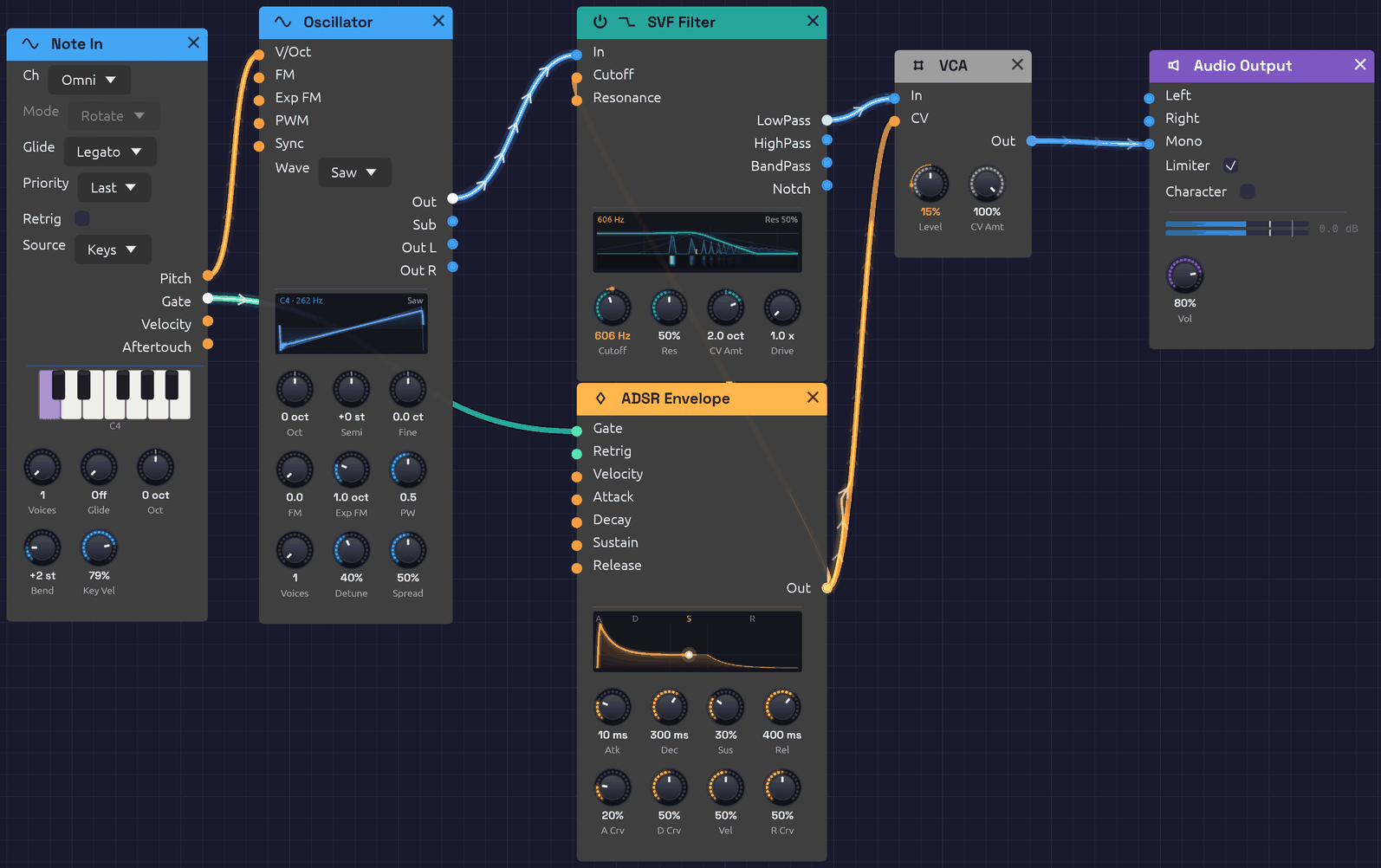 Where you'll end up.
Before you start: First Sound
When Soba opens, it loads the First Sound example: a Note In, an Oscillator, an ADSR Envelope and a VCA, already patched to the Audio Output. Press ▶ Play in the toolbar and play the Z to M keys on your computer keyboard. That patch is a smaller version of the one you're about to build, so it's worth a minute of listening first.
To start from scratch, click 📄 New (Ctrl + N). The canvas empties; the status bar says Right-click to add nodes. Make sure ▶ Play is still on (the button reads ⏹ Stop while the patch plays).
Step 1: An oscillator you can hear
Every patch needs a sound source and a way out.
- Right-click empty canvas and choose Source › Oscillator.
- Right-click to the right of it and choose Output › Audio Output.
- Drag from the Oscillator's Out jack (right edge, blue) to the Audio Output's Mono jack. Mono sends the signal to both speakers.
You should hear a steady tone. The Oscillator starts on a sine wave at C4 (261.63 Hz), and its display draws the wave.
If you hear nothing, check that the patch is playing, that the toolbar's Output menu names the device you're listening on, and that the Audio Output's Vol knob isn't at zero.
Now change the Oscillator's Wave menu from Sine to Saw. The tone turns bright and buzzy: a sawtooth contains every harmonic, which gives the filter in Step 5 plenty to work with.
Tip: You can also add modules by pressing
Spaceover the canvas and typing a few letters, such asoscorout, thenEnter.
Step 2: Play it from the keyboard
A tone that never changes isn't much of an instrument.
- Add a Source › Note In to the left of the Oscillator.
- Patch Note In's Pitch output into the Oscillator's V/Oct input.
Play the bottom row of your computer keyboard: Z is C, X is D, and so on up to M for B, with the sharps on S, D, G, H and J. Note In's piano lights up the notes you hold, and the Oscillator follows.
Pitch is an orange control cable carrying volts per octave: each step of 1.0 is one octave, so the Oscillator stays in tune at every note. But the tone still never stops. For that, you need to shape each note.
Step 3: A VCA to control the level
A VCA (voltage-controlled amplifier) sets the level of whatever passes through it, under the control of another signal.
- Add a Utility › VCA between the Oscillator and the Audio Output.
- Patch the Oscillator's Out into the VCA's In.
- Patch the VCA's Out into the Audio Output's Mono. This replaces the cable that was there, because each input takes one cable.
Nothing changes yet: with nothing patched into its CV input, the VCA lets the sound through at full level. The next step gives it something to listen to.
Step 4: An envelope to shape each note
An envelope draws a shape every time a note is played: it rises when the key goes down and falls when the key comes up.
- Add a Modulation › ADSR Envelope below the VCA.
- Patch Note In's Gate output into the envelope's Gate input. Gate is green: it's on while a key is held and off when it's released.
- Patch the envelope's Out into the VCA's CV input.
Now each key plays a note that starts and stops. The envelope runs through four stages, each with a knob:
- Atk (attack): how long the note takes to reach full level. The default is 10 ms.
- Dec (decay): how long it then takes to fall to the sustain level.
- Sus (sustain): the level held for as long as the key is down.
- Rel (release): how long the note takes to fade after you let go.
Try a pluck: turn Sus all the way down and Dec to about 300 ms, so each note dies away even while you hold the key. Then try a swell: Atk around 1 s, Sus up, Rel around 2 s. The display on the envelope draws each shape as you turn the knobs.
Step 5: A filter to color the tone
A filter removes part of a sound's spectrum. A lowpass filter lets the low frequencies through and cuts the high ones, darkening the tone. This is the heart of subtractive synthesis: start with a bright waveform, then carve it.
- Add a Filter › SVF Filter between the Oscillator and the VCA.
- Patch the filter's LowPass output into the VCA's In, replacing the cable from the Oscillator.
- Patch the Oscillator's Out into the filter's In.
Play a few notes and turn the filter's knobs:
- Cutoff sets where the filter starts cutting. Turn it down and the saw goes dark and muffled; turn it up and the brightness returns. The display draws the filter's response as you turn it.
- Res (resonance) adds a peak at the cutoff, giving the sound a vocal, nasal edge. The default is 0.5. Near the top of its range the filter starts to ring on its own.
Step 6: Let the envelope open the filter
Real instruments are brightest at the start of a note. You can do the same by letting the envelope move the filter's cutoff.
- Patch the envelope's Out into the filter's Cutoff input. One output can feed any number of inputs, so the envelope keeps driving the VCA too.
- Turn the Cutoff knob down to about 400 Hz.
Each note now opens the filter and closes it again as the envelope decays. The Cutoff knob stays live and sets where the sweep starts. CV Amt sets how far the envelope carries it: one octave at first. Turn CV Amt up to 3 and each note opens with a squelch. An orange arc on the Cutoff knob's rim shows each sweep, and the number under the knob turns orange to read where the envelope has taken the cutoff.
For a plucky, percussive bass, set Atk to its minimum, Dec to about 200 ms and Sus low. For a slow, brightening pad, lengthen Atk.
The finished patch
[Note In Pitch] ──> [Oscillator V/Oct]
[Note In Gate]  ──> [ADSR Envelope Gate]
[Oscillator Out] ──> [SVF Filter In]
[SVF Filter LowPass] ──> [VCA In]
[ADSR Envelope Out]  ──> [VCA CV]
[ADSR Envelope Out]  ──> [SVF Filter Cutoff]
[VCA Out] ──> [Audio Output Mono]
Save it with 💾 Save (Ctrl + S).
The signal path runs left to right: the oscillator makes the tone, the filter colors it, and the VCA shapes its level. The keyboard and envelope sit off to the side, controlling the others. Nearly every subtractive synthesizer, hardware or software, is built this way.
What you've learned
- Modules are added from the right-click menu or with
Space, and connected by dragging from an output to an input. - Audio (blue) is the sound itself; control (orange) moves things, like pitch and cutoff; gates (green) say when a note is on.
- An envelope through a VCA turns a constant tone into notes.
- One output can drive several inputs, and a cable into a knob's jack moves that knob.
Things to try
- Use separate envelopes. Add a second ADSR Envelope for the filter, also gated by Note In, so brightness and loudness can have different shapes.
- Add velocity. Patch Note In's Velocity into the envelope's Velocity input, then lower its Key Vel knob for quieter notes.
- Add movement. Patch a Modulation › LFO into the filter's Cutoff for a slow sweep. Its Out swings the cutoff CV Amt octaves either way.
- Add space. Put an Effect › Reverb between the VCA and the Audio Output: VCA Out into Reverb In L, then the Reverb's Out L and Out R into the output's Left and Right.
- Watch it. Patch the VCA's Out into a Utility › Oscilloscope as well as the output to see the envelope shape the wave.
Next
- Signal Types explains what each cable color carries and what can connect to what.
- Basic Subtractive Synth takes this patch further, with separate envelopes for brightness and volume. It's in 📚 Examples too.
- The module reference has a page for every module.